
導入
This manual provides detailed instructions for the safe and efficient operation of your CAIWEI X99+ 4K Smart Projector. Please read this manual thoroughly before using the projector and retain it for future reference.
安全情報
安全な操作を確保し、損傷を防ぐために、次の注意事項を守ってください。
- Do not place the projector in boxes or cabinets with poor ventilation properties. Ensure adequate airflow around the device to prevent overheating.
- Avoid direct exposure of the projector lens to sunlight.
- 通気口を塞がないでください。
- プロジェクターに付属の電源アダプターのみを使用してください。
- プロジェクターを水やその他の液体から遠ざけてください。
- プロジェクターをご自身で分解したり修理したりしないでください。資格のあるサービス担当者にご相談ください。
パッケージ内容
パッケージにすべてのアイテムが揃っていることを確認します。
- CAIWEI X99+ Smart Projector
- リモートコントロール
- HDMIケーブル
- Power Cable (UK-plug)
- AVケーブル
- プロジェクターバッグ
- ユーザーマニュアル(このドキュメント)
製品終了view
The CAIWEI X99+ is a smart projector designed for versatile entertainment and presentation needs. It features a native 1080P resolution with 4K support, 800 ANSI lumens brightness, and an integrated Android 9.0 operating system.

Figure 1: CAIWEI X99+ Smart Projector front view、ショーasinコンパクトなデザインと主な機能について説明します。
主な特徴:
- ディスプレイ技術: Native 1920x1080P resolution, 4K support, 800 ANSI lumens, 15500:1 contrast ratio.
- スマートOS: Android 9.0 with access to over 6000 authorized apps (Netflix, YouTube, Prime Video, etc.).
- メモリ: 2GB RAM + 16GB ROM。
- ワイヤレス接続: Dual 2.4G/5G WiFi, Airplay/DLNA/Miracast support, Bluetooth 5.0.
- オーディオ: Integrated 10W high-power stereo speakers, Dolby Audio support, 3.5mm audio output.
- 画像の強化: HDR10 processing, MEMC technology for smoother motion.
- 調整: 4D and ±50° vertical/horizontal electronic keystone correction, 40% digital image zoom.
- 耐久性: Fully sealed optical engine for dust protection and extended lifespan.

Figure 2: Visual representation of the projector's color accuracy, brightness, and image quality in various lighting conditions.
設定
1.配置
Position the projector on a stable, flat surface or mount it to the ceiling using the four screw holes. Ensure the projector is placed at an appropriate distance from the projection surface to achieve the desired screen size. Maintain adequate ventilation around the unit.
2. 電源接続
- 電源ケーブルをプロジェクターの電源入力ポートに接続します。
- 電源ケーブルのもう一方の端を適切な電源コンセントに差し込みます。
- プロジェクタまたはリモコンの電源ボタンを押して、デバイスの電源をオンにします。
3. 初期フォーカスとキーストーン調整
Upon initial power-on, the projected image may appear blurry or distorted. Adjust these settings for optimal clarity:
- 集中: 画像が鮮明になるまでプロジェクター レンズのフォーカス リングを回転させます。
- キーストーン補正: Use the remote control to access the keystone correction settings. The projector supports 4D keystone correction and ±50° vertical/horizontal electronic correction to square the image if the projector is not perfectly perpendicular to the screen.
- デジタルズーム: Adjust the image size without moving the projector using the digital zoom function (40% zoom out/in).
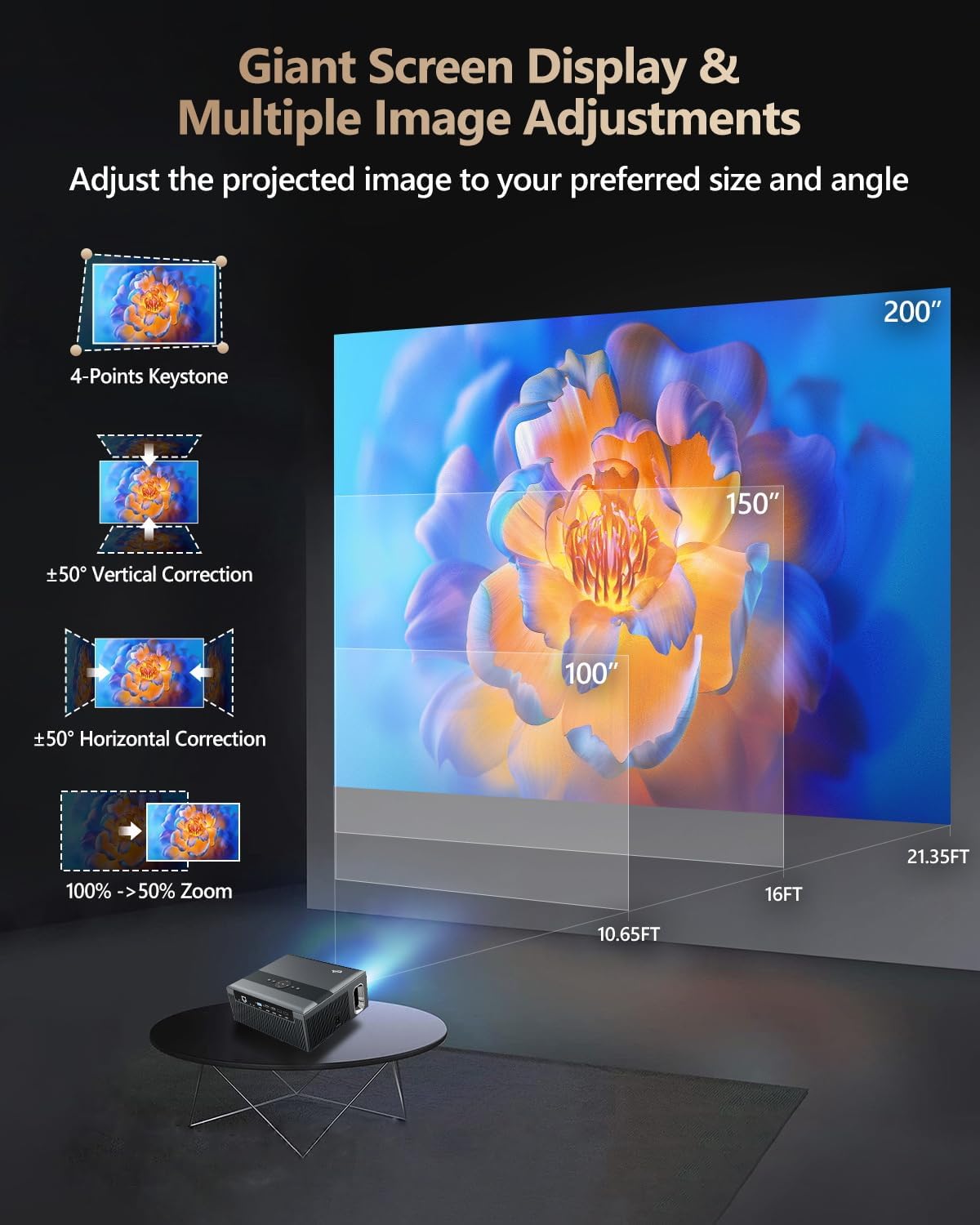
Figure 3: Image adjustment options including keystone correction and digital zoom.
4. ネットワーク接続
Connect the projector to the internet for access to streaming apps and online content.
- Wi-Fi: Navigate to the network settings in the Android OS. Select your desired 2.4G or 5G Wi-Fi network and enter the password.
- LAN(イーサネット): Connect an Ethernet cable from your router to the RJ45 port on the projector for a wired internet connection.
5.Bluetoothペアリング
Pair Bluetooth devices such as external speakers, headphones, mice, keyboards, or gamepads.
- Bluetooth デバイスがペアリング モードになっていることを確認します。
- On the projector, go to Bluetooth settings within the Android OS.
- Select the desired device from the list and confirm pairing.

Figure 4: Wireless connectivity for streaming and audio.
操作手順
1. Android TV OS Navigation
Use the remote control to navigate the Android 9.0 interface. The home screen provides access to installed applications, settings, and input sources.

Figure 5: Android TV 9.0 interface with pre-installed and accessible applications.
2. アプリのインストールと使用
The projector comes with pre-installed apps like Netflix, YouTube, and Prime Video. You can download additional authorized applications from the app store within the Android OS.
- Select an app icon from the home screen to launch it.
- Follow on-screen prompts for login or content selection.
3. Screen Mirroring (Airplay/DLNA/Miracast)
Synchronize your smartphone, tablet, or laptop screen wirelessly to the projector.
- デバイスとプロジェクターが同じ Wi-Fi ネットワークに接続されていることを確認します。
- Select the appropriate mirroring function (Airplay for iOS, Miracast for Android/Windows, DLNA for compatible devices) on the projector's interface.
- Initiate screen mirroring from your source device.
4. 外部機器の接続
The projector offers multiple ports for connecting various external devices.

Figure 6: Available input and output ports for external devices.
- HDMI: Connect Blu-ray/DVD players, TV sticks, game consoles (PS5), PCs, or laptops using an HDMI cable. Select the corresponding HDMI input from the projector's source menu.
- USB: Insert USB flash drives or hard drives into the USB ports to play media file直接。
- VGA: VGA ケーブルを使用して古い PC またはラップトップを接続します。
- AV: Use the AV cable to connect devices with composite video and stereo audio outputs.
5。 音声出力
The projector features built-in 10W stereo speakers. For alternative audio experiences:
- ブルートゥース: Pair with external Bluetooth speakers or headphones as described in the Setup section.
- 3.5mm オーディオ出力: 3.5mm オーディオ ケーブルを使用して有線ヘッドフォンまたは外部スピーカーを接続します。

Figure 7: Projector's integrated audio system.
メンテナンス
1. 清掃
- レンズ: 光学レンズ専用の柔らかく糸くずの出ない布を使用してください。研磨剤入りのクリーナーは使用しないでください。
- 外観: プロジェクターの外側は、柔らかく乾いた布で拭いてください。頑固な汚れには、軽く拭いてください。amp布を水で濡らします。
- 換気口: 通気口を定期的に点検し、丁寧に清掃して、空気の流れが妨げられないようにしてください。
2. 防塵
The CAIWEI X99+ features a fully sealed optical engine and an air purifier filter, which significantly reduces dust accumulation and light decay, contributing to a longer service life.

Figure 8: Dust-proof design of the CAIWEI X99+ projector.
3. ストレージ
When not in use for extended periods, store the projector in a cool, dry place, preferably in its original packaging or the provided projector bag, to protect it from dust and physical damage.
トラブルシューティング
プロジェクターで問題が発生した場合は、次の一般的な問題と解決策を参照してください。
| 問題 | 考えられる原因 | 解決 |
|---|---|---|
| 画像が表示されないか、「信号なし」というメッセージが表示される | 間違った入力ソースが選択されています。ケーブルの接続が緩んでいます。デバイスの電源がオンになっていません。 |
|
| ぼやけた画像 | フォーカスが調整されていません。キーストーン補正が必要です。 |
|
| 音が出ない | Volume too low; incorrect audio output selected; external device audio issue. |
|
| Wi-Fi接続の問題 | パスワードが間違っています、範囲外です、ルーターに問題があります。 |
|
| リモコンが動作しない | 電池切れ、障害物、ペアリングの問題。 |
|
仕様
| ブランド | カイウェイ |
| モデル | X99+ |
| ディスプレイ解像度 | ネイティブ 1920 x 1080 (4K をサポート) |
| 輝度 | 800 ANSI Lumens (12000 LED Lumens) |
| コントラスト比 | 15500:1 |
| オペレーティング·システム | アンドロイド9.0 |
| メモリ | 2GB RAM + 16GB ROM |
| 接続技術 | Bluetooth 5.0, Dual-band Wi-Fi (2.4G/5G), USB, HDMI, VGA, AV, LAN (RJ45) |
| 特集 | Built-In Wi-Fi, Portable, Wireless, HDR10, MEMC, Dolby Audio, Sealed Optical Engine, 4D Keystone Correction, Digital Zoom |
| オーディオ | 10W High Power Stereo Speakers, 3.5mm Audio Output |
| 製品寸法 | 10.55 x 9.25 x 4.92インチ |
| アイテム重量 | 7.48ポンド |
保証とサポート
For warranty information and technical support, please refer to the warranty card included with your product or visit the official CAIWEI webサイト。このマニュアルに記載されていない問題については、カスタマー サービスにお問い合わせください。
メーカー: カイウェイ
Webサイト: CAIWEI Official Store on Amazon