
1. はじめに
This manual provides detailed instructions for the setup, operation, and maintenance of your Logitech POP Mouse. The POP Mouse is a compact, wireless mouse designed for multi-device use with customizable features.

Image: The Logitech POP Mouse in Graphite, showcasinコンパクトで人間工学に基づいたデザイン。
2. パッケージ内容
- Logitech POP Wireless Mouse
- 1x AA Battery (pre-installed)
- ユーザードキュメント

Image: The Logitech POP Mouse and a single AA battery, representing the items included in the product package.
3. セットアップ手順
3.1. バッテリーの取り付け
- Gently remove the top cover of the mouse. The cover is magnetically attached.
- 付属の単三電池を正しい極性 (+/-) を確認して挿入します。
- 上部カバーを元に戻し、しっかりと固定されていることを確認します。
3.2.Bluetooth経由で接続する
- 底面にある電源スイッチを使用してマウスの電源をオンにします。
- Press and hold one of the Easy-Switch buttons (1, 2, or 3) on the bottom of the mouse until the LED indicator starts blinking rapidly. This indicates pairing mode.
- On your device (computer, tablet, or phone), open Bluetooth settings.
- 利用可能なデバイスのリストから「Logitech POP Mouse」を選択して、ペアリングプロセスを完了します。
- The LED indicator will glow solid for a few seconds, then turn off, confirming a successful connection.

Image: The underside of the POP Mouse, highlighting the Easy-Switch buttons for multi-device pairing.
4. 操作手順
4.1.基本機能
- 左クリック: 一次選択と相互作用。
- 右クリック: コンテキスト メニューにアクセスします。
- スクロールホイール: ドキュメントを縦方向にナビゲートし、 web ページ。
4.2. SilentTouch Technology
The POP Mouse features SilentTouch Technology, which significantly reduces click noise, providing a quieter user experience without compromising tactile feedback.

Image: A hand operating the POP Mouse, illustrating the quiet operation provided by SilentTouch Technology.
4.3. SmartWheel Scrolling
SmartWheel は次の 2 つのモードを自動的に切り替えます。
- 精密モード: For detailed, line-by-line navigation.
- Speed Scroll Mode: For rapid scrolling through long documents or web ページ。

Image: A user's hand demonstrating the use of the SmartWheel for efficient navigation.
5. カスタマイズ
5.1. Customizable Top Button (Emoji Button)
The top button, located below the scroll wheel, is customizable. By default, it can be configured to open an emoji menu or assign other shortcuts.
- Download and install the Logitech Options+ Software from the official Logitech web地点 (ロジクール.com/optionsplus).
- Open the Logitech Options+ Software.
- Select your POP Mouse from the detected devices.
- Navigate to the button customization settings.
- Assign your desired function to the top button, such as an emoji shortcut, Snip Screen, Mic Mute, or Voice-to-Text.
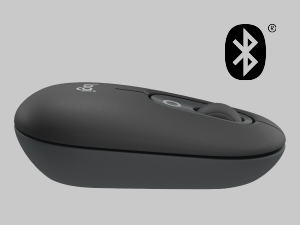
Image: A visual representation of the customizable top button on the POP Mouse, showing its function to access an emoji menu on a connected computer.
6. マルチデバイス接続
The Logitech POP Mouse can connect to up to three different devices simultaneously using Bluetooth. You can easily switch between these devices.
6.1. デバイスの切り替え
To switch between paired devices, press the Easy-Switch button (1, 2, or 3) on the bottom of the mouse corresponding to the desired device. The LED indicator will briefly light up to confirm the selected channel.
6.2. Logitech FLOW (Advanced Feature)
For seamless control across multiple computers, install Logitech Options+ Software on all devices. With Logitech FLOW enabled, you can move your mouse cursor across screens as if they were a single desktop, even copying and pasting text, images, and fileそれらの間にあります。
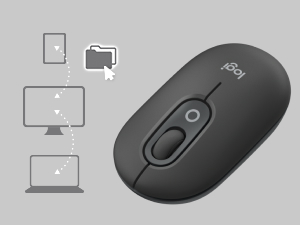
Image: A diagram showing how the POP Mouse can control multiple devices, illustrating the FLOW feature for cross-device interaction.
7. メンテナンス
7.1. バッテリーの交換
The POP Mouse operates on a single AA battery with an estimated life of up to 24 months. When the battery is low, the LED indicator on the bottom of the mouse may flash. Replace the battery by following the steps in Section 3.1.
7.2. 清掃
マウスを掃除するには、柔らかく糸くずの出ない布を使用してください。頑固な汚れには、軽くamp布に水を含ませてください。刺激の強い化学薬品や研磨剤の使用は避けてください。
8。 トラブルシューティング
| 問題 | 解決 |
|---|---|
| マウスがオンになりません。 | Ensure the power switch on the bottom of the mouse is in the 'ON' position. Check and replace the AA battery if necessary. |
| マウスが Bluetooth 経由で接続されません。 |
|
| カーソルの動きが不安定、または反応しない。 |
|
| Custom button not working. | Ensure Logitech Options+ Software is installed and running on your computer, and the button is correctly configured. |
9. 仕様
| 特徴 | 詳細 |
|---|---|
| モデル番号 | 910-007165 |
| 接続性 | ブルートゥース5.1 |
| ワイヤレス範囲 | 最大10メートル(32.81フィート) |
| センサー技術 | Logitech High Precision Optical Tracking |
| ボタンの数 | 4 (Left/Right click, Scroll wheel click, Top customizable button) |
| 電池のタイプ | 単三電池1本 |
| バッテリー寿命 | 最大24か月(使用状況によって異なる場合があります) |
| 寸法(長さx幅x高さ) | 14.12 x 2.34 x 1.38 インチ (35.86 x 5.94 x 3.51 cm) |
| 重さ | 2.89オンス(電池込み82g) |
| オペレーティングシステムの互換性 | Windows 10以降、macOS 10.15以降、iPadOS、Chrome OS、Android |

Image: Technical drawing displaying the length, width, and height measurements of the Logitech POP Mouse.
10. 保証とサポート
保証情報およびテクニカルサポートについては、ロジクールの公式サポートをご覧ください。 website or refer to the user documentation included in your product package.
- オンラインサポート: support.logi.com
- 製品登録: Registering your product can help you receive faster support and updates.