
1. はじめに
This manual provides instructions for the proper setup, operation, and maintenance of your Tera 3106-2 1D USB Wired Barcode Scanner. Please read this manual thoroughly before using the device to ensure optimal performance and longevity.
2.製品オーバーview
The Tera 3106-2 is a high-speed, accurate 1D barcode scanner designed for various applications including retail, small businesses, libraries, and warehouses. It features a plug-and-play USB connection and supports multiple customization options.

図2.1: The Tera 3106-2 scanner is designed to be eye-safe, operating without a visible laser.
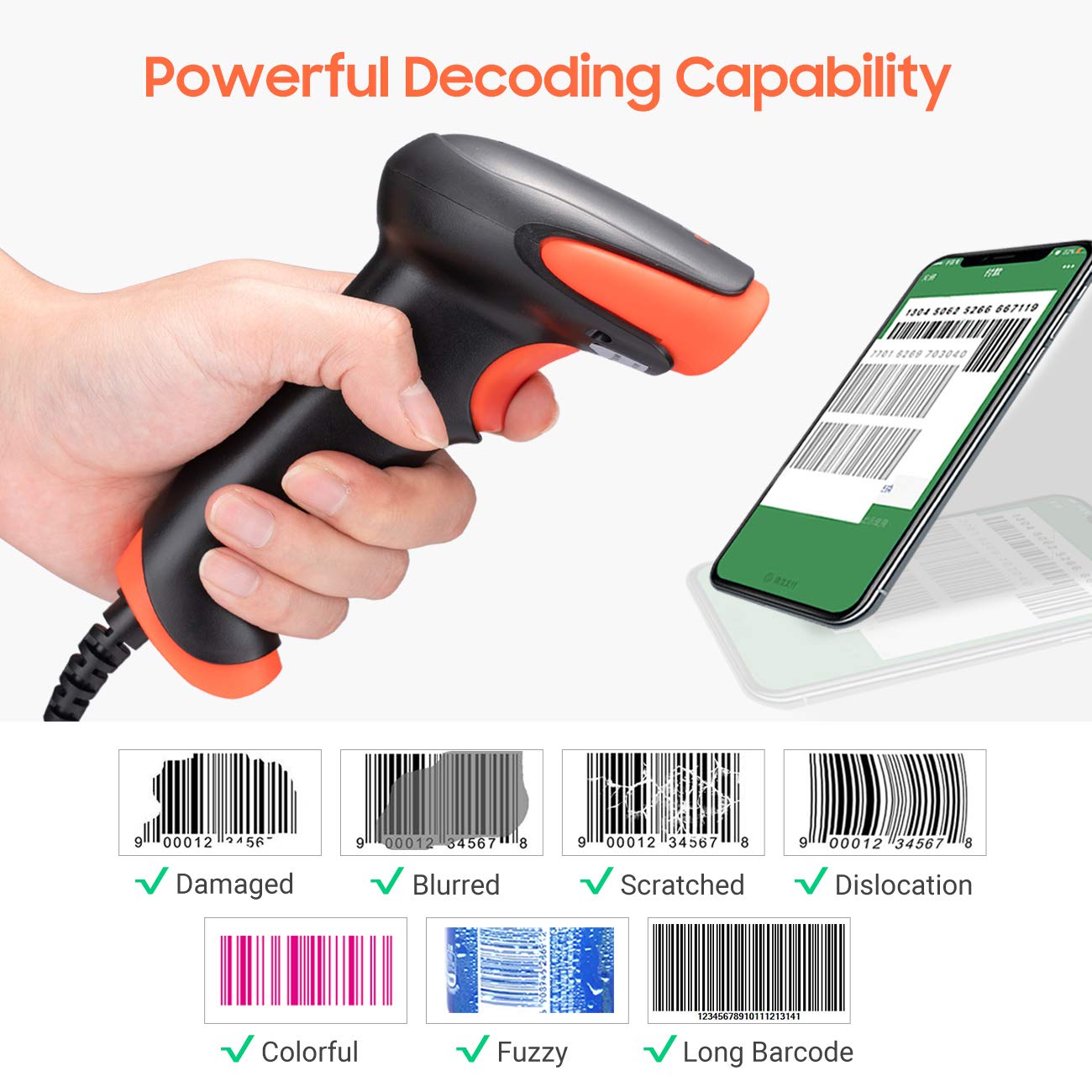
図2.2: The scanner offers powerful decoding capabilities, accurately reading damaged, blurred, scratched, dislocated, colorful, fuzzy, and long 1D barcodes.
3. パッケージ内容
- Tera 3106-2 Barcode Scanner x1
- ユーザーマニュアル x1
4. セットアップ
The Tera 3106-2 barcode scanner is designed for simple plug-and-play operation. No additional drivers or software installation is required for most systems.
- USB ケーブルを接続します。 Plug the USB cable of the scanner into an available USB 2.0 port on your computer (desktop or laptop).
- システム認識: Your operating system (Windows, Linux, macOS, iOS, Android) will automatically detect and install the necessary device drivers. This process may take a few moments.
- 使用する準備ができて: Once the system indicates that the device is ready, the scanner can be used with applications such as Word, Excel, Novell, or other common software that accepts keyboard input.

図4.1: The scanner is compatible with various devices and operating systems, including Windows, Linux, macOS, iOS, and Android.
5. 操作手順
5.1 基本的なスキャン
To scan a barcode, aim the scanner's light beam at the center of the barcode. A successful scan will typically be indicated by an audible beep and/or a visual confirmation (e.g., LED indicator). The decoded data will appear in the active input field on your connected device.
5.2 スキャンモード
スキャナーは主に 2 つのスキャン モードをサポートしています。
- 手動スキャン: トリガーボタンを押してスキャンを開始します。これがデフォルトモードです。
- Auto Continuous Scanning: The scanner continuously emits a scan beam, automatically reading barcodes presented to it without needing to press the trigger.
To switch between these modes, refer to the configuration barcodes provided in the supplementary user guide or quick start sheet that came with your scanner. Scan the appropriate barcode to change the mode.
6. カスタマイズオプション
The Tera 3106-2 scanner offers various customization settings to adapt to your specific needs. These settings are typically configured by scanning special barcodes found in the included user guide.
- 接頭辞/接尾辞: スキャンしたデータの前または後にカスタム文字を追加します。
- 音量: スキャン確認音の音量を調整します。
- ターミネーター: Configure the character sent after the barcode data (e.g., Carriage Return, Tab).
- Upper/Lower Case: Convert scanned data to all uppercase or all lowercase.
- キーボード言語: Select the appropriate keyboard layout for your region. Supported languages include English, Spanish, German, French, Italian, Japanese, and more.
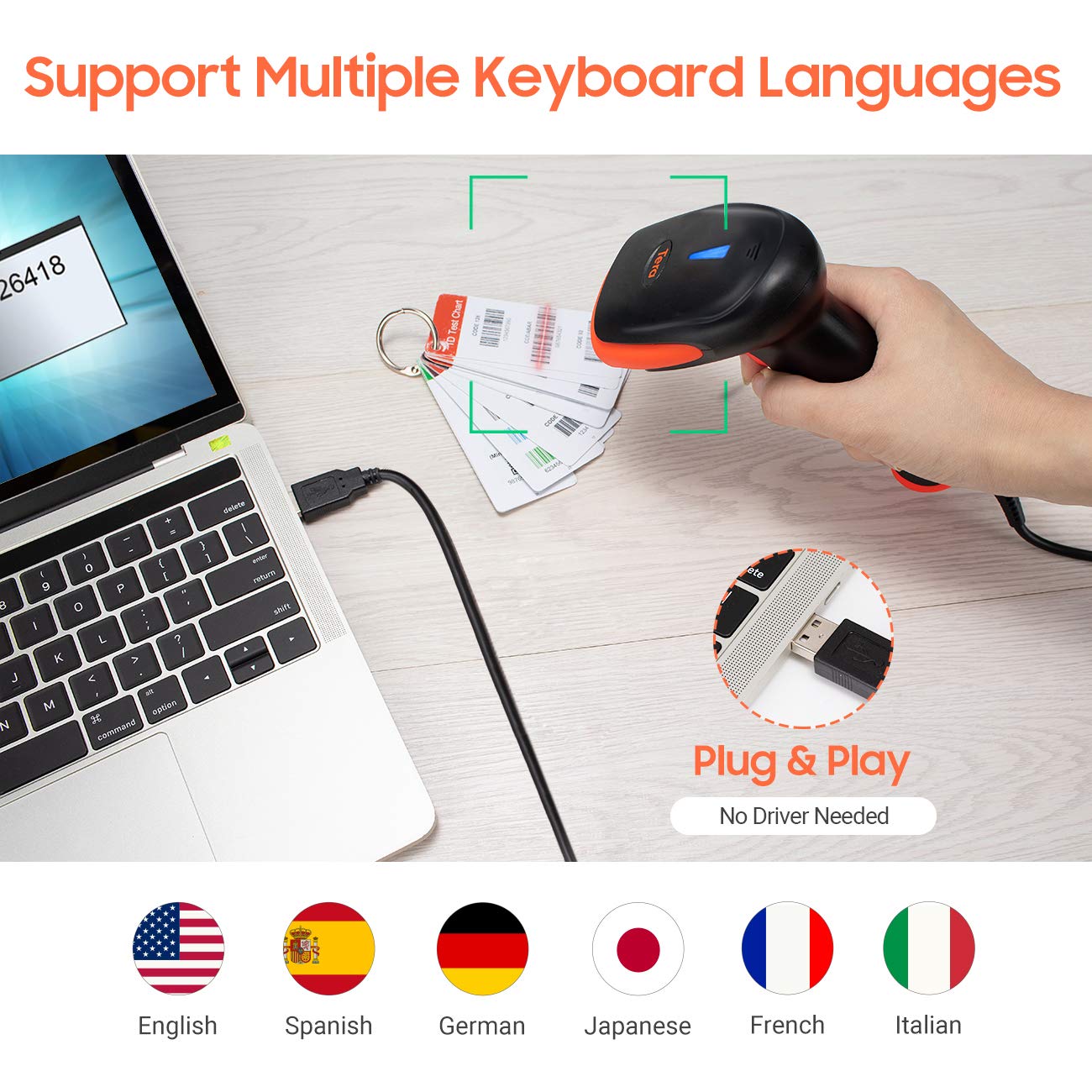
図6.1: The scanner supports multiple keyboard languages for diverse international use.

図6.2: Customize barcode output by adding prefixes, suffixes, or hiding specific digits.
7. サポートされているバーコード
This scanner is compatible with a wide range of 1D barcode symbologies, including but not limited to:
- UPC&EAN (UPC-A, UPC-E, EAN-8, EAN-13)
- コード39、コード32、コード93、コード11、コード128、UCC-EAN128
- ISSN, ISBN
- CODABAR, MSI
- Interleaved 2 of 5, Matrix 2 of 5, Industrial 2 of 5
- さらにもっと。
The scanner also supports reading 1D barcodes directly from digital screens.
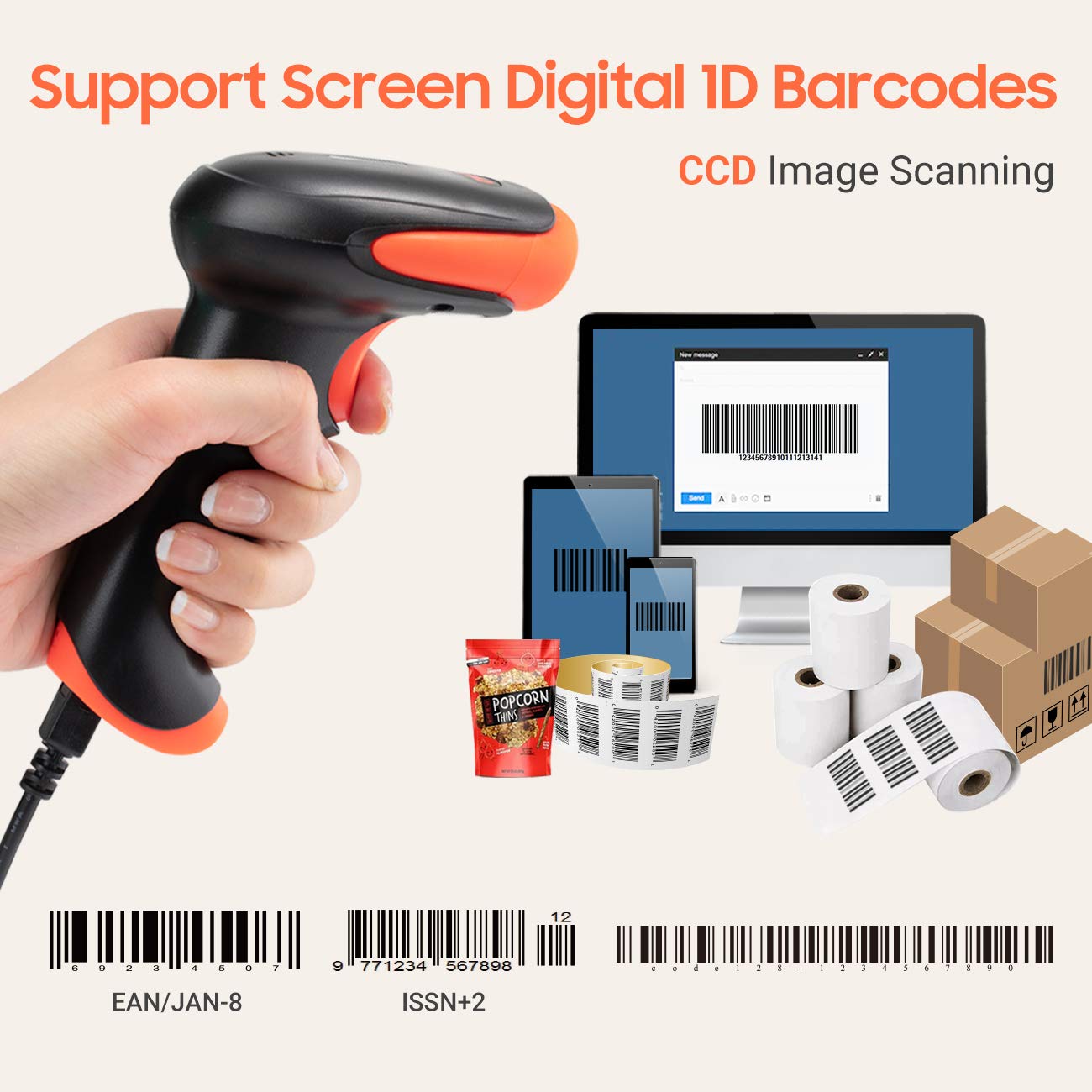
図7.1: The scanner supports reading 1D barcodes from various sources, including digital screens and printed labels.
8. メンテナンス
- クリーニング: スキャナの外側は、柔らかく乾いた布で拭いてください。スキャナの窓は、柔らかく糸くずの出ない布で軽く拭いてください。amp水または中性洗剤(研磨剤を含まない)で洗ってください。刺激の強い化学薬品は使用しないでください。
- ストレージ: スキャナーは、直射日光や極端な温度を避け、涼しく乾燥した場所に保管してください。
- 取り扱い: Avoid dropping the scanner or subjecting it to strong impacts. Do not attempt to disassemble the device.
9。 トラブルシューティング
| 問題 | 考えられる原因 | 解決 |
|---|---|---|
| スキャナーの電源が入らない、または応答しません。 | USB ケーブルが正しく接続されていないか、USB ポートに障害があります。 | USBケーブルがスキャナーとコンピュータの両方にしっかりと接続されていることを確認してください。別のUSBポートを試してください。 |
| スキャナーがバーコードを遅く、または不正確に読み取ります。 | Barcode is damaged, blurred, or poorly printed. Insufficient lighting. Scanner window is dirty. | Ensure the barcode is clear and well-lit. Clean the scanner window. Try scanning from a different angle or distance. |
| Scanner does not read barcodes from digital screens. | Screen brightness is too low or glare is present. | Increase screen brightness. Adjust the angle of the scanner to minimize glare. Ensure the barcode is fully displayed on the screen. |
| Scanned data appears incorrectly (e.g., wrong characters, missing digits). | Incorrect keyboard language setting. Prefix/suffix or other data formatting settings are active. | Verify the keyboard language setting matches your computer's keyboard layout. Review and adjust prefix/suffix or other data formatting settings using the configuration barcodes. |
| スキャナーはビープ音を鳴らしますが、データは送信されません。 | アプリケーションにフォーカスがないか、入力を受け付けません。 | Ensure the cursor is in the desired input field of your application. Test with a simple text editor like Notepad. |
10. 仕様
| 特徴 | 詳細 |
|---|---|
| モデル | 3106-2 |
| スキャンタイプ | 1D Laser (Eye Safe) |
| 接続性 | USB Wired (USB 2.0) |
| スキャン速度 | 1秒あたり最大300回のスキャン |
| エラー率 | 1 in 5 million scans |
| 対応デバイス | デスクトップ、ラップトップ |
| 互換性のあるシステム | Windows, Linux, macOS, iOS, Android |
| 電源 | コード式電気(USB経由) |
| 製品寸法(奥行き×幅×高さ) | 7.9 x 19.3 x 10.4 センチメートル |
| サポートされている1Dバーコード | UPC&EAN, UPC-A, UPC-E, Code 39, CODE32, Code 93, CODE11, Code 128, UCC-EAN128, EAN-8, EAN-13, ISSN, ISBN, CODABAR, MSI, Interleaved 2 of 5, Matrix 2 of 5, Industrial 2 of 5, etc. |
11. 保証とサポート
For warranty information, technical support, or service inquiries, please refer to the contact details provided with your purchase documentation or visit the official Tera webサイトでご確認ください。保証請求のために購入証明書を保管してください。