
1. はじめに
This manual provides essential information for the safe and effective use of your Meta Quest 3 512GB virtual reality headset. Please read these instructions thoroughly before operating the device. Retain this manual for future reference.

Image 1.1: The Meta Quest 3 headset with its accompanying Touch Plus controllers. The headset features a sleek, white design with multiple front-facing cameras for mixed reality capabilities. The controllers are ergonomically shaped for comfortable grip and precise interaction in virtual environments.
2. 安全情報
To prevent injury, discomfort, or property damage, ensure you read and follow all safety warnings and instructions provided with your Meta Quest 3 headset. Always be aware of your surroundings when using the device. Clear your play area of obstacles and ensure adequate space for movement. If you experience discomfort, discontinue use immediately.
3. 箱の中身
開梱時にすべてのコンポーネントが揃っていることを確認します。
- Meta Quest 3 Headset with adjustable pre-installed Standard Facial Interface
- 2 Touch Plus Controllers
- Wrist straps (for controllers)
- 単3電池(コントローラー用)
- 充電ケーブル
- 電源アダプター

画像3.1: オーバーview of the Meta Quest 3 headset and its two Touch Plus controllers. This image highlights the primary components included with the product, showcasing デザインと相対的なサイズ。
4. セットアップ
4.1 初期充電
Before first use, fully charge the Meta Quest 3 headset using the provided charging cable and power adapter. The charging port is located on the side of the headset. A full charge typically takes approximately 2.5 hours.
4.2 コントローラーバッテリーの取り付け
Insert the included AA batteries into each Touch Plus controller. The battery compartment is located on the handle of each controller. Ensure correct polarity.
4.3 ヘッドセットのフィットと調整
Place the headset on your head and adjust the straps for a secure yet comfortable fit. The top strap and side straps can be tightened or loosened. Adjust the interpupillary distance (IPD) using the wheel on the bottom of the headset to ensure clear vision. The facial interface can also be adjusted for optimal comfort and field of view.
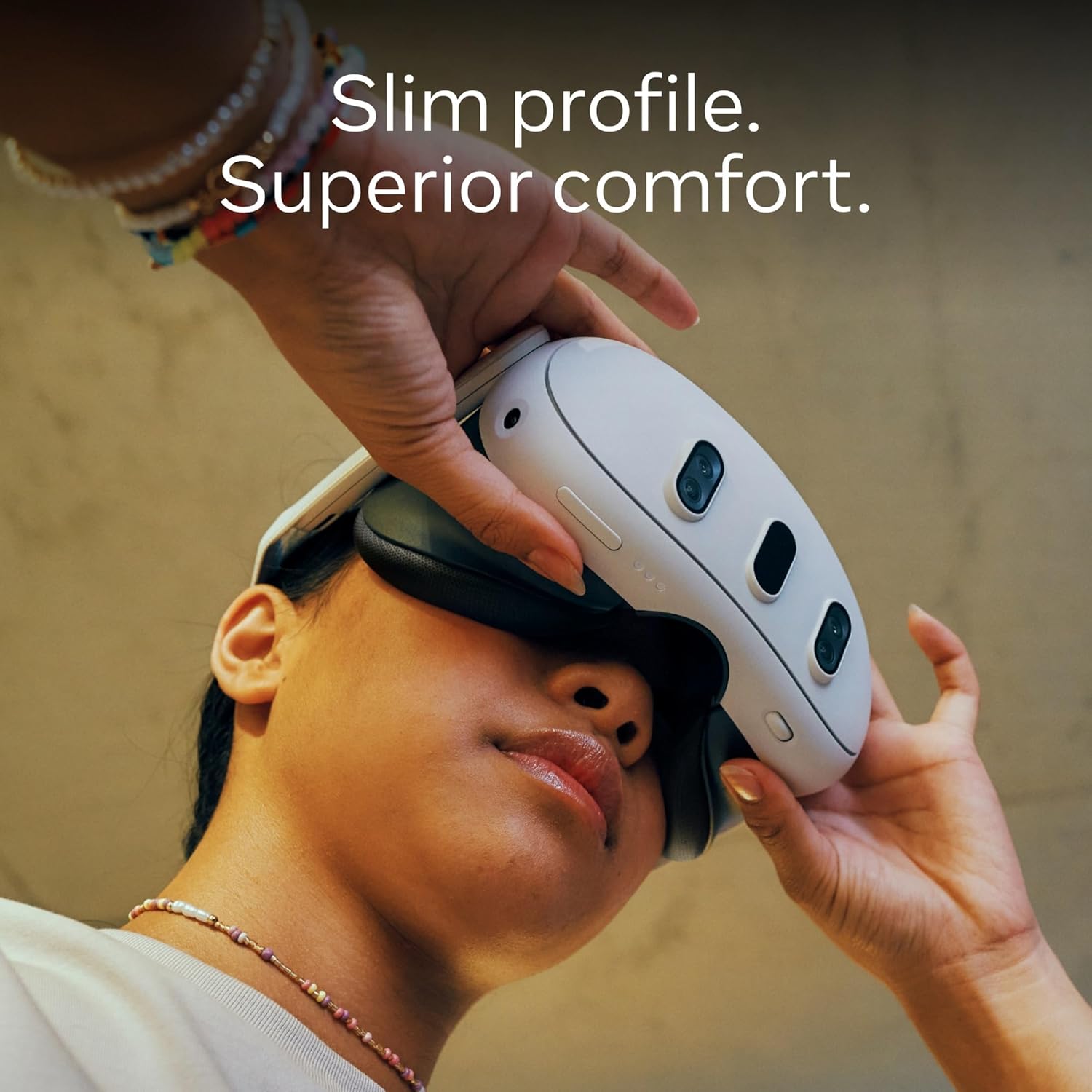
Image 4.1: A user adjusting the Meta Quest 3 headset, demonstrating its slim profile and how to achieve a comfortable fit. The design emphasizes reduced bulk for extended wear.
4.4 Software and Account Setup
Power on the headset. Follow the on-screen instructions to connect to Wi-Fi and log in with your Meta account. If you do not have a Meta account, you will be prompted to create one. Complete the initial tutorial, which includes setting up your Guardian boundary system to define your safe play area.
5.運用
5.1 基本的なナビゲーション
Navigate the Meta Quest 3 interface using either the Touch Plus controllers or hand tracking. Hand tracking allows you to interact with virtual objects using your bare hands, while controllers offer precise input for gaming and specific applications.
5.2 Mixed Reality Experiences
The Meta Quest 3 features full-color passthrough, allowing you to see your physical surroundings while digital content is overlaid. This enables mixed reality applications where virtual objects blend into your real-world environment. Activate passthrough by double-tapping the side of the headset or through the quick settings menu.

Image 5.1: A user engaged in a mixed reality experience with the Meta Quest 3, demonstrating how virtual elements can interact with the physical environment. The user is holding the Touch Plus controllers, indicating active gameplay.
5.3 Virtual Reality Experiences
For full immersion, the headset provides a wide field of view and high-resolution displays. Access the Meta Quest Store to download and launch virtual reality games and applications. Adjust in-game settings for optimal performance and comfort.
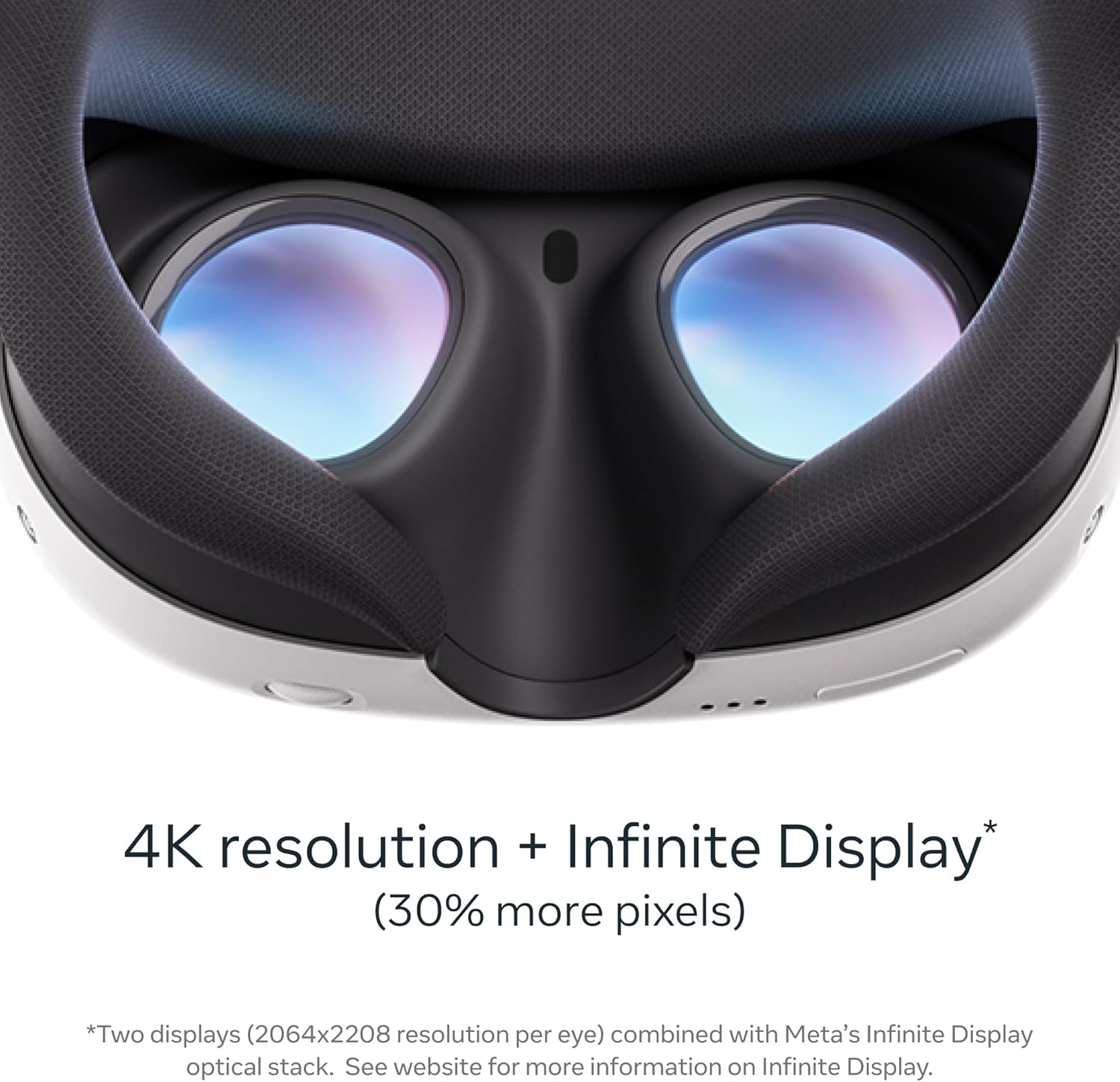
画像5.2: 詳細な view of the Meta Quest 3's internal lenses and facial interface. This close-up highlights the optical system designed for 4K resolution and an expansive field of view, contributing to immersive virtual experiences.
5.4 エンターテイメントと生産性
The Meta Quest 3 can be used for watching movies, browsing the web, and productivity tasks. Utilize the virtual screens to create a personal theater experience or a multi-monitor workspace.

Image 5.3: A user relaxing on a couch while watching content on a large virtual screen projected within the Meta Quest 3 headset. This illustrates the device's capability to create a personal cinematic experience anywhere.
5.5 バッテリー管理
The headset has an approximate battery life of 2-3 hours depending on usage. Monitor the battery level through the headset's interface. For extended sessions, consider using a compatible external power bank.
6. メンテナンス
6.1 Cleaning the Headset and Lenses
Use a dry microfiber cloth to gently clean the headset's exterior. For lenses, use a specialized lens cleaning cloth. Do not use liquid cleaners, alcohol, or abrasive materials, as these can damage the lenses and internal components. Avoid direct sunlight exposure to the lenses, as this can cause permanent screen damage.
6.2 コントローラーのケア
Wipe controllers with a dry or slightly damp cloth. Ensure battery compartments are dry before inserting new batteries. Avoid dropping controllers or exposing them to extreme temperatures.
6.3 ストレージ
Store the Meta Quest 3 in a cool, dry place away from direct sunlight. Use the original packaging or a dedicated carrying case to protect the device from dust and physical damage.
7。 トラブルシューティング
7.1 一般的な問題と解決策
- ヘッドセットの電源が入らない: Ensure the headset is fully charged. Try a different power outlet or charging cable.
- コントローラーがペアリングされない: Check controller batteries. Restart the headset and controllers. Re-pair controllers through the headset's settings menu.
- Blurry vision: Adjust the headset's fit and IPD (interpupillary distance) wheel. Clean the lenses.
- 追跡の問題: Ensure your play area has adequate lighting. Clear any reflective surfaces. Restart the Guardian system setup.
- Wi-Fi接続の問題: Restart your router and the headset. Ensure you are within range of your Wi-Fi network.
7.2 工場出荷時設定へのリセット
A factory reset will erase all data from your headset and restore it to its original settings. This can resolve persistent software issues. Consult the official Meta Quest support web工場出荷時設定へのリセットを実行する詳細な手順については、こちらのサイトをご覧ください。
8. 仕様
| 特徴 | 詳細 |
|---|---|
| モデル番号 | 899-00585-01 |
| ストレージ容量 | 512GB |
| ディスプレイ解像度 | 2064x2208 pixels per eye (4K+ Infinite Display) |
| プロセッサ | Qualcomm Snapdragon XR2 Gen 2 |
| 分野 View | 360度 |
| 接続性 | Bluetooth wifi |
| アイテム重量 | 14.1オンス |
| 製品寸法 | 4.72 x 4.72 x 4.72インチ |
| 含まれるコンポーネント | Headset, 2 Touch Plus Controllers, Wrist straps, AA Batteries, Charging cable, Power adapter |
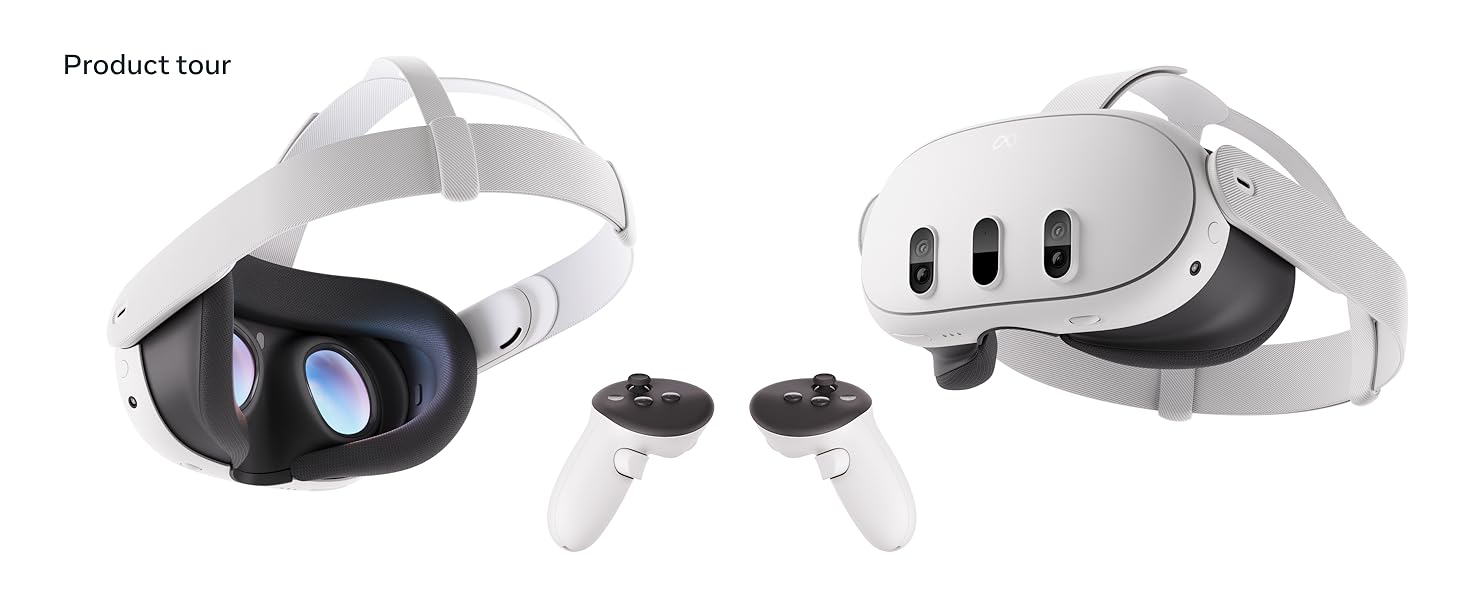
Image 8.1: A diagram illustrating key features of the Meta Quest 3, including its dual RGB cameras for full-color passthrough, 4K+ Infinite Display, powerful GPU, and TruTouch Haptics in the Touch Plus controllers.
9. 保証とサポート
9.1製品保証
Your Meta Quest 3 headset is covered by a limited warranty. Details regarding warranty coverage, terms, and conditions can be found on the official Meta Quest web保証書はサイト内または製品パッケージに記載されています。保証請求の際は購入証明書を保管してください。
9.2 カスタマーサポート
For further assistance, technical support, or to report issues, please visit the official Meta Quest support webサイト。 NS website provides FAQs, troubleshooting guides, and contact information for customer service representatives.
Official Meta Support: https://www.meta.com/quest/support/