
導入
This manual provides instructions for the setup, operation, maintenance, and troubleshooting of your AWOW AiBook 10 detachable 2-in-1 laptop. The AiBook 10 functions as both a tablet and a laptop, featuring a 10.1-inch touchscreen display and running Windows 11. It is equipped with an Intel Celeron N4120 processor, 8GB RAM, and 256GB SSD storage.
箱の中身
開梱したら、すべてのアイテムが揃っていることを確認してください。
- AWOW AiBook 10 Detachable 2-in-1 Laptop
- 取り外し可能なキーボード
- 電源アダプター(ACアダプター)
製品終了view
The AWOW AiBook 10 is designed for versatility, allowing seamless transition between tablet and laptop modes. Familiarize yourself with the device's components and ports.

Image: The AWOW AiBook 10 in laptop configuration, showcasing the main unit and attached keyboard.

画像: 詳細 view of the AiBook 10, highlighting its dimensions and port locations.
ポートとコネクタ:
- USB 3.0ポート: For connecting USB devices such as external storage, mice, or printers.
- マイクロHDMIポート: 外部ディスプレイやプロジェクターに接続します。
- TFカードスロット: microSD カード (最大 512GB) でストレージを拡張します。
- ヘッドホンジャック(3.5mm): ヘッドホンや外部スピーカーを接続します。
- DC 12V/3A Jack: 電源アダプターを接続してデバイスを充電します。
カメラ:
- フロントカメラ: 2.0MP、ビデオ通話に適しています。
- リアカメラ: 5.0MP、写真やビデオを撮影できます。

Image: Illustration of the 2MP front camera and 5MP rear camera on the AiBook 10.
設定
1. 初期充電
Before first use, fully charge the AiBook 10. Connect the provided power adapter to the DC 12V/3A jack on the device and plug it into a power outlet. The charging indicator will illuminate.
2. キーボードの取り付け
Align the magnetic connector of the detachable keyboard with the corresponding port at the bottom edge of the tablet. The keyboard will snap into place magnetically.

Image: The detachable keyboard being connected to the AiBook 10 tablet.
3. 電源オン
Press and hold the power button located on the side of the tablet until the screen illuminates. The device will boot into Windows 11.
4. Windowsの初期セットアップ
Follow the on-screen prompts to complete the Windows 11 setup process. This includes selecting your language, region, connecting to a Wi-Fi network, and creating a user account.
オペレーティング
Switching Between Tablet and Laptop Modes
The AiBook 10 automatically detects the presence of the detachable keyboard. When the keyboard is attached, it functions as a laptop. When detached, it operates as a tablet, and Windows 11 will adjust its interface accordingly.
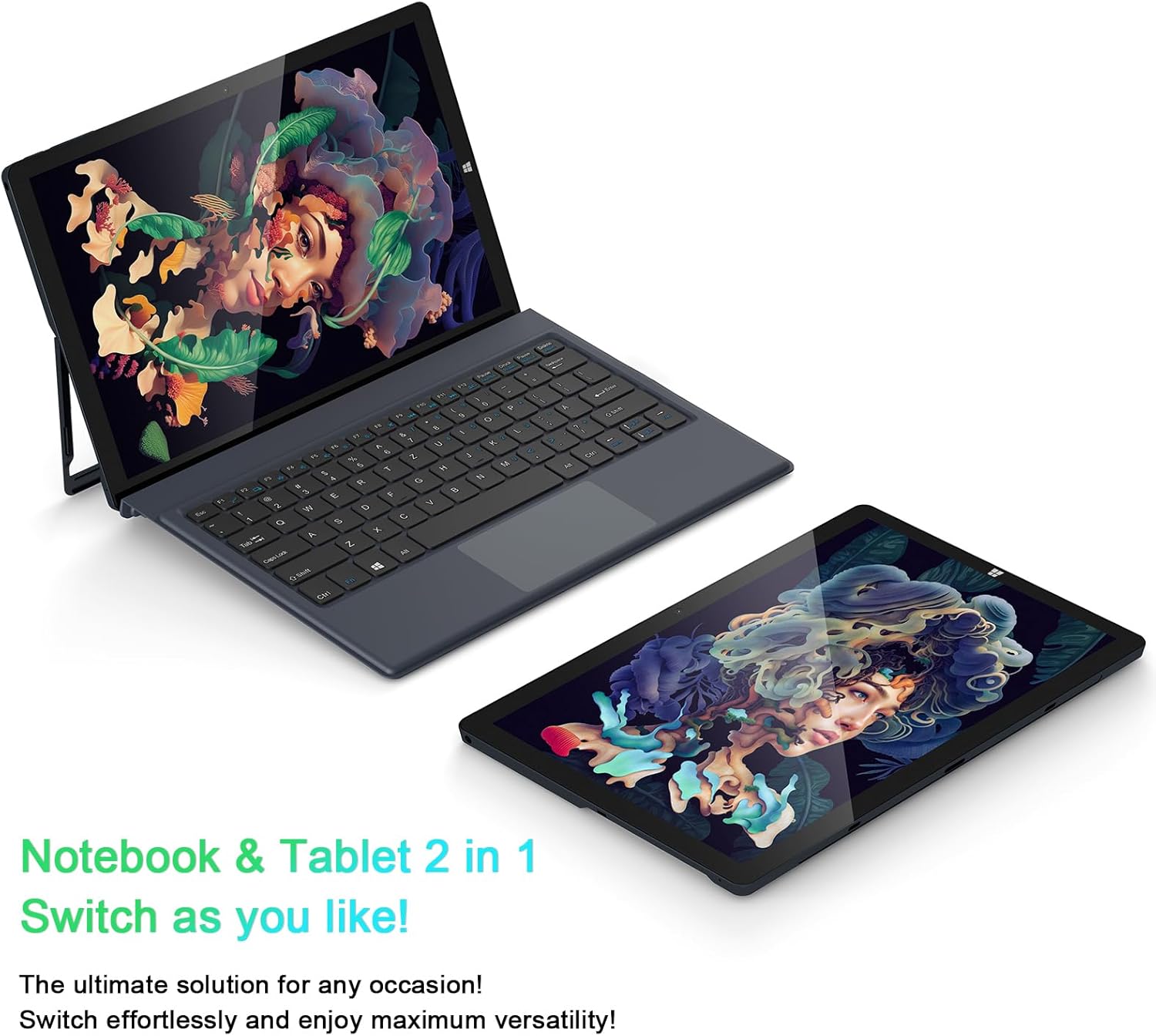
Image: The AiBook 10 displayed in both its laptop and tablet configurations.
タッチスクリーンの使用
The 10.1-inch IPS display supports multi-touch gestures. Use your fingers to navigate, tap, swipe, and pinch-to-zoom.
周辺機器の接続
- ブルートゥース: Enable Bluetooth in Windows settings to pair with compatible devices such as headphones, mice, or keyboards. The device supports Bluetooth 4.2.
- USB デバイス: Plug USB devices into the USB 3.0 port.
- 外部ディスプレイ: Connect an external monitor using the Micro HDMI port. An appropriate adapter or cable may be required.
スタンドの調整
The integrated stand bracket allows you to adjust the viewing angle of the tablet up to 145 degrees. Carefully extend the stand from the back of the tablet to your desired position.
メンテナンス
デバイスのクリーニング
画面と外装の表面を拭く際は、柔らかく糸くずの出ない布を使用してください。頑固な汚れには、軽く拭き取ってください。amp布に水または画面洗浄液を含ませて拭いてください。刺激の強い化学薬品や研磨剤は使用しないでください。
バッテリーケア
To prolong battery life, avoid fully discharging the battery frequently. Store the device in a cool, dry place when not in use for extended periods. The device features a 6500mAh Lithium Polymer battery.

画像: 6500mAh のバッテリー容量の視覚的表現。
ソフトウェアアップデート
Regularly check for and install Windows updates to ensure optimal performance and security. Access Windows Update through the Settings menu.
トラブルシューティング
This section addresses common issues you might encounter with your AiBook 10.
デバイスの電源が入らない
- デバイスが充電されていることを確認してください。電源アダプターを接続し、数分待ってから再度電源を入れてください。
- 電源ボタンを 10 ~ 15 秒間押し続け、ハードリセットを実行します。
Screen Flickering or Display Issues
- デバイスを再起動します。
- Check for updated display drivers through Windows Update or the device manufacturer's webサイト。
- If connected to an external display, ensure the cable is securely connected.
Keyboard or Touchpad Not Responding
- Ensure the detachable keyboard is securely attached to the tablet.
- デバイスを再起動します。
- Check Windows settings for keyboard and touchpad functionality.
Wi-Fi or Bluetooth Connectivity Problems
- Windows 設定で Wi-Fi または Bluetooth が有効になっていることを確認します。
- Wi-Fi の問題の場合は、ルーター/モデムを再起動してください。
- Bluetooth の場合、デバイスのペアリングを解除してから再度ペアリングしてみてください。
- 更新されたネットワーク ドライバーを確認します。
パフォーマンスが遅い
- バックグラウンドで実行されている不要なアプリケーションを閉じます。
- SSD に十分な空きストレージ容量があることを確認します。
- Run a disk cleanup and optimize drives in Windows.
- 保留中の Windows 更新プログラムを確認してインストールします。
仕様
| ブランド | すごい |
| モデル名 | AiBook 10 |
| 画面サイズ | 10.1インチ |
| ディスプレイ解像度 | 1280 x 800ピクセル(フルHD IPS) |
| オペレーティング·システム | ウィンドウズ11 |
| CPUモデル | インテル Celeron N4120 (最大 2.6 GHz) |
| RAMメモリ | 8GB LPDDR4 |
| ハードディスクサイズ | 256GB SSD (eMMC) |
| グラフィックカード | 統合型インテル UHD グラフィックス 600 |
| 接続性 | 2.4G+5G WiFi, Bluetooth 4.2, USB 3.0, Micro HDMI |
| カメラ | フロント 2.0MP、リア 5.0MP |
| バッテリー | 6500mAhリチウムポリマー |
| アイテム重量 | 1.4 Pounds (tablet only) |
| Dimensions (L x W x Thickness) | 10.1" x 6.8" x 0.38" (tablet only) |
保証とサポート
保証情報
The AWOW AiBook 10 comes with a 1年間の限定保証保証請求の際は、購入証明書を保管してください。保証は、通常の使用条件下での製造上の欠陥に適用されます。
カスタマーサポート
For technical assistance, troubleshooting beyond this manual, or warranty inquiries, please contact AWOW customer support. Refer to the product packaging or the official AWOW web最新の連絡先情報については、サイトをご覧ください。