
ロレックス N883A64B
Lorex N883A64B 16-Channel 4K Pro Series NVR
ユーザー取扱説明書
導入
This manual provides detailed instructions for the installation, operation, and maintenance of your Lorex N883A64B 16-Channel 4K Pro Series Network Video Recorder (NVR). Please read this manual thoroughly before using the product to ensure proper setup and optimal performance. Keep this manual for future reference.
The Lorex N883A64B NVR is designed to record and manage video from up to 16 4K Ultra HD security cameras, offering advanced features like person and vehicle detection, extensive local storage, and real-time 4K recording at 30 frames per second.
箱の中身
- Lorex N883A64B 16-Channel 4K Pro Series NVR (Recorder)
- 電源アダプター
- USBマウス
- イーサネットケーブル
- HDMIケーブル
- クイックスタートガイド
主な特徴
- Ultra HD 4K Resolution Recording: Records video at 4K resolution up to 30 frames per second, providing smooth, real-time footage. Supports digital zoom for enhanced clarity.
- Local Storage with No Monthly Fees: Equipped with 2 hard drive bays, supporting up to 2 x 10TB of storage space. Features a security-grade hard drive designed for 24/7 recording and storage mirroring for continuous data backup.
- 高度な人物および車両検出: Reduces false alarms by sending push notifications only when motion from a person or vehicle is detected. Includes Smart 検索する quick review of motion-triggered events.
- Plug-and-play PoE Installation: Integrated Power-over-Ethernet (PoE) ports simplify camera connection, requiring only a single Ethernet cable per camera for both power and video transmission.
- Secure Access Anytime, Anywhere: Access your security system remotely via the Lorex Cloud app on mobile devices or the Lorex Cloud client on computers. View live feeds, watch recorded playback, and receive motion-triggered notifications.
セットアップガイド
1. 開梱と初期検査
Carefully remove all components from the packaging. Inspect the NVR and accessories for any signs of damage. If any items are missing or damaged, contact Lorex customer support immediately.
2. NVRオーバーview

図1: Front panel of the Lorex N883A64B NVR, showing the Lorex logo, status indicators, channel numbers, control buttons (prev, next, play, pause, stop, shift, rec, fn, esc), a directional pad, and a USB port.

図2: Rear panel of the Lorex N883A64B NVR, displaying the power input, cooling fan, 16 PoE ports, alarm input/output terminals, VGA, RS232, HDMI, USB 3.0, Ethernet, and audio input/output ports.
3. Connecting the NVR
- モニターに接続する: Use the provided HDMI cable to connect the NVR's HDMI output port to an HDMI input on your monitor or TV. Alternatively, use a VGA cable for VGA connections.
- マウスを接続します: USB マウスを NVR の USB ポートの 1 つ (前面または背面) に接続します。
- ネットワークに接続する: Connect an Ethernet cable from the NVR's LAN port to your router or network switch. This is essential for remote access and network features.
- カメラを接続する: Connect your Lorex IP cameras to the PoE ports on the rear of the NVR using Ethernet cables. Each camera will receive power and transmit video data through a single cable.
- 電源オン: 電源アダプターをNVRの電源入力に接続し、コンセントに差し込みます。NVRは自動的に電源が入ります。
4. 初期設定
初回起動時に、NVRのセットアップウィザードが表示されます。画面の指示に従って以下の操作を行ってください。
- Set up a secure password for the administrator account.
- 日付と時刻の設定を構成します。
- Adjust network settings (DHCP is recommended for most home networks).
- Initialize the hard drive(s) for recording.
- 接続されている IP カメラをスキャンして追加します。
NVRの操作
1.ライブ View
セットアップ後、NVRはライブ映像を表示します view from all connected cameras. You can switch between single-camera view, multi-camera grids (e.g., 4-channel, 9-channel, 16-channel), and sequence modes using the on-screen controls or the NVR's front panel buttons/mouse.
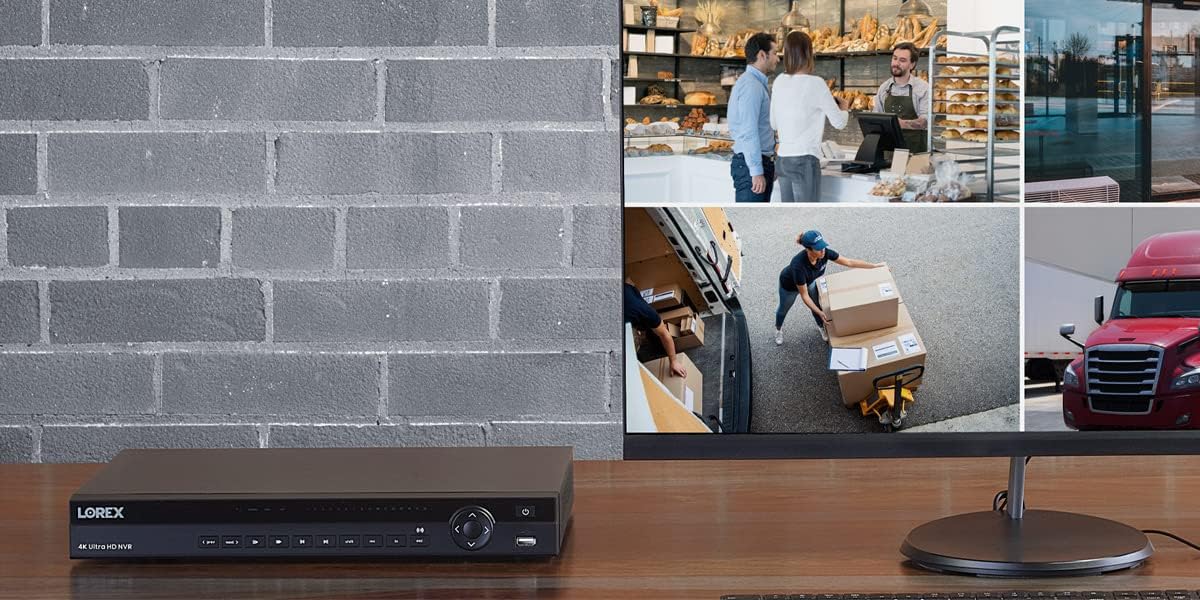
図3: 元ample setup showing the Lorex NVR connected to a monitor, displaying a multi-view grid of surveillance camera feeds from various locations.
2. 録音と再生
- 連続記録: The NVR is configured for 24/7 continuous recording by default, utilizing its security-grade hard drive.
- 動き検出記録: Configure specific channels to record only when motion is detected. With advanced person and vehicle detection, this reduces unnecessary recordings and saves storage space.
- スケジュールされた記録: Set up custom recording schedules based on time of day or day of the week.
- 再生: 記録された foo にアクセスするtage by navigating to the playback menu. Use the timeline to select specific dates and times. Utilize the Smart Search feature to quickly filter and review motion events.
3. リモートアクセス(Lorex Cloud)
The Lorex Cloud platform allows you to access your NVR remotely from anywhere with an internet connection.
- アプリをダウンロード: Download the Lorex Cloud app from your mobile device's app store (iOS/Android) or the Lorex Cloud client for your computer (Windows/macOS).
- アカウントを作成する: Register for a Lorex Cloud account if you don't already have one.
- デバイスを追加します: Follow the in-app instructions to add your NVR by scanning the QR code on the NVR or manually entering its device ID.
- アクセス機能: 接続すると、次のことができます view live feeds, play back recorded video, receive push notifications for motion events, and configure certain NVR settings remotely.

図4: The Lorex Cloud application interface displayed across various devices including a laptop, desktop monitor, tablet, and smartphone, demonstrating remote access capabilities for surveillance systems.
メンテナンス
- 定期清掃: Gently wipe the NVR's exterior with a soft, dry cloth. Do not use liquid cleaners or aerosols. Ensure ventilation openings are clear of dust and debris.
- ファームウェアの更新: Lorexサポートを定期的にチェックする webファームウェアのアップデートについては、NVRのファームウェアを最新の状態に保つことで、最適なパフォーマンス、セキュリティ、そして新機能へのアクセスを確保できます。
- ハードドライブの健全性: The NVR's hard drive is designed for 24/7 operation. Monitor its health through the NVR's system settings. Consider backing up critical footag定期的に。
- パスワードのセキュリティ: Regularly change your NVR and Lorex Cloud account passwords to strong, unique combinations to prevent unauthorized access.
トラブルシューティング
| 問題 | 考えられる原因 | 解決 |
|---|---|---|
| モニターにビデオ出力がありません。 | HDMI/VGA ケーブルが緩んでいる、モニターで間違った入力が選択されている、NVR の電源がオンになっていない。 | Check cable connections. Ensure monitor is set to the correct input source. Verify NVR power indicator is on. |
| カメラがビデオを表示しません。 | Loose Ethernet cable, camera not powered, camera not added/initialized, network issue. | Ensure Ethernet cables are securely connected to PoE ports. Check camera status indicators. Re-scan for cameras in NVR settings. Verify network connectivity. |
| NVRにリモートでアクセスできません。 | NVR not connected to internet, incorrect network settings, firewall blocking connection, Lorex Cloud account issue. | Verify NVR has internet access. Check network settings (DHCP/Static IP). Ensure router firewall is not blocking ports (refer to Lorex support for port forwarding if needed). Re-login to Lorex Cloud app. |
| 録音も再生もできません。 | Hard drive not initialized, hard drive full, recording schedule not set, motion detection not configured. | Initialize hard drive in NVR settings. Check hard drive capacity and configure overwrite settings. Verify recording schedules and motion detection settings for relevant channels. |
仕様
| 特徴 | 詳細 |
|---|---|
| モデル番号 | N883A64B |
| チャンネル | 16 |
| 録画解像度 | Up to 4K (8MP) per channel |
| 録画フレームレート | 30fps (real-time) at 4K |
| ハードディスクサイズ | 4 TB (expandable up to 2 x 10TB) |
| PoE ポート | 16 |
| ビデオ出力 | HDMI、VGA |
| USBポート | はい(マウス、バックアップ用) |
| 接続性 | イーサネット |
| 寸法 | 20.47 x 16.22 x 6.77インチ |
| 重さ | 10.73ポンド |
| メーカー | ロレックス |
| 原産国 | 中国 |
互換性
The Lorex N883A64B NVR is compatible with a wide range of Lorex IP cameras. Compatible models include, but are not limited to:
E581CB, E581CD, E861ABB, E891AB, LNB8111, LNB8921, LNB8973, LNB9232, LNB9242B, LNB9252B, LNB9272, LNB9282B, LNE8950AB, LNE8964ABW, LNE8974, LNE9242B, LNE9252B, LNZ32P12S, LNZ32P4, LNZ3522, LNZ44P12B, LNZ44P4B, LNB3143, LNB3153, LNB3163, LNB3321, LNB3373, LNB4163, LNB4321, LNB4421, LND3152, LND3374B, LND4750AB, LND4751AB, LNE3142RB, LNE3162, LNE4162, LNE4322, LNE4422, E841CA, E841CAB, E841CD, E881AP, LNB8963BW, LNB9292B, LNE9282B, LNE9292B, LNZ81P25.
保証とサポート
This Lorex N883A64B NVR is a renewed product. Please refer to the specific warranty terms provided by the seller or Amazon Renewed at the time of purchase. Typically, renewed products come with a limited warranty.
For technical support, troubleshooting assistance, or warranty inquiries, please contact Lorex customer support or the seller from whom you purchased the renewed product. You can often find support contact information on the Lorex official webサイトまたは Amazon の注文詳細からご購入いただけます。
オンラインリソース: For the latest manuals, software downloads, and FAQs, visit the official Lorex support webサイト: www.lorex.com/support
Ask a question about this manual
Ask about setup, troubleshooting, compatibility, parts, safety, or missing instructions. Manuals+ will review the question and use this page’s manual context to help answer it.