
1. はじめに
The ABLEWE USB 3.0 KVM Switch allows two computers to share up to four USB 3.0 peripheral devices. This device eliminates the need to constantly swap cables between computers, enhancing work efficiency. It is ideal for sharing devices such as printers, scanners, mice, keyboards, webcams, and USB flash drives between two systems.
This USB 3.0 switch offers broad compatibility, operating driver-free with Windows 10/8/8.1/7/Vista/XP, Mac OS, Linux, and Chrome OS. Simply plug and play for immediate functionality.

Figure 1.1: ABLEWE USB 3.0 KVM Switch connection diagram.
2. パッケージ内容
パッケージの内容をチェックして、すべてのアイテムが揃っていることを確認してください。
- 1 x ABLEWE USB 3.0 KVM Switch
- USB 3.0 A-to-Aケーブル 2本
- 1xマイクロUSB電源ケーブル
- ユーザーマニュアル x 1

Figure 2.1: Package contents of the ABLEWE USB 3.0 KVM Switch.
3. Product Features and Diagram
The ABLEWE USB 3.0 KVM Switch is designed for ease of use and efficient device sharing.
主な特徴:
- 4-Port USB 3.0 Sharing: 最大3.0つのUSBXNUMXデバイスを接続します。
- 2-Computer Connectivity: Seamlessly switch between two host computers.
- ボタンスイッチ: Easy one-button toggle between connected computers.
- LEDインジケーター: Clearly shows which computer is currently active (Green or Blue). The indicator light is designed to be non-dazzling.
- USB 3.0 速度: Supports data transfer speeds up to 5Gbps, backward compatible with USB 2.0.
- マイクロ USB 電源ポート: Provides stable power for high-power consumption devices (e.g., HDDs, SSDs, digital video cameras).
- ドライバー不要: ほとんどのオペレーティング システムではソフトウェアのインストールは不要です。
製品図:

図3.1: 前面 view of the ABLEWE USB 3.0 KVM Switch.

Figure 3.2: Key features of the ABLEWE USB 3.0 KVM Switch.
4. セットアップ手順
Follow these steps to set up your ABLEWE USB 3.0 KVM Switch:
- コンピューターを接続する: Use the two provided USB 3.0 A-to-A cables to connect your two computers to the input ports labeled 'PC 1' and 'PC 2' on the KVM switch.
- USBデバイスを接続する: Plug your USB peripheral devices (e.g., keyboard, mouse, printer, USB drive) into the four USB 3.0 output ports on the KVM switch.
- 電源を接続する(オプションですが推奨): If you are using high-power USB devices such as external hard drives (HDDs), solid-state drives (SSDs), or digital video cameras, connect the included Micro USB power cable to the 'DC 5V' port on the switch and to a 5V 2A USB power adapter (not included). This ensures stable performance for all connected devices.
- 電源オン: Ensure both connected computers are powered on. The KVM switch is driver-free and should be recognized automatically by your operating system.
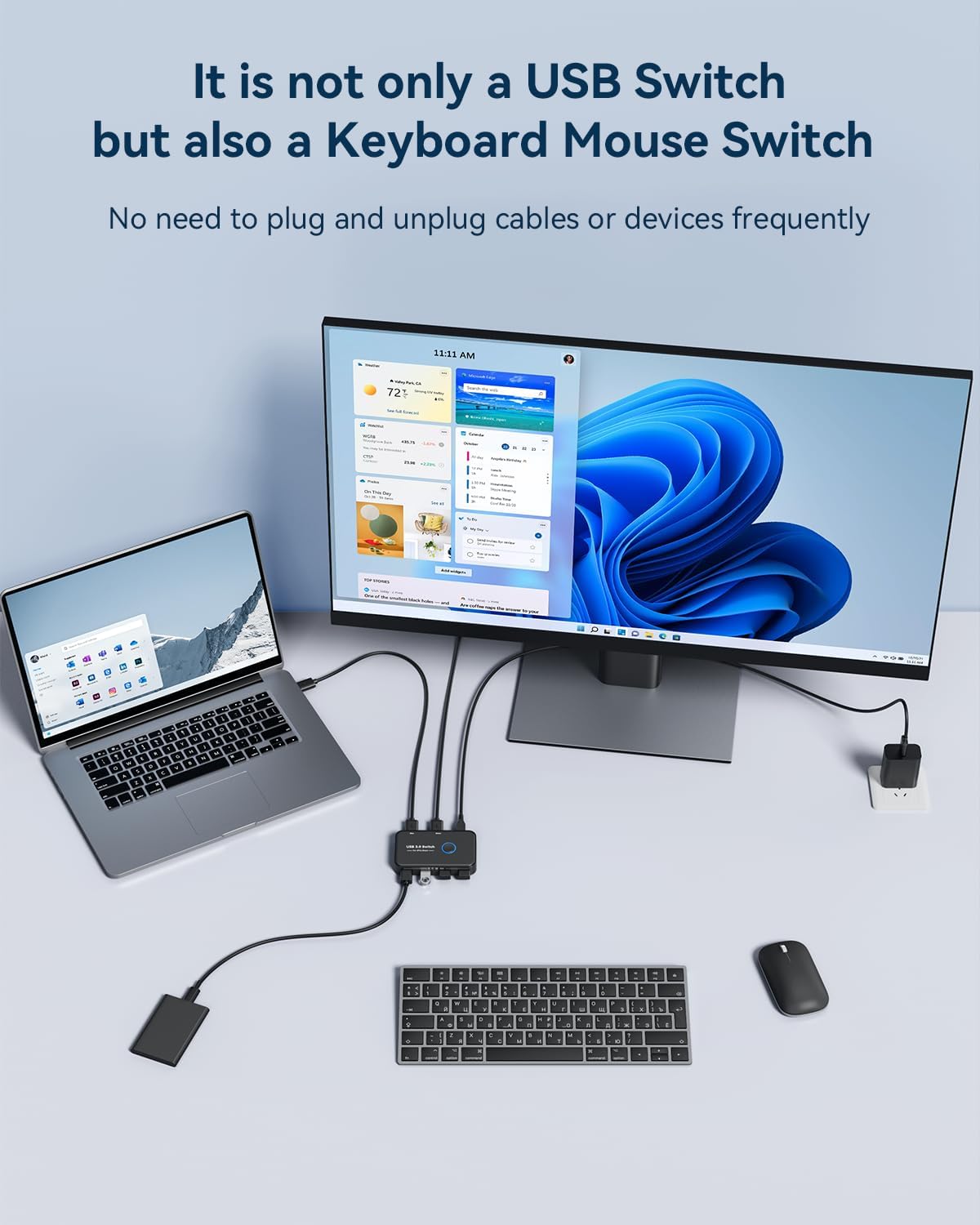
図4.1:例ample setup with a laptop and desktop sharing peripherals.

Figure 4.2: Connecting the Micro USB power cable for stable performance.
Connecting to a USB-C Laptop:
If your laptop only has USB-C ports, you will need an OTG USB-C to USB-A adapter to connect the provided USB-A to USB-A cable from the KVM switch to your laptop.

Figure 4.3: Connecting to a USB-C laptop.
5. 操作手順
Operating the ABLEWE USB 3.0 KVM Switch is straightforward:
- コンピューターの切り替え: To switch control of the shared USB devices between your two computers, simply press the large circular button on the top of the KVM switch.
- LEDインジケーター: The LED indicator light around the button will change color (Green or Blue) to show which computer is currently active and has control of the connected USB devices.

Figure 5.1: One-button switching operation.
6. メンテナンス
To ensure the longevity and optimal performance of your ABLEWE USB 3.0 KVM Switch, follow these maintenance guidelines:
- デバイスはほこりや湿気を避け、清潔で乾燥した環境に保管してください。
- スイッチを極端な温度や直射日光にさらさないでください。
- デバイスを開けたり改造したりしないでください。保証が無効になります。
- 外装は柔らかく乾いた布で拭いてください。液体クリーナーや溶剤は使用しないでください。
- Ensure cables are not bent sharply or under excessive tension to prevent damage.
7。 トラブルシューティング
If you encounter issues with your ABLEWE USB 3.0 KVM Switch, please refer to the following troubleshooting tips:
- Devices Not Recognized or Unstable:
- Ensure the Micro USB power cable is connected to the switch and a 5V 2A power adapter, especially when using high-power devices like external hard drives or SSDs. Insufficient power can lead to device instability or non-recognition.
- Try connecting the problematic USB device directly to the computer to verify its functionality.
- Check all cable connections. Ensure they are securely plugged into both the switch and the computers/devices.
- Try using different USB cables if available, as faulty cables can cause connection issues.
- Switching Issues (e.g., device not switching properly, unrecognized USB device error):
- Press the switch button again to toggle to the other computer, wait a few seconds, and then switch back to the desired computer. This can often resolve temporary recognition issues.
- Ensure both computers are fully powered on and their operating systems are running correctly.
- If a specific device consistently fails to switch, try connecting it to a different USB port on the KVM switch.
- データ転送速度が遅い:
- Ensure you are using USB 3.0 compatible devices and cables. While the switch is backward compatible, USB 2.0 devices will operate at USB 2.0 speeds.
- Verify that the USB 3.0 ports on your computers are functioning correctly.
- No LED Indicator Light:
- Ensure the KVM switch is properly connected to at least one active computer via a USB 3.0 A-to-A cable. The switch draws power from the connected computers.
8. 仕様
| 特徴 | 説明 |
|---|---|
| ブランド | アブルウェ |
| モデル | B0C2PNDDFS |
| アイテム重量 | 5.9 オンス (0.17 キログラム) |
| パッケージ寸法 | 6.26 x 5.24 x 0.63インチ |
| 色 | 黒 |
| 特集 | Button Switch, LED Indication |
| 対応デバイス | Desktop, Keyboard, Mouse, Printer, Scanners |
| コネクタタイプ | USB |
| データ転送速度 | 最大5Gbps(USB 3.0) |
| 電源入力 | Micro USB 5V 2A (for stable performance with high-power devices) |
| オペレーティングシステム | Windows 10/8/8.1/7/Vista/XP、Mac OS、Linux、Chrome OS |
9. 保証とサポート
ABLEWE provides a 12ヶ月保証 for this USB switch, covering manufacturing defects and ensuring product reliability.
Additionally, ABLEWE offers 生涯テクニカルサポート to assist you with any questions or issues you may encounter during the use of your product.
For warranty claims or technical assistance, please contact ABLEWE support through the retailer's platform or visit the official ABLEWE web連絡先情報のサイト。