
ORICO DD28C3-C
ORICO ハードドライブドッキングステーション 取扱説明書
Model: DD28C3-C
ブランド: オリコ
1. はじめに
The ORICO DD28C3-C Dual Bay Hard Drive Docking Station is a versatile device designed for efficient data management, supporting both 2.5-inch and 3.5-inch SATA HDDs/SSDs up to a total capacity of 44TB. It features high-speed USB 3.2 Gen 1 connectivity with UASP support for rapid data transfer, and a convenient offline clone function that allows disk duplication without a computer. Its tool-free design, plug-and-play functionality, and robust safety features make it an ideal solution for data backup, storage expansion, and system migration.

Image: The ORICO DD28C3-C Dual Bay Hard Drive Docking Station, showcasinコンパクトなデザインと接続オプションが魅力です。
2. パッケージ内容
- 1 x Dual hard drive docking duplicator
- 1x 1m 2-In-1 Type C to USB-A cable
- 1 x 12V/3A電源アダプター
- ユーザーマニュアル x 1
主な特徴
- オフラインクローン機能: Backup hard drive A (source disk) to hard drive B (target disk) without connecting devices directly.
- 44TB Capacity: Supports all standard 2.5" and 3.5" SATA HDD/SSD hard drives up to 22TB for 3.5" and 8TB for 2.5".
- High-Speed Read/Write: Up to 5Gbps speed through USB Type-C port with UASP transmission protocol.
- ユニバーサル互換性: Compatible with Windows, Mac, Linux, Android systems, PCs, laptops, gaming consoles, smart TVs, routers, and smartphones (OTG function needed).
- ユーザーフレンドリーなデザイン: Dust shield, rubber pads for stability, Activity LED indicator, 10 min Auto Sleep mode.
- Safety & Stability: Equipped with a high-performance master control chip, protecting your valuable data from over-current, short-circuit, over-heat, over-voltage、および漏れ。
製品終了view

画像: 前面と背面 view of the docking station with labels for LED indicators, USB interface, power interface, ON/OFF button, and CLONE/PC switch.
- LEDライト: Blue light indicates power on or data cable connection. Blue/Red light flash indicates data read/write activity.
- USBインターフェース: For connecting to a host device (PC, laptop, etc.).
- 電源インターフェース: 12V/3A電源アダプターを接続します。
- オン/オフボタン: ドッキング ステーションへの電源を制御します。
- クローン/PC スイッチ: Toggles between PC transfer mode and offline clone mode.
- スタートボタン: オフライン クローン プロセスを開始します。

Image: The 12V power adapter connection and the dust-proof design of the hard drive slots.
3. セットアップ
- Connect the 12V/3A power adapter to the docking station's power interface and plug it into a power outlet.
- Connect the 2-in-1 USB-C to USB-A/C data cable to the USB-C transmission interface on the docking station.
- If connecting to a computer, ensure the CLONE/PC switch is set to "PC" mode.
- Insert your 2.5-inch or 3.5-inch SATA HDD/SSD into the appropriate bay(s) of the docking station. Ensure they are firmly seated.
- Turn on the docking station using the ON/OFF button. The blue LED indicator should light up, confirming power.

Image: The docking station's universal compatibility with PCs, laptops, TVs, routers, iPads, and PS5, across Windows, Mac OS, Linux, and iPad OS.
4。 動作モード
PC Transfer Mode
In PC Transfer mode, the docking station acts as an external drive enclosure, allowing you to read, write, and expand storage directly through your computer.
- Ensure the CLONE/PC switch on the back of the docking station is set to "PC" mode.
- Connect the USB data cable from the docking station to your computer's USB port.
- Insert your HDD/SSD into the docking station. The drive(s) should be recognized by your operating system.
- You can now access the drive(s) like any other external storage device for data transfer, backup, or expansion.

Image: Demonstrates the high-speed data transfer capabilities of the docking station in PC mode.
ビデオ: オーバーview of the ORICO DD-series Hard Drive Docking Station Cloner, demonstrating its features and ease of use.
オフラインクローン機能
The offline clone function allows you to duplicate a source hard drive to a target hard drive without needing a computer connection.
- ドッキング ステーションを PC から取り外します。
- Insert the source disk (Disk A) into the "Source" bay (usually the top bay).
- Insert the target disk (Disk B) into the "Target" bay (usually the bottom bay).
- 重要: The capacity of the target disk (Disk B) must be larger than or equal to the source disk (Disk A). The offline clone will erase all data from the target disk, so ensure you have backed up any important data from the target disk before proceeding.
- Ensure the CLONE/PC switch on the back of the docking station is set to "CLONE" mode.
- Press and hold the "START" button for 3-5 seconds until all indicator lights are on and you hear a long beep. This signifies the cloning process has begun.
- The progress indicator LEDs (25%, 50%, 75%, 100%) will light up sequentially to show the cloning progress.
- Once the cloning is complete, three long beep sounds will be heard, and all indicator lights will remain solid.
- Turn off the power and safely remove the disks.

Image: Visual guide for the offline clone function, including capacity requirements for source and target disks.
Video: An unboxing video for the ORICO DD-Series Dual Bay Hard Drive Dock, showing its components.
Video: A demonstration of the ORICO Dual Bay Offline-clone Hard Drive Dock in action.
5. メンテナンス
- クリーニング: Use a soft, dry cloth to clean the exterior of the docking station. Avoid using liquid cleaners or abrasive materials.
- 防塵: The integrated dust shield helps protect the SATA interface. Keep the slots covered when not in use to prevent dust accumulation.
- 安定した環境: Place the docking station on a stable, flat surface. The rubber pads help reduce friction and vibration, ensuring stable operation of the hard drives.
- オートスリープモード: The device features a 10-minute auto-sleep mode for energy saving when not in use. This also helps prolong the lifespan of the hard drives.
- ストレージ: 長期間使用しない場合は、電源アダプターを外し、ドッキング ステーションを涼しく乾燥した場所に保管してください。

Image: The docking station supporting large capacity hard drives, highlighting its robust design.
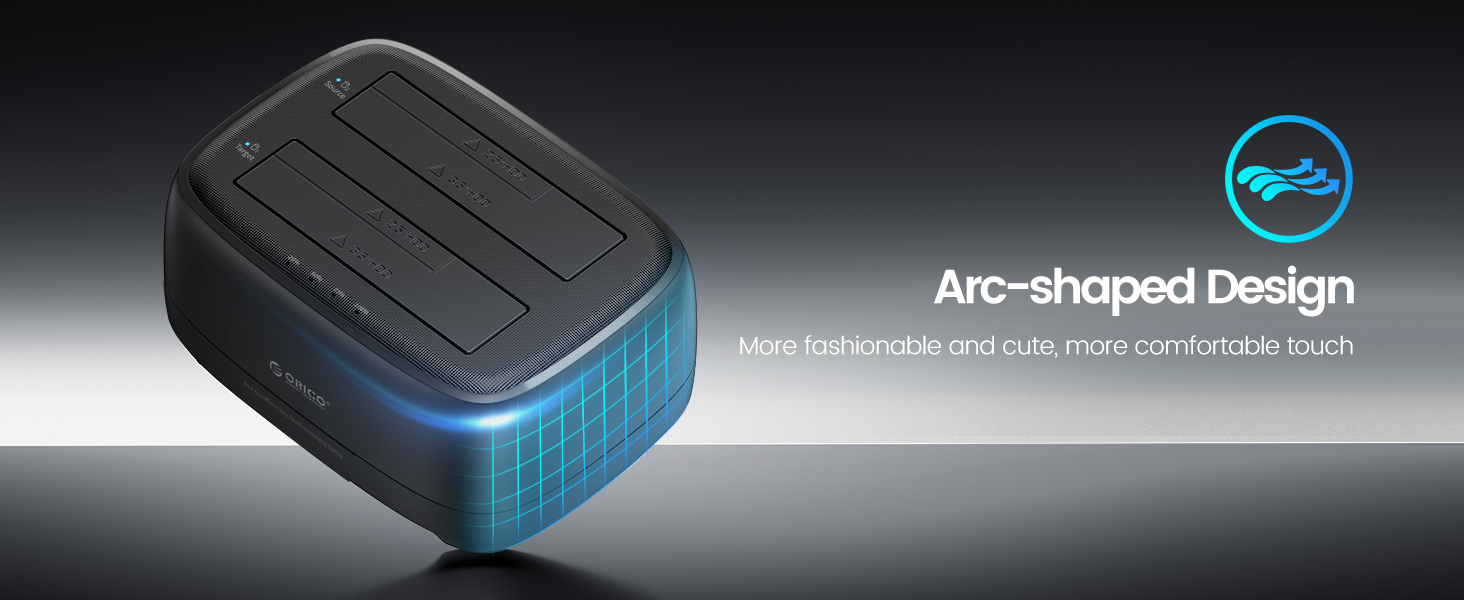
Image: The Auto Sleep Mode feature, which activates after 10 minutes of inactivity to save energy.
6。 トラブルシューティング
- デバイスが認識されません:
- Ensure the USB data cable is properly connected to both the docking station and your computer. Try a different USB port.
- Check if the power adapter is securely connected and the power LED indicator is on.
- Verify the CLONE/PC switch is set to "PC" mode.
- Ensure your hard drive(s) are properly formatted. If not, they may need to be initialized and formatted through Disk Management (Windows) or Disk Utility (Mac).
- Try reconnecting with another USB 3.0 or USB 2.0 cable if available.
- Try a different 12V power adapter if possible.
- Offline Clone Fails or Data Loss:
- Ensure the target disk's capacity is larger than or equal to the source disk's capacity.
- Confirm the CLONE/PC switch is set to "CLONE" mode before starting the clone.
- Do not turn off the power or remove disks during the cloning process.
- Ensure both disks are correctly placed in their respective bays (Source and Target).
- The offline clone will erase all data on the target disk. Always back up critical data from the target disk before initiating a clone.
- 転送速度が遅い:
- Ensure you are using a USB 3.0 or USB 3.2 Gen 1 port on your computer for optimal speeds.
- Verify that UASP (USB Attached SCSI Protocol) is enabled on your system (usually automatic with compatible hardware/OS).
- Check the health and speed of your hard drive(s). Older or failing drives may limit transfer speeds.

Image: The internal chip and safety mechanisms of the docking station, ensuring data protection.
Video: A short video demonstrating the ORICO DD-Series Dual Bay Hard Drive Dock.
7. 仕様
| 特徴 | 詳細 |
|---|---|
| モデル | DD28C3-C (Dual Bay+Clone) |
| 対応デバイス | Laptop, PC, OTG Smartphones, Game consoles, Smart-TV |
| 最大サポート容量 | Up to 44TB (2x 22TB for 3.5" HDD, 2x 8TB for 2.5" HDD/SSD) |
| ハードウェアインターフェイス | SATA 6.0 Gb/s, USB Type C |
| 転送速度 | 最大5Gbps(USB 3.2 Gen 1、UASP対応) |
| 電源 | 12V/3A |
| 製品寸法 | 6.38 x 4.65 x 2.83インチ |
| アイテム重量 | 1.23ポンド |
| メーカー | 深センオリコテクノロジーズ株式会社 |
8. 保証とサポート
ORICO製品には通常、メーカーによる標準保証が付いています。具体的な保証条件、テクニカルサポート、またはサービスに関するお問い合わせは、パッケージに同梱されている保証書を参照するか、ORICOの公式ウェブサイトをご覧ください。 website. You can also contact the ORICO Service Team as mentioned in the product features.
For further assistance, please reach out to the seller or ORICO customer support.
関連文書 - DD28C3-C
 |
オフラインクローンの操作方法 - ORICOハードドライブドッキングステーション ORICOデュアルベイハードドライブドッキングステーションのオフラインクローン機能の操作方法ガイド。ドライブ文字の割り当てに関する手順とトラブルシューティングが含まれています。 |
 |
ORICO 6638US3-C / 6648US3-C マルチベイ HDD ドッキングステーション ユーザーマニュアル ORICO 6638US3-Cおよび6648US3-CマルチベイHDDドッキングステーションの包括的なユーザーマニュアル。view、機能、仕様、クイック スタート ガイド、オフライン クローン作成手順、トラブルシューティングのヒント、Windows ドライブの初期化とフォーマット、安全なデバイス取り外し手順、重要なお知らせ、および企業宣言。 |
 |
ORICO DDX8シリーズ デュアルベイ 2.5/3.5インチ SATAドッキングステーション ユーザーマニュアル ORICO DDX8シリーズ デュアルベイドッキングステーションのユーザーマニュアル。機能、仕様、セットアップ、オフラインクローン機能、トラブルシューティング、安全に関する注意事項を詳しく説明しています。USB 3.0接続の2.5/3.5インチSATA HDD/SSDをサポートします。 |
 |
ORICO DD18/DD28 シリーズ ハードドライブドック ユーザーマニュアル ORICO DD18 および DD28 シリーズ ハード ドライブ ドックのユーザー マニュアル。製品の機能、仕様、セットアップ、オフライン クローニング、トラブルシューティング、安全上の注意事項を網羅しています。 |
 |
ORICO 6228US3-C ユーザーマニュアル: クローン機能付き 2ベイ USB 3.0 HDD ドッキングステーション 2ベイUSB 3.0オフラインハードドライブクローニングドッキングステーション、ORICO 6228US3-Cの包括的なユーザーマニュアルです。2.5/3.5インチSATAハードドライブのインストール、機能、クローニング、トラブルシューティング、注意事項について解説します。 |
 |
ORICO ハードドライブドッキングステーション ユーザーガイド: PC モードとクローンモード ORICO ハード ドライブ ドッキング ステーションを PC モードとクローン モードの両方で使用するための包括的なガイド。操作手順、重要な注意点、トラブルシューティングのヒントなどが含まれています。 |