
1.製品オーバーview
The TP-Link ER707-M2 is an Omada Multi-Gigabit VPN Router designed for high-performance networking environments. It features dual 2.5 Gigabit WAN ports, a Gigabit SFP WAN/LAN port, and multiple Gigabit RJ45 WAN/LAN ports, providing flexible connectivity and high-bandwidth aggregation. This router integrates seamlessly with the Omada SDN Controller for centralized management and offers robust security features including an SPI Firewall and various VPN protocols.
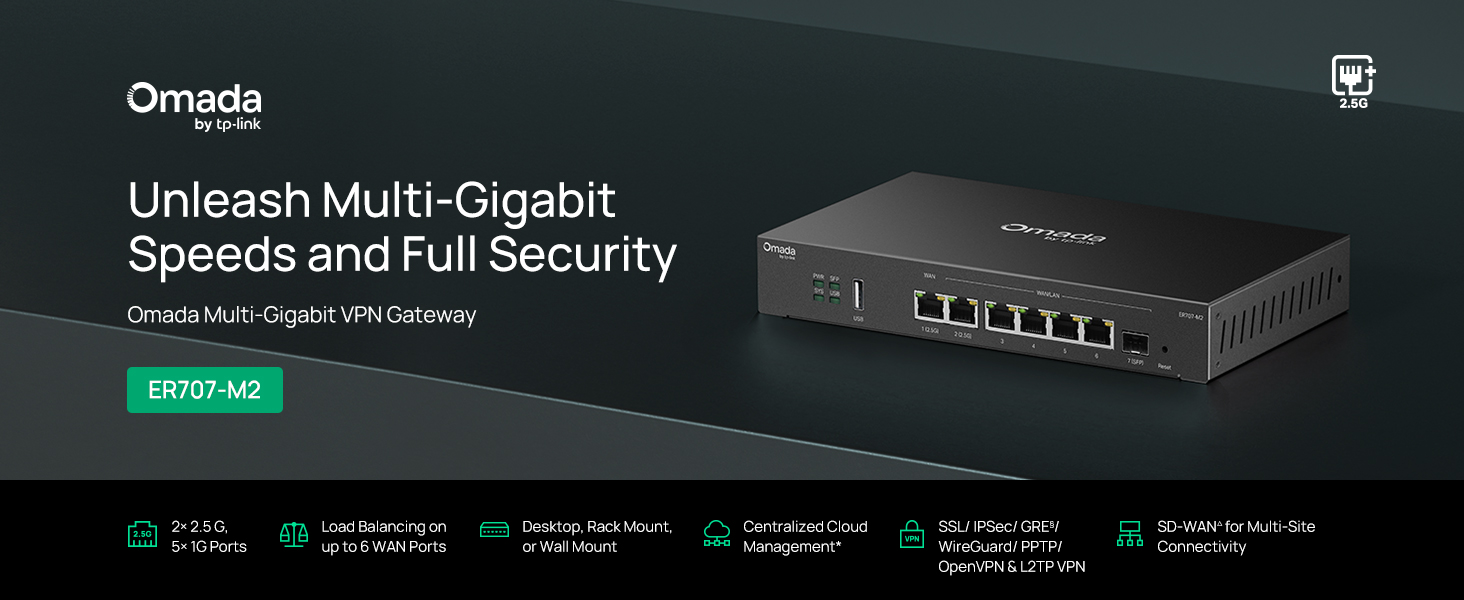
図1: 前面 view of the ER707-M2 router, highlighting its ports and indicators.
主な特徴:
- 柔軟なポート構成: Includes 1x 2.5Gigabit WAN Port, 1x 2.5Gigabit WAN/LAN Port, 4x Gigabit WAN/LAN Ports, 1x Gigabit SFP WAN/LAN Port, and 1x USB 2.0 Port.
- High-Performance Network Capacity: Supports up to 500,000 concurrent sessions and over 1000 clients.
- クラウド アクセス: Centralized cloud management via Omada app and web インタフェース。
- 非常に安全なVPN: 最大 100 の LAN 間 IPsec、66 の OpenVPN、60 の L2TP、および 60 の PPTP VPN 接続をサポートします。
- 高度なセキュリティ: Features SPI Firewall, Policy-based Firewall, Static Routing, Policy Routing, Multi-net DHCP, Guest Portal, and VLAN support.
- Load Balance & Link Backup: Optimizes multi-line broadband efficiency and reliability.
- USB 2.0ポート: Supports USB storage and LTE backup with a compatible LTE dongle.
2. パッケージ内容
パッケージに次のアイテムが含まれていることを確認してください。
- TP-Link ER707-M2 Omada Multi-Gigabit VPN Router
- 電源アダプター
- クイックインストールガイド
If any item is missing or damaged, please contact your reseller or TP-Link support.
3. セットアップ
3.1 ハードウェアのインストール
- 電源接続: Connect the provided power adapter to the router's power input and then to a power outlet.
- WAN 接続: Connect your modem or internet service provider's device to one of the WAN ports (e.g., WAN1 2.5G or WAN/LAN2 2.5G) using an Ethernet cable. For fiber connections, use the SFP port with a compatible SFP module.
- LAN接続: Connect your local network devices (e.g., computers, switches, Omada Access Points) to the LAN ports (WAN/LAN2-6) using Ethernet cables.
- USBデバイス(オプション): If using a USB storage device or an LTE dongle for backup, insert it into the USB 2.0 port.
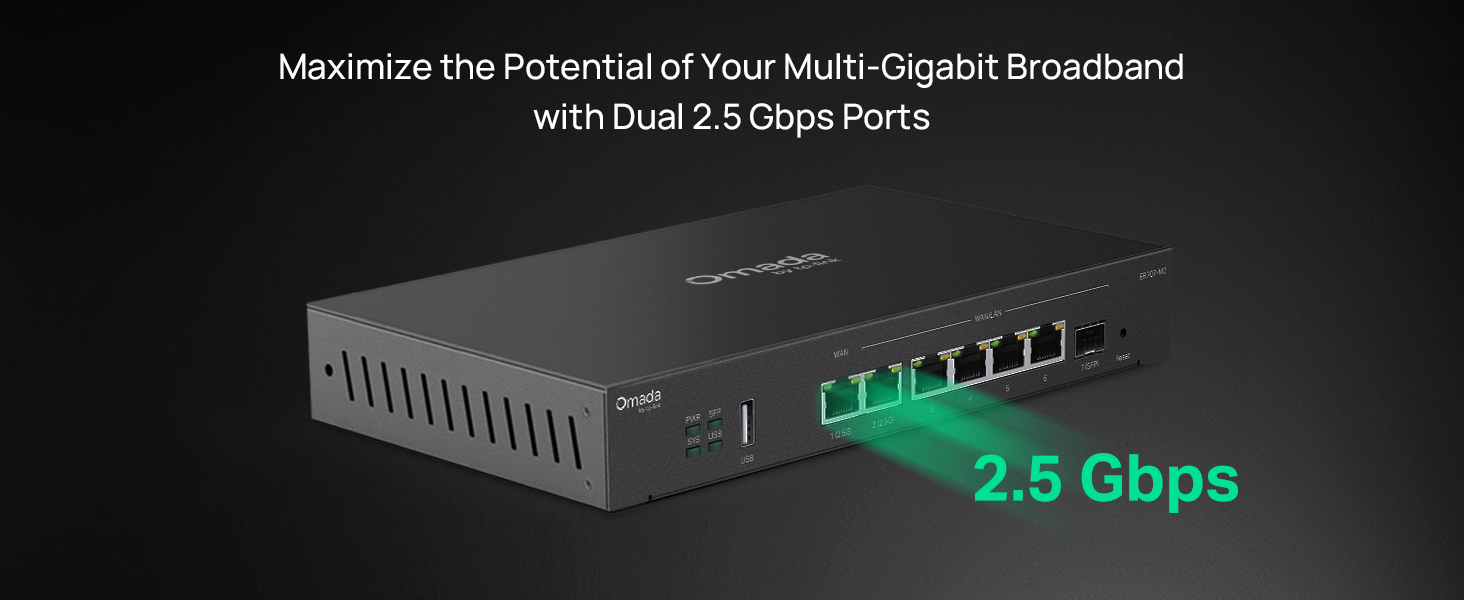
Figure 2: Illustration of the router's 2.5 Gbps ports for high-speed connectivity.
3.2初期構成
The ER707-M2 can be managed via the Omada SDN Controller or through its local web インタフェース。
- ルーターに接続します。 コンピュータがルーターの LAN ポートの 1 つに接続されていることを確認します。
- アクセス Web インタフェース: 開く web ブラウザを開き、デフォルトのIPアドレス(通常は
192.168.0.1or192.168.1.1)を入力してください。正確なデフォルトのIPアドレスとログイン資格情報については、クイックインストールガイドを参照してください。 - セットアップウィザードに従います: The first time you log in, a setup wizard will guide you through basic internet connection settings, changing the default password, and configuring Wi-Fi (if applicable).
- Omada SDN 統合 (オプション): For centralized management, adopt the router into your Omada SDN Controller. This allows for remote management and unified control of your network devices.
4. 操作手順
4.1ネットワーク構成
The router offers extensive configuration options for your network:
- WAN設定: Configure WAN ports for different connection types (Dynamic IP, Static IP, PPPoE).
- LAN設定: Manage IP addresses, DHCP server, and VLANs for your local network segments.
- マルチWAN負荷分散: Distribute internet traffic across multiple WAN connections to optimize bandwidth and provide redundancy.
- リンクバックアップ: Configure a secondary WAN connection (e.g., via LTE dongle) to automatically take over if the primary connection fails.
4.2 VPN機能
The ER707-M2 supports various VPN protocols for secure remote access and site-to-site connectivity.
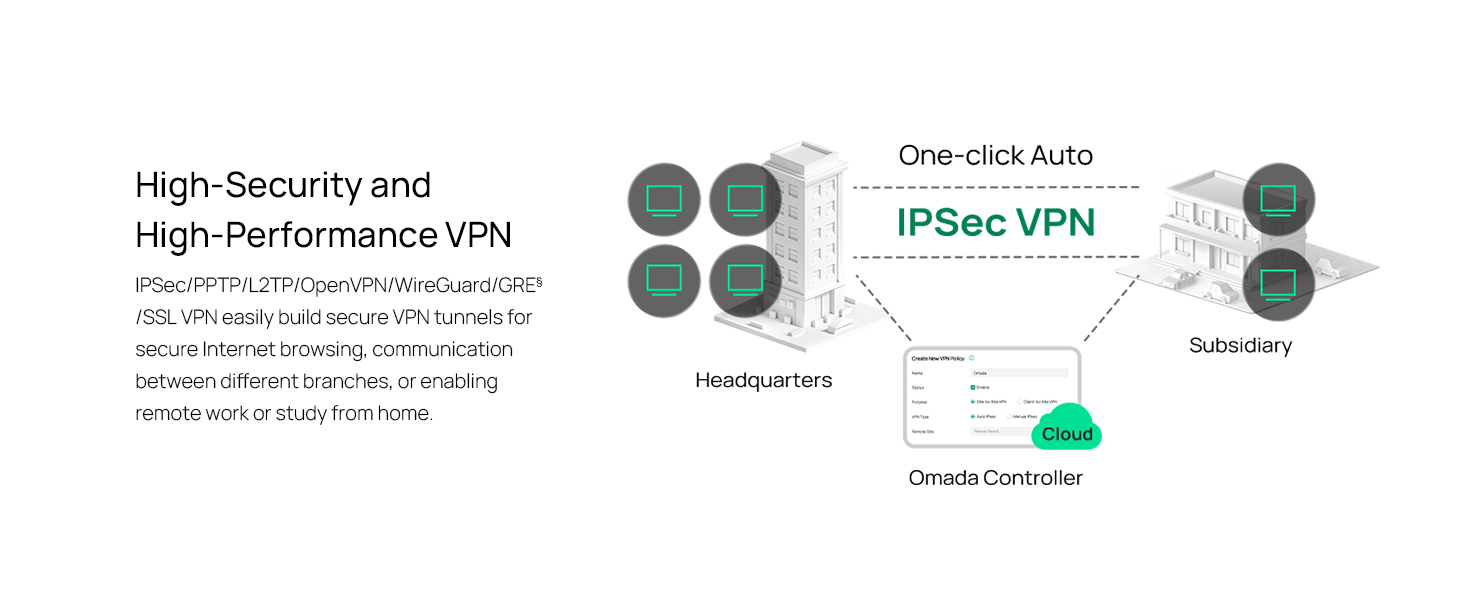
Figure 3: Visual representation of a secure VPN tunnel setup.
- IPsec VPN: Establish secure tunnels between networks (e.g., office to branch office).
- OpenVPN/SSL VPN: Provide secure remote access for individual users.
- PPTP/L2TP VPN: Legacy VPN protocols for various client connections.
4.3セキュリティ機能
The router includes advanced security measures to protect your network:
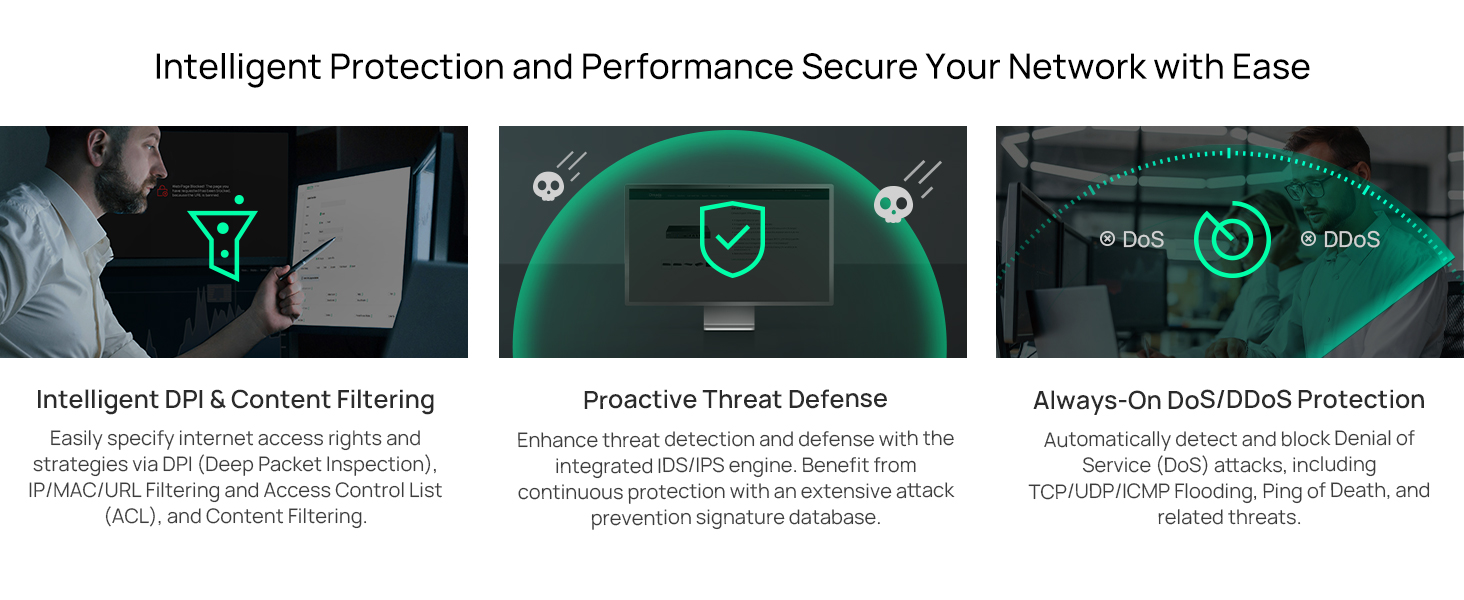
図4:以上view of intelligent protection and performance features.
- SPI ファイアウォール: Stateful Packet Inspection firewall for network protection.
- Policy-based Firewall: Define rules to control network traffic based on specific criteria.
- DoS/DDoS 保護: Defend against Denial of Service and Distributed Denial of Service attacks.
- アクセス制御リスト (ACL): Manage network access for specific devices or users.
4.4 Omada SDN統合
The ER707-M2 is part of the Omada Software-Defined Networking (SDN) solution, allowing for centralized management of your entire network.

Figure 5: How the ER707-M2 integrates into an Omada SDN network.
- 集中管理: Manage the router, access points, and switches from a single interface via the Omada Controller (hardware or software).
- リモート アクセス: Access and manage your network from anywhere using the Omada app or cloud portal.
- Seamless Scalability: Easily expand your network by adding more Omada devices.
5. メンテナンス
To ensure optimal performance and security of your ER707-M2 router, regular maintenance is recommended:
- ファームウェアの更新: TP-Linkの公式ウェブサイトを定期的にチェックしてください web最新のファームウェアバージョンについては、こちらのサイトをご覧ください。ファームウェアを更新すると、パフォーマンスの向上、新機能の追加、セキュリティ上の脆弱性の修正などの効果が得られます。
- 構成のバックアップ: Regularly back up your router's configuration settings. This allows for quick restoration in case of accidental changes or system issues.
- 物理検査: Ensure the router is placed in a well-ventilated area, free from dust and obstructions. Check cable connections for secure fit.
- セキュリティ再view: 定期的に再view your firewall rules, VPN settings, and access control lists to ensure they meet your current security requirements.
6。 トラブルシューティング
If you encounter issues with your ER707-M2 router, consider the following troubleshooting steps:
- インターネットアクセスなし:
- Check all cable connections (WAN, LAN, Power).
- Verify your modem or ISP device is working correctly.
- Confirm WAN settings in the router's web インターフェースは正しいです。
- Restart the modem, then the router, and then your connected devices.
- アクセスできません Web 管理ページ:
- コンピュータがルーターの LAN ポートに接続されていることを確認します。
- Verify your computer's IP address is in the same subnet as the router (e.g., if router is 192.168.0.1, computer should be 192.168.0.x).
- ブラウザのキャッシュをクリアするか、別のブラウザを使用してみてください。
- If the issue persists, perform a factory reset (see below).
- ネットワーク速度が遅い:
- インターネット サービス プロバイダーの速度を確認してください。
- Ensure all cables are Cat5e or higher for Gigabit/2.5Gig connections.
- ネットワークの使用状況を監視し、帯域幅を大量に消費するアプリケーションまたはデバイスを特定します。
- Verify duplex settings on connected devices and router ports.
- 工場出荷時設定へのリセット: If all else fails, you can restore the router to its factory default settings. Locate the Reset button on the router (often a small pinhole button), press and hold it for about 5-10 seconds until the system LED blinks, then release. This will erase all custom configurations.
7. 仕様
| 特徴 | 詳細 |
|---|---|
| ブランド | TPリンク |
| モデル名 | ER707-M2 |
| 接続技術 | イーサネット |
| ポート数 | 6 (1x 2.5G WAN, 1x 2.5G WAN/LAN, 4x Gigabit WAN/LAN, 1x Gigabit SFP WAN/LAN, 1x USB 2.0) |
| LANポート帯域幅 | 10/100/1000 / 2500Mbps |
| データ転送速度 | 2500メガビット/秒 |
| 最大アップストリームデータ転送速度 | 5000メガビット/秒 |
| セキュリティプロトコル | SSL, IPSec, GRE, SSH, IKEv1/v2, PPTP, L2TP, OpenVPN |
| 制御方法 | アプリ、 Web インタフェース |
| オペレーティング·システム | ZyNOS (TP-Link Omada) |
| アイテム重量 | 1.1キログラム |
| 商品の寸法 (長さ x 幅 x 高さ) | 長さ12.9インチ x 幅9.5インチ x 高さ3.1インチ |
8. 保証情報
The TP-Link ER707-M2 Omada Multi-Gigabit VPN Router is backed by an industry-leading 5年間のメーカー保証この保証は、通常の使用状況における材料および製造上の欠陥を対象としています。保証請求の際は、購入証明書を保管してください。
9. サポート
For technical assistance, product information, or warranty inquiries, please contact TP-Link support:
- 電話サポート: (866)225-8139(月曜日から金曜日、午前6時から午後6時(太平洋標準時)まで)
- 製品 Webサイト: myproducts.tp-link.com/us
- メールサポート: support.USA@tp-link.com