
1. はじめに
Thank you for choosing the NiPoGi E1 Mini PC. This compact and powerful mini PC is designed for a variety of tasks, from home server applications and educational use to web browsing, business office tasks, and digital signage. Equipped with an AMD Ryzen 3250U processor and pre-installed with Windows 11 Pro, it offers fast responsiveness and smooth operation. This manual provides essential information for setting up, operating, maintaining, and troubleshooting your device.

Figure 1: NiPoGi E1 Mini PC Overview
2. パッケージ内容
以下の項目のボックスにチェックを入れてください。
- NiPoGi E1 ミニPC
- 電源アダプター
- HDMIケーブル
- VESAマウントブラケット
- 取付ネジ(4本)
- ユーザーマニュアル(このドキュメント)

Figure 2: Included accessories with the NiPoGi Mini PC E1.
3.製品オーバーview
3.1. プロセッサとパフォーマンス
The NiPoGi E1 Mini PC is powered by an AMD Ryzen 3250U processor with a pulse frequency of up to 3.50GHz and 4MB L3 cache. This processor delivers robust performance for everyday computing tasks, outperforming many entry-level mini PCs. It ensures faster responsiveness and smoother operation for various applications.
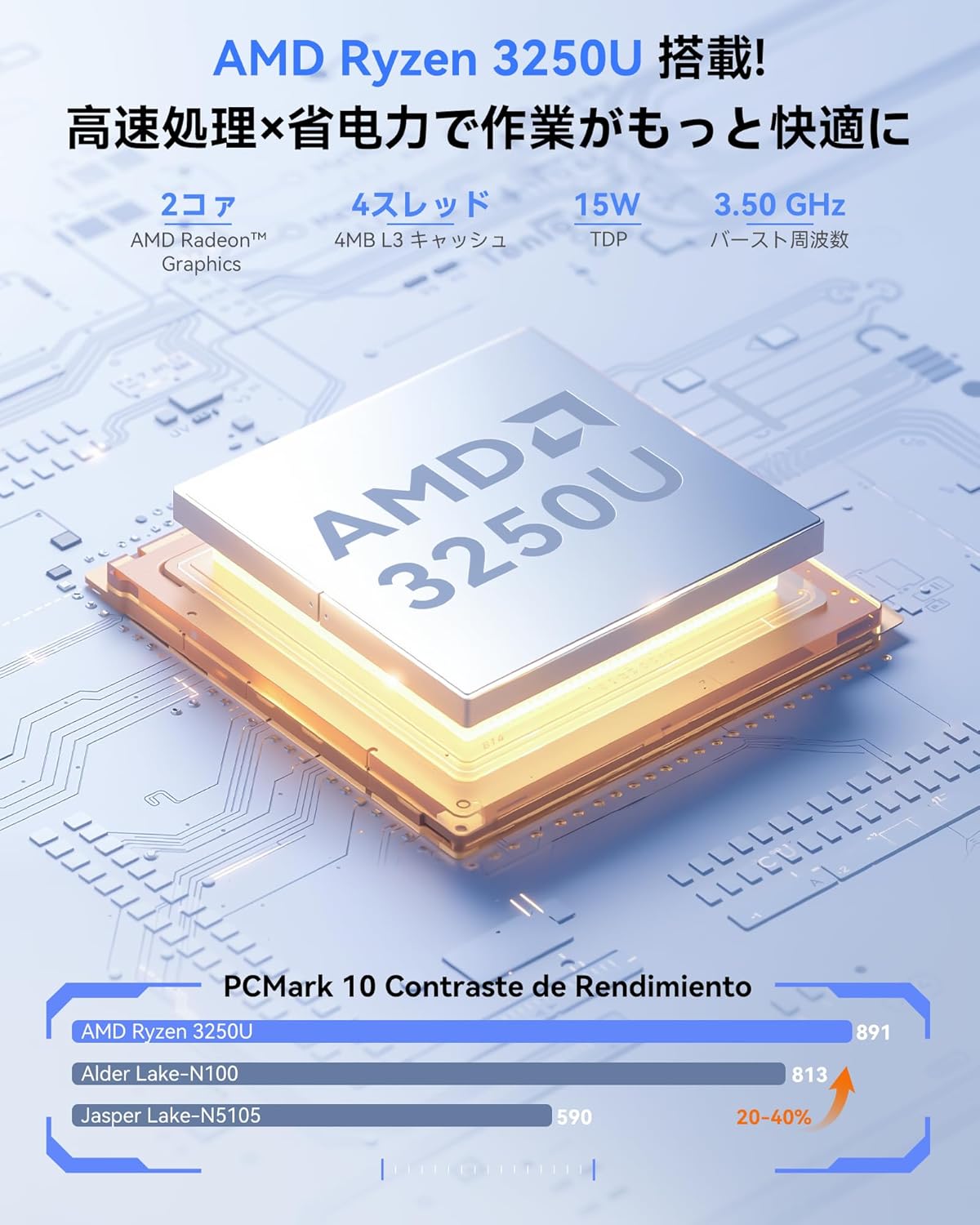
Figure 3: AMD Ryzen 3250U Processor

Figure 4: Performance comparison of AMD Ryzen 3250U against other processors.
3.2. ポートとインターフェース
The mini PC offers a comprehensive set of ports for connecting various peripherals:
- HDMI 2.0 ポート x 1
- ディスプレイポート 1 x 1.4
- USB 2 ポート x 3.2
- USB 2 ポート x 2.0
- 1x RJ45 ギガビット イーサネット ポート
- 1x 5.5/2.1mm DC Power Input Jack
- 1mmヘッドフォンジャック×3.5
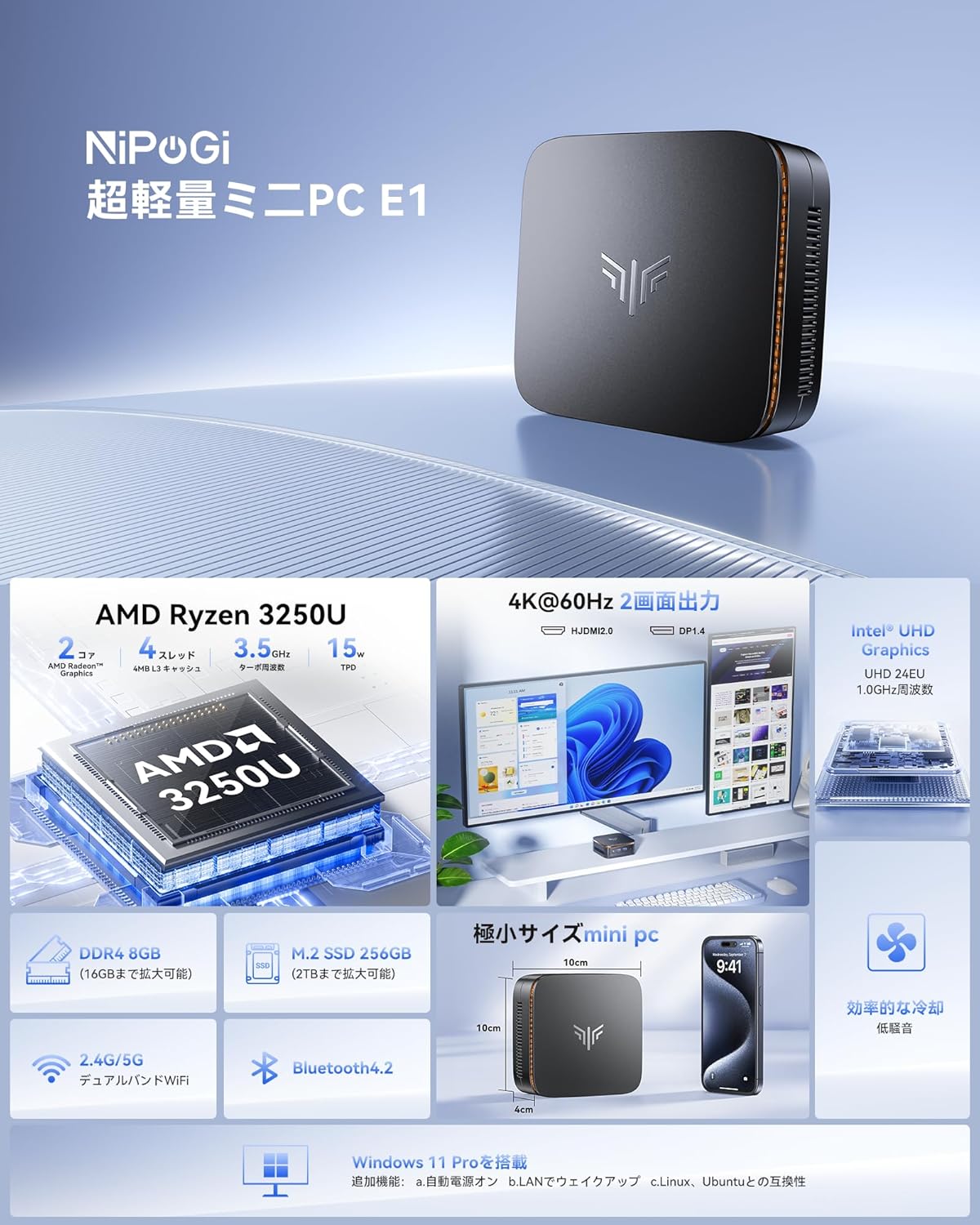
図5: 前面と背面 view of the NiPoGi Mini PC showing all available ports.

Figure 6: The NiPoGi Mini PC can connect to a wide range of office and home entertainment devices.
3.3. Compact Design and Dimensions
The NiPoGi E1 Mini PC features a space-saving design, measuring approximately 10 x 10 x 4 cm and weighing only 0.38 kg. Its ultra-compact size allows for flexible placement on your desk or mounted behind a monitor, reducing clutter and optimizing your workspace.

Figure 7: The compact dimensions of the NiPoGi Mini PC, highlighting its small footprint compared to traditional desktops.
3.4. 冷却システム
The mini PC incorporates an ultra-quiet cooling fan for efficient heat dissipation. High-speed fan blades quickly disperse heat, ensuring stable long-term operation and preventing performance throttling.
4. セットアップ
4.1. 周辺機器の接続
- モニターを接続: Use an HDMI cable to connect your monitor to the HDMI 2.0 port on the mini PC. Alternatively, use a DisplayPort cable for the DP 1.4 port.
- キーボードとマウスを接続します。 Plug your USB keyboard and mouse into the available USB ports (USB 3.2 or USB 2.0). For wireless peripherals, ensure Bluetooth is enabled and pair them.
- 接続電源: Plug the power adapter into the DC input jack on the mini PC, then connect it to a power outlet.
4.2. 初回電源投入
Press the power button located on the front of the mini PC. The system will boot up, and you will see the Windows 11 Pro setup screen or desktop if already configured. Follow the on-screen instructions for initial Windows setup if prompted.
4.3. VESAマウント
The included VESA mount bracket allows you to attach the mini PC to the back of a compatible monitor or to a wall, further saving desk space. Secure the bracket to the monitor/wall using the provided screws, then slide the mini PC onto the bracket.

Figure 8: Various placement options for the NiPoGi Mini PC, including VESA mounting behind a monitor.
5. 操作手順
5.1. 電源のオン/オフと再起動
- 電源オン: 電源ボタンを押します。
- シャットダウン: Windows の [スタート] ボタンをクリックし、[電源] > [シャットダウン] を選択します。
- 再起動: Windows の [スタート] ボタンをクリックし、[電源] > [再起動] を選択します。
5.2. ネットワーク接続
The NiPoGi E1 Mini PC supports both wired and wireless network connections:
- 有線LAN: Connect an Ethernet cable to the RJ45 port on the back of the mini PC. The system will automatically detect and connect to the network.
- Wi-Fi: The device supports 2.4G/5G dual-band Wi-Fi. In Windows, click the Wi-Fi icon in the taskbar, select your desired network, enter the password, and connect.
- ブルートゥース: The mini PC features Bluetooth 4.2. To connect Bluetooth devices, go to Windows Settings > Devices > Bluetooth & other devices, turn on Bluetooth, and pair your device.
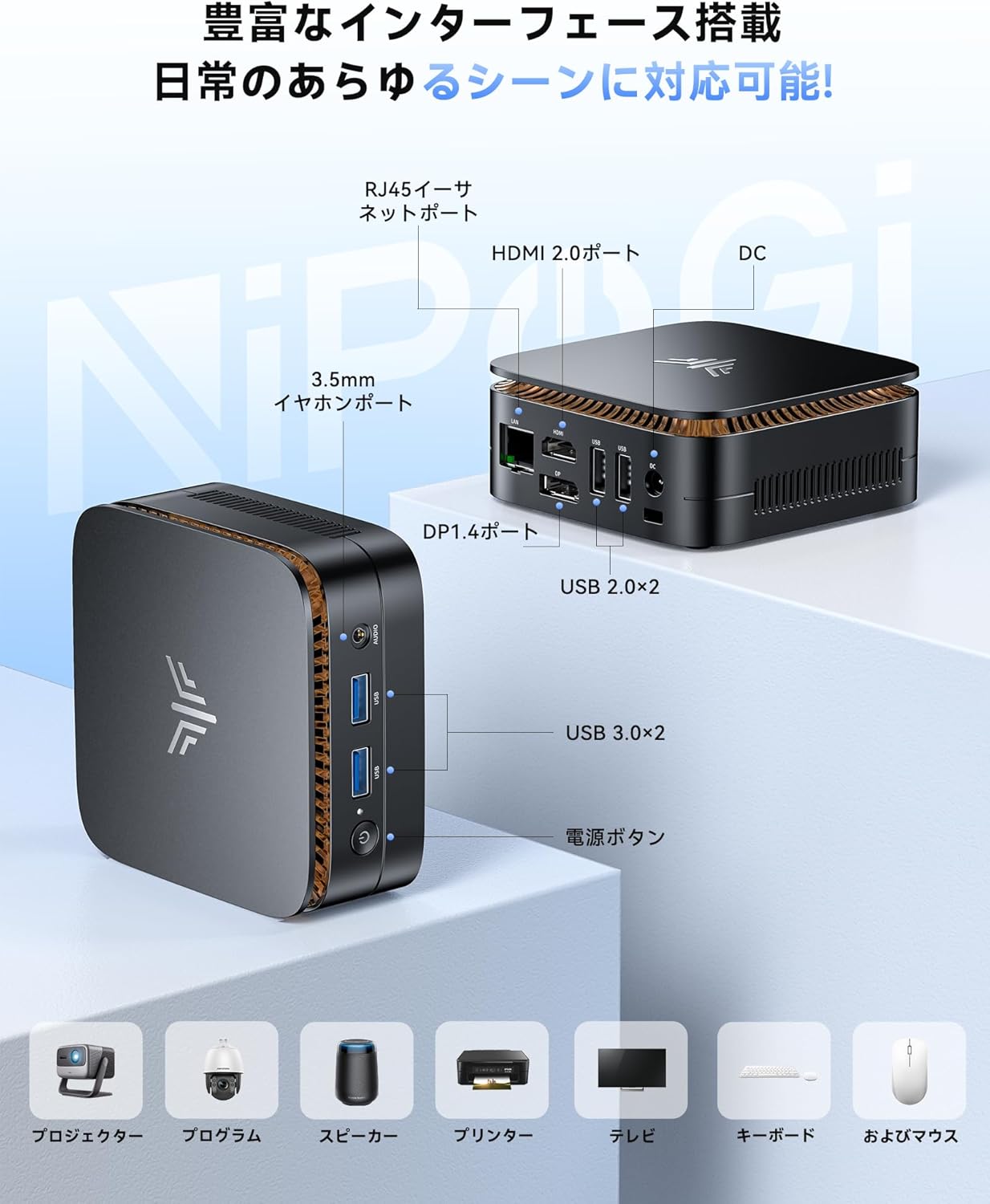
Figure 9: The NiPoGi Mini PC offers stable 2.4G/5G Wi-Fi and Bluetooth 4.2 connectivity for various devices.
5.3. デュアルディスプレイ設定
The mini PC supports dual display output via its HDMI 2.0 and DisplayPort 1.4 interfaces, allowing for an immersive 4K Ultra HD experience. This is ideal for multitasking, business presentations, or extended workspaces.
- プライマリモニターを HDMI 2.0 ポートに接続します。
- Connect your secondary monitor to the DisplayPort 1.4.
- Windows では、デスクトップを右クリックし、「ディスプレイ設定」を選択します。
- Configure your displays (e.g., extend, duplicate) as needed. The AMD Radeon Graphics GPU ensures stable image and sound processing for high-resolution output.

Figure 10: The NiPoGi Mini PC supports dual 4K displays for enhanced productivity.
6. ストレージとメモリの拡張
The NiPoGi E1 Mini PC comes with 8GB DDR4 RAM and a 256GB M.2 2280 SSD. Both can be upgraded to enhance performance and storage capacity:
- RAM アップグレード: The 8GB DDR4 RAM can be upgraded to a maximum of 16GB.
- SSD拡張: The 256GB M.2 2280 SSD can be upgraded to a maximum of 2TB. Additionally, you can install a 2.5-inch SATA SSD/HDD for further storage expansion. The PCIe SSD offers significantly faster read/write speeds compared to traditional SATA SSDs.
Note: Upgrading components may require technical knowledge. If unsure, consult a professional.

Figure 11: Internal components showing 8GB DDR4 RAM and 256GB SSD, with options for expansion.
7. メンテナンス
NiPoGi E1 Mini PC の寿命を延ばし、最適なパフォーマンスを確保するには、次のメンテナンス ガイドラインに従ってください。
- 清潔に保ちます: Regularly clean the exterior of the mini PC with a soft, dry cloth. Use compressed air to gently clear dust from the ventilation openings to maintain efficient cooling.
- ソフトウェアアップデート: Windows 11 Pro オペレーティングシステムとドライバーを最新バージョンに更新してください。これにより、セキュリティ、安定性、パフォーマンスが向上します。
- 障害物を避けてください: Ensure that the ventilation openings are not blocked to allow proper airflow and prevent overheating.
- 安全なシャットダウン: Always shut down the system properly through the Windows menu to prevent data corruption.
8。 トラブルシューティング
If you encounter issues with your NiPoGi E1 Mini PC, refer to the following common problems and solutions:
| 問題 | 考えられる原因 | 解決 |
|---|---|---|
| モニターに何も表示されない | ケーブル接続が緩んでいる、入力ソースが正しくない、モニターがオフになっている。 | Check HDMI/DP cable connections. Ensure monitor is powered on and set to the correct input source. Try a different cable or monitor. |
| ミニPCが電源が入らない | 電源アダプターが接続されていない、電源コンセントに障害があります。 | 電源アダプタがPCと正常な電源コンセントの両方にしっかりと接続されていることを確認してください。別のコンセントでお試しください。 |
| Wi-Fi接続の問題 | Incorrect password, router issues, Wi-Fi disabled. | Check Wi-Fi password. Restart your router. Ensure Wi-Fi is enabled in Windows settings. |
| パフォーマンスが遅い | 実行中のアプリケーションが多すぎる、RAM が不足している、過熱している。 | Close unnecessary applications. Consider upgrading RAM. Ensure proper ventilation and clean dust from vents. |
| Bluetoothデバイスが接続されない | Bluetooth disabled, device out of range, pairing issue. | Ensure Bluetooth is enabled in Windows settings. Move device closer to the PC. Re-pair the Bluetooth device. |
これらの解決策を試しても問題が解決しない場合は、カスタマー サポートにお問い合わせください。
9. 仕様
| 特徴 | 詳細 |
|---|---|
| ブランド | ニポギ |
| モデル | E1-Ryzen 3250U |
| CPUブランド | アム |
| CPUタイプ | ライゼン3 3250U |
| CPU速度 | 3.5 GHz (Max Burst) |
| プロセッサ数 | 4 |
| キャッシュサイズ | 6MB |
| RAM容量 | 8 GB DDR4 (最大 16 GB) |
| メモリクロック速度 | 2666 MHz |
| ハードディスクの種類 | ソリッドステートドライブ |
| メモリストレージ容量 | 256 GB (M.2 2280 SSD, Max 2TB) |
| HDDインターフェース | PCIe x 4 |
| グラフィックアクセラレータ | Intel UHD グラフィックス(統合) |
| 解決 | 4096 x 2304, 3840x2160 Pixels |
| HDMIポート | 1(HDMI 2.0) |
| オペレーティング·システム | Windows 11 Pro (Supports Ubuntu, Linux, Win11 Home, Win11 IOT) |
| 製品重量 | 380グラム |
| 製品寸法 | 13.2 x 13.2 x 10.3 cm |
| フォームファクター | 小型フォームファクター |
| 接続性 | 2.4G/5G Wi-Fi, Bluetooth 4.2, Gigabit Ethernet |
| 安全 | TPM 2.0 Chip |
10. 保証とサポート
Your NiPoGi Mini PC comes with an 18ヶ月保証 from the date of purchase. We strive for complete quality assurance. However, if you encounter any defects, damage, or receive an incorrect product, please contact our customer support team immediately.
サポートへのお問い合わせ方法:
- Go to "Account Service" on the platform where you purchased the product.
- 「注文履歴」に移動します。
- Find your order and click on the "Seller" link.
- Select "Ask a question" to send a message to our support team.
Our customer service team is available 24/7 and aims to resolve any issues within 24 hours.


