
1. はじめに
The Intelbras GX 3000 is a multifunction wireless mesh router designed to provide high-speed internet connectivity via 5G/4G networks and Wi-Fi 6. This device integrates advanced Qualcomm technology for both its 5G modem and Wi-Fi 6 solution, ensuring high performance and reliability. It supports up to 128 devices simultaneously on the Wi-Fi network and offers wired connectivity options. The GX 3000 is suitable for various environments, from home to office, providing robust network performance.
This manual provides instructions for setting up, operating, and maintaining your Intelbras GX 3000 router. Please read it carefully before use.
2. Package Contents & Device Overview
2.1. パッケージ内容
- Intelbras GX 3000 Wireless Mesh Router
- 電源アダプター
- ネットワークケーブル
- クイックスタートガイド(このマニュアルには含まれていません)
2.2.デバイスオーバーview
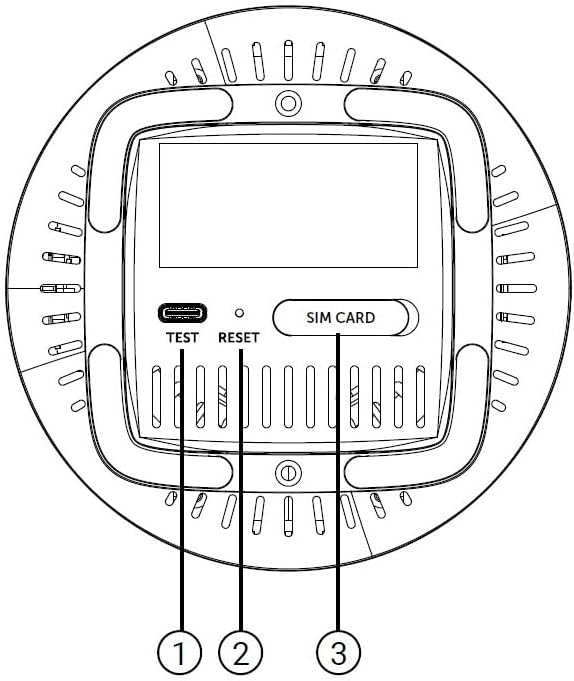
図1: 前面 View of the GX 3000 Router
This image displays the front of the Intelbras GX 3000 router, showing its sleek white design and LED indicators for 5G, 4G, call status, Wi-Fi, and WPS button.

Figure 2: GX 3000 Router with Highlighted Indicators and Ports
This image provides a closer look at the router, emphasizing the LED indicators on the front (5G, 4G, Call, Wi-Fi, WPS) and the various ports located on the rear panel, including LAN, WAN, and TEL ports.
2.2.1. 背面パネルのポート

Figure 3: Rear Panel of the GX 3000 Router
This image shows the rear panel of the router, clearly displaying the LAN, WAN, and TEL ports for wired connections.
- LANポート For connecting wired devices such as computers, smart TVs, or gaming consoles.
- WANポート: For connecting to an external modem or internet source (if not using 5G/4G).
- TELポート: For voice services (if supported by your service provider).
- 電源入力: 付属の電源アダプターに接続します。
2.2.2. Bottom Panel Features

Figure 4: Bottom Panel Features of the GX 3000 Router
This diagram illustrates the bottom panel of the router, highlighting the TEST port, RESET button, and SIM CARD slot.
- TEST Port: 診断目的のため。
- リセットボタン: Used to restore factory default settings. Press and hold for 10 seconds while the device is powered on.
- SIM CARD Slot: Insert your 5G/4G SIM card here for mobile broadband connectivity.
3. セットアップ
3.1. 初期配置
Place the router in a central location within your desired coverage area, away from obstructions, metal objects, and other electronic devices that may cause interference. Ensure good ventilation around the device.
3.2. SIMカードの挿入
- ルーターの電源がオフになっていることを確認します。
- Locate the SIM CARD slot on the bottom panel of the router (refer to Figure 4).
- Insert your activated 5G/4G SIM card into the slot with the gold contacts facing down and the notched corner oriented correctly. Push until it clicks into place.
- 取り外すには、SIM カードが飛び出すまでもう一度ゆっくりと押し込みます。
3.3. 電源の接続
- Connect one end of the power adapter to the Power Input port on the rear of the router.
- 電源アダプタのもう一方の端を標準の電源コンセントに差し込みます。
- The router will power on automatically. Wait for the LED indicators to stabilize.
3.4. 有線接続(オプション)
If you wish to connect devices via Ethernet:
- Connect one end of the provided network cable to a LAN port on the rear of the router.
- Connect the other end of the network cable to the Ethernet port of your computer, smart TV, or other wired device.
3.5. 初期Wi-Fi接続
The default Wi-Fi network name (SSID) and password are usually printed on a label on the bottom of the router. Follow these steps to connect:
- ワイヤレス デバイス (スマートフォン、ラップトップ、タブレット) で、Wi-Fi 設定を開きます。
- Scan for available networks and select the SSID corresponding to your GX 3000 router.
- Enter the default Wi-Fi password when prompted.
- 接続すると、ルーターの web interface to customize settings.
4. 操作手順
4.1.LEDインジケーター
フロント パネルの LED はステータス情報を提供します。
- 5G LED: 5G ネットワークのステータスを示します。
- 4G LED: 4G ネットワークのステータスを示します。
- 通話LED: 音声サービスのステータスを示します。
- Wi-Fi LED: Wi-Fi ネットワークアクティビティを示します。
- WPS LED: WPS 機能の状態を示します。
Refer to the full user manual (if provided separately) for detailed LED behavior (e.g., solid, blinking, color) and their meanings.
4.2. アクセス Web 管理インターフェース
To configure advanced settings, manage your network, or change Wi-Fi credentials, access the router's web インタフェース:
- Ensure your device is connected to the GX 3000's Wi-Fi network or via an Ethernet cable.
- 開く web ブラウザ(例:Chrome、Firefox、Edge)。
- アドレスバーにルーターのデフォルトのIPアドレス(通常は
192.168.1.1or192.168.0.1) and press Enter. This information is usually on the label on the bottom of the router. - デフォルトのユーザー名とパスワードを入力します(ルーターのラベルにも記載されています)。
- You will now be in the router's management interface, where you can customize settings such as Wi-Fi name, password, security protocols, and more.
4.3. Wi-Fi保護設定(WPS)
WPS allows you to connect Wi-Fi devices without entering the password manually:
- Press the WPS button on the front of the GX 3000 router (refer to Figure 1). The WPS LED will start blinking.
- Within two minutes, press the WPS button on your client device (e.g., Wi-Fi adapter, printer).
- デバイスは自動的に接続されます。
Note: WPS is a convenient feature but may be less secure than manual password entry.
4.4. Mesh Network Expansion
The GX 3000 supports mesh networking to expand Wi-Fi coverage. You can add other compatible Intelbras Qi5 line products to create a seamless mesh network. Each additional Wi-Fi 6 router can extend coverage by up to 300 m². It is recommended to use up to 6 routers in the same mesh network for optimal performance.
Refer to the specific instructions provided with additional mesh units for pairing and configuration.
5. メンテナンス
5.1.デバイスのクリーニング
- Ensure the router is powered off and unplugged before cleaning.
- デバイスの外側を拭くときは、柔らかく乾いた布を使用してください。
- Do not use liquid cleaners, aerosols, or solvents, as they may damage the casing または内部コンポーネント。
- 通気口にほこりやごみが入らないようにしてください。
5.2. ファームウェアのアップデート
Periodically check the Intelbras official webファームウェアのアップデートについては、こちらのサイトをご覧ください。ファームウェアをアップデートすると、パフォーマンスの向上、新機能の追加、セキュリティの強化などが可能になります。ファームウェアアップデートパッケージに付属の指示をよく読んで従ってください。
5.3. 工場出荷時の設定へのリセット
If you encounter persistent issues or forget your login credentials, you can reset the router to its factory default settings:
- With the router powered on, locate the RESET button on the bottom panel (refer to Figure 4).
- ペーパークリップなどの先の尖ったものを使用して、RESET ボタンを約 10 秒間押し続けます。
- Release the button. The router will restart with all settings restored to their original factory defaults.
- You will need to reconfigure your Wi-Fi settings and any other custom configurations after a factory reset.
6。 トラブルシューティング
| 問題 | 考えられる原因 | 解決 |
|---|---|---|
| No power / Router not turning on | 電源アダプターが接続されていないか故障しています。電源コンセントが機能していません。 |
|
| No internet connection (5G/4G) | SIM card not inserted correctly; SIM card not activated; No 5G/4G signal; Service provider issue. |
|
| Wi-Fiに接続できません | Incorrect Wi-Fi password; Wi-Fi disabled; Device too far from router. |
|
| インターネット速度が遅い | Network congestion; Poor signal strength; Interference; Outdated firmware. |
|
| 忘れた web インターフェースパスワード | Password forgotten or changed. |
|
7. 仕様
| 特徴 | 詳細 |
|---|---|
| ブランド | インテルブラス |
| モデル | 3000 メガバイト |
| 接続技術 | 5G, 4G, Wi-Fi 6 (802.11a/b/g/n/ac/ax) |
| 周波数帯域クラス | デュアルバンド |
| 無線通信規格 | 802.11a |
| データ転送速度 | 最大900メガビット/秒 |
| LANポート帯域幅 | 1000 Mbps (ギガビットイーサネット) |
| アンテナタイプ | 内部 |
| 対応デバイス | Computer, Notebook, Tablet, Smart TV |
| 特集 | Remote Access, Mesh Wi-Fi capability |
| 色 | 白 |
| アイテム重量 | 1000グラム |
| 含まれるコンポーネント | Power supply, Network cable |
| Anatel Homologation Number | 13571-22-00180 |
8.保証とサポート
8.1. 保証情報
Intelbras products are covered by a limited warranty. For specific warranty terms and conditions, please refer to the warranty card included with your product or visit the official Intelbras webサイトでご確認ください。保証請求に備えて購入証明書を保管してください。
8.2. テクニカルサポート
If you require technical assistance or have questions not covered in this manual, please contact Intelbras customer support. You can find contact information (phone numbers, email, support portal) on the official Intelbras webサイト:
Intelbras Official Webサイト: www.intelbras.com.br
When contacting support, please have your product model (GX 3000) and serial number ready.