
1. はじめに
The ETOE Smart Projector D2 Pro is a compact and versatile home entertainment device designed to deliver a high-quality viewing experience. Featuring Android TV 10.0, built-in Chromecast, and a native 1080P resolution with 4K support, it provides access to a wide range of streaming content and connectivity options. This manual provides essential information for setting up, operating, and maintaining your projector.

Image: The ETOE Smart Projector D2 Pro, showcasing its compact design, included remote control, and a projection of the Android TV interface with Netflix and other apps.
2. 箱の中身
開梱したらパッケージの内容を確認し、すべてのアイテムが揃っていることを確認してください。
- ETOE D2 Pro Projector (x1)
- Remote Control (x1, batteries not included)
- DC 19V Adapter (x1)
- 電源コード(x1)
- User Manual + Quick Guide (x1)
3. フィジカルオーバーview
プロジェクターを最適に使用するには、プロジェクターのポートとコントロールをよく理解しておく必要があります。

画像: 背面 view of the ETOE D2 Pro Projector, highlighting the DC power input, USB port, HDMI port, and Aux audio output.
ポートと接続:
- DC for Power: 付属の電源アダプターをここに接続します。
- USB: For connecting USB drives to play media or connect compatible accessories.
- HDMI: For connecting external devices such as laptops, gaming consoles (PS5/PS4, X-Box ONE), TV boxes, or Fire TV sticks.
- 補助: For connecting external audio devices like headphones or speakers via a 3.5mm audio cable.
4. セットアップ
4.1 配置と画面サイズ
Position the projector on a stable, flat surface. The optimal projection distance will vary based on your desired screen size. The projector supports screen sizes from 40 inches to 120 inches, with 100 inches being the recommended size for a balanced viewing の経験。
4.2電源オン
- Connect the DC 19V adapter to the projector's DC input port.
- 電源コードを壁のコンセントに差し込みます。
- プロジェクタまたはリモコンの電源ボタンを押して、デバイスの電源をオンにします。
4.3 フォーカスとキーストーン調整
To ensure a clear and rectangular image, adjust the focus and keystone correction.

Image: Diagram illustrating the manual focus, digital 4D & 4P keystone correction, and digital zoom features of the ETOE D2 Pro Projector.
- マニュアルフォーカス: 画像が鮮明に表示されるまで、プロジェクター レンズのフォーカス リングを回転させます。
- Digital Keystone Correction (4D & 4P): If the projected image is trapezoidal or tilted, use the digital keystone correction feature to adjust it into a perfect rectangle. This can be done through the projector's settings menu.
- Digital Zoom (50% - 100%): Adjust the projection size without physically moving the projector using the digital zoom function in the settings.
5. プロジェクターの操作
5.1 Android TV 10.0 インターフェース
The projector runs on Android TV 10.0, providing access to over 8000 apps from Google Play, including Netflix, YouTube, Disney+, HBO Max, and Spotify. Navigate the interface using the remote control.

Image: A comparison showing the rich Android TV 10.0 interface of the ETOE D2 Pro System on the left, with numerous app icons, versus a simpler, less feature-rich interface of other projectors on the right.
- Use the directional buttons on the remote to navigate through menus and select apps.
- 「OK」ボタンを押して選択を確定します。
- Utilize the voice control feature (Google Assistant) on the remote for hands-free content search and control.
5.2 Casting with Chromecast Built-in
The built-in Chromecast allows for seamless content casting from your Android, iOS devices, or laptops.
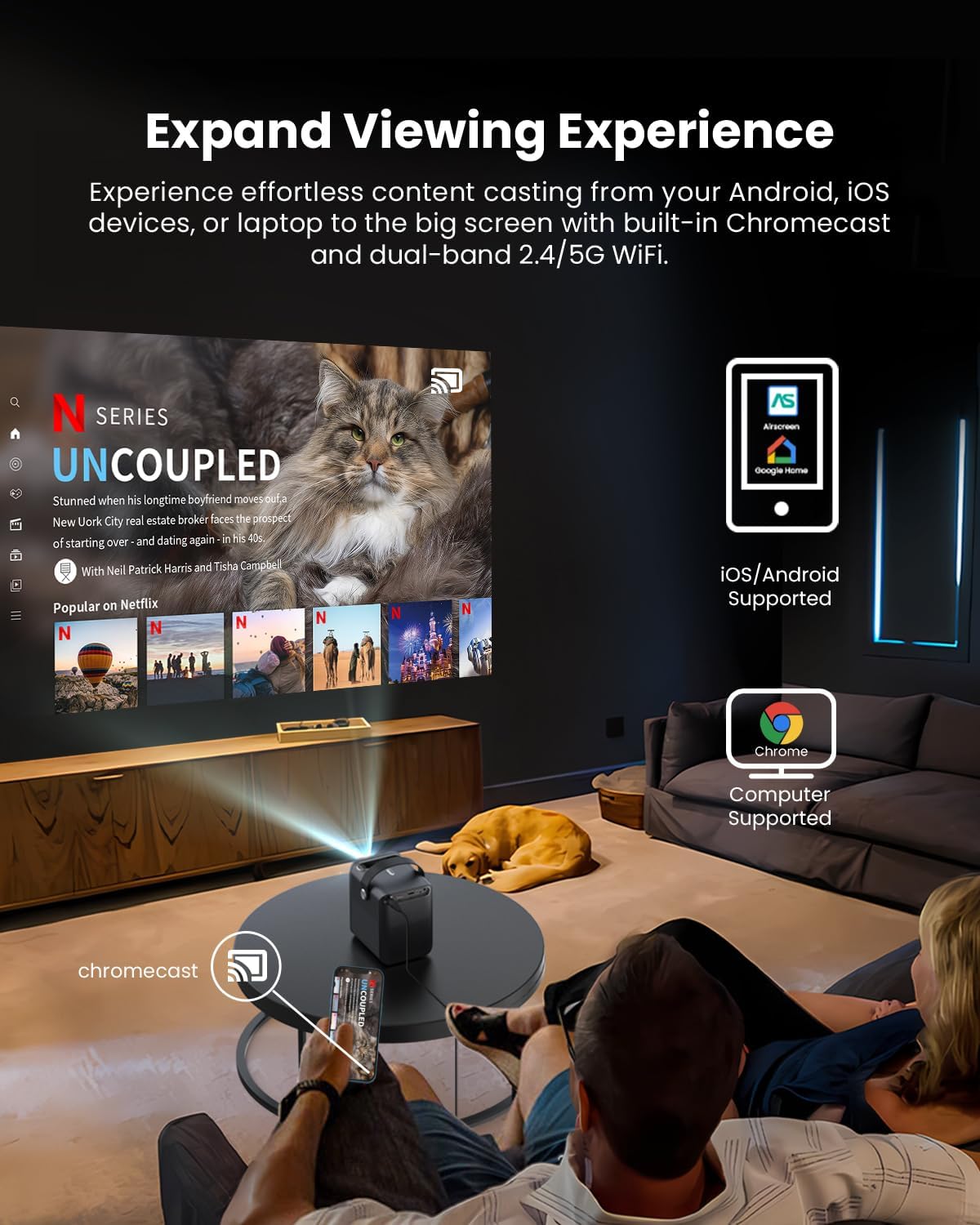
Image: A person relaxing on a couch, casting content from their smartphone to the ETOE D2 Pro Projector, demonstrating the Chromecast feature for an expanded viewing の経験。
- Ensure your mobile device or computer is connected to the same Wi-Fi network as the projector.
- Open a Chromecast-enabled app (e.g., YouTube, Netflix) on your device.
- キャストアイコンをタップします (通常はWi-Fiシンボルが描かれた長方形) and select your ETOE D2 Pro Projector from the list of available devices.
5.3 外部機器の接続
プロジェクターは、さまざまなデバイスに対応する複数の接続オプションを提供します。

Image: The ETOE D2 Pro Projector displayed with various compatible accessories, including a TV stick, USB stick, external speaker, and headphones, illustrating its versatile connectivity options.
- HDMI: Connect TV sticks, gaming consoles, laptops, or other HDMI-enabled devices to the HDMI port. Select the HDMI input source from the projector's menu.
- USB: USBドライブをUSBポートに挿入してローカルメディアを再生します file(ビデオ、写真、音楽)。
- ブルートゥース: Pair Bluetooth speakers or headphones for wireless audio output. Go to the projector's Bluetooth settings to search for and connect to devices.
- 補助: Use a 3.5mm audio cable to connect wired headphones or external speakers to the Aux port.
5.4 画像と音声の設定
画像とサウンドの設定を調整して最適化します viewing の経験。

Image: The ETOE D2 Pro Projector projecting a vibrant city scene, highlighting its native 1080P Full HD resolution, 4K support, 400 ANSI lumens brightness, and HDR 10 compatibility for stunning image quality.
- 画像モード: Select from preset picture modes (e.g., Standard, Vivid, Movie) or customize settings like brightness, contrast, and color temperature.
- サウンドモード: Choose from various sound modes (e.g., Standard, Music, Movie) or adjust equalizer settings for the built-in dual 3W speakers or connected audio devices.
- 投影モード: Adjust the projection mode (e.g., Front, Rear, Ceiling Front, Ceiling Rear) based on your projector's placement.
6. メンテナンス
6.1 防塵設計
The ETOE D2 Pro features a fully-sealed optical engine designed to prevent dust from entering the lens area, ensuring long-term performance and reducing the need for frequent internal cleaning.

Image: An illustration of the ETOE D2 Pro Projector's sealed optical engine, showing how it prevents dust from entering the internal components, ensuring long-lasting performance.
6.2一般的なクリーニング
- 外観: プロジェクターの外装は、柔らかく乾いた糸くずの出ない布で拭いてください。研磨剤入りの洗剤や溶剤は使用しないでください。
- レンズ: Gently clean the projector lens with a lens cleaning cloth or a soft brush designed for optical surfaces. Avoid touching the lens directly with your fingers.
- 清掃する前にプロジェクターの電源プラグが抜かれていることを確認してください。
7。 トラブルシューティング
プロジェクターで問題が発生した場合は、次の一般的な問題と解決策を参照してください。
| 問題 | 考えられる原因 | 解決 |
|---|---|---|
| 写真なし | 電源ケーブルが緩んでいる;入力ソースが正しくない;デバイスが接続されていない | Check power connection; Select correct HDMI/USB input; Ensure external device is properly connected and powered on. |
| ぼやけた画像 | Focus not adjusted; Keystone not corrected | Adjust the manual focus ring; Use digital keystone correction in settings. |
| 音が出ない | Volume too low; Muted; Incorrect audio output; External device audio issue | Increase volume; Unmute; Check audio output settings (internal speakers, Bluetooth, Aux); Verify audio settings on connected device. |
| リモコンが動作しない | 電池残量が少ない/切れている; リモコンとプロジェクターの間に障害物がある | 電池を交換してください。プロジェクターの IR 受信機までの見通しが確保されていることを確認してください。 |
| Wi-Fiに接続できません | Incorrect password; Router issue; Projector too far from router | Double-check Wi-Fi password; Restart router; Move projector closer to router. |
If the problem persists after trying these solutions, please contact ETOE customer support.
8. 仕様
| 特徴 | 詳細 |
|---|---|
| モデル | D2プロ |
| オペレーティング·システム | Android TV 10.0 |
| ディスプレイ解像度 | Native 1920 x 1080 (1080P Full HD), 4K video supported |
| 輝度 | 400 ANSIルーメン |
| コントラスト比 | HDR 10 support |
| 投影サイズ | 40" - 120" (100" recommended) |
| キーストーン補正 | Digital 4D & 4P Keystone |
| ズーム機能 | Digital Zoom (50% - 100%) |
| 接続性 | HDMI, USB, Chromecast, 5G WiFi, Bluetooth, Aux |
| オーディオ | デュアル 3W スピーカー |
| 光学エンジン | Fully-sealed (Dust-proof) |
| アイテム重量 | 3.58ポンド |
| 製品寸法 | 5.31 x 4.45 x 5.83インチ |
9. 保証とサポート
ETOE provides comprehensive support for your D2 Pro projector:
- 保証: A 12-month after-sales service is provided from the date of purchase.
- テクニカルサポート: Lifetime technical support is available for all ETOE D2 Pro users.
For any questions, technical assistance, or warranty claims, please contact ETOE customer support directly. There is no need to return the projector without prior contact.