
導入
This manual provides comprehensive instructions for setting up, operating, and maintaining your VEIKK A30 Drawing Tablet. Please read this guide thoroughly to ensure optimal performance and longevity of your device.
箱の中身
パッケージにすべてのアイテムが揃っていることを確認します。
- VEIKK A30 描画タブレット
- Battery-Free Stylus Pen
- USB-Cケーブル
- Pen Nibs (8 replacement nibs)
- ペン先リムーバー
- ペンホルダー
- アーティストグローブ
- クイックスタートガイド

Image: The VEIKK A30 Drawing Tablet and its included accessories, such as the pen, USB cable, replacement nibs, and artist glove.
設定
1. ドライバーのインストール
Before connecting the tablet, it is recommended to install the latest driver from the official VEIKK website. If you have other tablet drivers installed, uninstall them first to avoid conflicts.
- 公式VEIKKをご覧ください webサイト。
- 「サポート」または「ダウンロード」セクションに移動します。
- Locate and download the driver for the VEIKK A30 model compatible with your operating system (Windows, Mac, Android, or Linux).
- 画面の指示に従ってインストールを完了します。
2. タブレットの接続
The VEIKK A30 uses a Type-C interface port for connection.
- 付属の USB-C ケーブルの一方の端を VEIKK A30 タブレットの Type-C ポートに接続します。
- USB-C ケーブルのもう一方の端を、コンピューターまたは Android デバイスの使用可能な USB ポートに接続します。
- Ensure the connection is secure. The tablet should be recognized by your system after driver installation.

画像: 詳細な view of the Type-C interface port on the VEIKK A30 tablet, highlighting its durable design.
3. Pen Setup
The stylus pen is battery-free and does not require charging.
- Ensure a nib is securely inserted into the pen.
- The pen features two programmable shortcut buttons. These can be customized via the tablet driver settings.
タブレットの操作
1. Basic Drawing and Active Area
The VEIKK A30 offers a 10 x 6 inch active drawing area. The working area can be adjusted through the driver settings if needed.

Image: A user actively drawing on the VEIKK A30 tablet, which is connected to a laptop, demonstrating its use in digital art creation.
2. Customizable Touch Keys and Touch Pad
The tablet features 4 customizable touch keys (K1-K4) and a touch pad for enhanced workflow.
- Customizing Keys: Access the VEIKK driver software to assign functions (e.g., zoom in/out, undo, redo) to the 4 touch keys according to your preferences.
- タッチパッド: The touch pad allows for intuitive control of canvas and brushes, similar to a mobile phone interface.
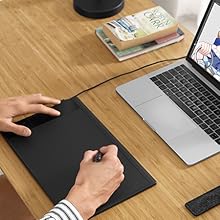
Image: A close-up of the VEIKK A30 tablet's control area, highlighting the four customizable touch keys (K1-K4) and the central touch pad.
3. Stylus Pen Functions
The battery-free pen offers 8192 levels of pressure sensitivity and 60° tilt support for a natural drawing experience.
- 圧力感度: Allows for varying line thickness and opacity based on the pressure applied.
- 傾斜機能: Simulates traditional brush strokes, enabling shading and varied line effects.
- プログラム可能なボタン: The two buttons on the pen can be customized for functions like eraser/pen toggle or right-click.

Image: An illustration detailing the features of the VEIKK A30's battery-free pen, showcasing its 8192 pressure levels, 60-degree tilt recognition, and programmable buttons.
4. Software and OS Compatibility
The VEIKK A30 is compatible with a wide range of operating systems and creative software.
- オペレーティング システム: Linux, Android, Mac OS (10.12 or later), Windows (7 or later), Chrome OS (88 or later).
- ソフトウェア: Supports major drawing and design applications such as Corel Painter, Adobe Illustrator, Comic Studio, Manga Studio, Clip Studio, Adobe Photoshop, Gimp, Autodesk Sketchbook, Krita, Maya, Zbrush, and more.

Image: The VEIKK A30 tablet surrounded by logos of compatible software, including Photoshop, Illustrator, SAI, Krita, and Zbrush, demonstrating its broad application support.

Image: The VEIKK A30 tablet connected to an Android smartphone, illustrating its compatibility with Android devices for on-the-go creativity.
メンテナンス
1. タブレットとペンのクリーニング
- Use a soft, dry cloth to wipe the tablet surface and pen.
- Avoid using harsh chemicals, abrasives, or excessive moisture, as these can damage the device.
2. ペン先の交換
The pen nibs will wear down over time and should be replaced to maintain optimal performance.
- Use the nib remover tool to gently pull out the old nib from the pen.
- Insert a new replacement nib firmly into the pen until it is secure.
- Ensure the nib is fully seated to prevent issues with pressure sensitivity.
トラブルシューティング
If you encounter issues with your VEIKK A30 tablet, refer to the following common solutions:
- タブレットが応答しない: Ensure the USB-C cable is securely connected to both the tablet and your computer/device. Try a different USB port or cable.
- ペンが動作しない: Check if the pen nib is properly inserted. If the nib is worn, replace it with a new one. Ensure the tablet driver is correctly installed and running.
- ドライバーの問題: If the tablet is not functioning as expected, try reinstalling the latest driver from the VEIKK website. Ensure any other tablet drivers are uninstalled.
- 圧力感度が機能しない: Verify that the driver is installed and calibrated correctly. Check your software settings to ensure pressure sensitivity is enabled.
- 不正確なカーソル: Recalibrate the working area in the VEIKK driver settings.
For further assistance, visit the official VEIKK support webサイトをご覧いただくか、カスタマーサービスにお問い合わせください。
仕様
| 特徴 | 仕様 |
|---|---|
| 製品寸法 | 13 x 8.4 x 0.1 インチ (358 x 200 x 9 mm) |
| アイテム重量 | 1.27ポンド |
| アクティブエリア | 10 x 6インチ |
| 圧力感度 | 8192 レベル |
| 傾斜サポート | 60° |
| 接続技術 | USB-C |
| オペレーティングシステムの互換性 | Windows 7 or later, Mac OS 10.12 or later, Android 6.0 or later, Linux, Chrome OS 88 or later |
| 特集 | Battery-Free Pen, 4 Customizable Touch Keys, 1 Touch Pad |
保証とサポート
VEIKK products typically come with a manufacturer's warranty. Please refer to the warranty card included with your product or visit the official VEIKK web詳細な保証情報と条件については、サイトをご覧ください。
For technical support, driver updates, or frequently asked questions, please visit the VEIKK support page: