
GreenLaw GreenLaw Keyboard Case for iPad Air 11-inch (M3/M2) 2025/2024 & Air 4th/5th Gen & iPad Pro 11 inch (1st/2nd/3rd/4th Gen)
GreenLaw キーボードケース(iPad Air 11インチ & iPad Pro 11インチ用、ブラッシュピンク)ユーザーマニュアル
1. はじめに
This manual provides detailed instructions for the setup, operation, and maintenance of your GreenLaw Keyboard Case. Designed for seamless integration with compatible iPad models, this case enhances your tablet experience with a smart touchpad, 7-color backlit keyboard, and durable, stain-resistant protection.
2. 互換性
The GreenLaw Keyboard Case is compatible with the following iPad models:
- iPad Air 11インチ (M3) 2025
- iPad Air 11インチ (M2) 2024
- iPad Air 5th Generation 10.9 inch 2022 (Models: A2588/A2589/A2591)
- iPad Air 4th Generation 10.9 inch 2020 (Models: A2072/A2316/A2324/A2325)
- iPad Pro 11インチ 第4世代 2022 (モデル: A2759/A2435/A2761/A2762)
- iPad Pro 11インチ 第3世代 2021 (モデル: A2377/A2459/A2301/A2460)
- iPad Pro 11 inch 2nd Generation 2020 (Models: A2228/A2068/A2230/A2231)
- iPad Pro 11 inch 1st Generation 2018 (Models: A1980/A2013/A1934)
NOTE: This case is NOT compatible with iPad Pro 11 Inch M4 (2024).

3. セットアップ
3.1 キーボードの充電
Before initial use, fully charge the keyboard using the provided USB-C cable. Connect the cable to the charging port on the side of the keyboard and to a compatible USB power source.

3.2 Bluetooth経由でキーボードをペアリングする
- キーボードが充電され、電源がオンになっていることを確認します。
- iPadで、 設定 > ブルートゥース Bluetoothをオンにします。
- を押す FN+C keys simultaneously on the keyboard to enter pairing mode. The Bluetooth indicator light on the keyboard will begin to blink.
- iPad で、利用可能なデバイスのリストから「GreenLaw キーボード」(または同様の名前) を選択します。
- 接続されると、キーボードの Bluetooth インジケーター ライトの点滅が停止します。
The keyboard supports dual Bluetooth connectivity, allowing connection to two devices simultaneously. To switch between devices, press FN+Q for device 1 or FN+W for device 2.

3.3 Inserting the iPad into the Case
Gently align your iPad with the case's protective shell, ensuring the camera cutout and ports match. Press firmly around the edges to secure the iPad in place.

4. Operating the Keyboard Case
4.1 調整可能なバックライト
The keyboard features a 7-color backlight with 3 adjustable brightness levels. This allows for comfortable typing in various lighting conditions and adds a personalized touch.
- を押す 電球アイコンキー to cycle through the 7 colors.
- プレス FN + 電球アイコンキー to adjust the brightness levels (Low, Mid, High).


4.2 Smart Touchpad
The integrated touchpad supports multi-functional gestures, providing a laptop-like experience for navigation and control. It features anti-touch technology for precise input.
- 一本指タップ: クリック/選択します。
- 2本指スクロール: 上/下または左/右にスクロールします。
- Two-Finger Pinch: ズームイン/ズームアウトします。
- 3本指で上にスワイプ: アプリスイッチャーを開きます。
- 3本指で左/右にスワイプ: 開いているアプリケーションを切り替えます。


4.3 Upper Pencil Slot
The case includes a dedicated slot at the top for your Apple Pencil, allowing for convenient storage and charging while keeping it secure with your iPad.

4.4 Detachable Keyboard and Multiple View角度を変える
The keyboard is magnetically detachable from the case, offering flexibility for various usage scenarios. The case itself provides multiple viewing angles (110°, 120°, 130°) for optimal comfort whether typing, watching, or drawing.


5. メンテナンス
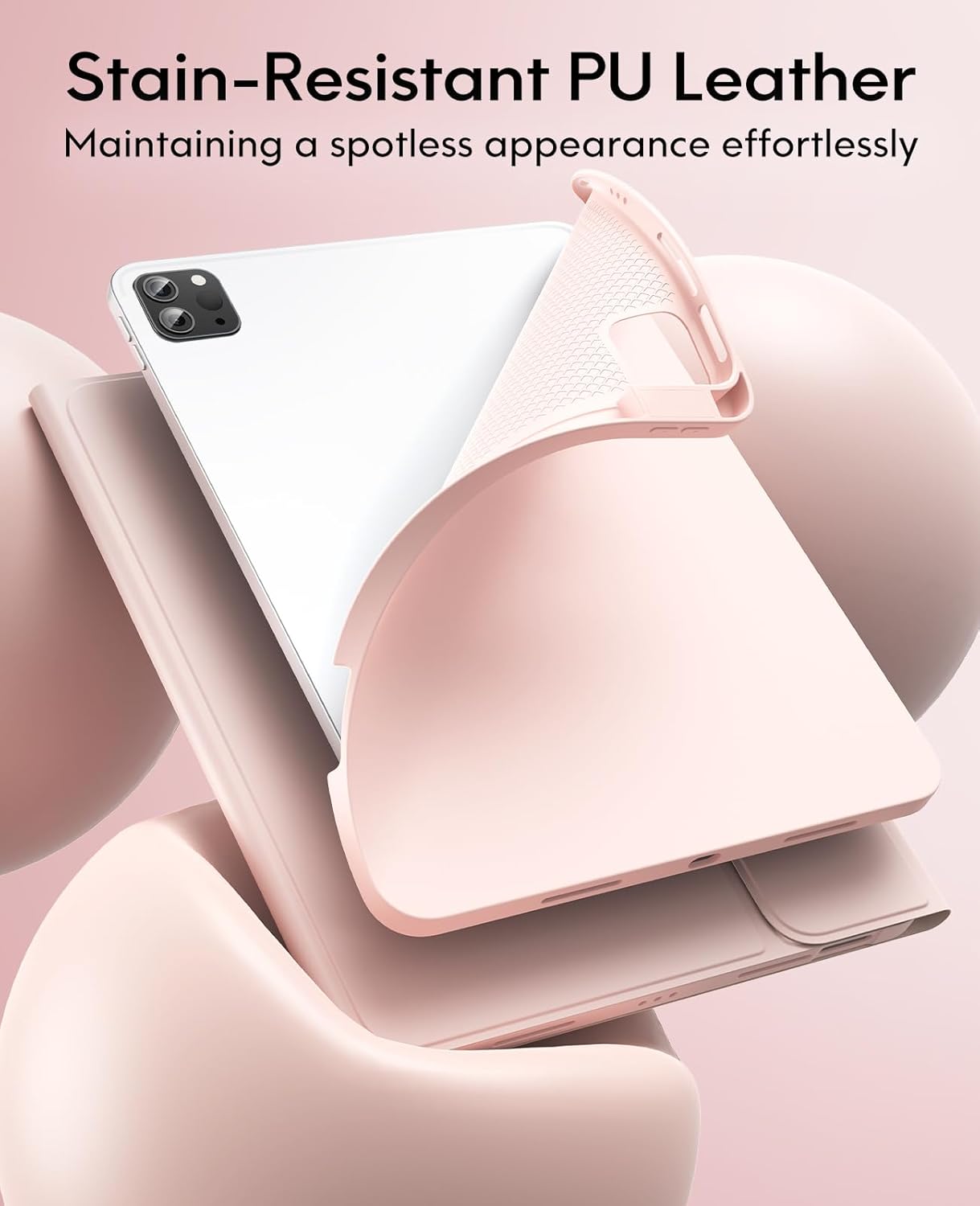
5.1 Cleaning the Stain-Resistant Case
The GreenLaw Keyboard Case is made with specially treated dirt-proof leather, designed to resist stains from common contaminants like paint, coffee, juice, and oil. To clean:
- For liquid spills, gently blot the surface with a clean, dry cloth or paper towel within 5 minutes.
- 頑固な汚れには、少し厚めのamp cloth with mild soap and gently wipe the affected area.
- 素材を傷める恐れがあるため、強力な化学薬品や研磨剤入りの洗剤の使用は避けてください。
- Ensure the case is completely dry before reattaching the keyboard or closing the case.

Video 5.1: Demonstration of the SKIN/semiSi-tech Cover's stain resistance and ease of cleaning.
6。 トラブルシューティング
- キーボードが接続されない: Ensure Bluetooth is enabled on your iPad and the keyboard is in pairing mode (FN + C). Check if the keyboard battery is charged.
- タッチパッドが応答しません: Verify the keyboard is connected via Bluetooth. Restart both the iPad and the keyboard.
- バックライトが機能しない: Ensure the keyboard is powered on. Press the light bulb icon key to activate and cycle through colors. Use FN + light bulb icon key to adjust brightness.
- キーが正しく入力されない: Check the iPad's language and keyboard settings. Ensure the keyboard is fully charged.
- iPadがしっかりと固定されない: Double-check your iPad model against the compatibility list. Ensure the iPad is aligned correctly with the case's cutouts.
7. 仕様
| ブランド | グリーンロー |
| 対応デバイス | iPad Air 11-inch (M3/M2) 2025/2024, iPad Pro 11" 4th/3rd/2nd/1st Gen. (Not for Pro 11" M4 2024) |
| 接続技術 | ブルートゥース |
| キーボードの説明 | 無線 |
| 特集 | バックライト、トラックパッド |
| 色 | Blush Pink (Keyboard backlighting color support: RGB) |
| 材料 | Polyurethane Leather, Thermoplastic Polyurethane (TPU) |
| アイテム重量 | 1.81ポンド |
| パッケージ寸法 | 10.59 x 8.58 x 1.26インチ |
| バッテリー | 1 個のリチウムポリマー電池が必要 (付属) |
8. 保証とサポート
For warranty information, technical support, or any inquiries regarding your GreenLaw Keyboard Case, please refer to the official GreenLaw web当サイトをご覧いただくか、ご購入プラットフォームからカスタマーサービスまでお問い合わせください。保証請求のために購入証明書を保管してください。
Visit the official GreenLaw Store: AmazonのGreenLawストア
Ask a question about this manual
Ask about setup, troubleshooting, compatibility, parts, safety, or missing instructions. Manuals+ will review the question and use this page’s manual context to help answer it.