
アグリーン 15598
UGREEN Revodok 6-in-1 USB C Hub Gigabit Ethernet Adapter Instruction Manual
モデル: 15598 | ブランド: UGREEN
製品終了view
The UGREEN Revodok 6-in-1 USB C Hub is a versatile multiport adapter designed to expand the connectivity of your USB-C enabled devices. It transforms a single USB-C port into multiple essential ports, enhancing productivity and convenience for laptops, tablets, and smartphones.
主な特徴:
- 6-in-1接続: Integrates 4K@30Hz HDMI, Gigabit Ethernet, 100W Power Delivery (PD) charging, and three USB-A 3.0 data ports.
- 4K HD Visuals: Supports video output up to 4K at 30Hz via the HDMI port for clear display mirroring or extension. (Note: Does not support HDR/3D).
- 安定したギガビットイーサネット: Provides a reliable 1000Mbps wired network connection for faster and more stable internet access compared to Wi-Fi.
- 100W電力供給: Offers up to 85W pass-through charging for your laptop via the Type-C port, with 15W reserved for hub operations. (Note: USB-C port supports charging only, no data or video).
- 高速データ転送: Three USB-A 3.0 ports allow data transfer speeds up to 5Gbps, ideal for connecting peripherals like external hard drives, USB flash drives, mice, and keyboards.
- ユニバーサル互換性: Compatible with a wide range of devices including MacBook Neo/Pro/Air M1, M2, M3, M4, M5, iPad, iPhone 16 Pro/Pro Max, Steam Deck, and various laptops, smartphones, and tablets running macOS, Windows, Chrome OS, and iPadOS.
- 耐久性に優れたデザイン: Features a metallic finish and aluminum alloy construction for efficient heat dissipation and enhanced durability.
パッケージ内容
- UGREEN Revodok 6-in-1 USB C Hub (Model: 15598)
- ユーザーマニュアル
セットアップ手順
- ハブをデバイスに接続します。
Plug the integrated USB-C cable of the UGREEN Revodok hub into an available USB-C port on your laptop, tablet, or smartphone. Ensure the connection is secure.

Image: The UGREEN Revodok 6-in-1 USB C Hub connected to a laptop, showcasinコンパクトなデザインと複数のポートを備えています。
- 電力供給(オプション):
If your device requires charging or if you are connecting power-intensive peripherals, connect your original USB-C power adapter to the PD 100W USB-C port on the hub. This will provide pass-through charging to your host device.

Image: A laptop connected to the UGREEN Revodok hub, which is then connected to a 100W power adapter for fast charging.
- 外部ディスプレイを接続する(オプション):
For video output, connect an HDMI cable from your monitor or TV to the 4K@30Hz HDMI port on the hub. Your device should automatically detect the external display. Adjust display settings (mirror or extend) as needed in your operating system settings.
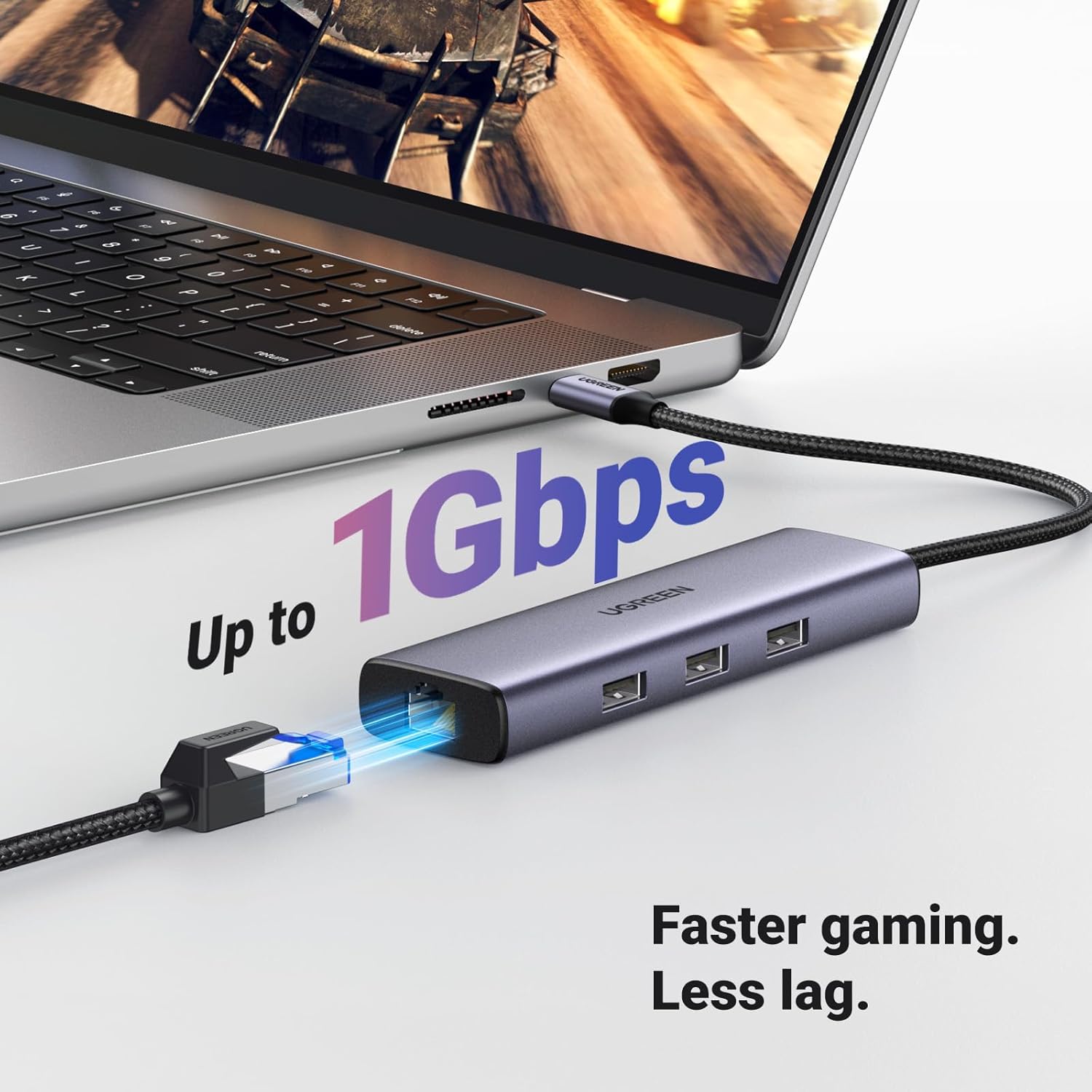
Image: A laptop connected to the UGREEN Revodok hub, which is displaying content on an external 4K monitor via HDMI.
- イーサネットケーブルを接続する(オプション):
For a wired network connection, plug an Ethernet cable into the Gigabit Ethernet (RJ45) port on the hub. Connect the other end of the Ethernet cable to your router or modem. The connection should be established automatically.

Image: The UGREEN Revodok hub connected to a laptop, with an Ethernet cable plugged into its RJ45 port, indicating a stable network connection.
- USB周辺機器を接続する(オプション):
Plug your USB-A devices (e.g., mouse, keyboard, USB flash drive, external hard drive) into the three USB-A 3.0 ports on the hub.

Image: A laptop connected to the UGREEN Revodok hub, with various USB devices like a flash drive and external hard drive plugged into its USB-A ports.
操作手順
The UGREEN Revodok 6-in-1 USB C Hub is designed for plug-and-play functionality, requiring no additional drivers for most operating systems.
- 自動検出:
Once connected, your operating system (macOS, Windows, Chrome OS, iPadOS) should automatically detect the hub and its connected peripherals. You can verify this in your device's system settings or device manager.
- Using HDMI Output:
After connecting an HDMI display, navigate to your device's display settings to configure the external monitor. Options typically include "Mirror Displays" (duplicate your primary screen) or "Extend Displays" (use the external monitor as an additional workspace).
- Utilizing Ethernet:
When the Ethernet cable is connected, your device should prioritize the wired connection over Wi-Fi for internet access. Check your network settings to confirm the Gigabit Ethernet connection is active.
- USBデータ転送:
Files can be transferred to and from connected USB-A devices at speeds up to 5Gbps. Ensure your connected devices and cables support USB 3.0 for optimal performance.
- デバイスの電源供給:
The 100W PD port allows you to charge your host device while using the hub. Connect your original power adapter to the hub's PD port. The hub will draw power for its own operation and pass the remaining power to your device.
メンテナンス
- クリーニング: ハブの清掃には、柔らかく乾いた布をご使用ください。液体洗剤やエアゾールの使用は避けてください。
- ストレージ: ハブは直射日光や極端な温度を避け、涼しく乾燥した場所に保管してください。
- 取り扱い: Avoid dropping the device or subjecting it to strong impacts. Do not attempt to disassemble the hub.
- ケーブルのお手入れ: Do not bend or twist the integrated USB-C cable excessively to prevent damage.
トラブルシューティング
| 問題 | 解決 |
|---|---|
| 外部モニターに何も表示されません。 |
|
| イーサネット接続が不安定または機能していません。 |
|
| USBデバイスが認識されません。 |
|
| Device is not charging via PD port. |
|
| 使用中はハブが温かくなります。 |
|
仕様
| 特徴 | 詳細 |
|---|---|
| ブランド | ユーグリーン |
| モデル番号 | 15598 |
| 色 | グレー |
| ハードウェアインターフェイス | イーサネット、HDMI、USB、USBタイプC |
| 特集 | Fast Data Transfer, Heat Resistant, Lightweight, Plug and Play, Portable |
| 対応デバイス | Laptops, MacBook Neo, Macbook M5/M4/M3/M2/M1, Smartphones, Tablets |
| USBポート合計 | 3(USB-A 3.0) |
| データ転送速度 | 5 ギガビット/秒 |
| ポート数 | 6 |
| HDMI出力 | 4K@30Hz |
| イーサネットポート | Gigabit (1000Mbps) RJ45 |
| 電力供給(PD) | 100W (85W to host, 15W for hub) |
| 最低限必要なオペレーティング システム | ウィンドウズ7 |
| オペレーティングシステムの互換性 | Mac OS 9, Windows 10, Windows 7, Chrome OS, iPadOS |
| エンクロージャ材質 | Plastic (with Aluminum Alloy for heat dissipation) |
| アイテム重量 | 140グラム |
保証とサポート
保証: この製品には購入日から 24 か月の保証が付いています。
カスタマーサポート: 技術的なサポート、トラブルシューティング、または保証請求については、UGREENの公式カスタマーサポートにお問い合わせください。 website or the retailer where the product was purchased. Please have your model number (15598) and proof of purchase ready.
製品ビデオ
UGREEN USB C Adapter Overview
Video: A seller-created overview of the UGREEN USB C Adapter, highlighting its various ports and functionalities. This video demonstrates the adapter's use with a tablet, showing how multiple USB devices and charging can be managed simultaneously.
UGREEN Revodok 6-in-1 USB C Hub Features
ビデオ: 公式販売者のビデオショーasing the UGREEN Revodok 6-in-1 USB C Hub. It details the product's design, port types (HDMI, USB-A, USB-C PD, Ethernet), and its compatibility with various devices, emphasizing its utility for expanding connectivity.
Ask a question about this manual
Ask about setup, troubleshooting, compatibility, parts, safety, or missing instructions. Manuals+ will review the question and use this page’s manual context to help answer it.