
1. はじめに
Thank you for choosing the DELTACO Gaming PM80 Wireless Optical Gaming Mouse. This manual provides essential information for setting up, operating, and maintaining your new gaming mouse. Please read these instructions carefully before use to ensure optimal performance and longevity of your device.
2. パッケージ内容
- DELTACO Gaming PM80 Wireless Optical Gaming Mouse
- USBワイヤレスレシーバー
- USB充電ケーブル
- ユーザーマニュアル
3.製品オーバーview
The DELTACO Gaming PM80 is a high-performance wireless optical gaming mouse designed for precision and comfort. It features 7 programmable buttons, adjustable DPI up to 4800, and customizable illumination. The mouse is rechargeable, ensuring uninterrupted gaming sessions.
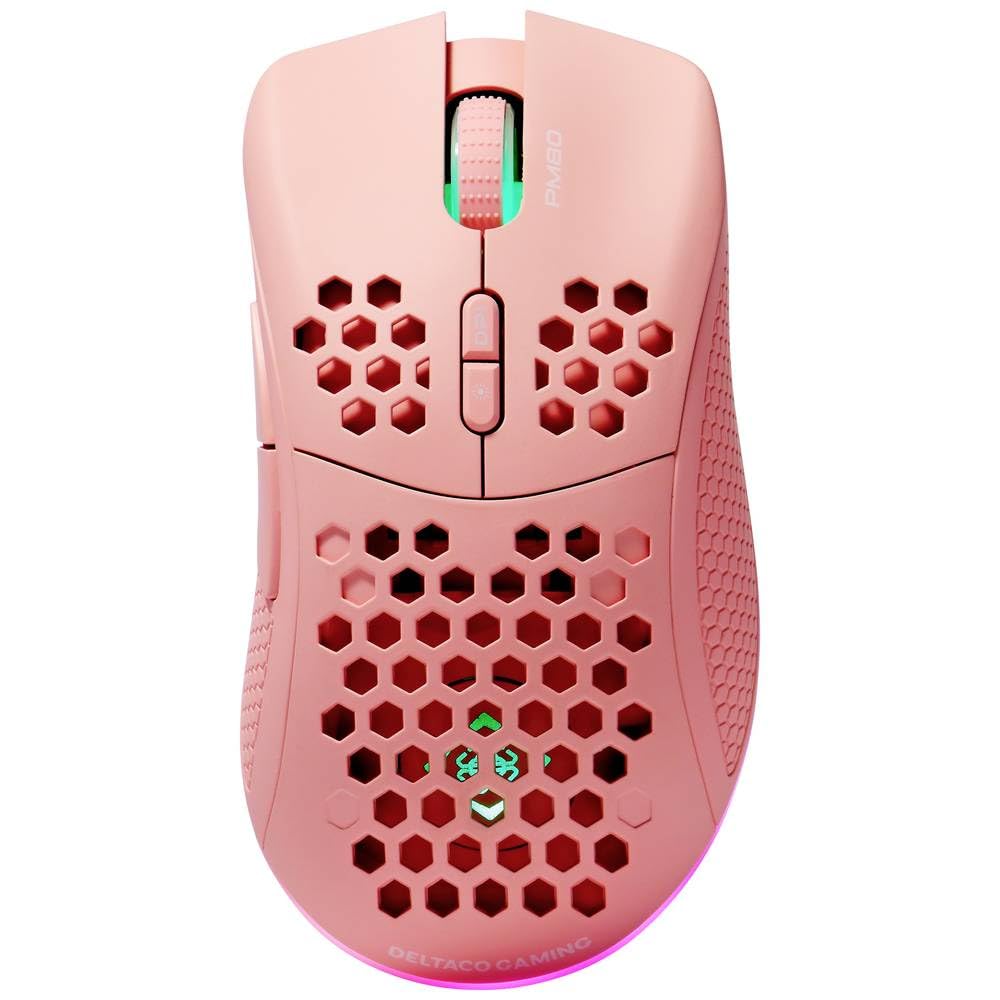
Image: DELTACO Gaming PM80 Wireless Optical Gaming Mouse. This image displays the mouse from a top-down perspective, highlighting its ergonomic design, the central scroll wheel, and the arrangement of its seven buttons.
ボタンの機能:
- 左クリックボタン: 標準的なプライマリクリック機能。
- 右クリックボタン: 標準的なセカンダリクリック機能。
- スクロールホイール: 上下にスクロールし、中クリックボタンとして機能します。
- DPIサイクルボタン: Changes the mouse's sensitivity (DPI).
- 進むボタン: 前方に移動します web ブラウザまたは file 探検家。
- 戻るボタン: 後方に移動します web ブラウザまたは file 探検家。
- Illumination Mode Button: Cycles through different lighting effects or turns illumination on/off.
4. セットアップ
4.1. マウスの充電
- USB 充電ケーブルの小さい方の端をマウスの前面にある充電ポートに接続します。
- Connect the larger end of the USB charging cable to an available USB port on your computer or a USB wall adapter.
- The mouse's illumination will indicate charging status (e.g., breathing effect, specific color). A full charge typically takes 2-3 hours.
- Once fully charged, the illumination may change or turn off. Disconnect the charging cable.
4.2. USBワイヤレスレシーバーの接続
- Locate the USB wireless receiver, usually stored in a compartment on the underside of the mouse.
- レシーバーを収納スロットから取り外します。
- USB ワイヤレス レシーバーをコンピューターの使用可能な USB ポートに接続します。
- コンピュータは必要なドライバを自動的に検出し、インストールします。これには数分かかる場合があります。
4.3.電源のオン/オフ
- マウスの下側にある電源スイッチを見つけます。
- Slide the switch to the 'ON' position to power on the mouse. The illumination will light up.
- To conserve battery life, slide the switch to the 'OFF' position when the mouse is not in use for extended periods.
5. 操作手順
5.1. 基本的な使い方
Once connected and powered on, the mouse is ready for use. Move the mouse on a flat surface to control the cursor on your screen. Use the left and right click buttons for primary and secondary actions, and the scroll wheel for navigation.
5.2. DPI調整
The DPI (Dots Per Inch) setting determines the sensitivity of your mouse. The DELTACO Gaming PM80 offers multiple DPI levels up to 4800 DPI. To adjust the DPI:
- を押す DPIサイクルボタン (typically located behind the scroll wheel).
- Each press will cycle through the available DPI settings. The mouse's illumination may change color or flash to indicate the current DPI level.
- Select the DPI setting that best suits your preference for gaming or general use.
5.3. 照明制御
The DELTACO Gaming PM80 features customizable illumination. To change the lighting effects:
- を押す Illumination Mode Button (製品オーバーを参照)view 場所についてはこちらをご覧ください。
- Each press will cycle through different lighting modes, such as static colors, breathing effects, or off.
6. メンテナンス
6.1. 清掃
- クリーニングする前に、マウスの電源がオフになっていることを確認してください。
- 柔らかく乾いた、糸くずの出ない布を使用してマウスの表面を拭きます。
- 頑固な汚れには、軽くamp布に水または低刺激性の非研磨性洗剤を含ませて拭いてください。過度の湿気は避けてください。
- マウスの表面を傷める恐れがあるため、刺激の強い化学薬品、溶剤、研磨材は使用しないでください。
- 綿棒または圧縮空気を使用して、スクロール ホイールとボタンの隙間の周りを清掃します。
6.2. ストレージ
When not in use for extended periods, store the mouse in a cool, dry place away from direct sunlight and extreme temperatures. Ensure the power switch is in the 'OFF' position to preserve battery life.
7。 トラブルシューティング
- マウスが反応しない:
- マウスの電源がオンになっていることを確認してください。
- USB ワイヤレス レシーバーが動作中の USB ポートにしっかりと接続されているかどうかを確認します。
- Verify the mouse battery is charged. Connect the charging cable and try again.
- レシーバーを別の USB ポートに接続してみてください。
- コンピュータを再起動します。
- 遅延または断続的な接続:
- Ensure the mouse is within close proximity to the USB receiver (ideally within 10 meters).
- 受信機を他の無線デバイスや干渉源(Wi-Fi ルーター、コードレス電話など)の近くに置かないでください。
- マウスが完全に充電されていることを確認してください。
- カーソルの動きが不規則または不正確です:
- マウスの裏側にある光学センサーを、柔らかく乾いた布で拭いてください。
- マウスを適切な表面(マウスパッドなど)で使用してください。反射率の高い表面や透明な表面は避けてください。
- Adjust the DPI setting to a lower sensitivity if the cursor is too fast.
- Illumination not working:
- マウスの電源がオンになっていることを確認してください。
- Press the Illumination Mode Button to cycle through modes, ensuring it's not set to 'off'.
- Check battery level; low battery might disable illumination.
8. 仕様
| 特徴 | 詳細 |
|---|---|
| ブランド | DELTACOゲーミング |
| モデル番号 | GAM-120-P |
| 接続性 | ワイヤレス(USBレシーバー) |
| センサータイプ | 光学 |
| 解像度 | 最大4800 DPI(調整可能) |
| ボタンの数 | 7 |
| 手の向き | 右 |
| 照明 | はい |
| 充電式 | はい |
| 電池が必要 | No (Internal Rechargeable) |
9. 保証とサポート
For warranty information and technical support, please refer to the warranty card included with your product or visit the official DELTACO Gaming webサイトでご確認ください。保証請求に備えて購入証明書を保管してください。