
1. はじめに
This manual provides detailed instructions for the HPRT N80 Barcode Scanner. It covers the scanner's features, setup, operation, maintenance, and troubleshooting. Please read this manual carefully before using the product to ensure proper and safe operation.

Image: HPRT N80 Barcode Scanner, USB cable, and included instruction manual.
2 製品の特徴
- 1D & 2D Scanning: Supports a wide range of 1D and 2D codes including UPC, UCC/EAN-128, ISBN/ISSN, Code 39, Code 128, Interleaved 2 of 5, QR Code, Data Matrix, and Postal Codes.
- Screen and Paper Scanning: Capable of scanning barcodes from both printed labels and digital screens.
- 幅広い互換性: Works with Windows, iOS, Android, Linux, and Mac OS. Connects to PCs, laptops, and iPads. (Note: Mac OS requires a USB wired connection).
- Fast and Precise Scan: Utilizes a superior CMOS sensor and image scanning technology for quick decoding. Achieves recognition precision up to 4 mil.
- 複数のスキャンモード: Offers manual trigger mode, continuous scan mode, and auto-sensing mode.
- 人間工学に基づいたデザイン: Features a comfortable grip and durable ABS plastic construction, designed to withstand drops from up to 3.93ft.

Image: The HPRT N80 barcode scanner demonstrating its ability to decode a wide range of 1D and 2D barcode formats, including QR codes, Data Matrix, and Aztec Code.

Image: Illustration showing the HPRT N80 barcode scanner's capability to read damaged, blurred, and stained barcodes effectively.

Image: The HPRT N80 barcode scanner being applied in various environments, including a supermarket, hospital, warehouse, and library.
3. セットアップと接続
The HPRT N80 Barcode Scanner is designed for plug-and-play functionality, requiring no driver installation for most operating systems.
3.1 有線USB接続
- USBケーブルをスキャナーのポートに接続します。
- USB コネクタをコンピューターまたはデバイスの使用可能な USB ポートに差し込みます。
- The scanner will be automatically recognized by your system. No additional drivers are typically needed.
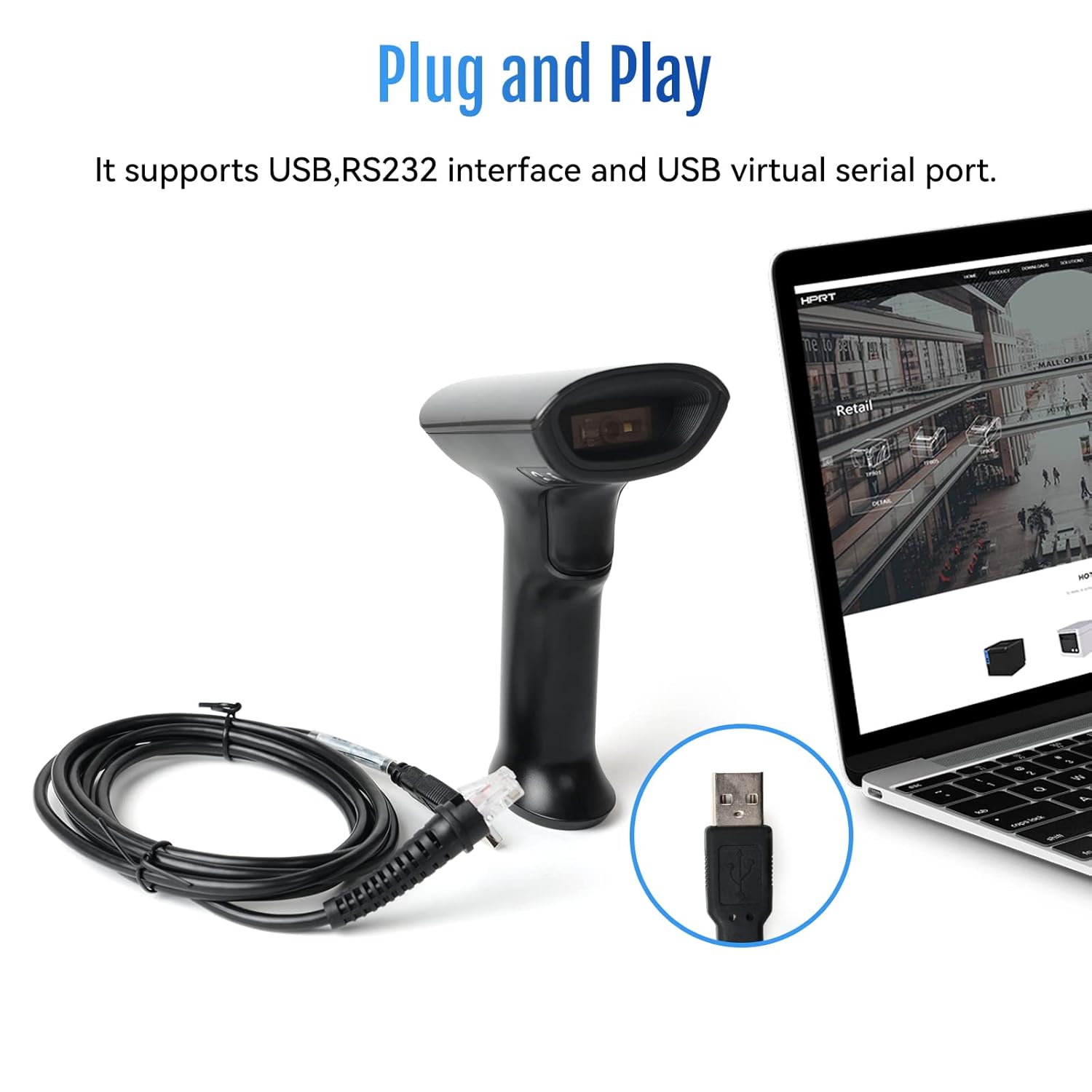
Image: The HPRT N80 barcode scanner with its USB cable, illustrating the plug-and-play connection to a laptop.

Image: A close-up of the HPRT N80 barcode scanner being connected to a laptop, demonstrating the plug-and-play functionality.
4. 操作
The HPRT N80 Barcode Scanner offers various modes for efficient scanning.
4.1 バーコードのスキャン
- スキャンウィンドウをバーコードに向けてスキャナーを持ちます。
- トリガーボタンを押してスキャンビームをアクティブにします。
- Ensure the scan beam covers the entire barcode. A successful scan is usually indicated by an audible beep and/or a visual indicator.
- The decoded data will appear on your connected device.
4.2 スキャンモード
- 手動トリガーモード: スキャンごとにトリガーを押します。
- 連続スキャンモード: スキャナーはスキャンビームを継続的に放射し、検出したバーコードをスキャンします。
- 自動検知モード: The scanner activates the scan beam automatically when a barcode is presented within its field of view.

Image: The HPRT N80 barcode scanner performing a fast scan of both 1D and QR codes displayed on a smartphone screen.

Image: The HPRT N80 barcode scanner accurately scanning a barcode even in a dark environment, highlighting its low-light performance.
4.3 操作ビデオ
Video: Demonstrates the HPRT N80 barcode scanner's fast scanning capabilities for both 1D and 2D barcodes on paper and screens, highlighting its plug-and-play setup and ergonomic design.
5. メンテナンス
To ensure the longevity and optimal performance of your HPRT N80 Barcode Scanner, follow these maintenance guidelines:
- クリーニング: スキャナの外側は、柔らかく乾いた布で拭いてください。スキャンウィンドウは、糸くずの出ない布で軽く拭いてください。amp低刺激性で研磨剤を含まない洗剤で洗ってください。刺激の強い化学薬品や研磨剤は使用しないでください。
- ストレージ: スキャナーは、直射日光や極端な温度を避け、涼しく乾燥した場所に保管してください。
- 取り扱い: While the scanner is designed to be durable, avoid unnecessary drops or impacts.
- ケーブルのお手入れ: Do not bend or twist the USB cable excessively. Always grasp the plug, not the cable, when disconnecting.
6。 トラブルシューティング
If you encounter issues with your HPRT N80 Barcode Scanner, please refer to the following common troubleshooting steps:
- スキャナーが応答しません:
- USB ケーブルがスキャナーとホスト デバイスの両方にしっかりと接続されていることを確認します。
- スキャナーを別の USB ポートに接続してみてください。
- コンピューターまたはホストデバイスを再起動します。
- バーコードをスキャンできません:
- Verify that the barcode is not excessively damaged, blurred, or stained.
- スキャンウィンドウがきれいで障害物がないことを確認してください。
- Check if the scanner is in the correct scanning mode (e.g., manual trigger, continuous, auto-sensing).
- バーコードに十分な照明があることを確認してください。
- 間違ったデータ出力:
- Confirm that the correct keyboard layout or input method is selected on your host device.
- Refer to the full product manual (if available) for advanced configuration barcodes to reset settings or adjust data formatting.
If the problem persists, please contact HPRT customer support.
7. 仕様
| 特徴 | 詳細 |
|---|---|
| ブランド | HPRT |
| モデル | 80円 |
| 接続技術 | USBケーブル |
| 電源 | 電池駆動 |
| 対応デバイス | Laptop (Windows, iOS, Android, Linux, Mac OS) |
| スキャン機能 | 1D & 2D (UPC, EAN, QR, Data Matrix, etc.) |
| 耐久性 | Withstands drops from up to 3.93ft |
8. 保証とサポート
For warranty information or technical support, please contact HPRT customer service.
- カスタマーサービスメール: pravin.m@hprt.com
- 正式 Webサイト: https://www.hprt.com

Image: HPRT customer service contact details, including email and official webサイト。