
1. はじめに
Thank you for choosing the typecase Touch iPad Keyboard Case. This manual provides detailed instructions for setting up, operating, and maintaining your keyboard case to ensure optimal performance and longevity. Please read this manual thoroughly before use.
2. 互換性
This keyboard case is designed for specific iPad models. Please verify your iPad model number to ensure compatibility.
- iPad 第10世代(10.9インチ、2022年): モデルA2696、A2757、A2777
- iPad A16 (11th Generation, 2025): モデルA3354、A3355、A3356
To verify your iPad model:
- 方法1: Check the back of your iPad for the model number (e.g., A2696).
- 方法2: Go to iPad Settings > General > About > Model Number. Tap the model number to display the A-number.
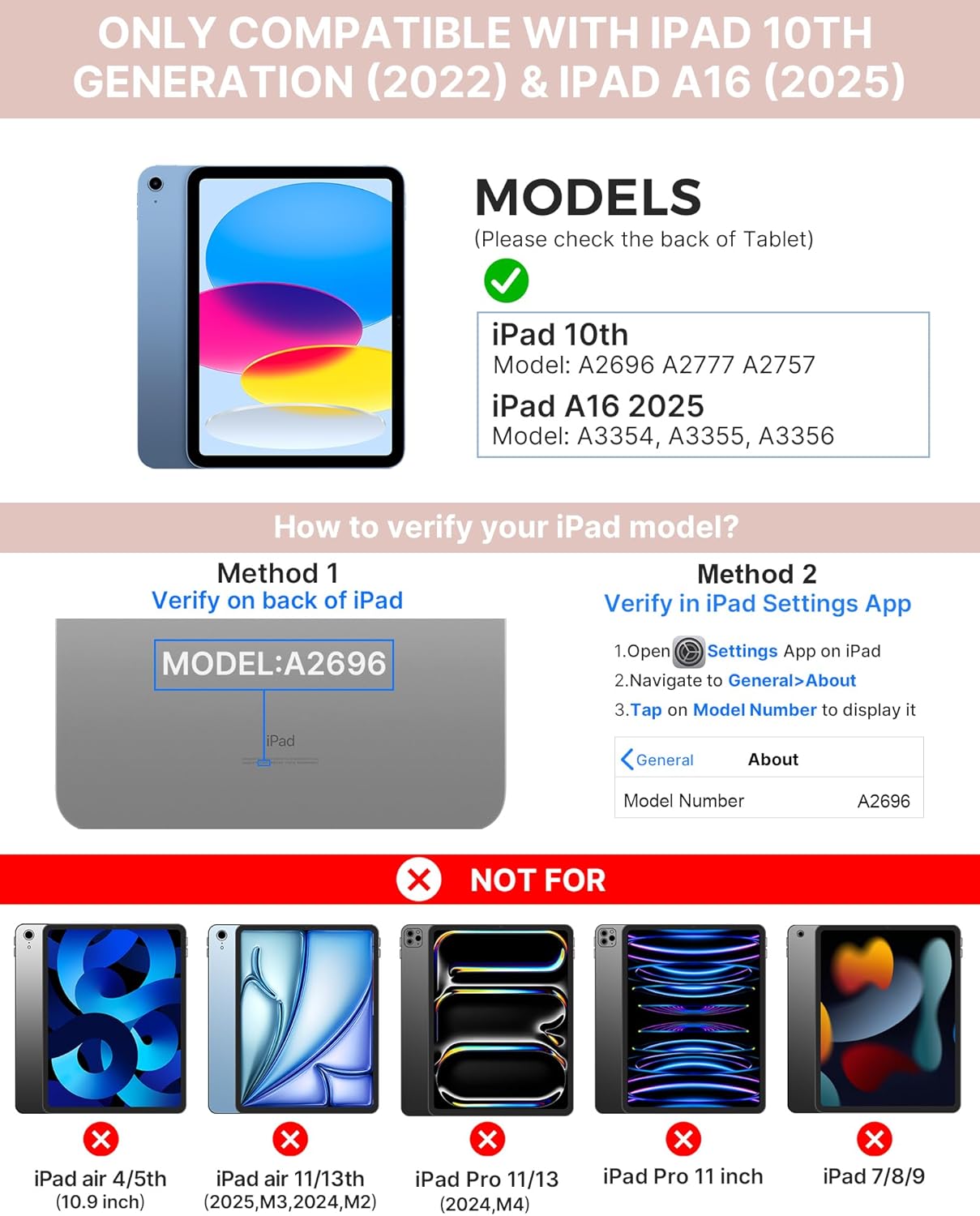
Image: Visual guide for identifying compatible iPad models and verifying the model number on the device or through settings.
3. パッケージ内容
パッケージには以下が含まれます:
- 1 x typecase Touch iPad Keyboard Case
- 1 x USB-C充電ケーブル
- ユーザーマニュアル x 1
4. セットアップ手順
4.1 キーボードの充電
初めて使用する前に、キーボードを完全に充電してください。付属のUSB-C充電ケーブルをキーボードの充電ポートと電源に接続してください。充電インジケーターライトが充電状態を示します。
- 待機する: 1年まで
- Daytime use (2 hours/day with backlight off): 最長3か月
- Nighttime use (2 hours/day with backlight on): 最大2週間

Image: Close-up of the keyboard's USB-C charging port and battery life specifications.
4.2 iPadとのペアリング
- キーボードが充電されていることを確認してください。
- 電源ボタンを押してキーボードの電源を入れます。Bluetoothインジケーターライトが点滅します。
- iPadで、 設定 > Bluetooth.
- Bluetoothをオンにします。iPadは利用可能なデバイスを検索します。
- Select "typecase Keyboard" from the list of devices.
- Follow any on-screen prompts to complete the pairing process. The Bluetooth indicator light on the keyboard will turn solid when successfully paired.
5. 操作手順
5.1 iPadのインストール
Gently insert your iPad into the case, ensuring all edges are securely seated. The case provides full protection for your device.
5.2 キーボードの機能
The keyboard features a standard 78-key layout with a dedicated row of iPadOS shortcut keys for enhanced productivity.

画像: オーバーヘッド view of the keyboard layout, highlighting the 78-key design and iPadOS shortcuts.
バックライト付きキー
The keyboard features 11-color RGB LED backlighting with adjustable brightness levels. This allows for comfortable typing in various lighting conditions.
- を押す light bulb key バックライトの色を循環します。
- プレス Fn + light bulb key バックライトの明るさを調整します。
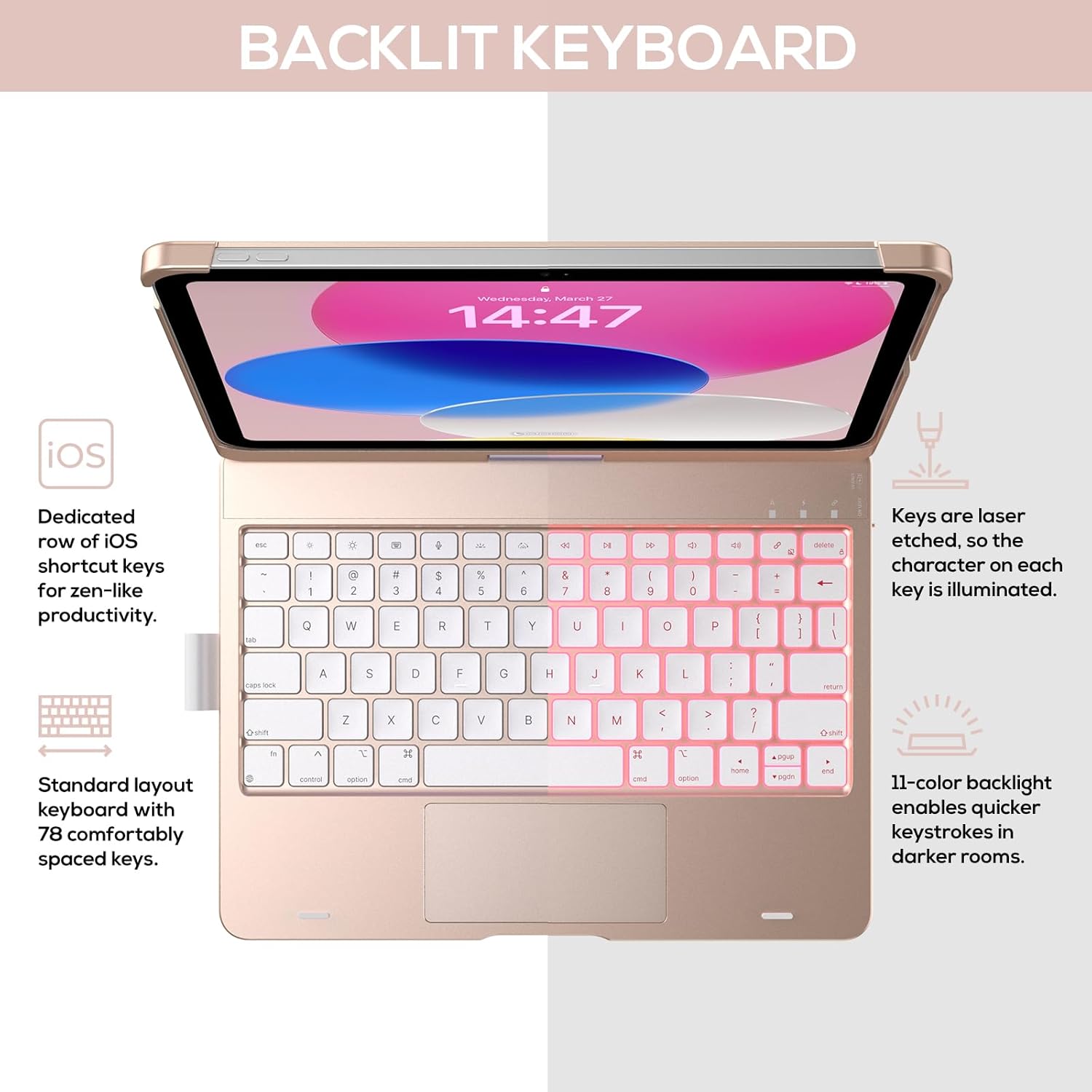
Image: The keyboard with illuminated keys, demonstrating the 11-color backlight and dedicated iOS shortcut keys.
5.3 マルチタッチトラックパッド
The integrated precision trackpad supports multi-gesture controls, enhancing productivity for tasks like document editing, web browsing, and presentation building.
- 一本指でタップ: クリック/選択
- 2本指でスクロール: 上下または左右にスクロールします
- ピンチしてズーム: ズームイン/ズームアウト
- 3本指で上にスワイプ: アプリスイッチャーを開く
- 3本指で下にスワイプ: ホーム画面に戻る

Image: Diagram showing common multi-touch gestures for the trackpad, including managing files, web ブラウジング、アプリの切り替えなど。
5.4 360° Rotatable Hinge and Use Modes
The patented 360° hinge allows for versatile use of your iPad in 7 unique modes, adapting to various tasks from typing to viewing。
- ラップトップモード: Traditional laptop setup for typing.
- スタンドモード: 理想的なのは view内容。
- テントモード: Stable for touch interaction or presentations.
- タブレットモード: Fold the keyboard behind the iPad for tablet use. Keys are protected in this mode.
- Corner Mode: Angled for comfortable drawing or writing.
- 共有モード: Rotate the screen to share content with others.
- 保護モード: Close the case to fully protect the iPad.
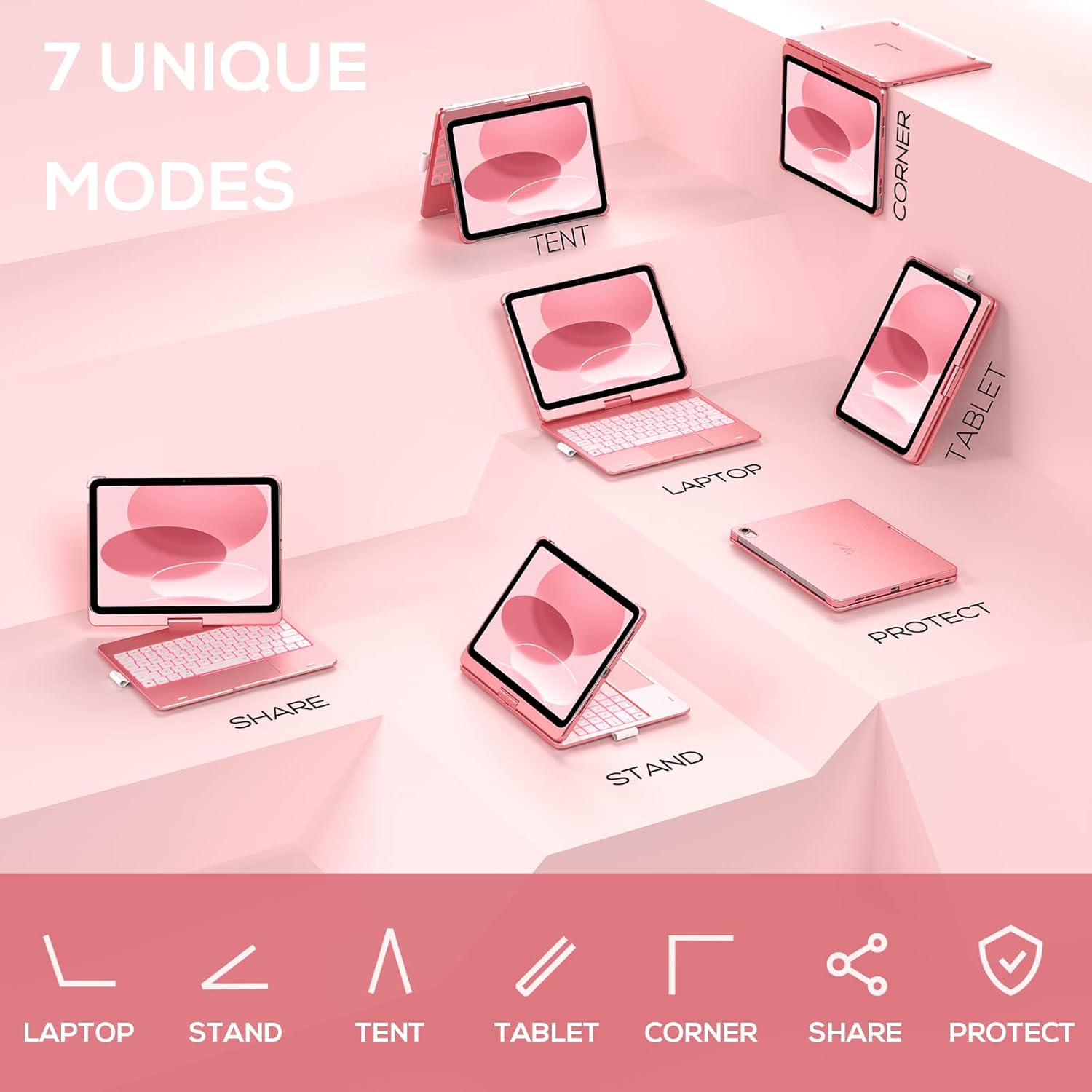
Image: A visual representation of the seven different configurations the keyboard case can be used in, including laptop, stand, and tablet modes.
5.5 自動スリープ/ウェイク機能
The case features an auto sleep/wake function. Opening the case will wake your iPad, and closing it will put your iPad to sleep, helping to conserve battery life for both the iPad and the keyboard.

Image: A user's hand on the trackpad, illustrating the built-in trackpad and the auto sleep/wake feature that activates when the case is opened or closed.
5.6 Apple Pencilホルダー
An integrated holder is provided for your Apple Pencil, ensuring it is securely stored and easily accessible.
6. メンテナンス
6.1 クリーニング
キーボードケースを掃除するには、柔らかくてamp cloth. Avoid using harsh chemicals or abrasive materials, as these may damage the surface. Ensure the charging port is dry before charging.
6.2 ストレージ
長期間使用しない場合は、キーボードケースを涼しく乾燥した場所に保管してください。バッテリーの性能を維持するため、長期保管する前にキーボードを完全に充電することをお勧めします。
7。 トラブルシューティング
7.1 キーボードが接続されない
- キーボードの電源がオンになっていて充電されていることを確認します。
- iPad で Bluetooth が有効になっていることを確認します。
- iPad の Bluetooth 設定でデバイスを削除し、再度ペアリングを試みます。
- iPadとキーボードの両方を再起動します。
7.2 キーが反応しない
- キーボードが Bluetooth 経由で正しく接続されていることを確認します。
- キーボードの電池残量を確認してください。
- キーの周りのゴミをきれいにします。
7.3 トラックパッドが動作しない
- キーボードが接続されていることを確認してください。
- トラックパッドの機能については、iPad の設定を確認してください (設定 > 一般 > トラックパッド)。
- キーボードとiPadを再起動します。
7.4 バックライトが機能しない
- キーボードの電源がオンになっていることを確認してください。
- Press the backlight control keys (light bulb key, Fn + light bulb key) to activate or adjust.
- 電池レベルを確認してください。電池残量が少ないとバックライトが無効になる場合があります。
8. 仕様
| モデル番号 | KB201T-100 |
| 製品寸法 | 11 x 8.6 x 1.5インチ(長さ11インチ x 幅8.6インチ x 高さ1.5インチ) |
| アイテム重量 | 1.43ポンド |
| 接続技術 | ブルートゥース |
| キーボードの説明 | Flexible, 78-key layout with iPadOS shortcuts |
| 特集 | 360° Rotatable, 11-Color Backlit, Ergonomic, Lightweight, Multi-Touch Trackpad, Auto Sleep/Wake, Apple Pencil Holder |
| キーボードバックライト | RGB(11色) |
| 電池のタイプ | 1 リチウムポリマー電池 (付属) |
9. 保証とサポート
typecase is committed to product quality and customer satisfaction. This product comes with the following support:
- 交換サービス: ご購入後1年以内。
- 返金ポリシー: 購入後30日以内。
For any issues or inquiries, please contact typecase customer support for quick feedback and assistance.

Image: Information on typecase's after-sales service, including replacement, refund, and customer support.