
1. はじめに
This manual provides detailed instructions for the setup, operation, and maintenance of your Logitech MK670 Comfort Wave Wireless Keyboard and Mouse Combo, along with the included Mini Bluetooth Speaker, Gel Wrist Pad, and Gel Mouse Pad. Please read this manual thoroughly before using the products to ensure optimal performance and longevity.

Image 1.1: Complete bundle including the Logitech MK670 keyboard, mouse, mini Bluetooth speaker, and gel pads.
2.製品コンポーネント
パッケージには以下のアイテムが含まれている必要があります:
- Logitech MK670 Comfort Wave Wireless Keyboard
- Logicoolワイヤレスマウス
- ロジクール ユニファイング USB レシーバー
- ミニポータブルワイヤレスBluetoothスピーカー
- Gel Wrist Pad
- Gel Mouse Pad
- Micro USB Charging Cable (for speaker)
- ユーザードキュメント(このマニュアル)
3. セットアップ手順
3.1. Logitech Keyboard and Mouse Setup
- 開梱: キーボードとマウスをパッケージから慎重に取り出します。
- バッテリーの挿入: The keyboard and mouse typically come with pre-installed batteries or require standard AA/AAA batteries. Open the battery compartments (usually on the underside of each device) and ensure batteries are correctly inserted.
- Locate Unifying Receiver: The small USB Unifying receiver is often stored inside the mouse's battery compartment for safekeeping. Remove it.
- 受信機を接続する: Plug the Logitech Unifying USB receiver into an available USB port on your computer.
- 電源オン: Turn on the keyboard and mouse using their respective power switches (usually located on the underside or side). The devices should automatically connect to your computer.

Image 3.1: The Logitech MK670 wireless keyboard and mouse, ready for connection via the Unifying receiver.
3.2. Mini Bluetooth Speaker Setup
- 充電スピーカー: Before first use, fully charge the mini Bluetooth speaker using the provided Micro USB charging cable. Connect the Micro USB end to the speaker and the USB-A end to a power source (e.g., computer USB port, USB wall adapter). The charging indicator light will typically turn off or change color when fully charged.
- 電源オン: Press and hold the power button on the speaker until you hear an audible prompt or see an indicator light flash, indicating it is in pairing mode.
- Bluetooth経由でペアリング:
- デバイス(スマートフォン、タブレット、ラップトップ)で、Bluetooth 設定に移動します。
- Bluetoothが有効になっていることを確認します。
- 検索する available devices. The speaker will typically appear as a name like "Mini Speaker" or similar.
- Select the speaker to pair. Once paired, you will hear a confirmation sound.
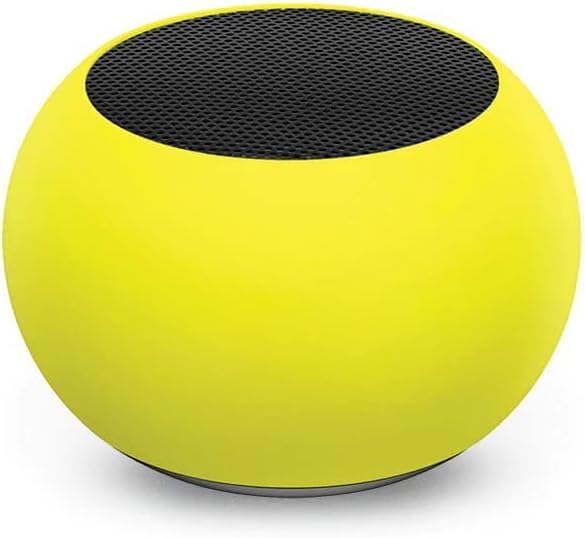
画像3.2: クローズアップ view of the compact mini Bluetooth speaker, highlighting its design.
3.3. Gel Pads Placement
- Keyboard Wrist Rest: Place the longer gel wrist pad directly in front of your Logitech MK670 keyboard, aligning it to support your wrists while typing.
- Mouse Pad with Wrist Rest: Position the gel mouse pad on your desk where you typically use your mouse. Ensure the integrated wrist rest provides comfortable support for your mousing hand.

Image 3.3: The ergonomic gel wrist pad and gel mouse pad, designed for comfort and support.
4. 操作手順
4.1. キーボードの使い方
- タイピング: The Comfort Wave design provides an ergonomic layout for natural hand and wrist positioning.
- テンキー: Utilize the full-size numeric keypad for efficient data entry.
- ショートカットキー Access common functions quickly using the dedicated shortcut keys (e.g., media controls, volume, application launch). Refer to the key legends for specific functions.
- 調整可能な傾斜脚: Flip out the tilt legs on the underside of the keyboard to adjust the typing angle for personalized comfort.

画像4.1: 側面 view of the Logitech MK670 keyboard, illustrating the adjustable tilt legs for ergonomic customization.
4.2. マウスの使用
- ポイントとクリック: Use the mouse for precise cursor control, left-clicks, and right-clicks.
- スクロール: The scroll wheel allows for smooth navigation through documents and web ページ。
- 両手利きのデザイン: このマウスは、左利きでも右利きでも快適に使用できるように設計されています。
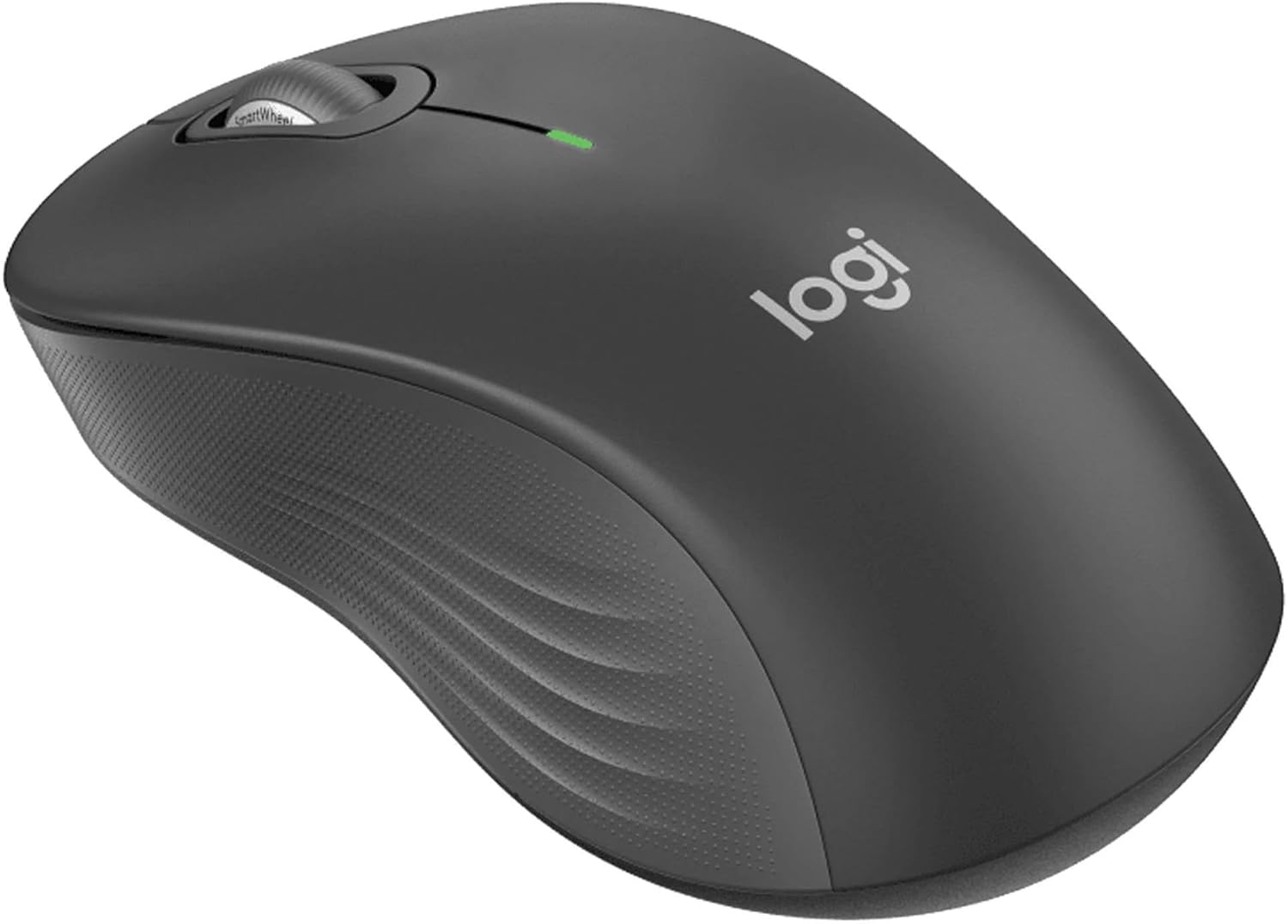
画像4.2: 詳細な view of the Logitech wireless mouse, showcasin人間工学に基づいた形状です。
4.3. Mini Bluetooth Speaker Usage
- 電源オン/オフ: 電源ボタンを押したままにして、スピーカーをオンまたはオフにします。
- Bluetoothのペアリング: Once powered on, the speaker will automatically attempt to connect to the last paired device. If not, it will enter pairing mode for new connections (refer to Section 3.2).
- 音量コントロール: Volume is typically controlled via the connected device. Some speakers may have integrated volume buttons.
- セルフィーリモコン: The speaker may feature a remote selfie button. Consult the speaker's specific instructions for activation and use with your device's camera.
- ハンズフリー通話: With its built-in microphone, the speaker can be used for hands-free calls when connected to a smartphone.
5. メンテナンス
5.1. 清掃
- キーボードとマウス: 柔らかく糸くずの出ない布で軽く拭き取ってください。amp水または中性洗剤で拭き取ってください。刺激の強い化学薬品や研磨剤は使用しないでください。キー間の埃には、圧縮空気を使用してください。
- Mini Bluetooth Speaker: Wipe the exterior with a soft, dry cloth. Do not immerse in water.
- ジェルパッド: 広告付きワイプamp cloth and mild soap if necessary. Allow to air dry completely before reuse.
5.2. Battery Replacement (Keyboard and Mouse)
When the battery indicator light on your keyboard or mouse signals low power, replace the batteries with new ones of the same type (e.g., AA or AAA). Ensure correct polarity when inserting new batteries.
6。 トラブルシューティング
6.1. キーボード/マウスが反応しない
- バッテリーを確認してください: 電池が正しく挿入され、十分に充電されていることを確認してください。必要に応じて交換してください。
- 電源スイッチ: Verify that both the keyboard and mouse power switches are in the 'ON' position.
- USBレシーバー: Ensure the Logitech Unifying USB receiver is securely plugged into a working USB port on your computer. Try a different USB port.
- 近接性: Ensure the keyboard and mouse are within the operational range (up to 33 feet) of the USB receiver.
- 修理: If issues persist, you may need to re-pair the devices using Logitech's Unifying software (downloadable from the Logitech support web地点)。
6.2. Mini Bluetooth Speaker Connection Issues
- スピーカー出力: スピーカーが充電され、電源がオンになっていることを確認します。
- Bluetoothオン: Verify Bluetooth is enabled on your source device.
- デバイスを忘れる: On your source device, 'forget' or 'unpair' the speaker from your Bluetooth device list, then attempt to pair again.
- 近接性: Keep the speaker and source device within close range (typically 10 meters or 33 feet) for stable connection.
- 干渉: 干渉を引き起こす可能性のある他のワイヤレス デバイスから離れて移動してください。
6.3. スピーカーから音が出ない
- 音量レベル: Check the volume on both the speaker and the connected device.
- ソースデバイス出力: Ensure your device's audio output is set to the Bluetooth speaker.
- メディア再生: Verify that media is playing on your source device.
7. 仕様
| 特徴 | 詳細 |
|---|---|
| ブランド | ロジテック |
| モデル | MK670 (Keyboard & Mouse Combo) |
| 接続技術 | 2.4GHz Wireless (Keyboard & Mouse), Bluetooth 5.0 (Speaker) |
| ワイヤレス範囲 | 最大33フィート(10メートル) |
| キーボードの機能 | Ergonomic Comfort Wave design, Full-size with numeric keypad, Shortcut keys, Cushioned palm rest, Adjustable tilt legs |
| マウスの機能 | Ambidextrous design, Precise tracking |
| スピーカー寸法 | 45.45 mm x 33 mm(1.75 "x 1.3") |
| スピーカー重量 | 2.46オンス |
| スピーカーのバッテリー容量 | 400mAh |
| スピーカー再生時間 | 最大4時間 |
| Speaker Special Features | Magnetic base, Built-in mic, Remote selfie button, Glow in the Dark (Yellow variant) |
| 対応デバイス | Laptops, Gaming Consoles (for keyboard/mouse functionality), Bluetooth-enabled devices (for speaker) |
| アイテム重量(バンドル) | 4ポンド |
| パッケージ寸法 | 23 x 10 x 10インチ |
8. 保証情報
Logitech products are typically covered by a limited hardware warranty. For specific warranty terms and conditions, including duration and coverage details, please refer to the warranty card included with your product or visit the official Logitech webサイトでご確認ください。保証請求に備えて購入証明書を保管してください。
9. サポート
For further assistance, technical support, or to download the latest drivers and software for your Logitech products, please visit the official Logitech support webサイトをご覧ください。FAQやコミュニティフォーラムもご覧いただけます。
Logitechサポート Webサイト: https://support.logi.com/