
1.製品オーバーview
The GIGABYTE G24F 2 is a 23.8-inch gaming monitor designed for an immersive visual experience. It features a Super Speed IPS panel, Full HD (1920 x 1080) resolution, and a high refresh rate for smooth gameplay.

図1.1: 前面 view of the GIGABYTE G24F 2 gaming monitor.
主な特徴:
- パネルサイズ: 23.8-inch SS IPS display
- 解決: 1920 x 1080 (フルHD)
- 応答時間: 1ms MPRT
- リフレッシュレート: 165Hz(180Hzまでオーバークロック可能)
- 色の彩度: 95% DCI-P3、125% sRGB
- 輝度: 300 cd / m2(TYP)
- コントラスト比: 1100:1
- 接続性: 2 x HDMI 2.0, 1 x DisplayPort 1.2 (HDR capable), 2 x USB 3.2 Gen 1 Downstream, 1 x USB 3.2 Gen 1 Upstream, 1 x Earphone Jack
- 特別な機能: OSD Sidekick, Aim Stabilizer, Black Equalizer, Dashboard, Crosshair, Timer, Counter, Auto-Update, Smart OD, HDR Ready, Flicker-free, Kensington lock
2. 安全情報
モニターをご使用になる前に、すべての説明書をよくお読みください。このマニュアルは、今後の参考のために保管してください。
- 火災や感電の危険を避けるため、モニターを雨や湿気にさらさないでください。
- モニターを開けないでくださいasing. 内部にはユーザーが修理できる部品はありません。修理はすべて資格のある担当者にご依頼ください。
- モニターが落ちないように、安定した平らな面に置いてください。
- モニター周囲の換気が適切であることを確認してください。通気口を塞がないでください。
- 製造元が提供する電源アダプタとケーブルのみを使用してください。
- 雷雨のときや長期間使用しない場合は、モニターを電源コンセントから抜いてください。
- Clean the screen with a soft, lint-free cloth. Avoid using liquid cleaners directly on the screen.
3. パッケージ内容
パッケージにすべてのアイテムが含まれていることを確認します。
- GIGABYTE G24F 2 Monitor
- モニタースタンド(ベースとネック)
- 電源ケーブル
- HDMIケーブル
- USB Cable (Upstream)
- クイックスタートガイド(QSG)
- 保証書

図3.1:背面 view of the monitor, illustrating the stand attachment area.
4. セットアップ
4.1 スタンドの組み立て
- モニターとスタンドのコンポーネントをパッケージから慎重に取り出します。
- スタンドネックをモニターパネルに取り付けます。カチッと音がしてしっかりと固定されているか、付属のネジでしっかりと固定されているかを確認してください。
- スタンドベースをスタンドネックに取り付けます。ベースの底部にあるつまみネジを締めます。
- 組み立てたモニターを安定した平らな面に置きます。
4.2 モニターの接続
Connect the monitor to your computer and other devices using the appropriate cables.

図 4.1: モニターの接続ポート。
- 電源接続: 電源ケーブルをモニターの電源入力に接続し、次に電源コンセントに接続します。
- ビデオ接続:
- For optimal performance, use the DisplayPort 1.2 cable to connect to your computer's graphics card.
- Alternatively, use one of the two HDMI 2.0 ports.
- USBアップストリーム接続: Connect the provided USB 3.2 Gen 1 Upstream cable from your computer to the monitor's upstream USB port to enable the monitor's downstream USB ports.
- USB Downstream Connections: Connect USB devices (e.g., keyboard, mouse) to the monitor's two USB 3.2 Gen 1 Downstream ports.
- オーディオ出力: ヘッドフォンまたは外部スピーカーをイヤホンジャックに接続します。
5. モニターの操作
5.1 電源オン/オフ
Press the power button, usually located on the bottom or rear of the monitor, to turn the monitor on or off. The power indicator light will show the monitor's status.
5.2 オンスクリーンディスプレイ(OSD)メニュー
The OSD menu allows you to adjust various monitor settings. Navigate the OSD using the joystick or buttons typically found on the rear of the monitor.

Figure 5.1: OSD Sidekick software for convenient monitor control.
For advanced control, install the OSD Sidekick software on your PC. This utility allows you to adjust monitor settings directly from your desktop.
5.3 ゲーム機能
The GIGABYTE G24F 2 includes several features to enhance your gaming experience:
- エイムスタビライザー: Reduces motion blur and improves visual clarity in fast-paced games.
- ブラックイコライザー: 明るい部分を露出しすぎずに、ゲームの暗い部分の視認性を高めます。

Figure 5.2: Black Equalizer in action.
- ダッシュボード: Displays real-time hardware information (e.g., CPU/GPU temperature, usage) directly on the screen.

Figure 5.3: Dashboard displaying system metrics.
- クロスヘア: Provides a customizable on-screen crosshair to assist with aiming.

Figure 5.4: On-screen Crosshair.
- タイマー/カウンター: On-screen timers and counters for in-game tracking.
- Smart OD: Optimizes overdrive settings for the best response time.
- 自動更新: Ensures the monitor's firmware and OSD Sidekick software are up-to-date.
5.4 表示設定
- リフレッシュレート: The monitor supports up to 165Hz, with an overclock option to 180Hz, for fluid motion.
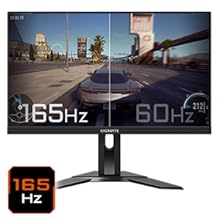
Figure 5.5: Visual comparison of 165Hz vs. 60Hz refresh rate.
- 応答時間: Enjoy a 1ms MPRT (Moving Picture Response Time) for minimal ghosting.
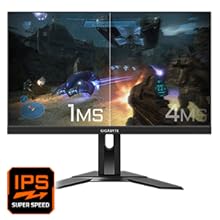
Figure 5.6: Visual comparison of 1ms vs. 4ms response time.
- 色域: The monitor covers 95% DCI-P3 and 125% sRGB for vibrant and accurate colors.
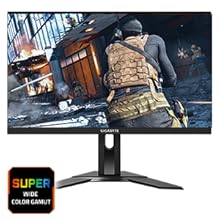
Figure 5.7: Wide color gamut for rich visuals.
- ブルーライト軽減: Reduces blue light emissions to protect your eyes during extended use.
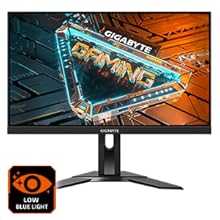
図 5.8: 目の疲れを軽減する「ブルーライト軽減」機能。
- フリッカーフリー: 画面のちらつきをなくし、より快適に viewing の経験。

Figure 5.9: Flicker-Free technology for comfortable viewing。
5.5 製品機能ビデオ
ビデオ5.1: オーバーview of the GIGABYTE G24F 2 monitor's features and specifications.
6. メンテナンス
適切なメンテナンスを行うことで、モニターの寿命を長く保つことができます。
- 画面の掃除: 柔らかく乾いた、糸くずの出ない布で画面を優しく拭いてください。頑固な汚れには、軽くamp布を水または専用のスクリーンクリーナーで拭きます(スクリーンに直接塗布するのではなく、布に塗布します)。
- Cのクリーニングasing: モニターの表面を拭くときは、柔らかく乾いた布を使用してください。asing. 研磨剤入りの洗剤は使用しないでください。
- 換気: Ensure the ventilation openings on the monitor are clear of dust and obstructions.
- 電源を切る: Turn off and unplug the monitor when not in use for extended periods.
7。 トラブルシューティング
モニターに問題が発生した場合は、次の表で一般的な問題と解決策を参照してください。
| 問題 | 考えられる原因 | 解決 |
|---|---|---|
| 画面に画像がありません | Power cable not connected; Video cable not connected; Incorrect input source selected | 電源とビデオ ケーブルの接続を確認し、OSD で正しい入力ソースを選択します。 |
| 画像がぼやけたり歪んだりする | 解像度が正しくありません。ビデオケーブルが緩んでいます。 | ディスプレイの解像度を 1920x1080 に設定します。ビデオ ケーブルがしっかりと接続されていることを確認します。 |
| ヘッドホン/スピーカーから音が出ない | Audio cable not connected; Volume too low; Incorrect audio output selected on PC | Check audio cable connection; Adjust volume; Select monitor as audio output on PC. |
| USBポートが機能しない | USB upstream cable not connected | Connect the USB 3.2 Gen 1 Upstream cable from the monitor to your PC. |
| 画面のちらつき | Refresh rate issue; Faulty cable | Ensure refresh rate is set correctly; Try a different video cable. |
8. 仕様
Detailed technical specifications for the GIGABYTE G24F 2 monitor.

図 8.1: モニターの寸法。
| 特徴 | 詳細 |
|---|---|
| ブランド | ギガバイト |
| モデル名 | G24F2 |
| モデル番号 | 9DG24F2-00-1ABIN |
| 画面サイズ | 23.8インチ |
| 解決 | 1920 x 1080ピクセル(FHD 1080p) |
| アスペクト比 | 16:9 |
| 表示タイプ | LCD (SS IPS Panel) |
| リフレッシュレート | 165 Hz (180Hz OC) |
| 応答時間 | 1 Milliseconds (MPRT) |
| 輝度 | 300 candela_per_square_meter (TYP) |
| コントラスト比 | 1100:1 |
| 色の彩度 | 95% DCI-P3、125% sRGB |
| View角度 | 178度 |
| 接続性 | 2 x HDMI 2.0, 1 x DisplayPort 1.2, 2 x USB 3.2 Gen 1 Downstream, 1 x USB 3.2 Gen 1 Upstream, 1 x Earphone Jack |
| アダプティブ同期 | FreeSyncプレミアム |
| 消費電力 | 17.5ワット |
| アイテム重量 | 3.2キログラム |
| 商品の寸法(奥行き x 幅 x 高さ) | 奥行き5.3cm x 幅54.1cm x 高さ32.6cm |
| 取り付けタイプ | 壁掛け |
| 製品の特徴 | Flicker-Free, Height Adjustment, High Dynamic Range, Tilt Adjustment |
9. 保証とサポート
The GIGABYTE G24F 2 monitor comes with a 3年間保証 メーカーより。
For technical support, warranty claims, or further inquiries, please contact GIGABYTE customer service:
- メーカー: GIGABYTE Technology (India) Pvt Ltd
- 住所: B-808, Naman Midtown, Elphinstone Road, Mumbai – 400013 – INDIA
- 電話: +91-22-40633222
保証サービスを受けるために購入証明書を保管してください。


