1. はじめに
Thank you for choosing the Cherry KW 9100 Slim Wireless Rechargeable Keyboard. This extra-slim, low-profile keyboard is designed for Mac computers, offering versatile connectivity options and a comfortable typing experience. This manual provides essential information for setting up, operating, maintaining, and troubleshooting your new keyboard.
The keyboard features dual wireless connectivity (Bluetooth and 2.4 GHz wireless USB receiver), allowing you to easily switch between devices. It incorporates high-quality CHERRY SC scissor technology for quiet and precise keystrokes, and includes AES-128 encryption for secure data transmission. The integrated rechargeable battery provides weeks of use on a single charge, and the keyboard can be charged while in use via the included USB-A to USB-C cable.

Image 1.1: The Cherry KW 9100 Slim Wireless Rechargeable Keyboard, showcasinフルレイアウトとスリムなプロfile.
2. 安全情報
- Do not expose the keyboard to liquids, excessive moisture, or extreme temperatures.
- キーボードを落としたり、強い衝撃を与えたりしないでください。
- キーボードを強い磁場から遠ざけてください。
- キーボードを分解したり改造したりしないでください。保証が無効になります。
- 充電には付属の USB-A - USB-C ケーブルのみを使用してください。
3. パッケージ内容
パッケージにすべてのアイテムが含まれていることを確認します。
- Cherry KW 9100 Slim Wireless Rechargeable Keyboard
- USB-A - USB-C ケーブル
- 2.4 GHz Wireless USB Receiver
- Magnetic Strip (for angle adjustment)
- ユーザーマニュアル(このドキュメント)
4. セットアップ
4.1. キーボードの充電
Before first use, or when the battery indicator shows low power, connect the keyboard to a USB power source (e.g., computer USB port, USB wall adapter) using the provided USB-A to USB-C cable. The keyboard can be used while charging.
4.2. Connecting via 2.4 GHz Wireless USB Receiver
- Locate the 2.4 GHz wireless USB receiver.
- Insert the USB receiver into an available USB-A port on your Mac computer.
- On the keyboard, slide the connectivity switch (located on the side) to the 'RF' position.
- キーボードは自動的にコンピューターに接続されます。
4.3.Bluetooth経由で接続する
Ensure your Mac computer has Bluetooth 4.0 or higher.
- On the keyboard, slide the connectivity switch (located on the side) to the 'BT' position.
- あなたのMacでは、 システム設定 (または システム環境設定) > ブルートゥース.
- Bluetoothがオンになっていることを確認します。
- The keyboard should appear in the list of discoverable devices (e.g., "CHERRY KW 9100"). Select it to pair.
- 画面上の指示に従ってペアリングプロセスを完了します。

画像4.1: 側面 view of the keyboard, highlighting the RF/BT connectivity switch and the USB-C charging port.
4.4. キーボードの角度を調整する
The keyboard includes a removable magnetic strip that can be attached to the underside to adjust the typing angle for improved ergonomics. Simply attach the strip to the designated area on the bottom of the keyboard.
5. キーボードの操作
5.1. Switching Between Connectivity Modes
Use the slide switch on the side of the keyboard to toggle between 'RF' (2.4 GHz wireless) and 'BT' (Bluetooth) modes. This allows you to seamlessly switch between two connected devices, for example, a laptop via Bluetooth and a desktop PC via the USB receiver.
5.2. Key Functions and Mac Layout
The keyboard features a Mac-specific layout, including Command, Option, and Control keys. The function keys (F1-F15) provide quick access to various system functions such as brightness, media control, and volume. Some function keys may require pressing the 'Fn' key simultaneously depending on your Mac's system settings.
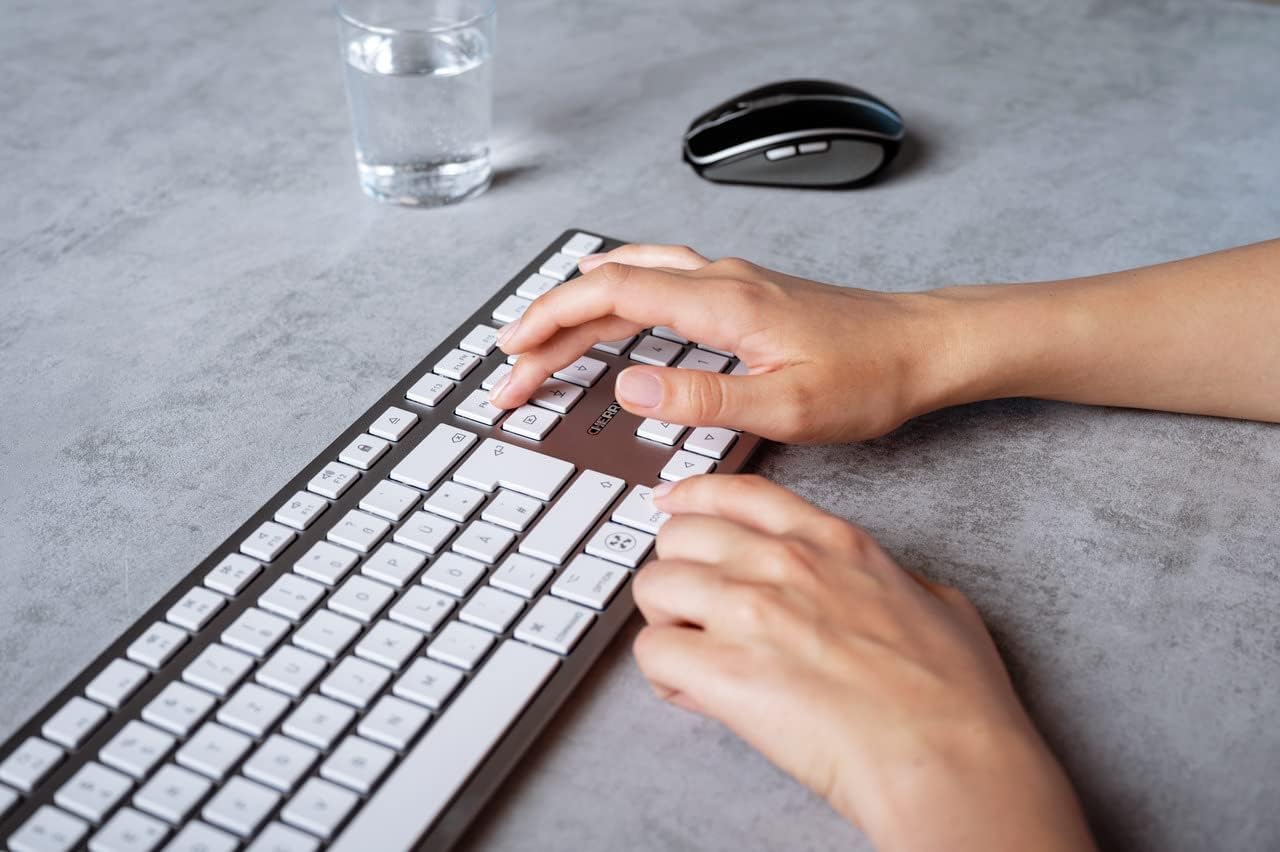
Image 5.1: A user typing on the Cherry KW 9100 keyboard, demonstrating its ergonomic design and key spacing.
5.3.電力管理
To conserve battery life, the keyboard will enter a sleep mode after a period of inactivity. To wake it up, simply press any key. The keyboard will reconnect automatically to the last active device.
6. メンテナンス
6.1. 清掃
キーボードを清掃するには、柔らかく糸くずの出ない布で表面を優しく拭いてください。頑固な汚れには、軽くamp布に水または低刺激性の非研磨性洗浄液を含ませて拭いてください。キーボードに液体が入らないようにしてください。刺激の強い化学薬品や研磨剤は使用しないでください。
6.2. ストレージ
When not in use for extended periods, store the keyboard in a dry, cool place. It is recommended to fully charge the battery before long-term storage.
7。 トラブルシューティング
| 問題 | 考えられる原因 | 解決 |
|---|---|---|
| キーボードが 2.4 GHz 経由で接続されません。 | USB receiver not properly inserted; keyboard switch in 'BT' mode; low battery. | Ensure receiver is fully inserted. Slide keyboard switch to 'RF'. Charge the keyboard. Try a different USB port. |
| キーボードが Bluetooth 経由で接続されません。 | Keyboard switch in 'RF' mode; Bluetooth off on Mac; low battery; pairing issue. | Slide keyboard switch to 'BT'. Ensure Bluetooth is enabled on your Mac. Charge the keyboard. Remove and re-pair the keyboard in Mac's Bluetooth settings. |
| キーが反応しないか、遅延します。 | Low battery; interference; keyboard in sleep mode. | Charge the keyboard. Move closer to the receiver/Mac. Press any key to wake the keyboard. |
| Function keys (F1-F15) not working as expected. | System settings; 'Fn' key usage. | Check your Mac's Keyboard settings (System Settings > Keyboard) for function key behavior. Try pressing the 'Fn' key simultaneously with the desired function key. |
| バッテリーの消耗が早いです。 | Frequent use; keyboard not entering sleep mode. | Ensure the keyboard is allowed to enter sleep mode when idle. Fully charge the keyboard. |
8. 仕様
| 特徴 | 詳細 |
|---|---|
| モデル番号 | JK-9110US-1 |
| ブランド | チェリー |
| 接続技術 | Bluetooth, USB-A (for receiver), USB-C (for charging) |
| 対応デバイス | Mac computers with Bluetooth 4.0 or higher and USB-A connections |
| キーボードの説明 | ロープロfile, extra-slim, wireless, scissor-switch keyboard with adjustable angle and rechargeable battery |
| 特集 | Magnetic (for angle adjustment), Travel |
| 色 | 銀 |
| 材料 | 金属、プラスチック |
| 製品寸法 | 17.32 x 5.12 x 0.59 インチ (44 x 13 x 1.5 cm) |
| アイテム重量 | 1.94ポンド(0.88kg) |
| メーカー | チェリー |
9. 保証とサポート
Your Cherry KW 9100 Slim Wireless Rechargeable Keyboard is covered by a manufacturer's warranty. For detailed warranty information, technical support, or service inquiries, please visit the official Cherry web公式サイトをご覧いただくか、カスタマーサポートに直接お問い合わせください。保証請求のために購入証明書を保管してください。
オンラインサポート: www.cherry.de