
ロジクール 920-011479
Logitech K585 マルチデバイス スリム ワイヤレス キーボード ユーザー マニュアル
モデル:920-011479
導入
The Logitech K585 Multi-Device Slim Wireless Keyboard is designed for versatile use across multiple devices, including laptops, tablets, desktops, and smartphones. Its compact and modern design aims to enhance productivity and comfort in various work environments. This manual provides essential information for setting up, operating, maintaining, and troubleshooting your keyboard.

Figure 1: Logitech K585 Multi-Device Slim Wireless Keyboard in Graphite.
設定
1. 開梱と初期検査
すべての部品をパッケージから慎重に取り出します。以下のものがすべて揃っていることを確認してください。
- Logicool K585キーボード
- 単2乾電池XNUMX本(プリインストール)
- USBレシーバーの統一
- ユーザードキュメント

Figure 2: Contents included in the Logitech K585 package.
2. Battery Installation (if not pre-installed or for replacement)
The keyboard comes with two AAA batteries pre-installed. If you need to replace them:
- Locate the battery compartment cover on the top edge of the keyboard, usually integrated with the device cradle.
- カバーをゆっくりスライドまたは持ち上げてコンパートメントを開きます。
- 正しい極性 (+/-) を確認して、単 4 電池 2 本を挿入します。
- 電池カバーをしっかりと閉じてください。
3. Connecting via USB Receiver (Logitech Unifying Receiver)
For devices without Bluetooth or for a stable 2.4 GHz wireless connection:
- Locate the Unifying USB receiver, typically stored inside the battery compartment or within the product packaging.
- Plug the Unifying USB receiver into an available USB-A port on your computer (laptop or desktop).
- キーボードは自動的に接続されるはずです。
4. Connecting via Bluetooth Wireless Technology
For devices with Bluetooth capability (laptops, tablets, smartphones):
- Turn on the keyboard using the power switch, usually located on the side.
- Easy-Switchキー(1、2、または3)のいずれかを3秒間押し続けます。キー上部のLEDライトが高速点滅し始めます。これはキーボードがペアリングモードになっていることを示します。
- デバイスで Bluetooth 設定に移動し、新しいデバイスを検索します。
- 利用可能なデバイスのリストから「Logitech K585」を選択します。
- Follow any on-screen prompts to complete the pairing process. The LED light will turn solid for a few seconds and then turn off once connected.
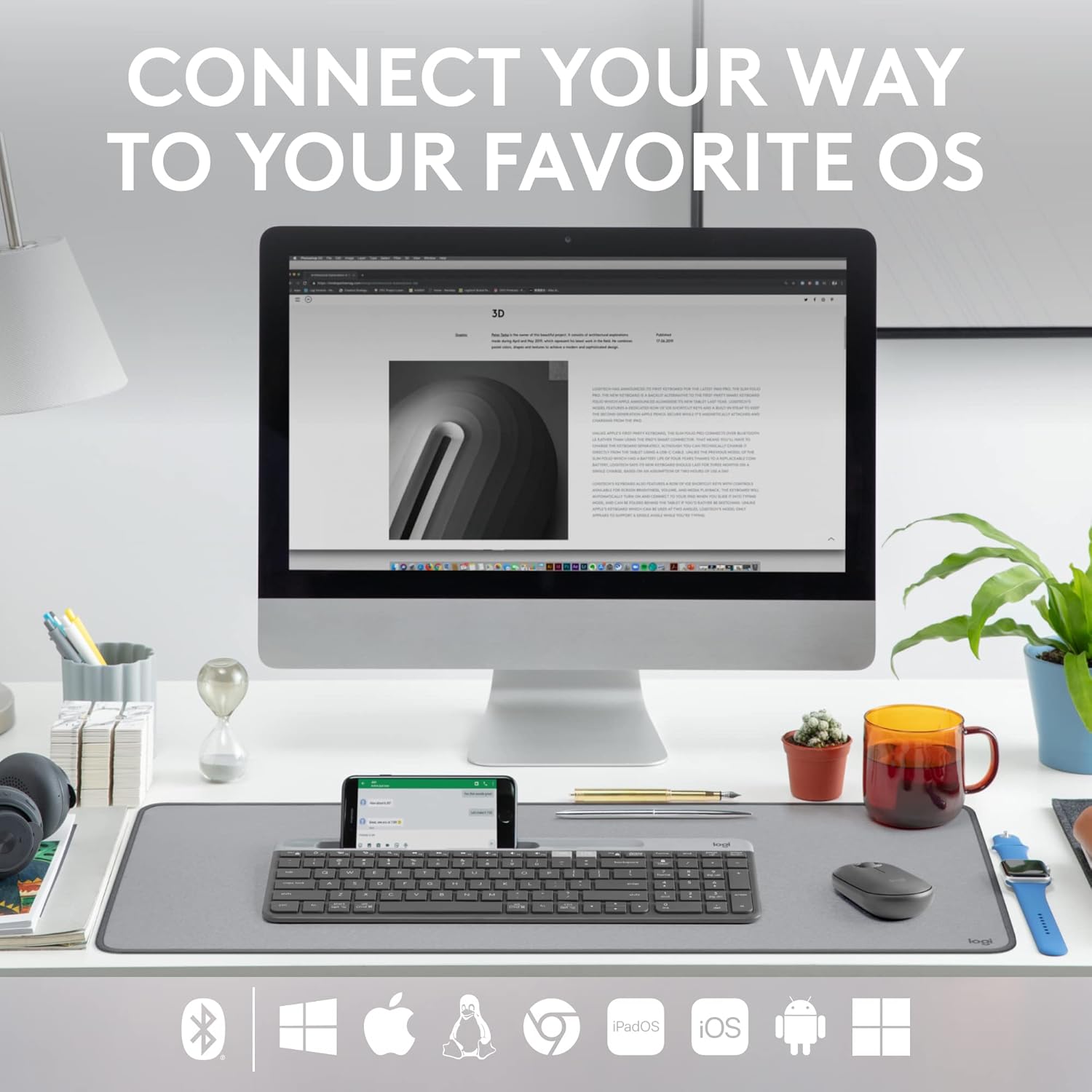
Figure 3: The Logitech K585 supports various operating systems including Windows, macOS, iOS, iPadOS, Android, and ChromeOS.
キーボードの操作
1. イージースイッチ機能
The K585 keyboard allows you to seamlessly switch between up to three connected devices:
- Press the Easy-Switch key (1, 2, or 3) corresponding to the device you wish to use. The LED light above the selected key will briefly illuminate to confirm the switch.
- This feature enables quick transitions between typing on your computer, tablet, or smartphone.
2. Built-in Phone Cradle
The integrated cradle at the top of the keyboard is designed to hold your smartphone or tablet, providing an optimal viewing angle for multitasking.

Figure 4: The K585 keyboard with a smartphone positioned in the integrated cradle for enhanced multitasking.
3. FN Keys and Shortcuts
The keyboard features 12 FN keys that provide easy access to media controls and other shortcuts. These keys can be customized using Logi Options+ Software for enhanced productivity.
- メディアコントロール: Play/pause, volume up/down, mute.
- ファンクションキー: F1-F12, often used for specific software functions.
- カスタマイズ: Download and install Logi Options+ Software from the official Logitech website to personalize FN key assignments.
4. Multi-OS Compatibility
The keyboard layout is optimized for both Windows and Mac OS commands, ensuring a familiar typing experience regardless of your operating system. It also supports iOS, iPadOS, Android, and ChromeOS devices.

Figure 5: Universal compatibility of the Logitech K585 keyboard across different platforms.
メンテナンス
1. バッテリー寿命と管理
The Logitech K585 keyboard offers an extended battery life of up to 24 months, thanks to its efficient design and an auto-sleep feature that activates when the keyboard is not in use. Battery life may vary based on user and computing conditions.

Figure 6: The K585 keyboard boasts a long-lasting 24-month battery life.
To maximize battery life, ensure the keyboard is switched off when not in use for extended periods.
2. キーボードのクリーニング
キーボードの外観と機能を維持するには:
- 柔らかく糸くずの出ない布を使用して表面を拭いてください。
- 頑固な汚れには、軽くamp布に水または刺激の少ない非研磨性の洗剤をつけて拭いてください。
- キーボードに液体を直接吹きかけないでください。
- 仕上げにダメージを与える可能性があるため、刺激の強い化学薬品や研磨剤は使用しないでください。
トラブルシューティング
If you encounter issues with your Logitech K585 keyboard, consider the following common solutions:
- 接続なし:
- キーボードの電源がオンになっていることを確認してください。
- バッテリーレベルを確認し、必要に応じて交換してください。
- For USB receiver connection, try plugging the receiver into a different USB port.
- Bluetooth 接続の場合、デバイスで Bluetooth が有効になっていることを確認し、キーボードのペアリングを再度試してください。
- 遅延または切断:
- Move the keyboard closer to the receiver or Bluetooth-enabled device.
- 干渉を引き起こす可能性のある他のワイヤレス デバイス (Wi-Fi ルーター、コードレス電話など) の近くにキーボードを置かないでください。
- デバイスのオペレーティング システムと Bluetooth ドライバーが最新であることを確認してください。
- キーが反応しない:
- 影響を受けたキーの周囲を清掃して、ゴミを取り除きます。
- コンピュータまたはデバイスを再起動します。
- If using Logi Options+ Software, ensure it is running correctly and not causing conflicts.
For more detailed troubleshooting or persistent issues, refer to the official Logitech support webサイトまたはダウンロード可能な包括的なユーザー ガイドをご覧ください。
仕様
| 特徴 | 詳細 |
|---|---|
| ブランド | ロジテック |
| モデル番号 | 920-011479 |
| 接続技術 | Bluetooth, USB (2.4 GHz Unifying Receiver) |
| 対応デバイス | ノートパソコン、PC、スマートフォン、タブレット |
| オペレーティングシステムの互換性 | Windows、macOS、iOS、iPadOS、Android、ChromeOS |
| 色 | 黒鉛 |
| アイテム重量 | 1.24ポンド(約562g) |
| 製品寸法(長さx幅x高さ) | 14.7 x 5.6 x 0.76インチ(約37.3 x 14.2 x 1.9 cm) |
| バッテリー寿命 | 最大24か月(使用状況によって異なる場合があります) |
| ワイヤレス範囲 | 最大10m(33フィート) |

Figure 7: Detailed dimensions of the Logitech K585 keyboard.
保証とサポート
保証情報、テクニカルサポート、その他のリソースについては、ロジクールの公式サポートをご覧ください。 website. You can also find a comprehensive User Guide in PDF format for this product:
Ask a question about this manual
Ask about setup, troubleshooting, compatibility, parts, safety, or missing instructions. Manuals+ will review the question and use this page’s manual context to help answer it.