
Miofive Dash Cam Dual
Miofive ダッシュカム フロント&リア ユーザーマニュアル
Model: Dash Cam Dual
導入
The Miofive Dash Cam Front and Rear system provides comprehensive video recording for your vehicle, featuring 4K resolution for the front camera and 2K for the rear. Designed for reliability and ease of use, this dual dash camera system incorporates advanced features such as 5G WiFi connectivity, built-in GPS, motion detection, and G-sensor technology, all powered by a durable super capacitor. This manual provides detailed instructions for setup, operation, maintenance, and troubleshooting to ensure optimal performance of your device.
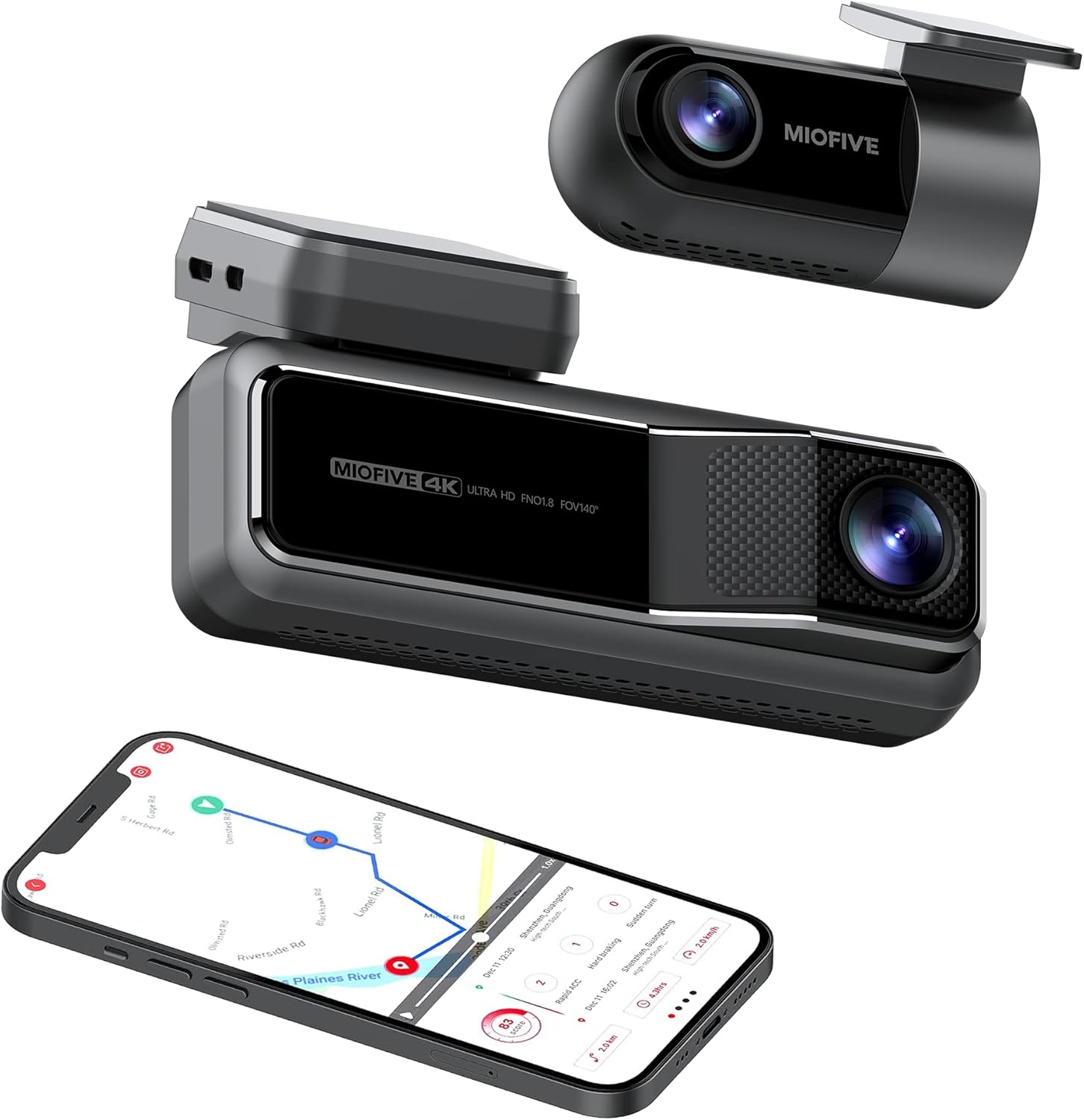
The Miofive Dash Cam system, featuring both front and rear cameras, along with its companion mobile application.
箱の中身
以下にリストされているすべてのアイテムがパッケージに含まれていることを確認してください。
- Miofive 4K Dash Cam x 1
- カーチャージャー×1
- Crow Bar x 1
- 充電ケーブル×1
- Static Sticker x 4
- ユーザーマニュアル x 1
- A Set of Backup Double-sided Adhesive Tapes x 1
- データケーブル×1
- リアカム x 1
- Rear Cam Cable x 1

All components included in the Miofive Dash Cam Front and Rear package.
セットアップとインストール
ダッシュカムの取り付け
- ドライブレコーダーを取り付けるフロントガラス部分をきれいにし、ほこりや油脂が付着していないことを確認してください。
- Apply one of the static stickers to the cleaned area on the windshield. This helps protect your windshield and makes removal easier.
- Attach the main dash cam unit to the static sticker using the provided adhesive tape. Press firmly for 30 seconds to ensure a secure bond.
- Adjust the camera lens angle to ensure it captures the road ahead clearly, typically centered with the horizon.
電源を接続する
- Connect the provided car charger to the dash cam's power input port.
- 車の充電器を車の 12V 電源コンセント (シガーライター ソケット) に差し込みます。
- Route the power cable neatly along the edge of the windshield and dashboard using the crow bar to tuck it into crevices, ensuring it does not obstruct your view または車両の制御。
- For continuous parking monitoring, an optional hardwire kit (sold separately) is required to provide constant power to the dash cam. Refer to the hardwire kit's instructions for installation.
リアカメラ接続
- リアカメラをリアガラスの中央上部に設置し、クリアな視界を確保します。 view of the road behind. Use a static sticker and adhesive tape as with the front camera.
- Connect the rear camera cable to the rear camera and route it to the main dash cam unit.
- Plug the rear camera cable into the designated rear camera input port on the main dash cam.

Illustration of the Miofive Dash Cam Front and Rear installation process.
操作手順
電源オン/オフ
The dash cam will automatically power on and begin recording when connected to your vehicle's power supply and the ignition is turned on. It will power off automatically when the vehicle's power is cut.
基本的な録音
Once powered on, the dash cam will automatically start loop recording. This means it continuously records video in segments, overwriting the oldest footage when the storage is full. Important footag上書きを防ぐためにロックすることができます。
5G WiFi and App Control
The Miofive Dash Cam features built-in 5G WiFi for seamless connection to the Miofive mobile application. Download the Miofive app from your smartphone's app store. Once connected, you can:
- View 両方のカメラからのライブビデオフィード。
- 記録された foo を再生するtag携帯電話で直接ご利用いただけます。
- Download important video clips to your device.
- Adjust camera settings and preferences.
- Receive real-time Over-The-Air (OTA) updates for bug fixes and software enhancements.


The Miofive App provides comprehensive control and access to your dash cam's features and recordings.
G-Sensor and Motion Detection
The built-in G-sensor automatically detects sudden impacts or collisions. When an event is detected, the dash cam will automatically lock the current video segment, preventing it from being overwritten by loop recording. This ensures critical evidence is preserved.

The G-sensor ensures automatic recording and locking of footag衝撃時のe。
駐車モニター
With the optional hardwire kit, the dash cam can monitor your vehicle even when parked. The 24-hour parking monitor and time-lapse recording features capture disturbances or continuous footage, providing security when you're away from your car.

The parking monitor feature provides continuous surveillance for your vehicle when parked.
ナイトビジョン
Equipped with the Sony Starvis IMX415 sensor and High Dynamic Range (HDR) technology, the Miofive Dash Cam delivers clear and bright video quality in low-light conditions, enhancing visibility during nighttime driving or in dimly lit environments.

Enhanced night vision capabilities for clear recordings in low light.
AI Algorithm and Go Assist
The intelligent AI algorithm monitors road conditions and provides helpful alerts. The Go Assist feature can notify you of sudden turns, braking, and accelerations, and prompt you to proceed when the vehicle ahead moves, improving driving awareness.

AI algorithm for smart driving assistance and alerts.
GPS追跡
Built-in GPS technology records your driving route, speed, and coordinates, providing detailed information for each journey. This data can be accessed and reviewed through the Miofive app.

Integrated GPS technology records essential driving data.
メンテナンス
Regular maintenance helps ensure the longevity and optimal performance of your Miofive Dash Cam:
- レンズの掃除: Gently wipe the camera lenses with a soft, lint-free cloth to remove dust or smudges. Avoid using abrasive cleaners that could scratch the lens.
- ファームウェアの更新: Periodically check the Miofive app for available firmware updates. Keeping your dash cam's firmware up-to-date ensures you have the latest features and bug fixes.
- 接続を確認しています: Ensure all cables (power, rear camera) are securely connected to prevent intermittent power loss or recording issues.
- ストレージ管理: While the dash cam uses loop recording, it's good practice to regularly review 重要なファイルをバックアップするtage. The built-in 128GB eMMC storage is designed for durability, but managing critical files is always recommended.
トラブルシューティング
よくある問題と解決策
- ダッシュカムがオンにならない:
- Ensure the car charger is properly plugged into both the dash cam and the vehicle's 12V power outlet.
- 車両の 12V 電源コンセントが機能しているかどうかを確認します (別のデバイスを接続するなど)。
- If using a hardwire kit, verify its installation and power connection.
- アプリの接続の問題(WiFi):
- ダッシュ カメラの WiFi が有効になっていることを確認します。
- Confirm your smartphone is connected to the dash cam's WiFi network (SSID and password usually found on the device or in the manual).
- ダッシュ カメラとスマートフォンの両方を再起動してみてください。
- Missing or Corrupted Footage:
- Verify that loop recording is enabled in the settings.
- Ensure the built-in 128GB eMMC storage is not full of locked files. Regularly back up and delete unnecessary locked files.
- Check if the G-sensor sensitivity is set appropriately; overly sensitive settings can lead to many locked files filling up storage quickly.
- ビデオ品質が悪い:
- Clean the camera lenses as described in the Maintenance section.
- レンズから保護フィルムが取り除かれていることを確認してください。
- Check video resolution settings in the app; ensure it's set to 4K (front) and 2K (rear) for optimal quality.
- Verify that the dash cam is securely mounted and not vibrating excessively.
仕様
| 特徴 | 詳細 |
|---|---|
| ブランド | ミオファイブ |
| モデル名 | Dash Cam Dual |
| 製品寸法 | 2.87 x 5.98 x 6.94インチ |
| アイテム重量 | 1.81ポンド |
| メーカー | MIOFIVE Technology Limited Co., Ltd. |
| CPU | Novatek Processor |
| イメージセンサー | ソニースタービス |
| 画面 | 2.2インチIPSディスプレイ |
| カメラFOV | 140°水平および垂直 View角度を変える |
| 絞り | F1.8 |
| Image Resolution (Front) | 4K UHD (3840x2160) @30fps |
| Image Resolution (Rear) | 2K QHD (2560x1440) @30fps |
| ストレージ | 128GB eMMC内蔵 |
| Gセンサー | Built-in 6 Gyro sensor |
| Wi-Fi | 2.4 / 5GHz |
| 電源 | スーパーキャパシタ |
| 電源入力 | 5V / 2.4A |
| 動作温度 | -10°C ~ 45°C (14°F ~ 113°F) |
| 接続技術 | Wi-Fi |
| 車両サービスタイプ | ミニバン、バス、乗用車、トラック |
| 取り付けタイプ | フロントガラスマウント |
| 色 | 黒 |

Detailed specifications for the Miofive Dash Cam Dual.
保証とサポート
Miofive is committed to providing excellent customer service and support for its products:
- 30日間返金保証: ご購入いただいた商品にご満足いただけない場合は、30 日以内に返金を受けられる場合があります。
- 18ヶ月保証範囲: Your Miofive Dash Cam is covered by an 18-month warranty from the date of purchase, protecting against manufacturing defects.
- 24時間7日対応の専用カスタマーサポート: Assistance is available around the clock for any queries or issues you may encounter.
- Lifetime Technical Solution Support: Miofive provides ongoing technical support for the lifetime of your product.
For support inquiries, please contact:
メールアドレス: support@miofive.com

Miofive's commitment to customer satisfaction and product support.
Ask a question about this manual
Ask about setup, troubleshooting, compatibility, parts, safety, or missing instructions. Manuals+ will review the question and use this page’s manual context to help answer it.