
導入
This manual provides essential information for setting up, operating, maintaining, and troubleshooting your CUPEISI 7-inch Android 14 Tablet. Please read this guide thoroughly to ensure proper use and to maximize your tablet's performance and longevity.
箱の中身
開梱時にすべてのアイテムが揃っていることを確認します。
- CUPEISI 7-inch Android 14 Tablet
- タイプCケーブル
- ユーザーマニュアル(このドキュメント)
製品終了view
The CUPEISI Q2S tablet features a 7-inch HD IPS display, powered by a 1.6GHz Quad-core processor and running Android 14. It includes 8GB RAM (4GB physical + 4GB virtual) and 32GB internal storage, expandable up to 1TB via microSD card. The tablet is equipped with dual cameras and supports Wi-Fi and Bluetooth connectivity.
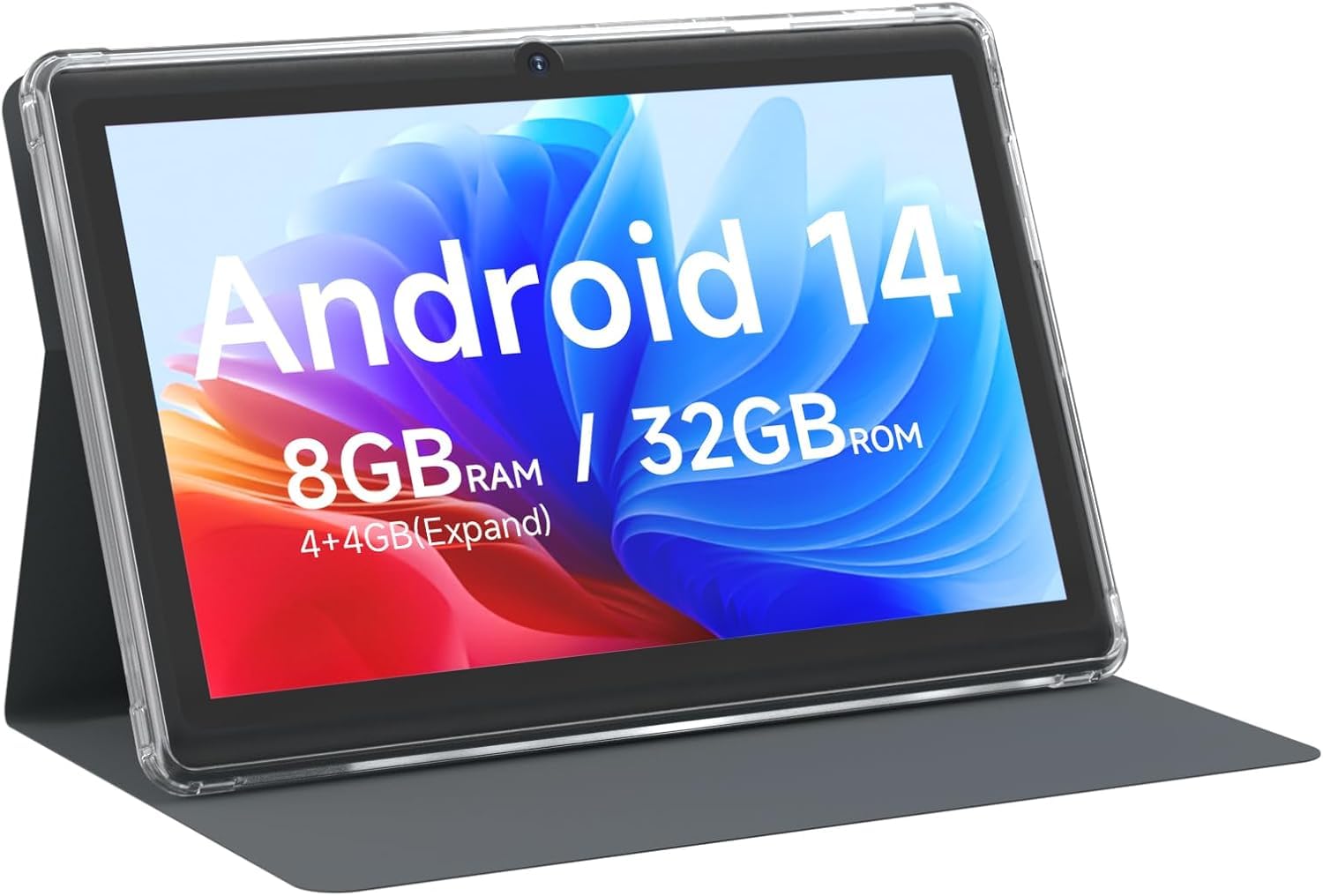
CUPEISI 7-inch Android 14 Tablet, front view.

以上view of CUPEISI 7-inch Android 14 Tablet features including OS, CPU, RAM, ROM, Screen, Camera, Battery, and WiFi.
設定
1. タブレットの充電
Before first use, fully charge the tablet. Connect the provided Type-C cable to the tablet's charging port and the other end to a compatible USB power adapter (not included) or a computer's USB port. The battery indicator on the screen will show charging status.
2. 電源投入と初期設定
- 画面が点灯するまで電源ボタンを押し続けます。
- 画面上の指示に従って、言語、地域、その他の初期設定を選択します。
3.Wi-Fiへの接続
- へ移動 設定 > ネットワークとインターネット > Wi-Fi.
- Wi-Fiの切り替え On.
- リストから希望の Wi-Fi ネットワークを選択します。
- プロンプトが表示されたらネットワークパスワードを入力し、タップします 接続する.
4. Googleアカウントの設定
A Google account is required to download apps from Google Play Store and access Google services. You can sign in with an existing account or create a new one during the initial setup or later via 設定 > アカウント.
タブレットの操作
1. 基本的なナビゲーションとジェスチャー
- タップ: 項目を選択するか、アプリを開きます。
- スワイプ: 画面またはリストをスクロールします。
- ピンチ: 画像を拡大または縮小し、 web ページ。
- 長押し: コンテキスト メニューにアクセスしたり、アイコンを移動したりします。
2. アプリケーションの管理

Tablet screen showing various application icons, illustrating the 8GB RAM and 32GB ROM storage capacity.
- アプリをインストール: Google Playストアアプリを開き、目的のアプリを検索してタップします。 インストール.
- アプリをアンインストールする: Long-press an app icon on the home screen or app drawer, then drag it to the アンインストール オプション、または 設定 > アプリ > アプリを選択 > アンインストール.
3. ストレージ管理
The tablet has 32GB of internal storage. You can expand this by inserting a microSD card (up to 1TB) into the designated slot. To manage storage, go to 設定 > ストレージ.
4. カメラの使用
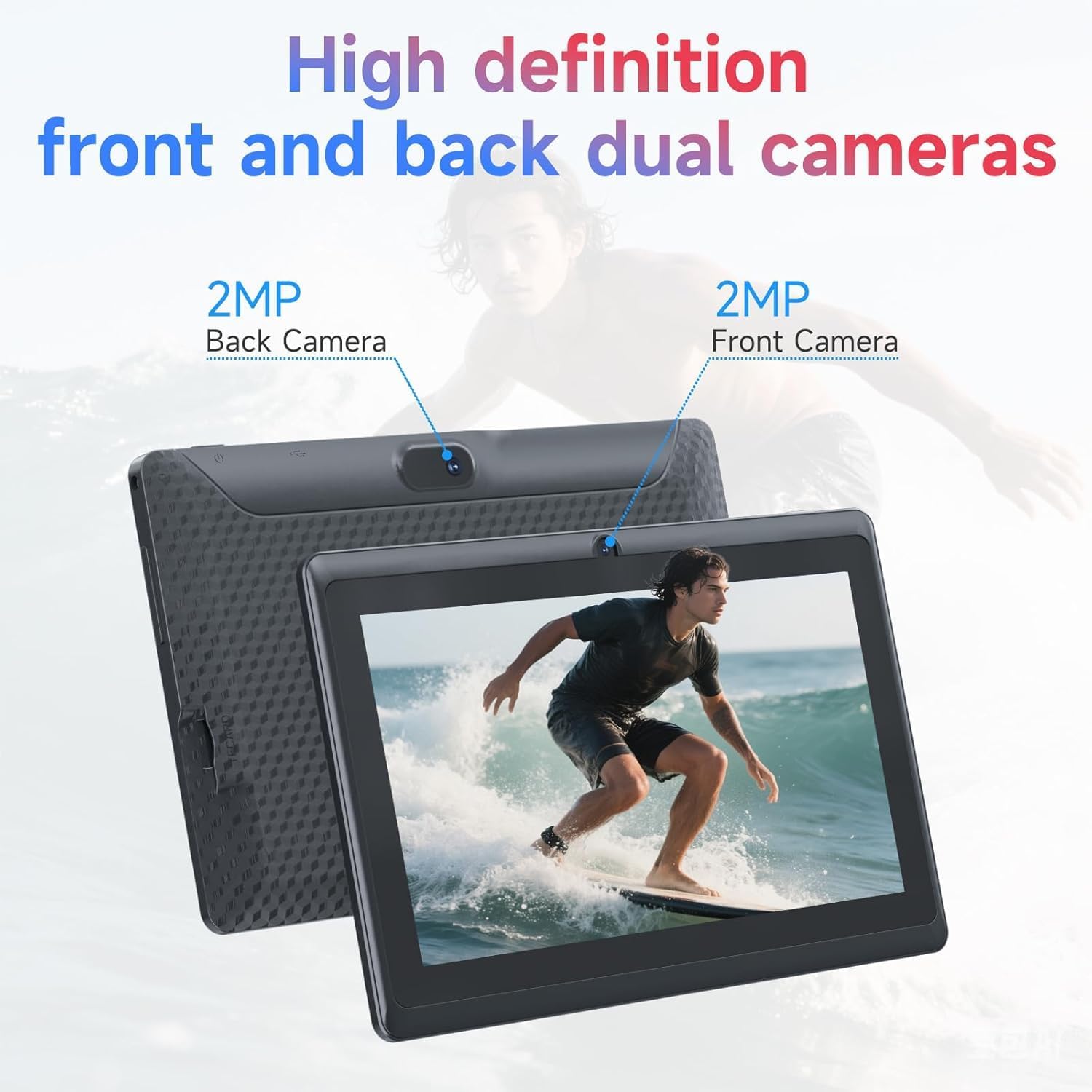
Illustration of the tablet's dual cameras, featuring a 5MP front camera and an 8MP rear camera.
The tablet features a 5MP front camera and an 8MP rear camera. Open the カメラ app to take photos or record videos. Tap the camera icon to switch between front and rear cameras.
5. Connectivity (Bluetooth)
Bluetooth デバイスを接続するには:
- へ移動 設定 > 接続されたデバイス > ブルートゥース.
- Bluetoothを切り替える On.
- 選択 新しいデバイスをペアリングする リストからデバイスを選択します。
6. 目の保護モード

The 7-inch IPS HD screen of the tablet displaying a colorful image, highlighting its 1024x600 resolution.
The tablet's display is designed to reduce blue light emission for eye comfort. You can enable or adjust eye protection settings in 設定 > 画面.

A user engaged in a video conference on the tablet, demonstrating its suitability for work and study.
メンテナンス
1. 清掃とお手入れ
- 柔らかく糸くずの出ない布を使用して、タブレットの画面と本体を清掃してください。
- 強力な化学薬品や研磨材の使用は避けてください。
- タブレットを極端な温度、直射日光、湿気から遠ざけて保管してください。

An image depicting the tablet's drop protection feature, showing it withstands impacts.
2. ソフトウェアの更新
最適なパフォーマンスとセキュリティを確保するために、ソフトウェアのアップデートを定期的に確認し、インストールしてください。 設定 > システム > システムアップデート.
3. バッテリーの最適化
- To prolong battery life, reduce screen brightness, disable Wi-Fi/Bluetooth when not in use, and close background apps.
- バッテリーを頻繁に完全に放電することは避けてください。
トラブルシューティング
| 問題 | 考えられる解決策 |
|---|---|
| タブレットの電源が入らない | Ensure the tablet is charged. Connect to a power source and wait a few minutes before attempting to power on again. |
| Wi-Fi接続の問題 | Check if Wi-Fi is enabled in settings. Restart your router and the tablet. Ensure you have entered the correct password. |
| パフォーマンスが遅い | Close unnecessary background applications. Clear cache from apps in Settings > Apps. Consider performing a factory reset if issues persist (back up data first). |
| アプリがクラッシュしたりフリーズしたりする | Update the app to the latest version. Clear the app's cache and data in Settings > Apps. Reinstall the app. |
仕様
| ブランド | クペイシ |
| モデル番号 | Q2S |
| オペレーティング·システム | アンドロイド14 |
| プロセッサ | 1.6 GHz Quad-core (ARM Cortex) |
| ラム | 8 GB (4GB fixed + 4GB virtual) |
| 内部ストレージ | 32ギガバイト |
| 拡張可能なストレージ | microSDカードで最大1TB |
| 画面サイズ | 7インチ |
| ディスプレイ解像度 | 1024 x 600ピクセル IPS HD |
| フロントカメラ | 5 MP |
| リアカメラ | 8 MP |
| バッテリー容量 | 3000mAh |
| 平均バッテリー寿命 | 6時間 |
| 接続性 | Wi-Fi(802.11g)、Bluetooth |
| インタフェース | USBタイプC |
| 寸法(長さ x 幅 x 厚さ) | 7.5インチ x 4.3インチ x 0.3インチ |
| アイテム重量 | 0.38キログラム |
保証情報
The CUPEISI Q2S Tablet comes with a 1-year limited warranty from the date of purchase. This warranty covers manufacturing defects and workmanship under normal use. It does not cover damage caused by misuse, accidents, unauthorized modifications, or external factors. Please retain your proof of purchase for warranty claims.
カスタマーサポート
For further assistance, technical support, or warranty inquiries, please refer to the contact information provided with your product packaging or visit the official CUPEISI website. When contacting support, please have your tablet model number (Q2S) and proof of purchase ready.