
1. はじめにview
イノView 15.6-inch FHD Dual Portable Monitor (Model INVPM009) is designed to enhance productivity by providing expanded screen space for laptops. Its foldable and stackable design offers versatility for various work environments, including remote work, travel, and office use. This monitor features Full HD (1920x1080) resolution, a 16:9 aspect ratio, and a matte screen surface for reduced glare. It supports multiple display modes and offers broad compatibility with Windows and macOS systems via USB-C and HDMI connections.
2. 箱の中身
- HDMIケーブル
- 30W アダプター
- タイプC電源ケーブル
- フル機能のType-Cケーブル
3 製品の特徴
- Dual 15.6-inch FHD IPS Panels: 提供する ample screen space for multitasking with clear 1080P resolution.
- Foldable & Stackable Design: Offers space-saving portability and flexible setup options.
- 315° Screen Adjustment & 180° Stand: さまざまな viewing angles and configurations, including automatic 180° rotation with gravity sensor for Windows/Mac.
- 複数の表示モード: Supports Extension, Splicing, and Copy modes for diverse content display.
- プラグアンドプレイ接続: Connects to Windows and macOS systems without requiring driver installation for basic functionality (specific modes may require drivers).
- USB-C and HDMI Connectivity: Versatile connection options for a wide range of devices.
- 内蔵2Wスピーカー: Enhances multimedia experience without external audio devices.
- A+ Eye Care Matte Screen: Reduces glare and eye fatigue.
4.セットアップガイド
4.1 物理的なセットアップ
- Unfold the monitor and adjust the integrated stand to your desired viewing angle. The stand supports 180° adjustment.
- Position the monitor next to or above your laptop, utilizing its stackable design.
画像: The InnoView dual portable monitor in a stacked configuration, displaying content alongside a laptop, illustrating an expanded workspace.
4.2 接続性
The monitor offers flexible connectivity options. Ensure your device's Type-C port is a Type-C 3.0 (or higher) full-featured port for optimal performance with a single cable for signal and power.
- USB-C接続(推奨):
- Connect one full-featured Type-C cable from your laptop to the monitor for both signal and power.
- If your laptop's Type-C port does not provide sufficient power, connect the included 30W adapter to the monitor's power input using the Type-C power cable.
- HDMI接続:
- Connect the HDMI cable from your laptop to the monitor.
- Connect the included 30W adapter to the monitor's power input using the Type-C power cable. 注記: Power supply is always required when using HDMI.

Image: A visual guide demonstrating how to connect the monitor using a Type-C cable and an additional power cord if needed.

Image: A visual guide demonstrating how to connect the monitor using an HDMI cable, emphasizing the requirement for a separate power connection.
4.3 Driver Installation (Mac Only for Extended Mode)
For Windows systems, the monitor is plug-and-play for most modes. For macOS, driver installation is required to enable extended display mode via Type-C connection.
- Connect the monitor to your Mac via Type-C.
- Access the monitor's menu (using the buttons on the side).
- Navigate to "Other Settings" -> "Mac extend" -> "On".
- Follow the on-screen prompts to download and install the necessary driver.
- Restart your Mac after installation.
Video: This video demonstrates the process of installing drivers on a Mac to enable extended display mode for the InnoView dual portable monitor, allowing for three screens with three different displays.
5。 動作モード
イノView dual portable monitor supports several display modes to suit various tasks:
- コピーモード: The upper and lower screens display the same content. This is useful for sharing information directly.
- スプライシングモード: Combines the upper and lower screens into one larger overall screen, creating a "waterfall" effect for view長い文書を書いたり web ページ。
- 拡張モード: Displays different content across the three screens (laptop + two portable screens), providing maximum workspace. 注記: Extended mode is not supported for HDMI connections. Mac requires driver installation via Type-C for this mode.
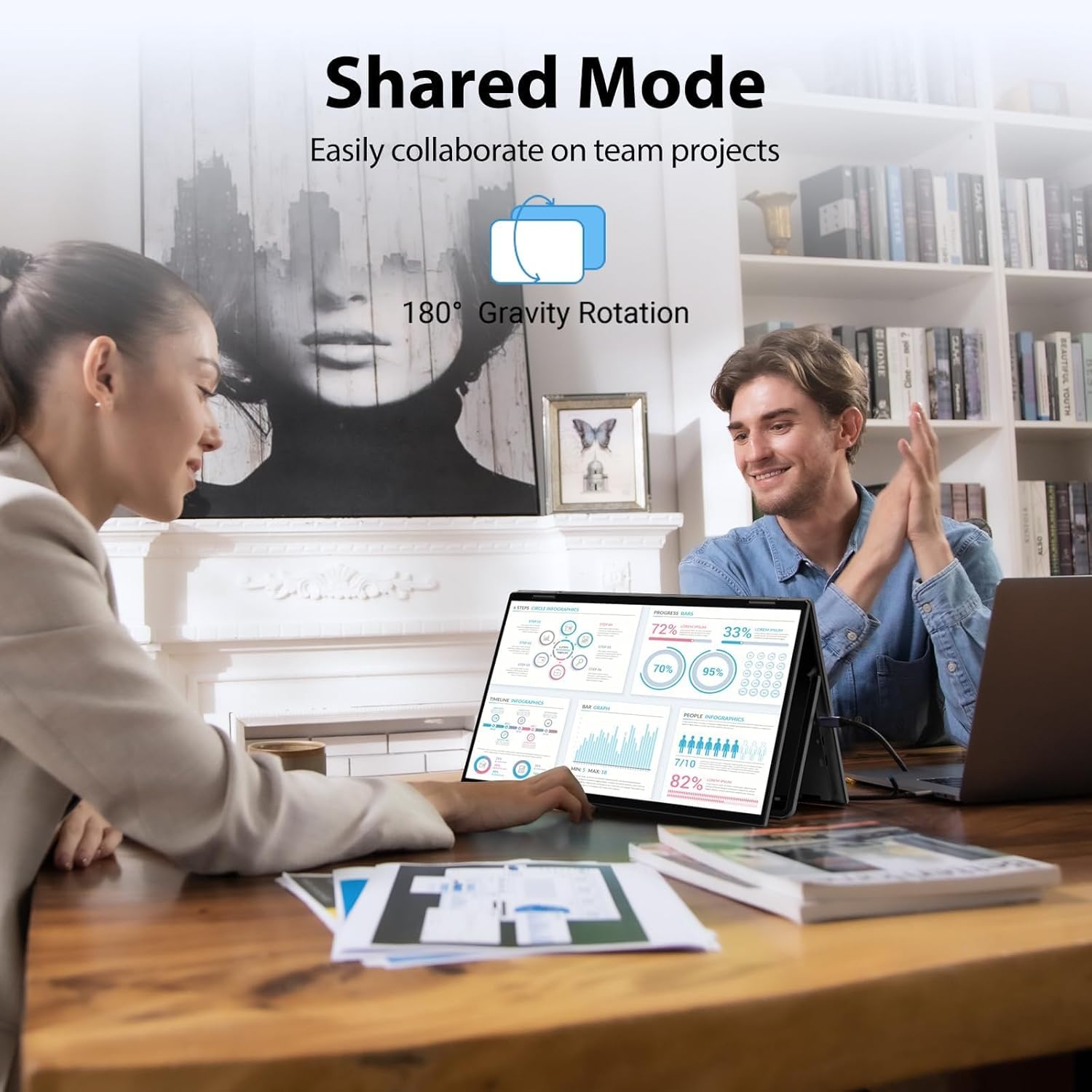
- 共有モード: The top and bottom screens display the same content, but the top screen is flipped, allowing for easy face-to-face presentations or collaboration.
- ポートレートモード: Vertical mode for specific tasks like programming or reading long texts. (Windows only, manual adjustment required).

Image: This diagram visually explains the different display modes available, including Copy, Splicing, Extended, and Shared modes, detailing how content is presented across the screens.
Video: This video demonstrates how to set the monitor's copy, extended, and splicing modes in Windows, showcasing how to achieve three screens with different displays.

Image: The monitor configured in shared mode, with both screens displaying the same content, ideal for collaborative work or presentations.
6. メンテナンス
- クリーニング: 柔らかく糸くずの出ない布で軽く拭き取ってください。ampディスプレイを拭く際は、水またはスクリーンクリーナーを使用してください。刺激の強い化学薬品や研磨剤は使用しないでください。
- ストレージ: When not in use, fold the monitor to its compact size and store it in a protective sleeve or bag to prevent scratches and damage.
- 取り扱い: Handle the monitor with care, especially the hinges and screen panels, to ensure longevity.
7。 トラブルシューティング
- 信号なし:
- Ensure all cables (USB-C or HDMI + power) are securely connected.
- Verify that your laptop's Type-C port is full-featured (supports video output and power delivery).
- If using HDMI, confirm the power adapter is connected and providing sufficient power (30W or higher recommended).
- Check your computer's display settings to ensure the external monitor is detected and configured correctly (e.g., extended or duplicate display).
- Display Mode Issues:
- For Mac extended mode, ensure the necessary drivers are installed and enabled as described in Section 4.3.
- HDMI connections only support splicing and copy modes; extended mode is not available via HDMI.
- Use the mode change buttons on the side of the monitor to cycle through available display modes.
- 画面回転の問題:
- The monitor supports 180° automatic rotation via gravity sensor. If rotation is not working, check for physical obstructions or ensure the monitor is placed on a stable surface.
- For portrait mode on Windows, manual adjustment in display settings may be required.
- 電力の問題:
- Ensure the monitor is connected to a 30W or higher power supply for optimal performance, especially when using HDMI or if your laptop's USB-C port cannot provide enough power.
- Use the original power adapter and cables provided.
8. 仕様
| 特徴 | 詳細 |
|---|---|
| 製品寸法 | 8.5 x 14 x 0.85インチ |
| アイテム重量 | 3.1ポンド |
| モデル番号 | INVPM009 |
| 画面サイズ | 15.6インチ |
| 解決 | 1920 x 1080ピクセル(FHD 1080p) |
| アスペクト比 | 16:9 |
| 画像の明るさ | 300カンデラ |
| スクリーン表面 | マット |
| メーカー | イノView |
9. 保証とサポート
This InnoView dual portable monitor comes with an 18-month warranty. Additionally, a 30-day return policy is offered for peace of mind. For any technical assistance, troubleshooting, or warranty claims, please contact InnoView customer support. Our dedicated team is available to ensure your monitor performs optimally for all your needs.
さらにサポートが必要な場合は、 イノView Amazonで購入.


