
ienRon iSH582-1
サーマルレシートプリンター ユーザーマニュアル
Model: iSH582-1
ブランド: ienRon
1. はじめに
This manual provides comprehensive instructions for the installation, operation, and maintenance of your ienRon Thermal Receipt Printer (Model: iSH582-1). This 58mm max-width POS printer features high-speed printing and advanced thermal technology, supporting ESC/POS commands on Windows and Linux operating systems. Please read this manual thoroughly before using the printer to ensure proper function and longevity.
2. 安全情報
- プリンターを水や湿気にさらさないでください。
- Ensure the power supply matches the printer's requirements.
- 印刷直後はプリントヘッドが熱くなっている可能性があるので、触らないでください。
- プリンターをご自身で分解したり修理したりしないでください。修理が必要な場合は、資格のある担当者にご相談ください。
- Use only thermal paper designed for this printer.
3. パッケージ内容
以下にリストされているすべてのアイテムがパッケージに含まれていることを確認してください。
- Thermal Receipt Printer (iSH582-1)
- 電源コード
- USB転送ケーブル
- U Disk (containing drivers and instructions)
- One Roll of Thermal Paper
- ユーザーマニュアル
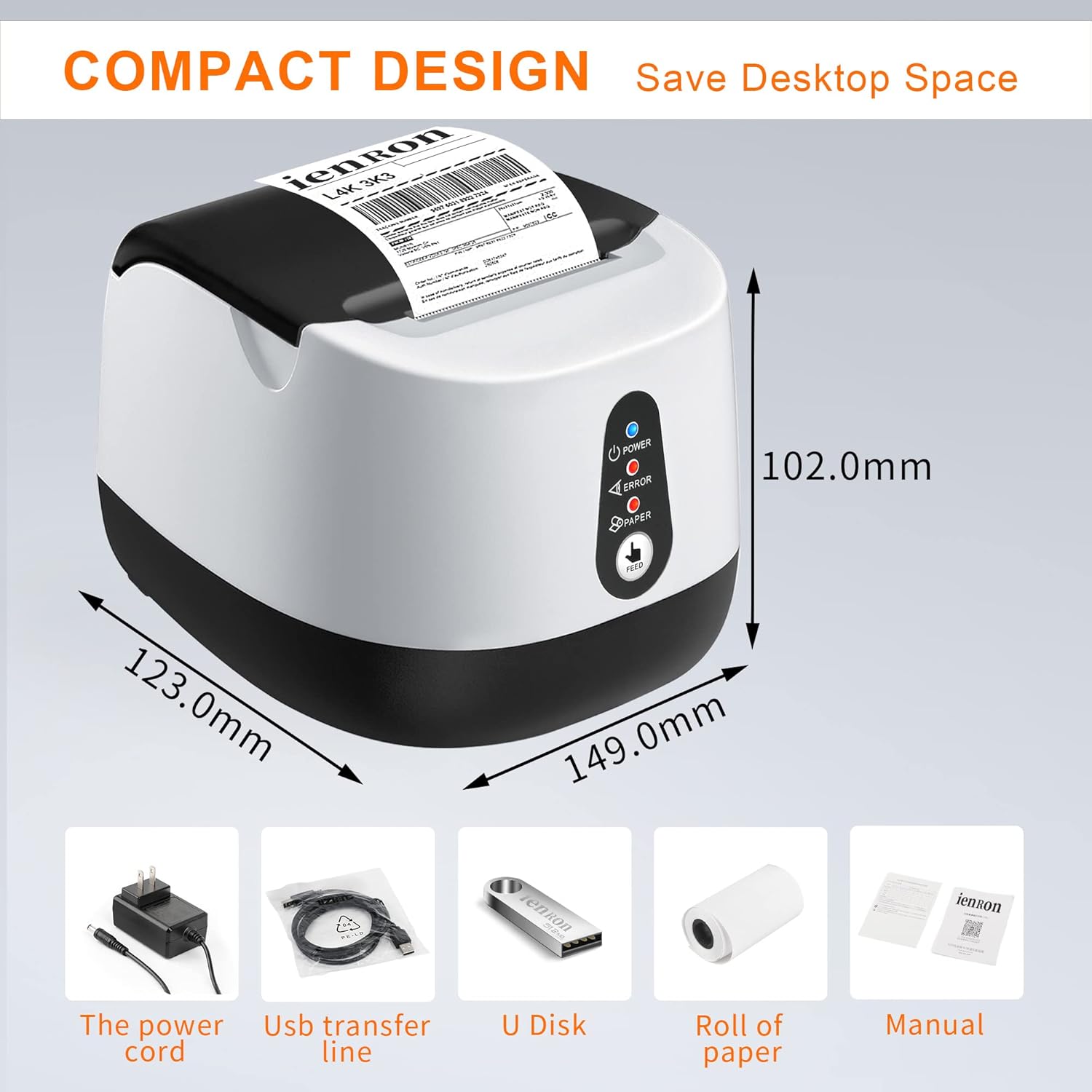
Figure 3.1: Contents of the package, including the printer and its accessories.
4. セットアップ
4.1ハードウェア接続
- Connect the power cord to the printer's power interface and then to a power outlet.
- Connect the USB transfer cable to the printer's USB port and the other end to your computer's USB port.
- リリースボタンを押してプリンターのカバーを開きます。
- Insert the thermal paper roll into the built-in roll bin, ensuring the paper feeds out from the top and is aligned correctly. Close the cover firmly until it clicks.

Figure 4.1: Printer interfaces and internal paper loading area.
4.2 ドライバのインストール
The printer supports Windows and Linux operating systems. Driver installation is crucial for proper functionality.
- Insert the provided U Disk into your computer's USB port.
- ドライバーのインストールを見つけて実行する file from the U Disk.
- Follow the on-screen prompts to complete the driver installation. Refer to the "printer installation precautions" and "installation video" mentioned in the product description for detailed guidance if needed.
- インストール後、プロンプトが表示されたらコンピューターを再起動します。
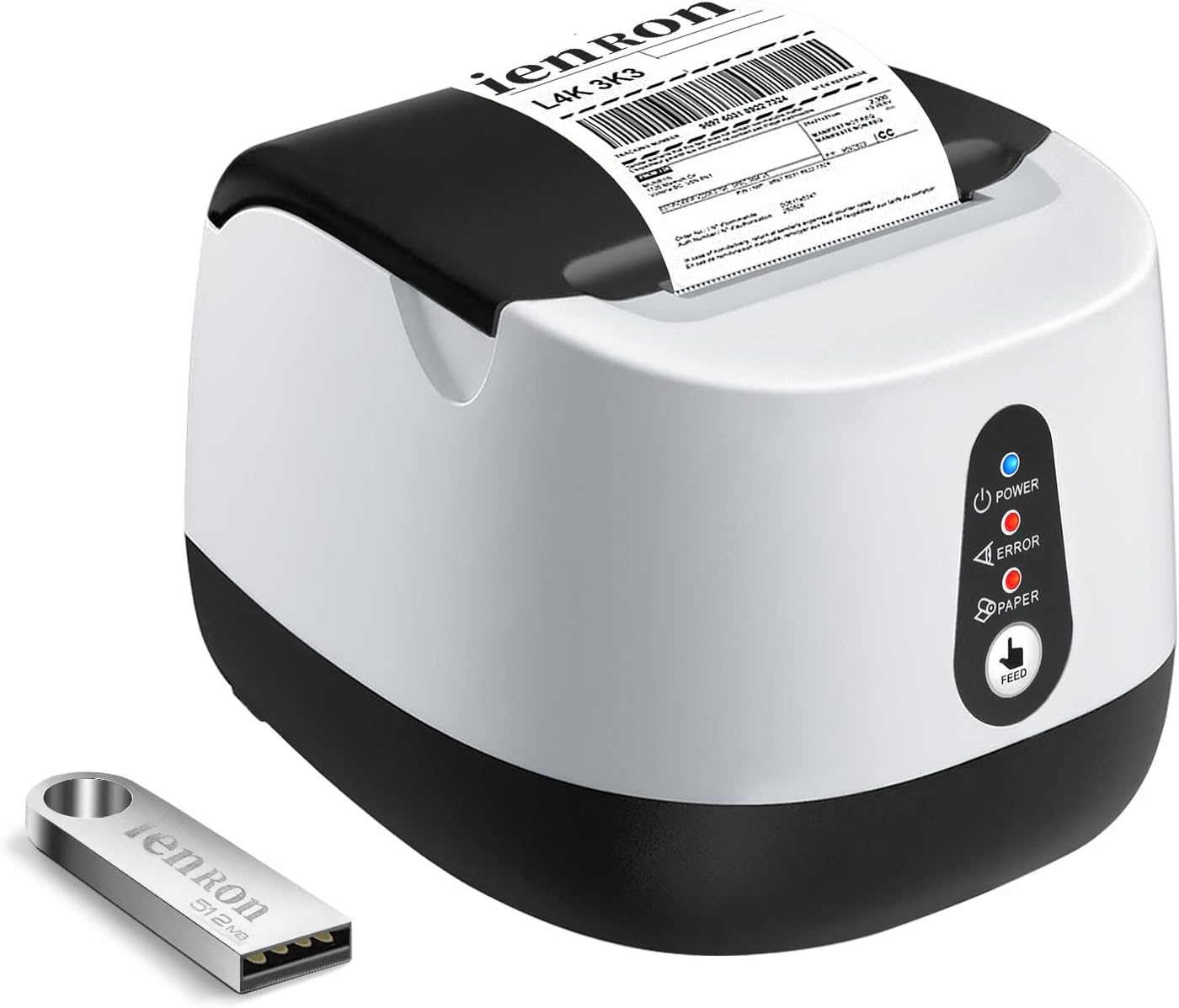
Figure 4.2: Printer and included U Disk for driver installation.

Figure 4.3: System compatibility with Windows and Linux (represented by Android icon in image, but product description states Linux).
5. 操作手順
5.1 基本操作
- 電源オン/オフ: Press the Power button to turn the printer on or off. The Power indicator light will illuminate when on.
- フィードボタン: Press the FEED button to advance the paper manually.
- 印刷: Once drivers are installed and the printer is connected, you can print receipts or other documents from your application. The printer supports ESC/POS commands.

Figure 5.1: Printer's fast printing capabilities.

Figure 5.2: Printer compatibility and typical usage environments.
6. メンテナンス
6.1 プリントヘッドのクリーニング
Regular cleaning of the print head ensures optimal print quality and extends the printer's lifespan. Clean the print head when print quality degrades or after every few paper roll changes.
- プリンタの電源をオフにして、電源コードを取り外します。
- プリンターのカバーを開きます。
- 綿棒で軽く拭き取ってください。ampened with isopropyl alcohol to gently wipe the print head surface.
- カバーを閉じて電源を再接続する前に、プリント ヘッドが完全に乾くまでお待ちください。
6.2 ロール紙の交換
When the paper roll is depleted or near its end, replace it as follows:
- プリンターのカバーを開きます。
- 空の紙管を取り外します。
- Insert a new 58mm thermal paper roll, ensuring the paper feeds from the bottom of the roll towards the top of the printer.
- Pull a small amount of paper out past the cutting edge and close the cover firmly.

Figure 6.1: Printer's internal view, highlighting the thermal printing mechanism that requires no ink or ribbon.
7。 トラブルシューティング
| 問題 | 考えられる原因 | 解決 |
|---|---|---|
| プリンターの電源が入りません。 | 電源が入らない、接続が緩い。 | Check power cord connection to printer and outlet. Ensure outlet has power. |
| 印刷されないか、空白が出力されます。 | Paper loaded incorrectly, out of paper, driver issue, printer not selected. | Reload paper correctly. Replace paper roll. Reinstall drivers. Ensure printer is selected as default in software. |
| 印刷品質が悪い。 | プリントヘッドが汚れている、感熱紙の品質が低い。 | Clean the print head (refer to Section 6.1). Use high-quality thermal paper. |
| プリンターがコンピューターに認識されません。 | USB ケーブルの問題、ドライバーがインストールされていないか破損しています。 | 別のUSBポートまたはケーブルを試してください。プリンタードライバーを再インストールしてください。 |
| 紙詰まり。 | Paper loaded incorrectly, foreign object. | プリンタの電源を切り、カバーを開けて詰まった用紙を慎重に取り除きます。用紙がまっすぐにセットされていることを確認してください。 |
8. 仕様
| 特徴 | 詳細 |
|---|---|
| モデル名 | iSH582-1 |
| 印刷技術 | サーマル |
| 接続技術 | USB |
| 最大メディアサイズ | 58mm |
| 最大印刷速度(モノクロ) | 70mm/秒 |
| 印刷解像度 | 203DPI |
| Ink/Ribbon Required | No (Thermal Printing) |
| 互換性のあるオペレーティングシステム | Windows, Linux (Does not support iPad, iPhone, iOS, or Bluetooth devices) |
| インタフェース | USB |
| 寸法(長さ×幅×高さ) | 149.0mm x 123.0mm x 102.0mm |
| アイテム重量 | 1.7ポンド |
| 特集 | Easy to Set Up, Excellent Printing Performance, High Speed, No Ink & No Ribbon, Overheating Protection, Data Buffer |

Figure 8.1: High performance features of the printer.

Figure 8.2: Key features for small business use, including USB, 203DPI, and ink/ribbon-free operation.
Figure 8.3: Compact design and dimensions of the printer.
9. 保証とサポート
9.1 限定保証
This ienRon Thermal Receipt Printer comes with a limited warranty. Please refer to the warranty card included in your package or contact customer support for details regarding warranty terms and conditions.
9.2 カスタマーサポート
If you encounter any problems during installation or use, or have any questions not covered in this manual, please feel free to contact ienRon customer support. We are committed to providing assistance and resolving any issues you may experience.
Note: Contact information for customer support is typically found on the product packaging, warranty card, or the manufacturer's official webサイト。
Ask a question about this manual
Ask about setup, troubleshooting, compatibility, parts, safety, or missing instructions. Manuals+ will review the question and use this page’s manual context to help answer it.