
1. はじめに
This manual provides essential information for setting up, operating, maintaining, and troubleshooting your Alienware X17 R2 Gaming Laptop. Please read this guide thoroughly to ensure optimal performance and longevity of your device.
The Alienware X17 R2 is designed for high-performance gaming and demanding tasks, featuring advanced cooling technologies, powerful processors, and dedicated graphics.
2.製品オーバーview
The Alienware X17 R2 is engineered to deliver an immersive gaming experience in a thin 17-inch form factor. Key features include:
- Powerful Intel CPUs: Experience high-performance action across all your favorite games with 12th Gen Intel Core processors.
- Next-Gen GPUs: Game unrestrained with NVIDIA GeForce RTX 3070Ti graphics, Dynamic Boost 2.0, and Deep Learning Super Sampリングテクノロジー。
- Patented Quad Cooling: An industry-first design uses four intelligently controlled and programmable fans to dissipate heat.
- 延長プレイタイム: Improve battery life with Advanced Optimus technology from NVIDIA—now available on all display options.
- Legend 2.0 Industrial Design: A fresh evolution in design with a high-endurance finish and customizable AlienFX lighting.

図2.1: 前面 view of the Alienware X17 R2 Gaming Laptop displaying a game.
3. セットアップ
3.1 開梱と初期検査
- ノートパソコンとすべての付属品をパッケージから慎重に取り出します。
- 「箱の内容」セクションに記載されているすべてのアイテムが揃っていることを確認します。
- ノートパソコンに物理的な損傷がないか点検してください。損傷が見つかった場合は、直ちに販売店にご連絡ください。
3.2 電源の接続
- Connect the power adapter to the charging port located at the rear of the laptop.
- 電源コードを壁のコンセントに差し込みます。
- The power indicator light will illuminate, indicating the laptop is receiving power.
3.3 最初の起動とオペレーティングシステムのセットアップ
- Press the Alienware head power button to turn on the laptop.
- 画面の指示に従って、Windows 11 Home のセットアッププロセスを完了してください。これには、地域の選択、Wi-Fi ネットワークへの接続、ユーザーアカウントの作成が含まれます。
- システムが必要なアップデートをダウンロードしてインストールできるようにします。
4. ノートパソコンの操作
4.1 キーボードとタッチパッド
The Alienware X17 R2 features a backlit keyboard and a responsive touchpad. The AlienFX lighting allows for customizable colors and effects across the keyboard and other zones.

図4.1:詳細 view バックライト付きキーボードとタッチパッド。
4.2 ディスプレイとグラフィックス
Enjoy stunning visuals on the 17.3-inch FHD display with a 480Hz refresh rate and 3ms response time. The NVIDIA GeForce RTX 3070Ti graphics card ensures smooth gameplay and high-fidelity rendering. The laptop supports Dolby Vision for optimized color profiles.
4.3 オーディオ
Experience immersive 3D sound via Dolby Atmos, designed to deliver audio as studios intended.
4.4 ポートと接続
The laptop offers a variety of ports for peripherals and external displays:

図4.2:背面 view illustrating the various connectivity ports.
- USB 3.0ポート: 3 ports for connecting various USB devices.
- USB-Cポート: For versatile connectivity, including Thunderbolt 4.
- HDMI 2.1: Supports up to 4K/120Hz output for external displays.
- イーサネット: Killer E3100 RJ45 Ethernet for stable wired network connections.
- 無線: Killer Wi-Fi 6 (802.11ax) and Bluetooth for wireless connectivity.
5. メンテナンス
5.1 クリーニング
- 画面と外部の表面を清掃するには、柔らかく糸くずの出ない布を使用してください。
- 強力な化学薬品や研磨材の使用は避けてください。
- パフォーマンスに影響を及ぼす可能性のあるほこりの蓄積を防ぐために、定期的に冷却通気口を清掃してください。
5.2ソフトウェアアップデート
Ensure your operating system and drivers are kept up-to-date. Windows Update will handle OS updates, and Alienware Command Center can assist with driver and firmware updates.
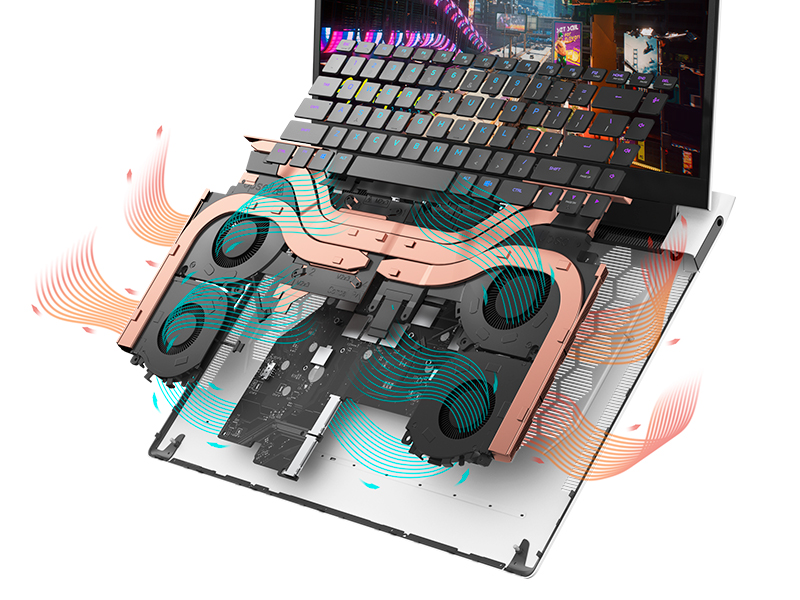
Figure 5.1: Alienware Command Center for system management.
6。 トラブルシューティング
If you encounter issues with your Alienware X17 R2, consider the following basic troubleshooting steps:
- 電源なし: 電源アダプターがノートパソコンと電源コンセントの両方にしっかりと接続されていることを確認してください。電源インジケーターランプを確認してください。
- 表示の問題: If the screen is black, try connecting an external monitor to verify if the issue is with the laptop's display or the graphics card. Update graphics drivers.
- 過熱: Ensure cooling vents are clear of obstructions. Use Alienware Command Center to monitor temperatures and adjust fan profiles.
- パフォーマンスの低下: 不要なアプリケーションを閉じてください。CPUやRAMを大量に消費しているバックグラウンドプロセスがないか確認してください。SSDに十分な空き容量があることを確認してください。
- ソフトウェアの問題: Restart the laptop. If issues persist, consider performing a system restore or reinstalling the problematic software.
7. 仕様
| 特徴 | 仕様 |
|---|---|
| 画面サイズ | 17.3インチ |
| 画面解像度 | 1920 x 1080ピクセル(FHD) |
| プロセッサ | インテル Core i9-12900H (3.8 GHz、14 コア) |
| ラム | 16 GB DDR5 (4800 MHz) |
| ハードドライブ | 1 TB SSD(ソリッドステート) |
| グラフィックスコプロセッサ | NVIDIA GeForce RTX 3070 Ti (8 GB GDDR6) |
| オペレーティング·システム | Windows 11 ホーム |
| ワイヤレスタイプ | 802.11ax (Killer Wi-Fi 6), Bluetooth |
| USB 3.0 ポート | 3 |
| アイテム重量 | 6.82ポンド |
| 製品寸法 | 11.79 x 15.72 x 0.58インチ |
8. 箱の中身
- Alienware X17 R2 ゲーミング ノートパソコン
- 電源アダプター
- 電源コード
- ドキュメント
9. 公式製品ビデオ
Alienware X17 R2 Gaming Laptop Overview
ビデオ9.1: 審判員がview of the Alienware X17 R2 Gaming Laptop, highlighting its design, cooling, and performance features.
About Alienware X17 R2 Gaming Laptop
Video 9.2: A detailed look at the Alienware X17 R2 Gaming Laptop, showcasing its features and design elements.
10. 保証とサポート
Your Alienware X17 R2 Gaming Laptop comes with a standard manufacturer's warranty. For detailed warranty information, please refer to the documentation included with your product or visit the official Alienware support webサイト。
For technical support, driver downloads, and service requests, please visit the Alienware support portal. You can also find FAQs and community forums for additional assistance.