
1. はじめに
The ASUS ROG Keris Wireless EVA Edition Gaming Mouse is a high-performance peripheral designed for precision and customization. This mouse features tri-mode connectivity, allowing for versatile use across various platforms. Its lightweight design and advanced sensor technology provide an optimal gaming experience.
主な機能は次のとおりです。
- Tri-mode connectivity: Dual-wireless 2.4 GHz, Bluetooth LE, and wired USB.
- Specially tuned 16,000 DPI, 400 IPS ROG optical sensor with 1000 Hz polling rate.
- Lightweight 79-gram design with a durable honeycomb inner structure.
- Exclusive ROG Push-Fit Switch Socket design for easy switch replacement.
- ROG Micro Switches with a 70-million-click lifespan.
- Premium PBT polymer L/R buttons and swappable side buttons.
- ROG Paracord cable and 100% PTFE rounded-edge mouse feet for smooth glide.
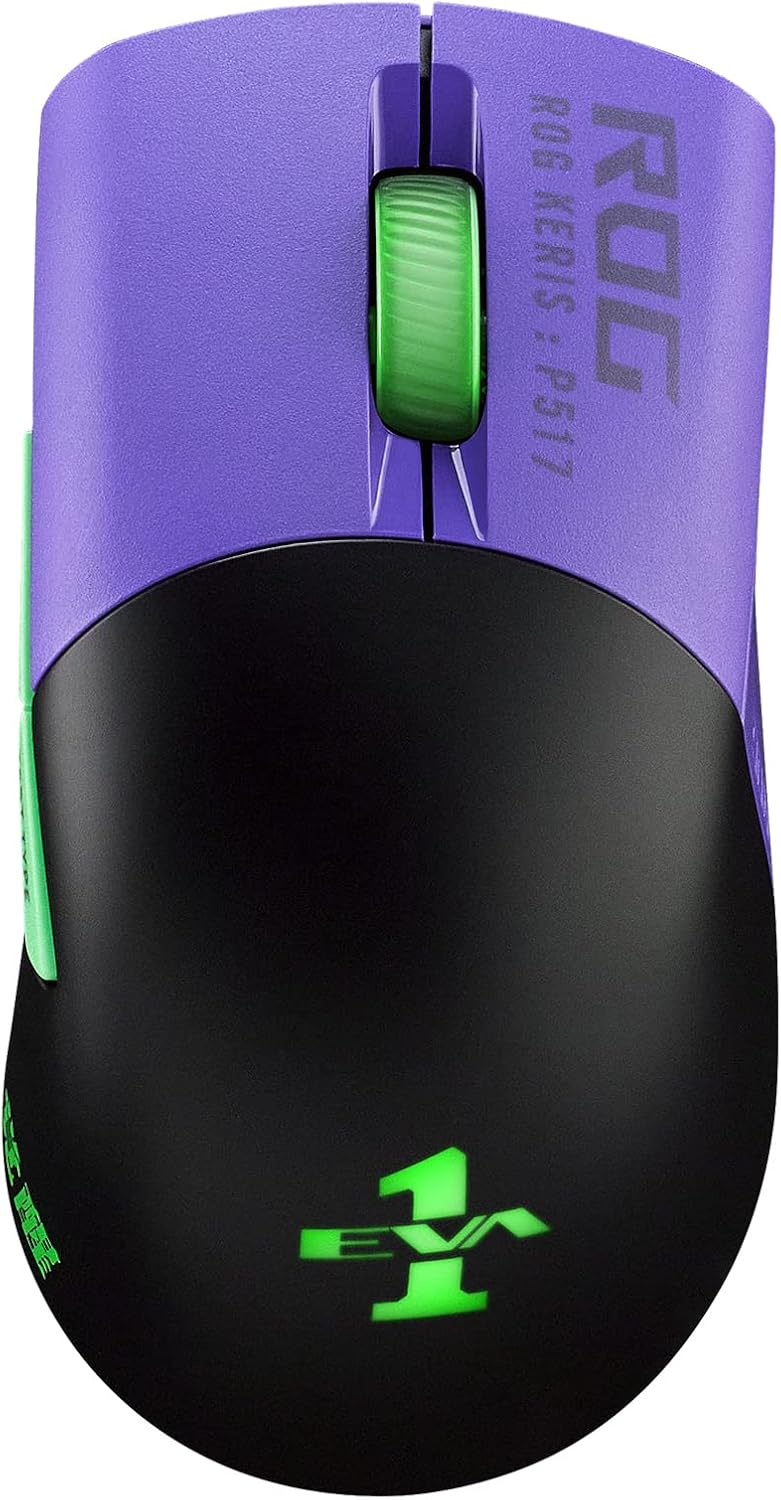
画像: 上 view of the ASUS ROG Keris Wireless EVA Edition Gaming Mouse, showcasing its purple and black design with green accents.
2. パッケージ内容
製品パッケージにすべてのアイテムが揃っていることを確認します。
- ASUS ROG Keris Wireless EVA Edition Gaming Mouse
- USB Type-C to Type-A ROG Paracord Cable
- USBワイヤレスドングル
- ROG Switch Kit (includes extra switches)
- Swappable Side Buttons (various colors)
- ユーザーマニュアル(このドキュメント)
- 保証書
3. セットアップ
3.1 マウスの充電
Before first use, it is recommended to fully charge the mouse. Connect the USB Type-C end of the ROG Paracord Cable to the mouse and the USB Type-A end to an available USB port on your computer or a USB wall adapter. The mouse's LED indicator will show charging status.
3.2 マウスの接続
The ROG Keris Wireless EVA Edition supports three connectivity modes:
3.2.1 2.4 GHz ワイヤレス接続
- Locate the USB wireless dongle.
- Plug the dongle into an available USB Type-A port on your computer.
- On the bottom of the mouse, slide the connectivity switch to the 2.4G 位置。
- マウスは自動的にコンピューターに接続されます。
3.2.2 Bluetooth LE Connection
- On the bottom of the mouse, slide the connectivity switch to the ブルートゥース 位置。
- コンピューターで Bluetooth 設定を開き、新しいデバイスを検索します。
- Select "ROG Keris Wireless EVA Edition" from the list of available devices to pair.
3.2.3 有線USB接続
- Connect the USB Type-C end of the ROG Paracord Cable to the mouse.
- ケーブルの USB タイプ A 端をコンピューターの使用可能な USB ポートに接続します。
- マウスは有線モードですぐに機能し、同時に充電されます。
3.3 ソフトウェアのインストール(Armoury Crate)
For full customization options, including DPI settings, button remapping, and RGB lighting control, download and install the ASUS Armoury Crate software from the official ASUS support webサイト。 ASUSサポートにアクセス
4. 操作手順
4.1 マウスの基本機能
- 左クリック: 主なアクション。
- 右クリック: セカンダリアクション/コンテキストメニュー。
- スクロールホイール: 上/下にスクロール、中クリック。
- サイドボタン: デフォルトで進む/戻る web browsers. Customizable via Armoury Crate.
4.2 DPI調整
The mouse features a dedicated DPI button (usually located behind the scroll wheel or on the bottom) to cycle through preset DPI levels. You can customize these levels and assign them to specific buttons using the Armoury Crate software.

Image: The underside of the mouse highlighting its 16,000 DPI resolution, 400 IPS max speed, and 40G acceleration.
4.3 Customizing Switches and Side Buttons
The ROG Keris Wireless EVA Edition features an exclusive Push-Fit Switch Socket design, allowing users to easily swap out the mouse switches to customize click force or replace worn switches. The mouse also comes with swappable side buttons for aesthetic and ergonomic customization.

画像: 詳細な view of the ROG Push-Fit Switch Socket, illustrating how switches can be easily inserted and removed.

Image: The mouse shown with its customizable side buttons, demonstrating the ability to change their appearance and feel.
5. メンテナンス
5.1 マウスのクリーニング
最適なパフォーマンスと外観を維持するために、マウスを定期的に清掃してください。表面は柔らかく乾いた布で拭いてください。頑固な汚れには、軽く湿らせた布で拭いてください。amp マウスに液体が入らないように、中性洗剤を含ませた布を使用してください。研磨剤入りの洗剤や溶剤は使用しないでください。
5.2バッテリーケア
To prolong battery life, avoid fully discharging the mouse frequently. Charge the mouse when the battery indicator is low. If storing the mouse for an extended period, charge it to approximately 50% before storage.
6。 トラブルシューティング
6.1 マウスが反応しない
- バッテリーを確認してください: Ensure the mouse is charged. Connect it via USB cable to charge and test.
- 接続性を確認: Verify the connectivity switch on the bottom of the mouse is set to the correct mode (2.4G, Bluetooth, or Wired).
- ドングル接続: If using 2.4G wireless, ensure the USB dongle is securely plugged into a working USB port. Try a different USB port.
- Bluetoothのペアリング: If using Bluetooth, ensure the mouse is properly paired with your device and Bluetooth is enabled on your computer. Try re-pairing.
- コンピューターを再起動: 多くの場合、単純な再起動で接続の問題が解決します。
6.2 Cursor Lag or Jitter
- クリーンセンサー: マウスの底面にある光学センサーがきれいで、ゴミなどがないことを確認します。
- 表面: Use the mouse on a clean, uniform surface, preferably a mouse pad. Avoid reflective or transparent surfaces.
- 干渉: If using wireless, move the mouse closer to the dongle or computer. Avoid strong electromagnetic interference sources.
- DPI設定: Adjust DPI settings via the mouse button or Armoury Crate to see if it improves performance.
6.3 ボタンが機能しない
- ソフトウェアの競合: If you have other mouse software installed, it might conflict with Armoury Crate. Try uninstalling other software.
- スイッチの交換: If a specific button is not clicking or double-clicking unintentionally, consider replacing the switch using the provided ROG Switch Kit. Refer to online tutorials or the Armoury Crate software for guidance on switch replacement.
7. 仕様
| 特徴 | 仕様 |
|---|---|
| モデル番号 | P517 ROG KERIS WIRELESS EVA EDITION |
| 接続性 | Tri-Mode (2.4 GHz Wireless, Bluetooth LE, USB Wired) |
| センサー | ROG Optical Sensor |
| 解像度 | 最大16,000DPI |
| IPS | 400 IPS |
| 加速度 | 40G |
| ポーリングレート | 1000Hz |
| スイッチ | ROG Micro Switches (70-million-click lifespan), Push-Fit Socket |
| ボタン | 7 programmable buttons, PBT L/R buttons, Swappable side buttons |
| 重さ | 79グラム(ケーブルなし) |
| 寸法(長さx幅x高さ) | 4.65 x 2.44 x 1.54 インチ (118 x 62 x 39 mm) |
| バッテリー寿命 | Up to 78 hours (56 hours with RGB lighting on) |
| ケーブル | ROG Paracord |
| マウスフィート | 100% PTFE rounded-edge |
| オペレーティング·システム | Windows、macOS |

Image: The mouse with its dimensions indicated: 4.65 inches length and 2.44 inches width.
8. 保証とサポート
ASUS provides a limited warranty for this product. Please refer to the warranty card included in your package for detailed terms and conditions, including warranty period and coverage.
テクニカルサポート、ドライバーのダウンロード、FAQ、その他のサポートについては、ASUSの公式サポートをご覧ください。 webサイト:
You can also visit the ASUS Store for more information about ROG products: