
導入
This manual provides detailed instructions for the setup, operation, maintenance, and troubleshooting of your Pokitter Go Pro Mini Portable Projector. Please read this manual thoroughly before using the product to ensure proper functionality and to extend the lifespan of your device.
The Pokitter Go Pro is a compact and powerful portable projector featuring integrated Android TV 10.0, Google Assistant, 200 ANSI lumens brightness, 1080p Full HD resolution with 4K support, dual-band 2.4G/5G WiFi, and a maximum projection size of 120 inches. It is designed for versatile entertainment, offering a cinematic experience on the go.
パッケージ内容
パッケージにすべてのアイテムが揃っていることを確認してください:
- Pokitter Go Pro Mini Portable Projector
- リモートコントロール
- 電源アダプター
- ユーザーマニュアル(このドキュメント)
- キャリーストラップ

Image: The Pokitter Go Pro Mini Portable Projector, highlighting its compact design and integrated handle for easy portability.
製品終了view
フロント View
プロジェクターの前面には、投影レンズと通気グリルがあります。
後方 View
The rear panel typically includes various ports for connectivity.
- HDMIポート: ノートパソコン、ゲーム機、Blu-ray プレーヤーなどの外部デバイスを接続します。
- USBポート: For connecting USB drives for media playback or external peripherals.
- オーディオ出力(3.5mmジャック): 外部スピーカーやヘッドホンを接続します。
- DC入力: 電源入力ポート。
トップ View
The top surface may include control buttons or indicators.
側 View
The sides often feature additional ventilation and a carrying handle.
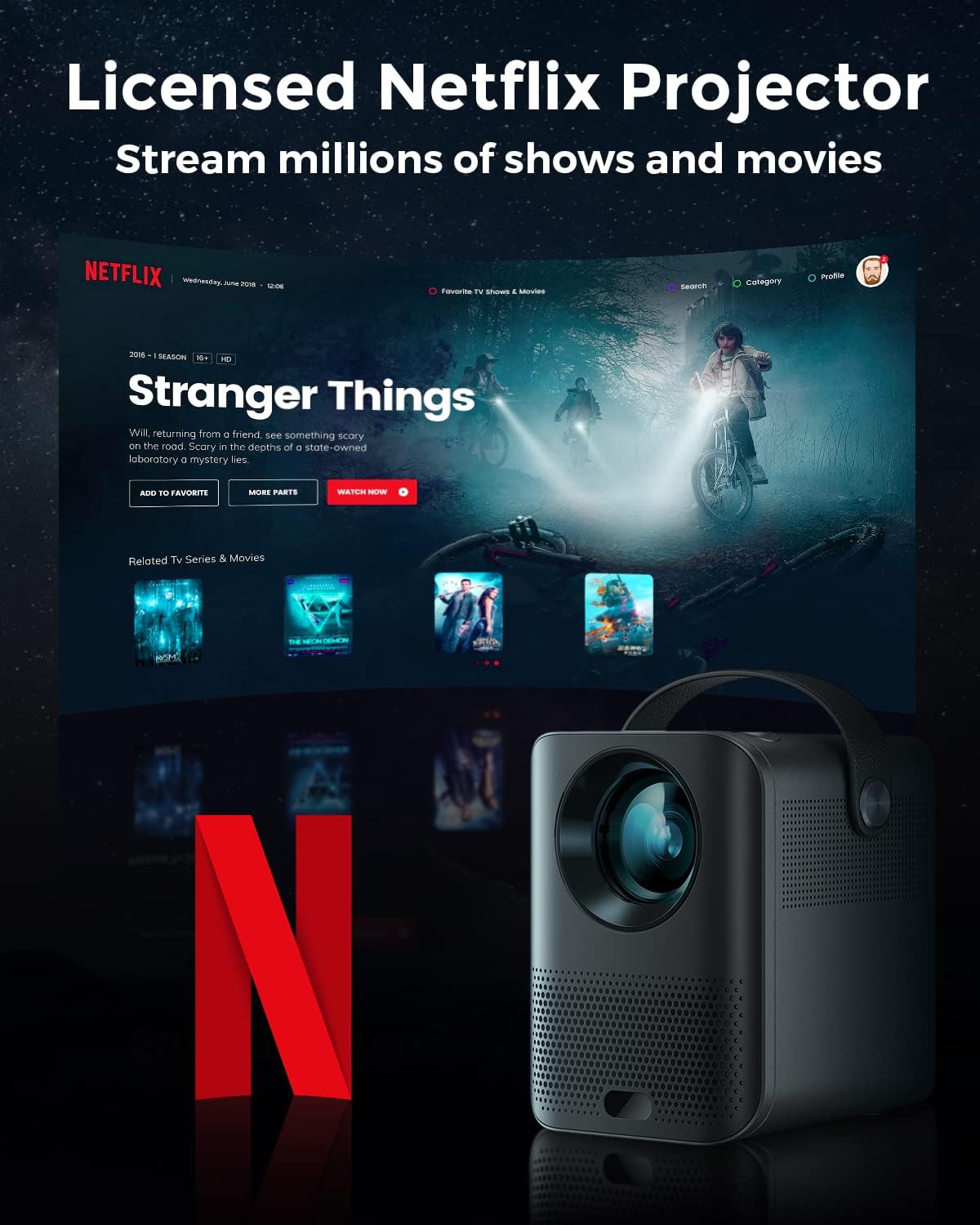
Image: The Pokitter Go Pro projector showcasing its integrated Netflix license and streaming capabilities.

Image: A size comparison of the Pokitter Go Pro projector with a smartphone, illustrating its mini and portable form factor.
設定
1. 電源接続
- 電源アダプターをプロジェクターの DC 入力ポートに接続します。
- 電源アダプタを壁のコンセントに差し込みます。
- 電源インジケータライトが点灯します。
2. 初回電源投入
- プロジェクタまたはリモコンの電源ボタンを押して、デバイスの電源をオンにします。
- Allow a few moments for the Android TV system to boot up.
3.フォーカス調整
Use the focus ring (if mechanical) or the remote control's focus buttons to achieve a clear image. The Pokitter Go Pro features automatic vertical keystone correction up to 40 degrees.

Image: Illustration of the automatic keystone correction feature, which adjusts the image for optimal viewing even when the projector is not perfectly aligned.
4. 画面サイズの調整
Adjust the distance between the projector and the projection surface to achieve the desired screen size. The projector supports a screen size up to 120 inches.

Image: Guide for optimal projection distances to achieve screen sizes of 40, 80, and 120 inches.
5. ネットワーク接続(Wi-Fi)
- Navigate to the Wi-Fi settings in the Android TV interface.
- リストから希望の Wi-Fi ネットワークを選択します。
- プロンプトが表示されたらパスワードを入力します。
- The projector supports dual-band 2.4G and 5G Wi-Fi for stable and fast transmission.

Image: The Pokitter Go Pro projector demonstrating its 2.4/5GHz WiFi capabilities for seamless wireless screen casting from various devices.
操作手順
リモコンの使用
The included remote control allows full navigation and control of the Android TV interface. Key functions include:
- 電源ボタン: プロジェクターの電源をオン/オフします。
- ナビゲーションパッド: For moving through menus.
- OKボタン: 選択を確定します。
- 戻るボタン: 前の画面に戻ります。
- ホームボタン: Android TV のホーム画面に戻ります。
- 音量ボタン: オーディオの音量を調整します。
- Google アシスタント ボタン: 音声コマンドを有効にします。
Android TV インターフェース
The Pokitter Go Pro runs on Android TV 10.0, providing access to a wide range of streaming applications such as Netflix, YouTube, Amazon Prime Video, and Disney+.
- アプリのナビゲーション: Use the remote's navigation pad to select and open applications.
- コンテンツストリーミング: Log in to your streaming accounts to access content.
- Google アシスタント: Press the Google Assistant button on the remote and speak your commands to search for content, control playback, or get information.

画像: オーバーview of the Pokitter Go Pro's key features, including its Android TV operating system, Google Assistant integration, and display capabilities.
Screen Mirroring (Chromecast Built-in)
The projector features built-in Chromecast for easy screen mirroring from compatible devices (smartphones, tablets, laptops).
- デバイスとプロジェクターが同じ Wi-Fi ネットワークに接続されていることを確認します。
- デバイスで Chromecast 対応アプリ (YouTube、Netflix など) を開きます。
- キャストアイコンをタップします (通常はWi-Fiシンボルが描かれた長方形) アプリ内で。
- Select your Pokitter Go Pro projector from the list of available devices.
- The content from your device will be mirrored or cast to the projector.

Image: Demonstrating the Chromecast built-in feature, allowing users to stream content from their smartphone to the projector's large display.
Connecting External Devices (HDMI/USB)
- HDMI: Connect an HDMI cable from your external device (e.g., laptop, game console) to the HDMI port on the projector. The projector will automatically switch to the HDMI input or you may need to select it from the input source menu.
- USB: Insert a USB flash drive into the USB port. The Android TV system will typically prompt you to open a file browser to access media fileドライブ上にあります。
メンテナンス
レンズのクリーニング
光学レンズ専用の柔らかく糸くずの出ない布で、プロジェクターレンズを優しく拭いてください。研磨剤入りのクリーナーを使用したり、無理な力で拭いたりしないでください。レンズに傷がつく可能性があります。
プロジェクター本体のクリーニング
プロジェクターの外側は、柔らかく乾いた布で拭いてください。頑固な汚れには、軽く湿らせた布で拭いてください。amp 布で拭いた後、乾いた布で拭いてください。プロジェクター内部に液体が入らないようにしてください。
換気
Ensure that the ventilation grilles are not blocked during operation to prevent overheating. The Pokitter Go Pro features a dust-proof design to maintain picture quality.

Image: An internal diagram of the Pokitter Go Pro, illustrating its dust-proof design for long-lasting, flawless picture quality.
ストレージ
長期間使用しない場合は、直射日光や極端な温度を避け、涼しく乾燥した場所にプロジェクターを保管してください。元の梱包箱または保護ケースの使用をお勧めします。
トラブルシューティング
| 問題 | 考えられる原因 | 解決 |
|---|---|---|
| 電源なし | 電源ケーブルが接続されていません。電源コンセントに障害があります。 | 電源ケーブルがしっかりと接続されていることを確認してください。別のコンセントを試してください。 |
| 画像なし / ぼやけた画像 | Lens out of focus; Incorrect input source; Obstruction in projection path. | Adjust focus using the remote or focus ring. Select correct input source. Remove any obstructions. |
| 音が出ない | 音量が低すぎます。ミュートされています。外部スピーカーが正しく接続されていません。 | Increase volume. Unmute the projector. Check external speaker connections. |
| Wi-Fi接続の問題 | パスワードが間違っています。ルーターが遠すぎます。ネットワークが干渉しています。 | Wi-Fiパスワードを確認してください。プロジェクターをルーターに近づけてください。ルーターとプロジェクターを再起動してください。 |
| リモコンが動作しない | 電池切れ。リモコンとプロジェクターの間に障害物があります。 | 電池を交換してください。プロジェクターの赤外線受信機が見通せるようにしてください。 |
仕様
- モデル: F1A
- ブランド: ポキッター
- ディスプレイ技術: 導かれた
- ネイティブ解像度: 1920 x 1080 (フルHD)
- サポートされる最大解像度: 3840 x 2160 (4K)
- 輝度: 最大200のANSIルーメン
- 投影サイズ: 最大120インチ
- オペレーティング·システム: Android TV 10.0
- 音声アシスタント: Googleアシスタント内蔵
- ワイヤレス接続: 2.4G/5G Dual-band Wi-Fi, Bluetooth 5.1
- 接続ポート: HDMI、USB、3.5mmオーディオ出力、DC入力
- 講演者: Integrated (2x5W as per infographic)
- Average Lifespan (Light Source): 50,000時間
- フォームファクター: ポータブル
- 取り付けタイプ: テーブルマウント

Image: An illustration of the projector's internal speaker system, designed to provide true-to-life sound for a cinematic viewing の経験。
保証とサポート
The Pokitter Go Pro Mini Portable Projector comes with a 2年間保証. For any questions or professional assistance regarding this product, please contact Pokitter customer support. We are committed to supporting our customers.
For the latest support information, FAQs, and contact details, please visit the official Pokitter webサイトをご覧いただくか、購入時に提供された連絡先情報を参照してください。