
導入
This manual provides essential instructions for setting up, operating, and maintaining your Epson EcoTank L121 A4 Ink Tank Printer. Please read this guide thoroughly before using the printer to ensure correct operation and to maximize its lifespan.

画像: 正面 view of the Epson EcoTank L121 A4 Ink Tank Printer. This image shows the compact design and the front paper output tray.
1. セットアップ
1.1 開梱
Carefully remove the printer from its packaging. Ensure all protective tapes and materials are removed from the exterior and interior of the printer. Keep the packaging materials for future transport if needed.
1.2 インクタンクの充填
The EcoTank L121 uses refillable ink tanks. Use only genuine Epson 664 series ink bottles (6641 Black, 6642 Cyan, 6643 Magenta, 6644 Yellow) for optimal performance and to prevent damage.
- プリンター側面のインクタンクユニットカバーを開きます。
- Open the cap for the corresponding color ink tank you wish to fill.
- Carefully uncap the ink bottle and insert it into the filling port. The ink will automatically start to fill the tank. Do not squeeze the bottle.
- タンクがいっぱいになったら、インクボトルを取り外し、インクタンクのキャップをしっかりと閉じます。
- 他のすべての色についても繰り返します。
- インクタンクユニットのカバーを閉じます。
After filling, press and hold the メンテナンス button (often depicted as a droplet or triangle with a lightning bolt) for 3 seconds to initiate ink charging. This process takes approximately 20 minutes. Do not turn off the printer during ink charging.
1.3コンピューターへの接続
The Epson EcoTank L121 connects via USB 2.0.
- Ensure the printer is powered on and ink charging is complete.
- USB ケーブルの一方の端をプリンターの USB ポートに接続します。
- USB ケーブルのもう一方の端をコンピューターの使用可能な USB ポートに接続します。
1.4 ソフトウェアのインストール
Insert the provided software CD into your computer's CD-ROM drive. If the installer does not start automatically, browse the CD and run the setup file. Follow the on-screen instructions to install the printer drivers and utility software. If you do not have a CD drive, download the latest drivers from the official Epson support webサイト。
2. プリンターの操作
2.1用紙のセット
The printer supports A4 paper size.
- Open the paper support and pull it up.
- エッジガイドを用紙の幅に合わせてスライドします。
- Load paper print-side up into the rear paper feeder. Ensure the stack is even and does not exceed the maximum load line.
- エッジガイドを用紙の端に合わせて調整します。
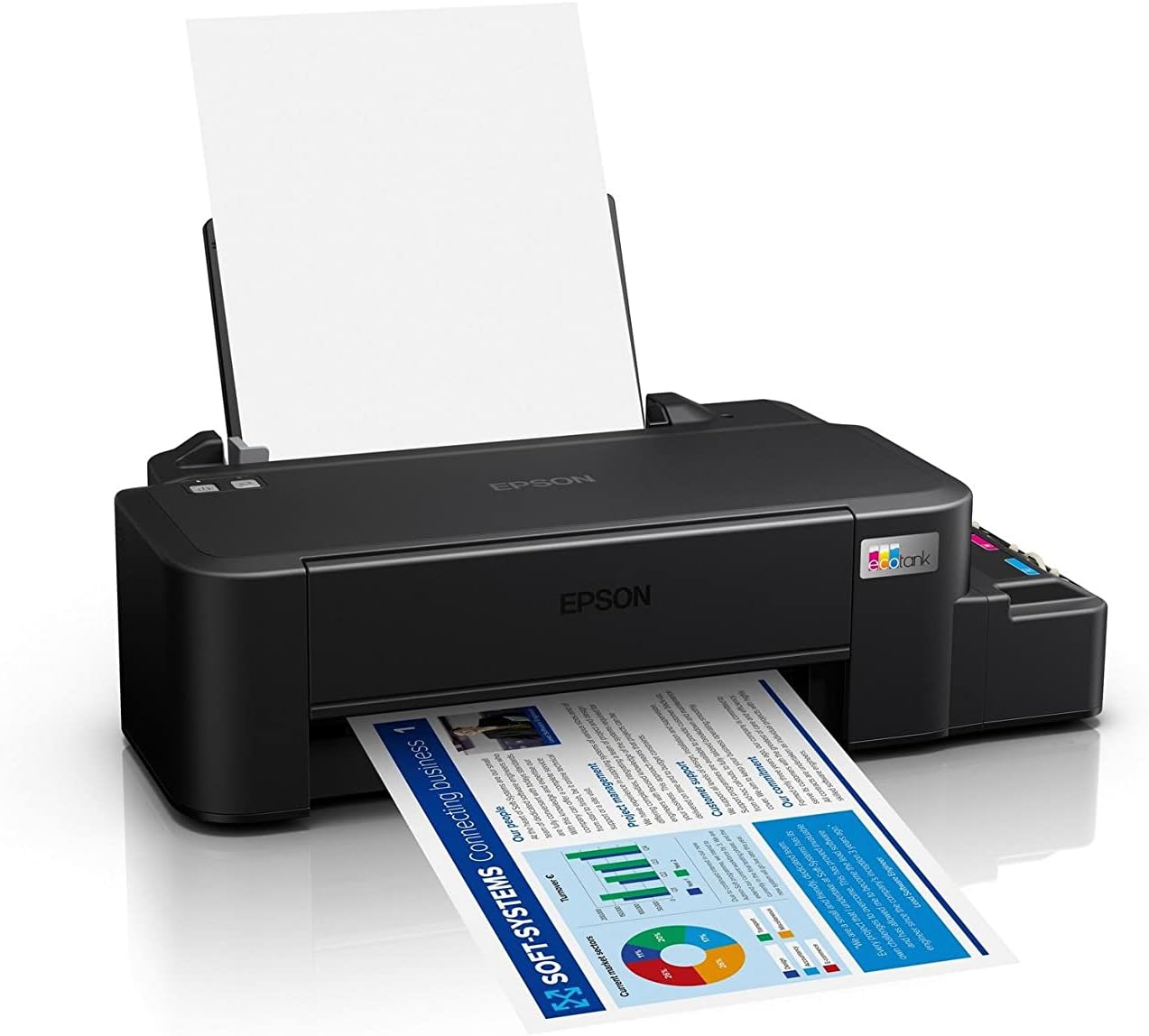
Image: The Epson EcoTank L121 printer actively printing a document. This illustrates paper being fed from the rear tray and exiting the front output tray.
2.2 基本的な印刷
To print a document or image from your computer:
- 印刷したい文書または画像を開きます。
- 選択 印刷 アプリケーションのメニューから(例: File > 印刷)。
- Choose your Epson EcoTank L121 printer from the list of available printers.
- 必要に応じて、用紙サイズ、印刷品質、印刷部数などの印刷設定を調整します。
- クリック 印刷.
3. メンテナンス
3.1 インク残量の確認
Visually inspect the ink tanks on the side of the printer. The transparent tanks allow you to monitor ink levels. Refill ink when levels approach the lower line to prevent air from entering the system, which can affect print quality.

画像: 斜め view of the Epson EcoTank L121 printer, highlighting the external ink tanks. This view clearly shows the four color ink reservoirs.
3.2 プリントヘッドのクリーニング
If print quality declines (e.g., missing lines, incorrect colors), perform a print head cleaning. This can be done through the printer utility software on your computer:
- Open the Epson printer utility on your computer.
- に移動 メンテナンス or ユーティリティ タブ。
- 選択 ヘッドクリーニング 画面の指示に従ってください。
Alternatively, you can perform a head cleaning by holding down the メンテナンス button on the printer for 3 seconds until the power light starts flashing. Release the button and wait for the cleaning cycle to complete.
3.3 ノズルチェック
After a head cleaning, or if you suspect print quality issues, perform a nozzle check to verify if all nozzles are firing correctly. This can also be done via the printer utility software or by holding the メンテナンス button for a shorter duration (e.g., 1 second) to print a nozzle check pattern.
4。 トラブルシューティング
このセクションでは、Epson EcoTank L121 プリンターで発生する可能性のある一般的な問題について説明します。
- プリンターが応答しません:
- プリンタの電源がオンになっており、USB 経由で安全に接続されていることを確認します。
- プリンタ ドライバーがコンピューターに正しくインストールされているかどうかを確認します。
- プリンターとコンピューターの両方を再起動します。
- 印刷品質が悪い:
- ノズル チェックを実行して詰まったノズルを特定します。
- Run a print head cleaning cycle if nozzles are clogged.
- インクレベルを確認し、必要に応じて補充してください。
- 純正のエプソンインクを使用していることを確認してください。
- 紙詰まり:
- プリンタの電源をオフにし、入力トレイ、出力トレイ、またはプリンタ内部から詰まった用紙を慎重に取り除きます。
- 用紙が正しくセットされ、折り目や汚れがないことを確認してください。url編。
- 用紙トレイに用紙を入れすぎないでください。
- Ink Light Flashing:
- This usually indicates low ink. Check the ink tanks and refill any low colors.
- After refilling, press the メンテナンス button to reset the ink level indicator.
より詳細なトラブルシューティングについては、エプソンのサポートを参照してください。 webサイトまたは完全な電子マニュアルをご覧ください。
5. 仕様
| 特徴 | 詳細 |
|---|---|
| ブランド | エプソン |
| モデル名 | エコタンク L121 |
| 印刷技術 | インクジェット |
| 接続技術 | USB2.0 について |
| プリンタ出力 | 色 |
| 最大印刷解像度(カラー) | 720 x 720 dpi |
| 最大印刷速度(黒) | 9 ppm(ISO) |
| 最大印刷速度(カラー) | 4.8 ppm(ISO) |
| 特集 | 詰め替え可能なインクタンク |
| アイテム重量 | 2.4キログラム |
| 商品の寸法(奥行き x 幅 x 高さ) | 21.5D x 46.1W x 13H センチメートル |
| 最大メディアサイズ | A4 |
| 互換インク | Epson 664 series (6641/6642/6643/6644) |
| 両面印刷 | マニュアル |
6. 保証情報
The Epson EcoTank L121 printer comes with a warranty of 2-years or 20,000 pages, whichever comes first. Please retain your proof of purchase for warranty claims. For full terms and conditions, refer to the official Epson warranty documentation included with your product or visit the Epson support webサイト。
7. サポート
For further assistance, driver downloads, FAQs, and additional support resources, please visit the official Epson support webサイト:
サポートに連絡するときは、プリンターのモデル (L121) とシリアル番号を用意してください。