
導入
This manual provides detailed instructions for the setup, operation, maintenance, and troubleshooting of your Keychron V5 Wired Custom Mechanical Keyboard. The Keychron V5 is a 96% layout keyboard featuring QMK/VIA programmability, hot-swappable switches, double-shot PBT keycaps, and compatibility with macOS, Windows, and Linux systems.
パッケージ内容
パッケージにすべてのアイテムが含まれていることを確認してください。
- Keychron V5 有線カスタム メカニカル キーボード
- USB-C から USB-C へのケーブル
- USB-A-USB-Cアダプター
- キーキャッププーラー
- スイッチプーラー
- Additional Keycaps for Windows/macOS
設定
キーボードの接続
To connect your Keychron V5 keyboard:
- キーボードの背面にある USB-C ポートを見つけます。
- Connect one end of the provided USB-C to USB-C cable to the keyboard.
- Connect the other end of the cable to a USB-C port on your computer. If your computer only has USB-A ports, use the provided USB-A to USB-C adapter.
- キーボードはオペレーティング システムによって自動的に認識されます。
System Toggle (Mac/Windows)
The Keychron V5 includes a system toggle switch to ensure full compatibility with both macOS and Windows operating systems. This switch is typically located on the back or side of the keyboard.
オペレーティング システムを切り替えるには:
- Locate the 'Win/Mac' toggle switch.
- macOS の場合はスイッチを「Mac」の位置に、Windows の場合は「Win」の位置にスライドします。
- The keyboard will adjust its key mappings accordingly.

画像: サイド view of the Keychron V5 keyboard, highlighting the system toggle switch and USB-C port for system compatibility.
Ergonomic Angle Adjustment
The keyboard features adjustable feet to customize the typing angle for improved ergonomics.
To adjust the typing angle:
- Flip the keyboard over to access the feet on the underside.
- Gently pull out the feet to extend them to your desired angle. There are usually two levels of adjustment.

Image: The Keychron V5 keyboard with its adjustable feet extended, demonstrating the ergonomic angle design.
操作手順
主な機能とレイアウト
The Keychron V5 features a 96% layout with 97 keys, efficiently retaining function keys and a num pad while saving desk space. The keyboard comes with pre-installed double-shot PBT keycaps in an OSA profile, designed for a comfortable fingertip feel and excellent oil resistance.
画像: 完全な view of the Keychron V5 keyboard, showcasin96% のレイアウトとキーキャップのデザイン。
QMK/VIA カスタマイズ
The Keychron V5 supports QMK/VIA firmware, allowing for comprehensive customization of key mappings, macros, and backlight effects. VIA is a graphical user interface that simplifies the programming process.
キーボードをカスタマイズするには:
- Keychronの公式ウェブサイトからVIAソフトウェアをダウンロードしてください。 webサイトまたは VIA GitHub リポジトリをご覧ください。
- キーボードをコンピューターに接続します。
- Launch the VIA software. The software should automatically detect your Keychron V5.
- Use the intuitive interface to remap keys, create macros, and adjust lighting settings across multiple layers.
For detailed instructions on using QMK/VIA, refer to the official Keychron documentation or community guides.

Image: A visual representation of the VIA software interface, demonstrating how users can customize key layouts and macros for the Keychron V5.
プログラム可能なノブ
The Keychron V5 features a programmable rotary knob, which can be customized via QMK/VIA to control various functions such as volume, zoom, or scrolling.
To customize the knob's function:
- VIA ソフトウェアを開きます。
- Navigate to the knob customization section.
- Assign desired functions for clockwise rotation, counter-clockwise rotation, and pressing the knob.

画像: クローズアップ view of the programmable rotary knob on the Keychron V5 keyboard, highlighting its textured surface.
ホットスワップ可能なスイッチ
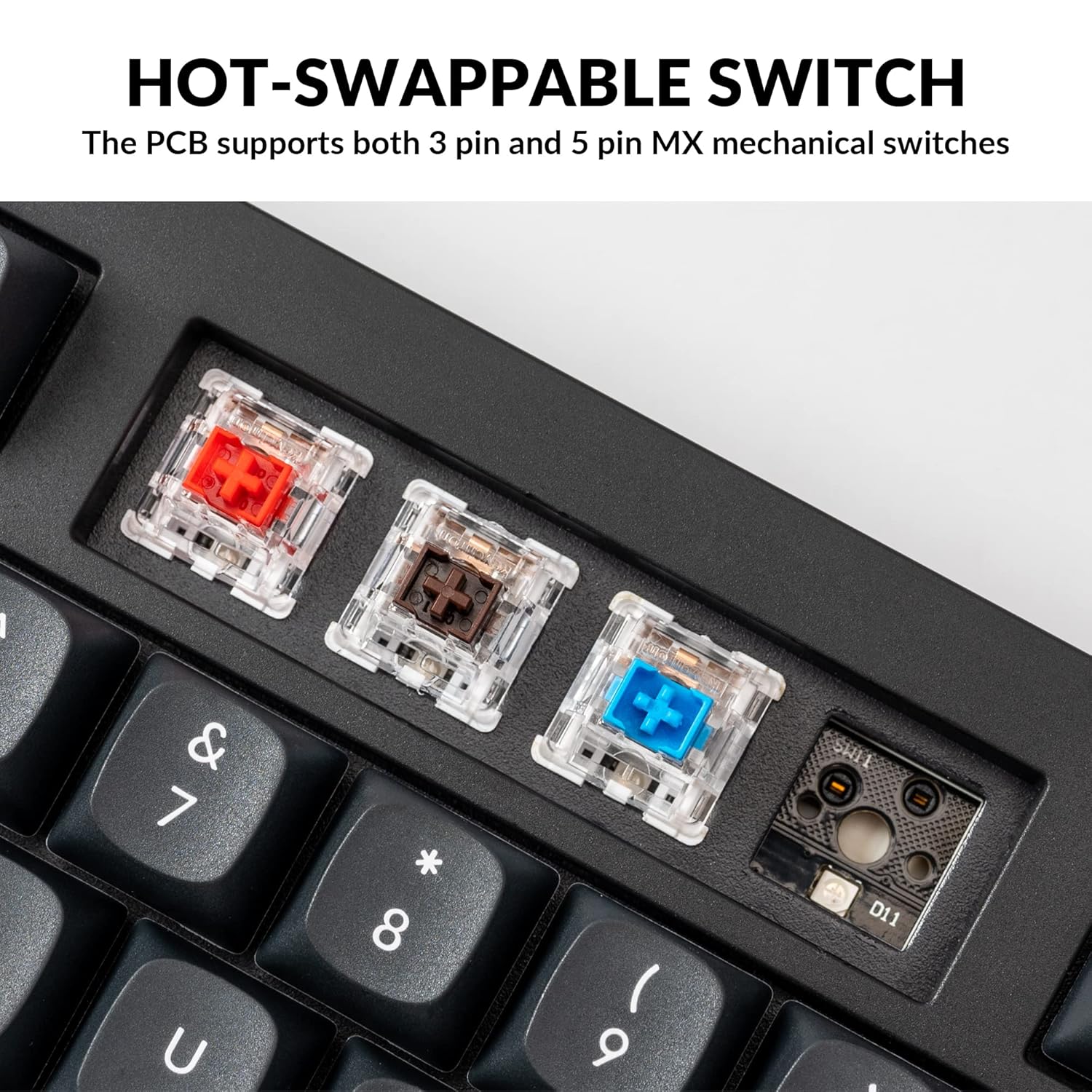
The Keychron V5 is equipped with hot-swappable sockets, allowing you to change mechanical switches without soldering. It supports most 3-pin and 5-pin MX mechanical switches (e.g., Cherry, Gateron, Kailh, Panda).
The keyboard comes with pre-lubed K Pro Red linear switches, offering a smooth and responsive typing experience with a lifespan of up to 50 million keystrokes.
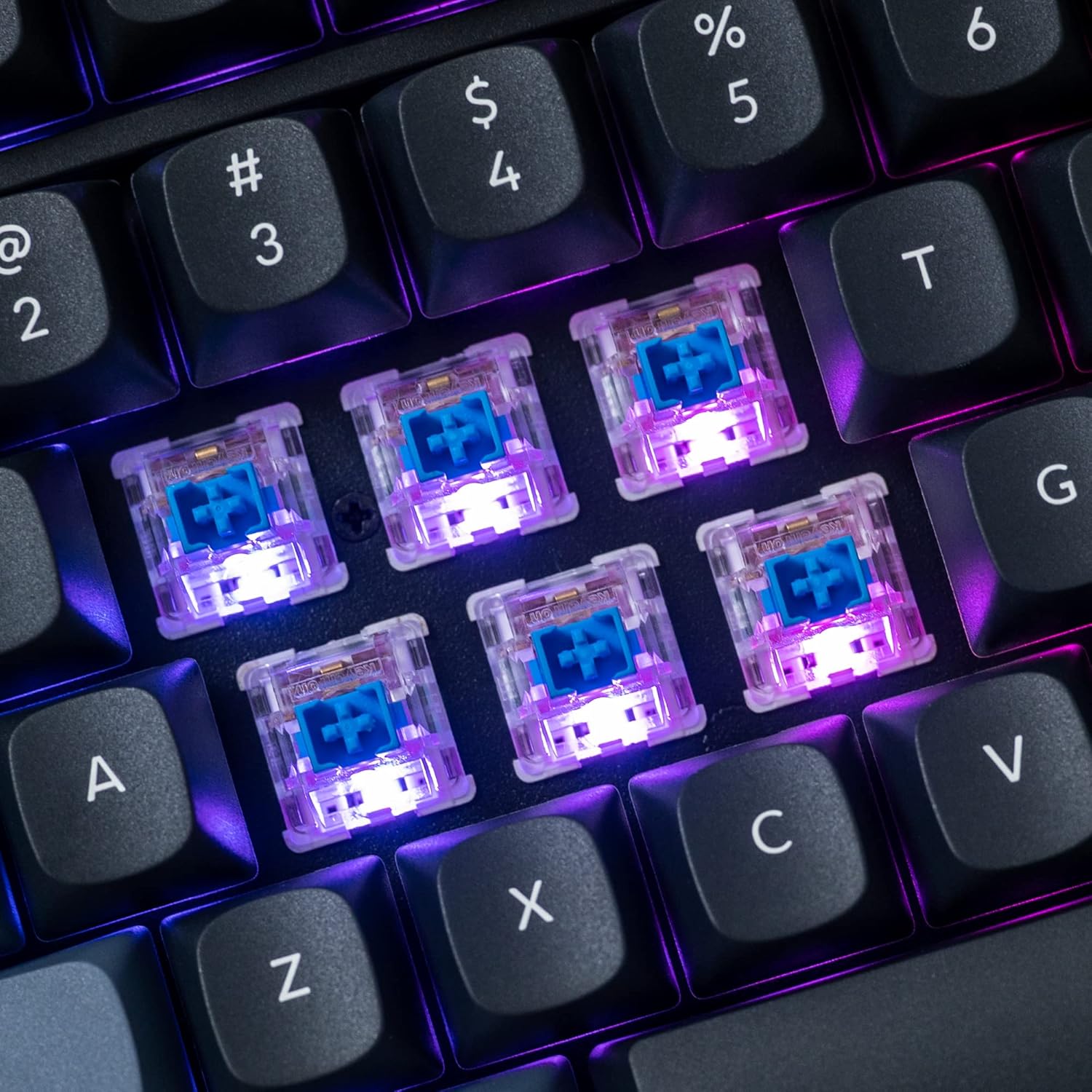
画像: 詳細な view of the hot-swappable mechanical switches on the Keychron V5 keyboard, illuminated by RGB backlighting.
バックライト
The V5 features south-facing RGB backlighting, designed to better illuminate the keyboard from the typist's angle and prevent interference when using Cherry-profile keycaps. You can customize the backlight effects and colors using the VIA software.

Image: A close-up of the double-shot PBT keycaps on the Keychron V5 keyboard, showcasing their texture and legends.
メンテナンス
クリーニング
キーボードの清潔さと寿命を保つには:
- キーキャップ: キーキャッププーラーを使ってキーキャップを取り外します。中性洗剤と柔らかい布でキーキャップを拭き、すすいで完全に乾かしてから取り付けてください。
- キーボード本体: キーボード本体を柔らかくて乾いた布で拭いてください。amp 布。 刺激の強い化学物質や研磨材の使用は避けてください。
- ほこり: 圧縮空気を使用して、キーキャップとスイッチの間のほこりやゴミを取り除きます。
スイッチの交換
スイッチを交換するには:
- 付属のキーキャップ プーラーを使用して、交換するスイッチからキーキャップを慎重に取り外します。
- Insert the switch puller tool around the top and bottom clips of the switch.
- クリップを軽く押してスイッチをまっすぐ上に引いて PCB から取り外します。
- 新しいスイッチのピンをPCBの穴に合わせます。ピンがまっすぐになっていることを確認してください。
- 新しいスイッチをカチッと音がするまでしっかりと押し込みます。正しく固定され、曲がっていないことを確認してください。
- キーキャップを取り付け直します。
キーキャップの交換
キーキャップを交換するには:
- Use the keycap puller to gently remove the existing keycap by hooking it onto the keycap and pulling upwards.
- Align the new keycap with the cross-shaped stem of the switch.
- Press the new keycap firmly down until it is fully seated.
トラブルシューティング
- キーボードが応答しない:
Ensure the USB cable is securely connected to both the keyboard and the computer. Try a different USB port or cable. Verify the system toggle switch is set correctly for your operating system. - キーが登録されない:
If specific keys are not working, the switch might be faulty or not fully seated. Try removing and re-inserting the switch. If the issue persists, replace the switch. - バックライトの問題:
Check VIA software settings to ensure backlighting is enabled and configured correctly. If only certain LEDs are not working, it might indicate a faulty LED or switch. - QMK/VIA ソフトウェアがキーボードを検出しない:
Ensure the keyboard is connected via USB. Close and reopen the VIA software. Make sure you have the correct firmware loaded if you have flashed custom firmware. - Keycaps Feel Loose:
Ensure keycaps are fully pressed onto the switch stems. If a keycap consistently feels loose, the switch stem might be damaged, or the keycap's cross-mount might be worn.
仕様
| 特徴 | 仕様 |
|---|---|
| ブランド | キークロン |
| モデル | V5 |
| キーボードの説明 | 機械 |
| キーボードレイアウト | QWERTY, 96% Layout (97 Keys) |
| 接続技術 | 有線(USB-C) |
| 対応デバイス | PC(macOS、Windows、Linux) |
| スイッチタイプ | Linear (K Pro Red) |
| Hot-swappable Support | Yes (3-pin and 5-pin MX mechanical switches) |
| キーキャップ | ダブルショットPBT、OSA Profile |
| バックライト | 南向きのRGB |
| エンクロージャ材質 | ポリブチレンテレフタレート、シリコーン |
| 追加機能 | QMK/VIA Programmable, Programmable Knob, Screw-in Stabilizers |
保証とサポート
Keychron products are typically covered by a limited warranty. For specific warranty terms, duration, and conditions, please refer to the warranty information provided with your product packaging or visit the official Keychron webサイト。
技術サポート、トラブルシューティングのサポート、または交換部品に関するお問い合わせについては、Keychronの公式カスタマーサービスまでお問い合わせください。 website's support portal. When contacting support, please have your product model (Keychron V5) and purchase details ready.