
Baseus 9-in-1 USB-C Docking Station
Baseus 9-in-1 USB-Cドッキングステーション ユーザーマニュアル
Model: B0B1PT5FVM
製品終了view
The Baseus 9-in-1 USB-C Docking Station is a versatile multi-port adapter designed to expand the connectivity of your USB-C enabled devices. It provides a comprehensive solution for connecting external displays, network cables, USB peripherals, and memory cards, all while delivering power to your host device.

Image: The Baseus 9-in-1 USB-C Docking Station, showcasing its compact design and multiple ports including USB-A, HDMI, Ethernet, and card reader slots, with connected cables and memory cards.
主な特徴:
- Dual Monitor Output: Supports up to 4K@120Hz for single display and dual 4K@30Hz for extended or mirrored displays via two HDMI ports.
- ギガビットイーサネット: Provides a stable and fast 1000Mbps wired network connection.
- 電力供給(PD): Offers up to 85W power passthrough to charge your laptop while using the hub (requires a 100W power adapter, as the hub consumes 15W).
- 高速データ転送: Equipped with two USB 3.0 ports (up to 5Gbps) and one USB 2.0 port (up to 60MB/s) for connecting various peripherals.
- SD / TFカードリーダー: Integrated slots for SD and TF cards with data transfer speeds up to 104MB/s.

Image: A detailed diagram illustrating the various ports of the Baseus 9-in-1 docking station, including PD (100W), HDMI 1 (4K@120Hz), HDMI 2 (4K@30Hz), TF (104MB/s), SD (104MB/s), USB 2.0 (60MB/s), and two USB 3.0 (500MB/s) ports.
セットアップガイド
- ホストデバイスに接続します: Plug the integrated USB-C cable of the docking station into the USB-C port of your laptop, tablet, or smartphone. Ensure your device's USB-C port supports video output (DisplayPort Alternate Mode) and Power Delivery for full functionality.
- 電源接続(オプションですが推奨): For stable operation and to charge your host device, connect a USB-C power adapter (up to 100W recommended) to the PD (Power Delivery) port on the docking station. The hub itself consumes 15W, so an 85W output will be delivered to your device with a 100W input.
- 外部ディスプレイを接続する:
- For single display, connect an HDMI cable from your monitor to HDMI 1 port for up to 4K@120Hz resolution.
- For dual displays, connect two HDMI cables from your monitors to both HDMI 1 and HDMI 2 ports. Resolutions will vary based on your host device's capabilities (e.g., dual 4K@30Hz).

Image: A laptop connected to the Baseus docking station, which in turn is connected to two external monitors, demonstrating the dual monitor 4K output capability.
- Connect to Wired Network: Insert an Ethernet cable into the RJ45 port on the docking station for a stable 1000Mbps wired internet connection.

Image: The Baseus docking station connected to a laptop, with an Ethernet cable plugged into the hub, illustrating the stable Gigabit Ethernet connection.
- USB周辺機器を接続する: Plug your USB devices (e.g., keyboard, mouse, external hard drive, USB flash drive) into the available USB 3.0 or USB 2.0 ports.
- メモリーカードを挿入します: Insert your SD or TF (MicroSD) cards into the corresponding slots for data transfer.
操作手順
Once connected, the Baseus 9-in-1 USB-C Docking Station operates largely plug-and-play. Your operating system should automatically detect and configure the connected devices.
ディスプレイ構成:
- ウィンドウズ: Right-click on your desktop, select "Display settings," and arrange your monitors. You can choose to extend, duplicate, or show only on one display.
- MacOSの: Go to "System Preferences" > "Displays" > "Arrangement" to configure your external monitors.
電力供給機能:
The PD port allows your laptop to receive power through the docking station. Ensure your power adapter is connected to the PD port on the hub and is of sufficient wattage (e.g., 100W) to provide 85W to your laptop after the hub's self-consumption.

Image: An illustration demonstrating the power delivery function of the Baseus docking station, showing a 100W input from a power adapter and an 85W output to the connected laptop, with a note about the hub's 15W self-consumption.
データ転送:
Utilize the USB 3.0 ports for high-speed data transfer (up to 5Gbps) for devices like external hard drives. The USB 2.0 port is suitable for lower-speed peripherals such as keyboards and mice. The SD/TF card reader supports fast transfers up to 104MB/s.
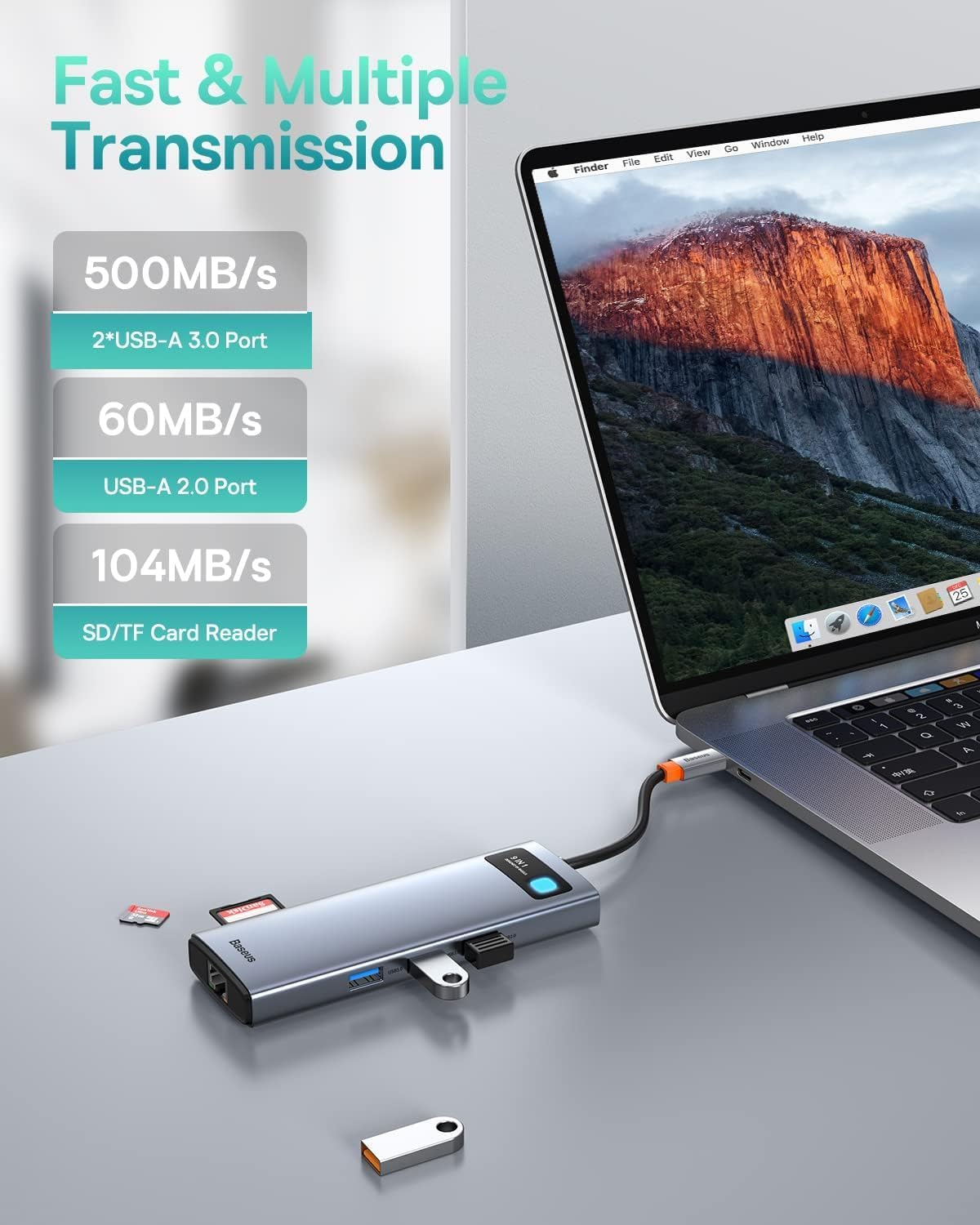
Image: The Baseus docking station connected to a laptop, with various USB devices and an SD card inserted, highlighting the fast and multiple transmission capabilities of the USB-A ports and SD/TF card reader.
メンテナンス
- クリーニング: ドッキングステーションの表面を拭く際は、柔らかく乾いた布をご使用ください。液体クリーナーやエアゾールクリーナーの使用は避けてください。
- ストレージ: デバイスは直射日光や極端な温度を避け、涼しく乾燥した場所に保管してください。
- 取り扱い: ドッキングステーションを落としたり、強い衝撃を与えたりしないでください。デバイスを分解したり改造したりしないでください。
- ケーブル管理 Ensure cables are not excessively bent or tangled to prevent damage to the ports or internal wiring.
トラブルシューティング
| 問題 | 考えられる原因 | 解決 |
|---|---|---|
| 外部モニターに何も表示されません。 |
|
|
| イーサネット経由のインターネット接続がありません。 |
|
|
| USB デバイスが認識されません。 |
|
|
| データ転送速度が遅い。 |
|
|
仕様
| 特徴 | 詳細 |
|---|---|
| モデル | 9-in-1 USB-C Docking Station (B0B1PT5FVM) |
| ブランド | ベースス |
| 製品寸法 | 5.31 x 1.93 x 0.63インチ |
| アイテム重量 | 5.3オンス |
| ハードウェアインターフェイス | MicroSD, USB Type C, Ethernet, HDMI, USB 3.0, USB 2.0, Secure Digital Card |
| HDMI出力1 | Up to 4K@120Hz (Single Display) |
| HDMI出力2 | Up to 4K@30Hz (Single Display) |
| デュアルHDMI出力 | Up to 4K@30Hz + 4K@30Hz (Dependent on host device capabilities) |
| イーサネットポート | 1000Mbps ギガビットイーサネット |
| USB-CPDポート | Max 85W Power Delivery (100W input required, 15W for hub self-consumption) |
| USB 3.0 ポート | 2ポート、最大5Gbpsのデータ転送速度 |
| USB 2.0 ポート | 1 port, up to 60MB/s data transfer speed |
| SD/TF カードリーダー | Supports up to 104MB/s data transfer speed |
| 対応デバイス | iPhone 15 Series, ASUS ROG Ally, Steam Deck, MacBook, MacBook Pro (2018-2021), MacBook Air (2018-2020), Mac mini (2018-2020), iPad Pro/Air (2018/2020), iPad mini 6, Dell XPS, Dell Latitude, Lenovo Yoga, Thinkpad, Microsoft Surface series, Samsung Galaxy phones/tablets, HP Spectre, Elitebook, Envy, ASUS Zenbook, Acer Aspire. |
保証とサポート
詳細な保証情報とカスタマーサポートについては、Baseusの公式ウェブサイトをご覧ください。 web公式サイトをご覧いただくか、カスタマーサービスに直接お問い合わせください。保証請求のために購入時のレシートを保管してください。
Baseus公式 Webサイト: www.baseus.com
Ask a question about this manual
Ask about setup, troubleshooting, compatibility, parts, safety, or missing instructions. Manuals+ will review the question and use this page’s manual context to help answer it.