
1. はじめに
The Changingtouch F16S Smart Display is a versatile 15.6-inch device designed to streamline your daily life. It functions as a digital calendar, photo frame, music player, voice assistant, and smart home hub. This manual provides essential information for setting up, operating, and maintaining your device.
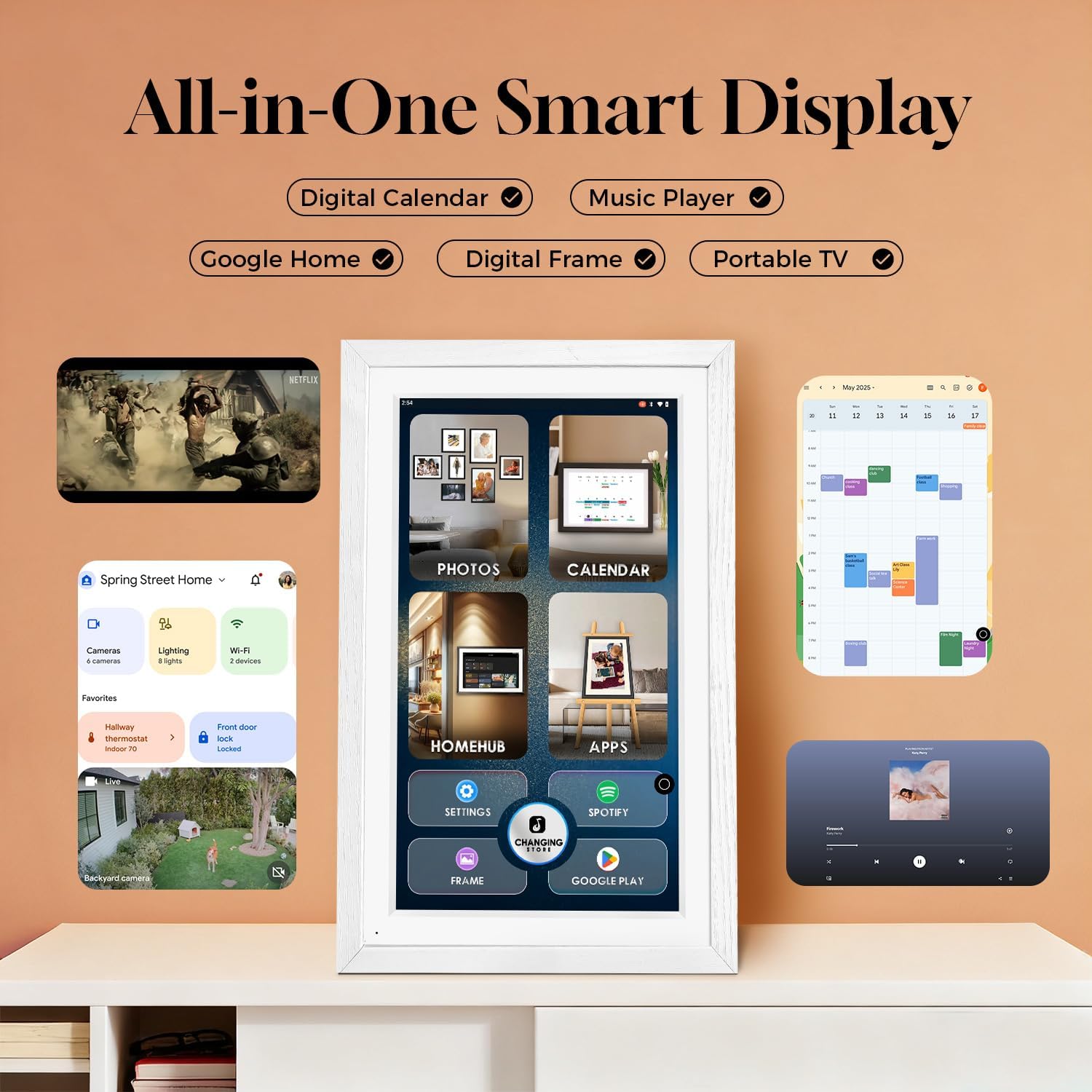
図1:以上view of the Changingtouch F16S Smart Display's multi-functional interface.
2. セットアップ
2.1 開梱と初回電源投入
Carefully remove all components from the packaging. The box contains the F16S Smart Display, a charging cable, and a power adapter. Connect the charging cable to the device and the adapter, then plug it into a power outlet to begin charging.
Video 1: Demonstrates how to start up your new Changingtouch F16S Smart Display.
2.2 取り付けと配置
The F16S Smart Display can be placed on a desk using its integrated stand or mounted on a wall. The device supports both horizontal and vertical orientations, automatically adjusting the display.
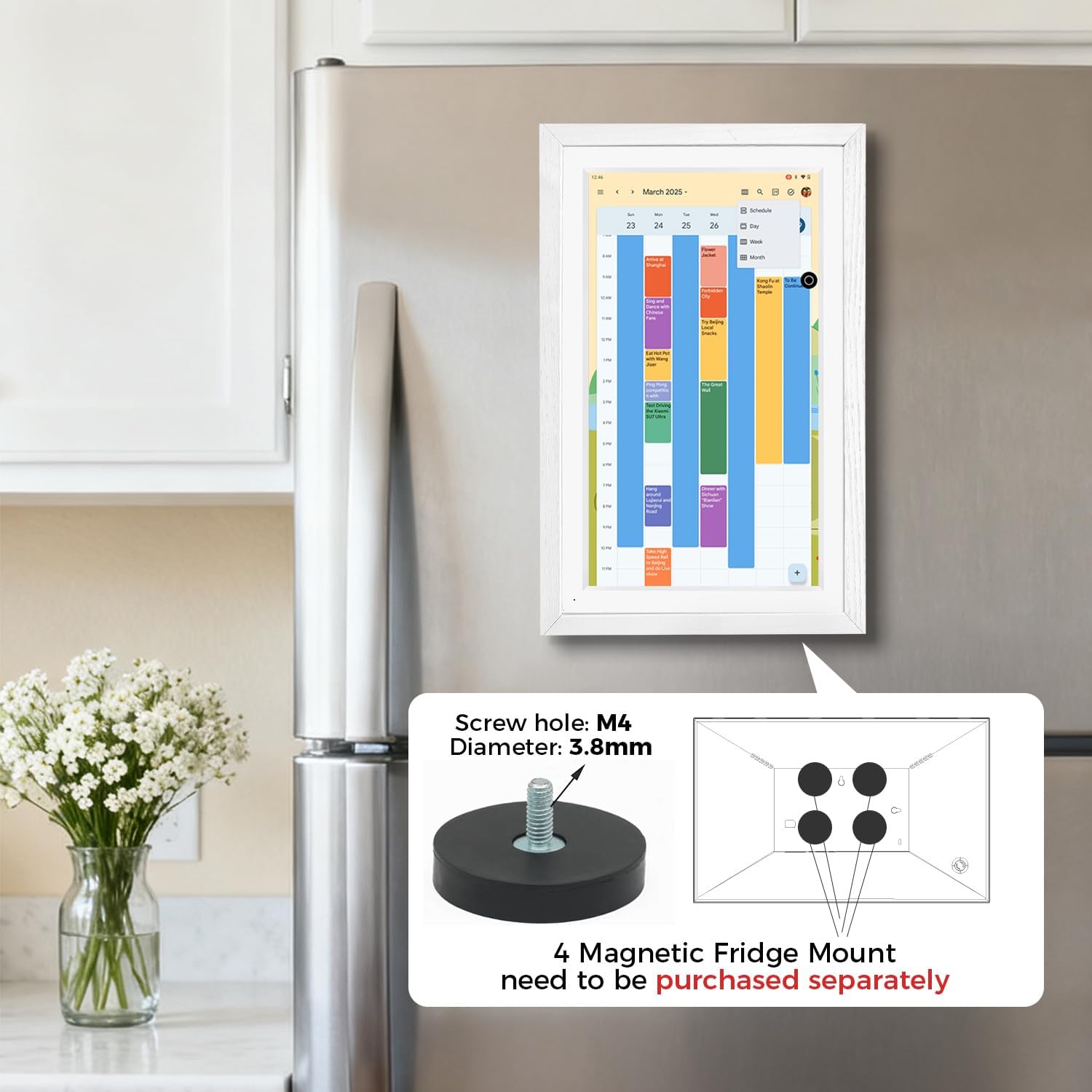
Figure 2: The F16S Smart Display mounted on a refrigerator, illustrating the magnetic mount option (purchased separately).
2.3 Wi-Fiへの接続
Follow the on-screen prompts during initial setup to connect your device to a Wi-Fi network. A stable internet connection is required for most smart features.
2.4 Syncing Calendars
The F16S supports syncing with various third-party calendars. Log in with your existing Google account or create a new one to easily share and sync calendar data. For Apple Calendar, install the Google Calendar app (using the same account) on your iPhone to sync iCloud calendar data.
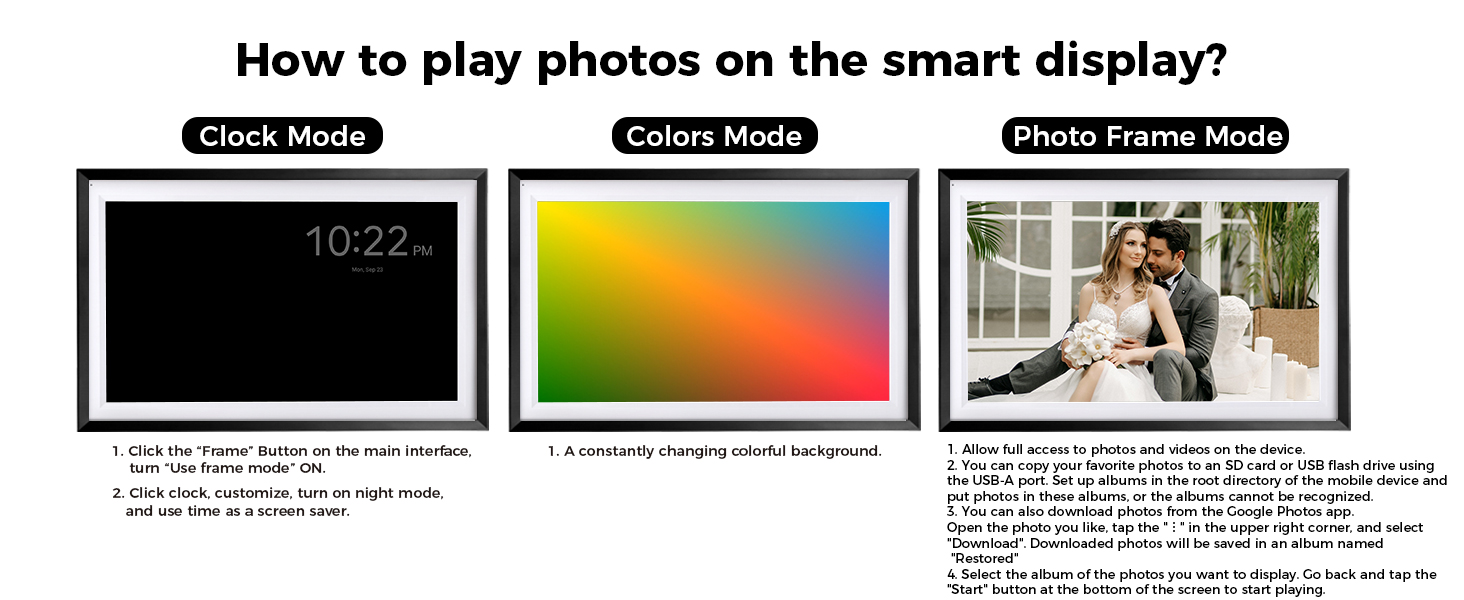
Figure 3: Visual guide for synchronizing your iPhone Calendar with Google Calendar for display on the F16S.
3.運用
3.1 ナビゲーションとインターフェース
The F16S features an intuitive touchscreen interface. Navigate through different functions like Photo, Calendar, Home Hub, and Apps directly from the main screen. Adjust brightness and use the home button as needed.
Video 2: Guide on using the home button and adjusting brightness on the F16S Smart Display.
3.2 カレンダー機能
Access your synced calendars to view events, appointments, and tasks. The display allows for easy sharing and syncing of data among family members. You can install various calendar apps via Google Play.
Video 3: Demonstrates how to stay organized using the digital calendar feature of the F16S.
3.3 Photo Frame Mode
Turn your smart display into a digital photo frame. Upload cherished photos and videos via Google Photos or USB/SD card. The anti-glare screen enhances photo viewing。

Figure 4: Instructions for playing photos on the smart display in Photo Table Mode and Photos Mode.
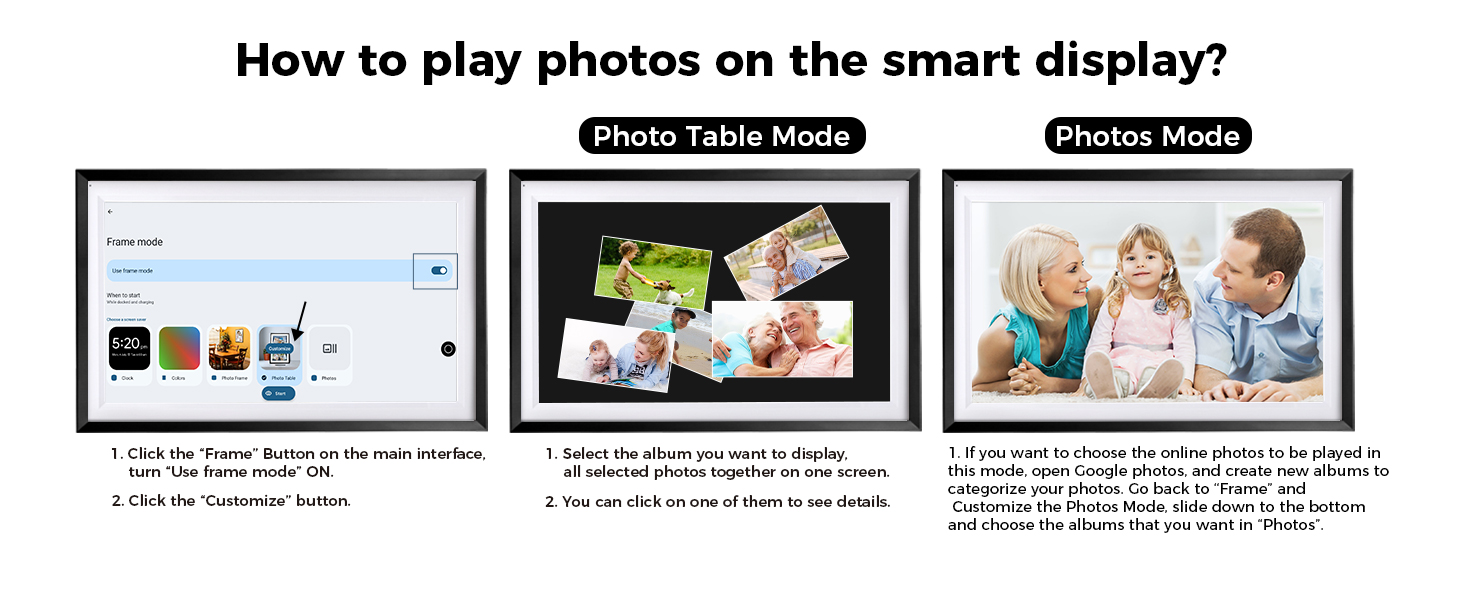
Figure 5: Instructions for playing photos on the smart display in Clock Mode, Colors Mode, and Photo Frame Mode.
Video 4: Tutorial on how to upload photos to your F16S Smart Display via Google Photos.
3.4音声アシスタント
Activate the Google Assistant by saying "Hey Google" to control smart home devices, set reminders, play music, and more.
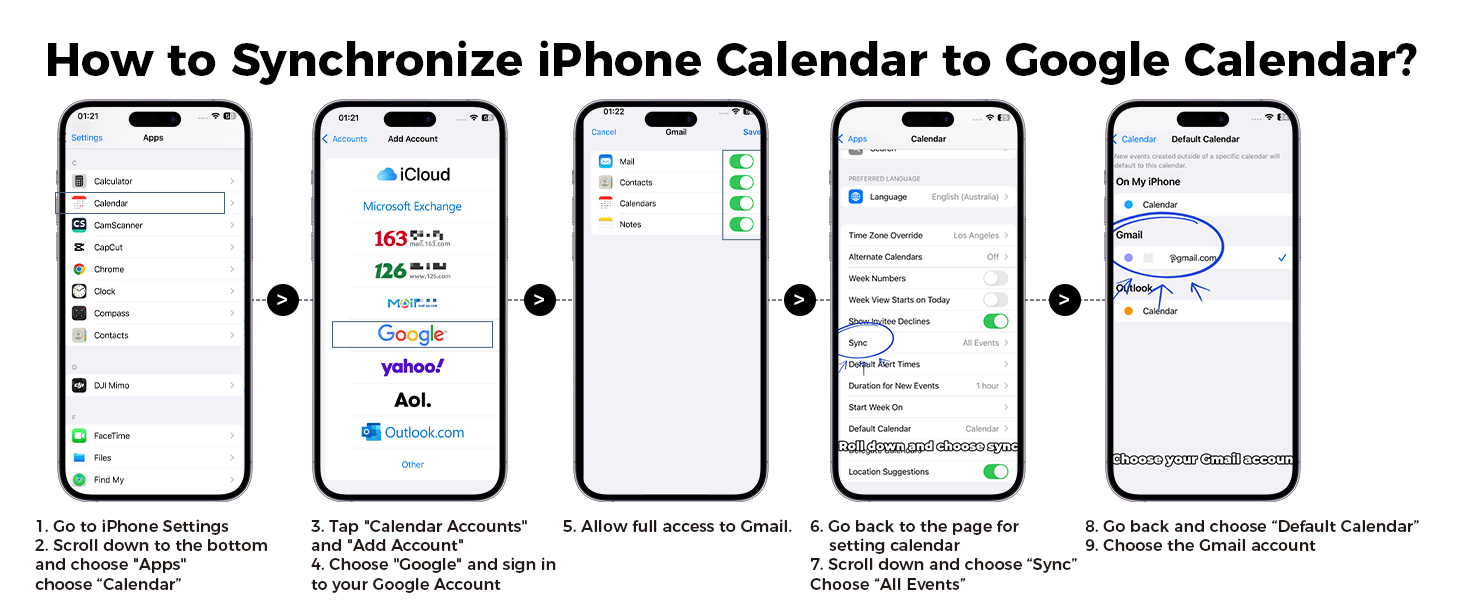
Figure 6: Visual instructions for activating the 'Hey Google' voice assistant feature.
Video 5: Demonstrates how to use the "Hey Google" command to wake up and interact with your F16S Smart Display.
3.5 Chore Chart & Meal Planner
Utilize the chore chart to manage household tasks and the meal planner to organize your family's diet. These features help in creating routines and tracking responsibilities.
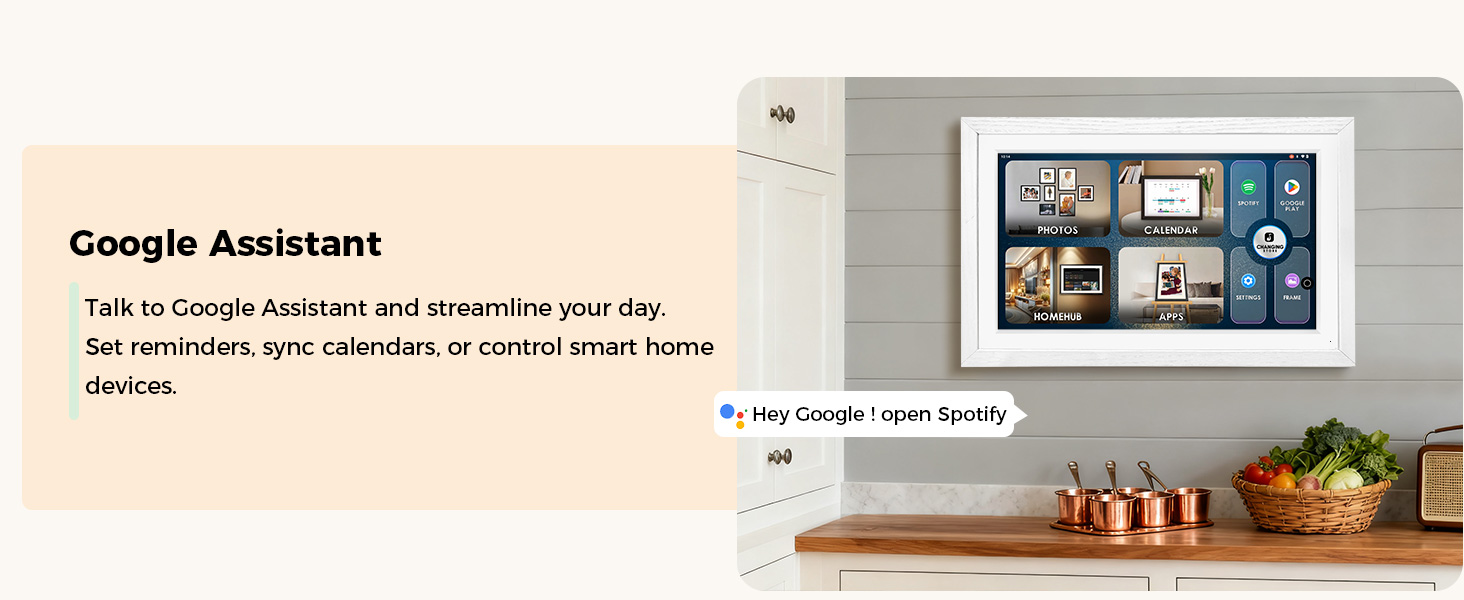
Figure 7: The Chore Chart feature helps turn routine chores into achievable goals for the family.

Figure 8: The Meal Planner allows you to download apps like Cozi from Google Play for shared calendars, grocery lists, and recipes.
4. メンテナンス
4.1デバイスのクリーニング
画面を清掃するには、柔らかく糸くずの出ない布を使用してください。頑固な汚れには、軽くamp布を水または画面に安全なクリーナーで拭いてください。研磨剤や刺激の強い化学薬品の使用は避けてください。
4.2ソフトウェアアップデート
Ensure your device is connected to Wi-Fi to receive automatic software updates. Regular updates provide new features, security enhancements, and performance improvements.
5。 トラブルシューティング
5.1 デバイスの電源が入らない
- 電源アダプタがデバイスと正常な電源コンセントの両方にしっかりと接続されていることを確認します。
- 別のデバイスを接続して、電源コンセントが機能するかどうかを確認します。
- If the device has a built-in battery, ensure it is sufficiently charged.
5.2 Wi-Fi接続の問題
- Verify that your Wi-Fi router is on and broadcasting a signal.
- Check if the Wi-Fi password entered on the device is correct.
- Try restarting your Wi-Fi router and the F16S Smart Display.
5.3 Calendar Sync Problems
- Ensure your F16S is connected to the internet.
- Verify that you are logged into the correct Google account on both your device and the F16S.
- Check the sync settings within the calendar application on the F16S to ensure two-way sync is enabled if desired.
6. 仕様
| 特徴 | 詳細 |
|---|---|
| 製品寸法 | 12.05 x 18.35 x 0.99インチ |
| アイテム重量 | 4.69ポンド |
| 画面サイズ | 15.6インチ |
| 解決 | 1080p (FHD 1920x1080) |
| 表示タイプ | Anti-Glare Touchscreen, 130% sRGB |
| 対応デバイス | Personal Computer (for certain functions) |
| バッテリー | 12V電池1個(付属) |
| モデル番号 | F16S |
7.保証とサポート
For warranty information and customer support, please refer to the documentation included in your product packaging or visit the official Changingtouch website. Protection plans are available for purchase separately to extend coverage.
Typical return policy allows for refund/replacement within 30 days of purchase.