
1. はじめに
This manual provides essential information for setting up, operating, maintaining, and troubleshooting your Lenovo ThinkPad L14 Gen 2 laptop. Please read this manual thoroughly to ensure proper use and to maximize the performance and longevity of your device.
2. パッケージ内容
パッケージにすべてのアイテムが含まれていることを確認します。
- Lenovo ThinkPad L14 Gen 2 ノートパソコン
- AC電源アダプターと電源コード
- ドキュメント(クイックスタートガイド、保証情報)
- Dockstorm USB Hub (if included with your purchase)
3.製品オーバーview
Familiarize yourself with the components of your Lenovo ThinkPad L14 Gen 2 laptop.

図3.1: フロント view of the Lenovo ThinkPad L14 Gen 2 laptop with the screen displaying the Windows desktop and a blue 'Dockstorm' hub connected to the left side. This image illustrates the laptop's overall appearance and the included accessory.

図3.2: Left-side angled view of the Lenovo ThinkPad L14 Gen 2 laptop, showcasing the various ports available. From left to right, these include a USB-C port (supporting Thunderbolt 4), another USB 3.2 Gen1 port, an HDMI output, and an Ethernet (RJ-45) port for wired network connections.
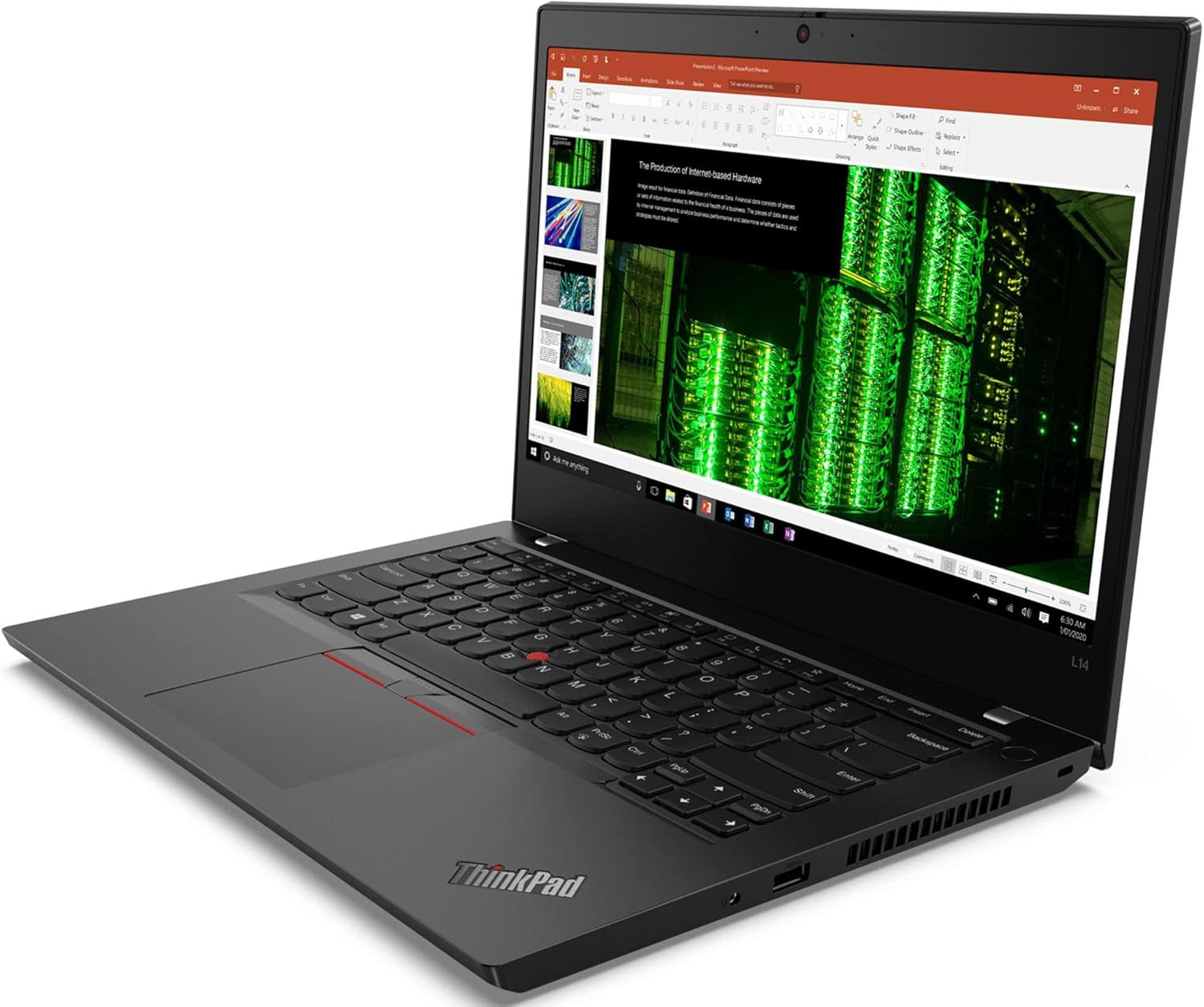
図3.3: Right-side angled view of the Lenovo ThinkPad L14 Gen 2 laptop. This side features a USB 3.2 Gen1 port, a headphone/microphone combo audio jack, and a security lock slot for physical device protection.
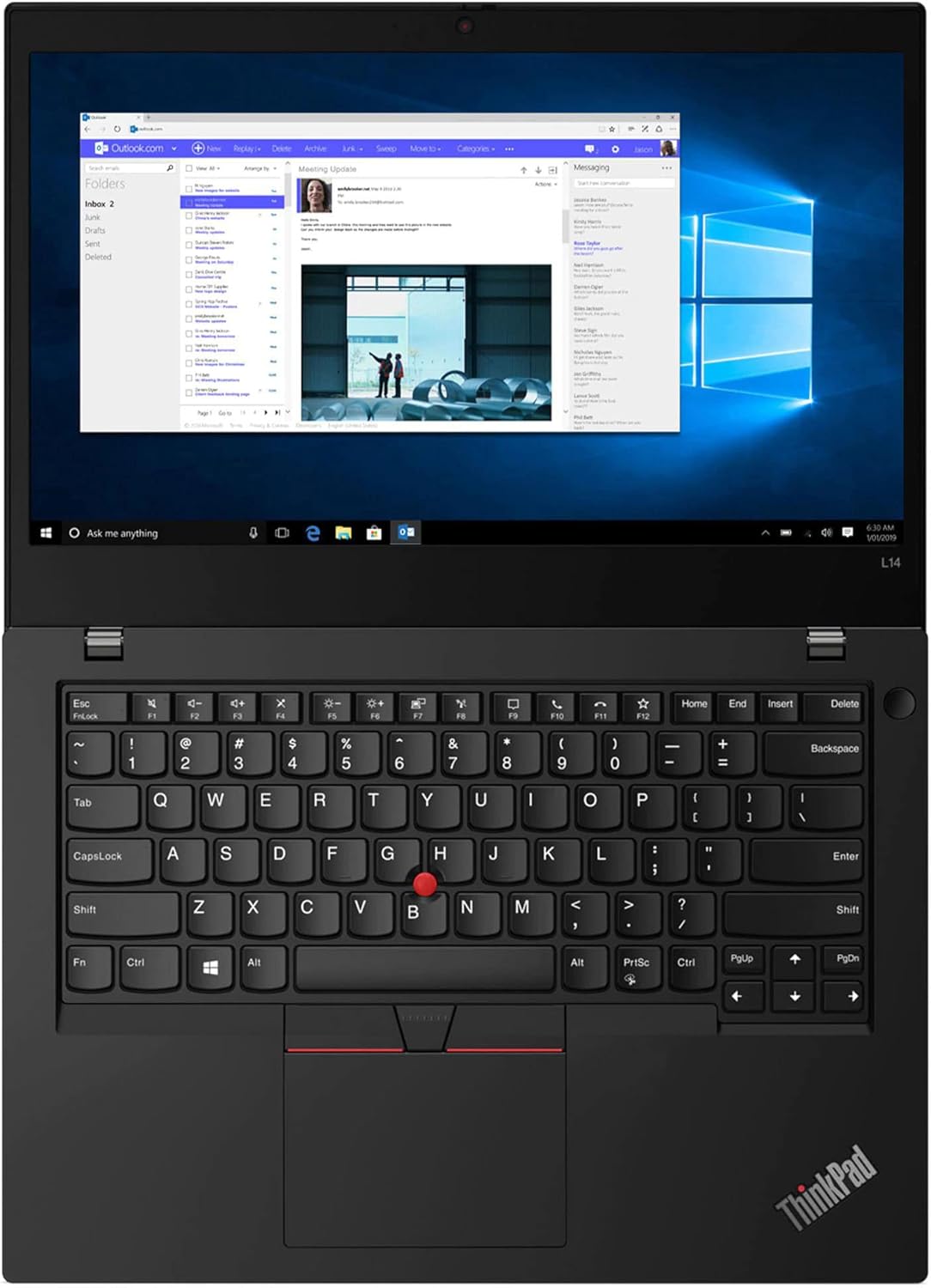
図3.4: トップダウン view of the open Lenovo ThinkPad L14 Gen 2 laptop, highlighting the full-sized keyboard, the iconic red TrackPoint pointing device located in the center of the keyboard, and the multi-touch touchpad below the spacebar.

図3.5: 閉じる view of the blue 'Dockstorm' USB hub. This accessory expands the connectivity options of your laptop, providing additional USB ports for peripherals.
4. セットアップ
4.1. 初回電源投入
- 接続電源: Plug the AC power adapter into the laptop's power input port (USB-C port on the left side) and then into a wall outlet.
- 電源オン: Open the laptop lid and press the power button, typically located on the top-right side of the keyboard deck.
- Windowsの初期セットアップ: Follow the on-screen instructions to complete the Windows 11 Pro setup, including language selection, network connection, user account creation, and privacy settings.
4.2. 周辺機器の接続
- USB デバイス: Connect USB devices such as external drives, mice, or keyboards to the available USB 3.2 Gen1 ports or via the included Dockstorm USB hub.
- 外部ディスプレイ: Use the HDMI port or the Thunderbolt 4 (USB-C) port to connect an external monitor or projector.
- ネットワーク: For a wired connection, plug an Ethernet cable into the RJ-45 port. For wireless, connect to a Wi-Fi network during the initial setup or via Windows settings.
5. 操作手順
5.1.電力管理
- 電源オン: 電源ボタンを押します。
- スリープモード: ふたを閉じるか、スタート メニューから [スリープ] を選択します。
- シャットダウン: [スタート メニュー] > [電源] > [シャットダウン] に移動します。
- 再起動: [スタート メニュー] > [電源] > [再起動] に移動します。
5.2. Using Input Devices
- キーボード: システム制御用のファンクション キー (Fn) を備えた標準 QWERTY レイアウト。
- トラックポイント: Use the red TrackPoint in the center of the keyboard for precise cursor control. The associated buttons below the spacebar function as left, right, and middle-click.
- タッチパッド: マルチタッチ タッチパッドは、ナビゲーションとコントロールのためのジェスチャをサポートします。
5.3. 接続性
- Wi-Fi: タスクバー アイコンから Wi-Fi 設定にアクセスし、利用可能なワイヤレス ネットワークに接続します。
- ブルートゥース: Enable Bluetooth in Windows settings to pair with compatible devices like headphones or mice.
- 外部ディスプレイ: プレス Windowsキー + P to cycle through display modes (Duplicate, Extend, Second screen only).
6. メンテナンス
6.1. ノートパソコンの掃除
- 柔らかく糸くずの出ない布で軽く拭き取ってください。amp水またはディスプレイ用スクリーンクリーナーで拭いてください。
- キーボードとシャーシのお手入れには柔らかい布をご使用ください。刺激の強い化学薬品は使用しないでください。
- Periodically clean the fan vents to prevent dust buildup.
6.2. バッテリーのお手入れ
- バッテリーを頻繁に完全に放電することは避けてください。
- 長期間使用しない場合は、ノートパソコンを涼しく乾燥した場所に保管してください。
- 純正の Lenovo 電源アダプターのみを使用してください。
6.3. ソフトウェアの更新
- 「設定」>「Windows Update」から Windows の更新プログラムを定期的に確認してください。
- 公式Lenovoサポートからドライバーアップデートをインストールする web最適なパフォーマンスとセキュリティを確保するためにサイトを更新します。
7。 トラブルシューティング
7.1. よくある問題と解決策
- ノートパソコンの電源が入らない:
Ensure the AC adapter is securely connected and the power outlet is functional. Try a different outlet. If the battery is removable, ensure it is properly seated. - Wi-Fi接続なし:
Windowsの設定でWi-Fiが有効になっているか確認してください。ルーターとノートパソコンを再起動してください。ドライバーが最新であることを確認してください。 - 表示の問題 (画像なし、ちらつき):
Ensure external monitors are properly connected. Try updating graphics drivers. If using an external display, press Windowsキー + P 表示モードを切り替えます。 - パフォーマンスが遅い:
Close unnecessary applications. Check for background processes consuming high resources (Task Manager). Ensure sufficient free storage space. Run a malware scan. - キーボードまたはトラックポイントが応答しない:
Restart the laptop. Check for driver updates. If an external keyboard is connected, test if it works.
8. 仕様
| 特徴 | 仕様 |
|---|---|
| プロセッサ | Intel Core i5-1135G7 (11th Gen, up to 4.2GHz, 4 Cores, 8 Threads) |
| 画面 | 14.0インチ フルHD (1920x1080) 60Hz IPSディスプレイ |
| メモリ(RAM) | 16GB DDR4 SO-DIMM |
| ストレージ | 1TB PCIe SSD(ソリッドステートドライブ) |
| グラフィックス | Intel Iris Xe 統合グラフィックス |
| オペレーティング·システム | Windows 11 Pro-64 |
| ワイヤレス接続 | 802.11ax Wi-Fi (Wi-Fi 6), Bluetooth 5.2 |
| 有線接続 | イーサネットLAN(RJ-45) |
| Webカム | 720p HD Webカム |
| ポート | USB 3.2 Gen1 x 2、HDMI x 1、Thunderbolt 4 (Type-C) x 1、USB 3.2 Type-C Gen1 x 1、Micro SD リーダー、ヘッドフォン/マイク コンボ ジャック |
| バッテリー | 3セル45WHrバッテリー |
| 電源 | 65W 電源ユニット |
| 寸法(幅×長さ×高さ) | 13.03インチ×9.25インチ×0.8インチ |
| 重さ | 3.49ポンド |
9. 保証とサポート
Your Lenovo ThinkPad L14 Gen 2 laptop comes with a 1-Year Manufacturer Warranty provided by GreatPriceTech. For warranty claims or technical support, please refer to the documentation included with your purchase or visit the official Lenovo support website for comprehensive resources, drivers, and service information.
オンラインサポート: For the latest drivers, software, and troubleshooting guides, visit the official Lenovo Support webサイト。