
Introduction to the Samsung Galaxy S22 Series
This manual provides detailed instructions for operating your new Samsung Galaxy S22, S22+, or S22 Ultra smartphone. These devices are equipped with advanced features designed to enhance your daily communication, productivity, and entertainment. Familiarize yourself with the contents of this guide to fully utilize the capabilities of your device.
The Samsung Galaxy S22 series includes the S22, S22+, and S22 Ultra models, each offering a premium smartphone experience with varying screen sizes, camera capabilities, and battery capacities. This guide covers common functionalities across all models, highlighting specific features where applicable.
はじめに: 初期設定
Upon first powering on your Samsung Galaxy S22 series device, you will be guided through an initial setup process. This includes selecting your language, connecting to a Wi-Fi network, and signing in with your Samsung or Google account.
Transferring Data from Another Device
To transfer data from an older device to your new Galaxy S22, use Samsung Smart Switch. This application supports transferring contacts, messages, photos, videos, and other data from both Android and iOS devices. Follow the on-screen prompts during initial setup or access Smart Switch later from your device settings.
Setting Up Emergency Contacts
It is recommended to set up emergency contacts for quick access in critical situations. Navigate to the 'Safety and emergency' section in your device settings to add and manage emergency contacts. These contacts can be accessed from the lock screen in an emergency.
デバイスの操作
Camera Functions and Tips
The Samsung Galaxy S22 series features advanced camera systems. To access the camera, tap the Camera icon on your home screen or double-press the Power key. Explore various modes such as Photo, Video, Portrait, Pro, and Night mode. Utilize features like Scene Optimizer, Super Steady video, and high-resolution capture for optimal results.
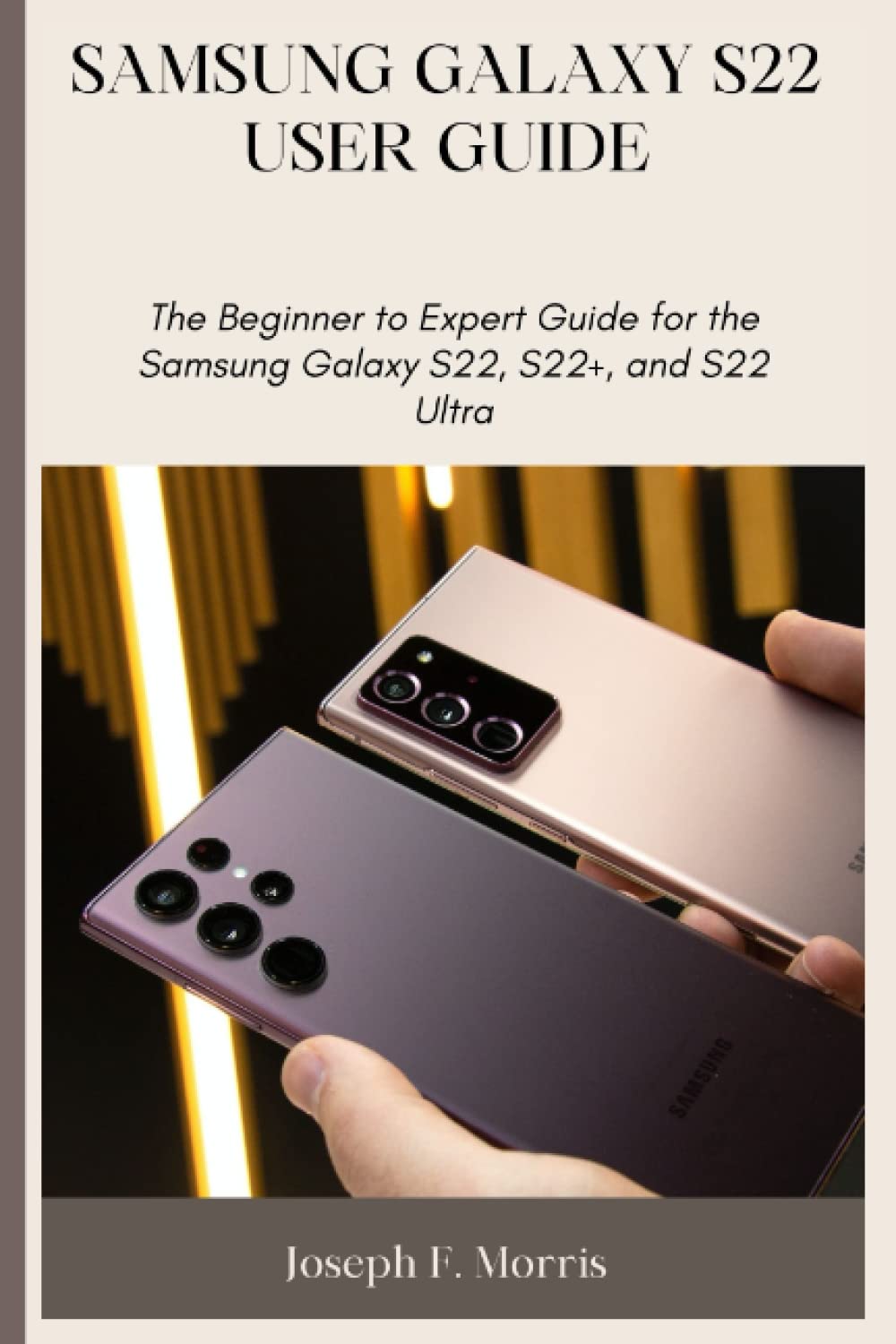
Image: Front cover of the user guide, depicting two Samsung Galaxy S22 series smartphones. This image illustrates the devices covered in this manual.
S Pen Functionality (Galaxy S22 Ultra)
For Galaxy S22 Ultra users, the integrated S Pen offers enhanced productivity and creativity. Remove the S Pen from its slot to automatically launch the Air Command menu. Functions include creating notes, smart select, screen write, live messages, and drawing. The S Pen can also be used as a remote control for the camera or presentations.
Mail Services and Communication
Set up and manage multiple email accounts using the pre-installed Email application or by downloading third-party email clients from the Galaxy Store or Google Play Store. Navigate to 'Accounts and backup' in settings to add new accounts.
Calls and Call Settings
To make a call, open the Phone app and dial the number or select a contact. Access call settings to manage features such as call forwarding, call waiting, voicemail, and blocking unwanted numbers.
eSIM Setup and Usage
The Galaxy S22 series supports eSIM functionality, allowing you to activate a cellular plan without a physical SIM card. To set up an eSIM, go to 'Connections' in settings, then 'SIM card manager', and select 'Add eSIM'. Follow the instructions provided by your network carrier.
Media and Media Playback Options
Your device supports various media formats for photos, videos, and audio. Use the Gallery app to view images and videos, and the Samsung Music or Google Play Music app for audio playback. Connect to Bluetooth devices or use the USB-C port for external audio output.
Calendar and Time Converter
The Calendar app allows you to manage your schedule, set reminders, and sync with various online calendars. The device also includes a time converter function, often found within the Clock app, to easily convert times across different time zones.
Maintenance and Battery Optimization
To ensure optimal performance and battery life, regular maintenance is recommended. The 'Device care' section in settings provides tools for battery, storage, memory, and security management.
Battery Optimization Tips
- Adjust screen brightness: Lowering screen brightness significantly conserves battery.
- Enable Power saving mode: This mode limits background activity and reduces screen resolution to extend battery life.
- Manage background app usage: Restrict apps from running in the background when not in use.
- Disable unused features: Turn off Wi-Fi, Bluetooth, GPS, and NFC when not needed.
- Optimize app battery usage: In 'Device care', review and optimize individual app battery consumption.
Wireless Charging and PowerShare
Your Galaxy S22 device supports wireless charging. Place the device on a compatible wireless charger. Additionally, Wireless PowerShare allows you to wirelessly charge other compatible devices (like Galaxy Buds or another smartphone) by placing them on the back of your Galaxy S22 device. Activate Wireless PowerShare from the Quick Settings panel.
トラブルシューティングとサポート
For common issues, refer to the 'Device care' section in settings for diagnostic tools. If you encounter persistent problems, consider restarting your device. For more advanced troubleshooting or technical support, visit the official Samsung support webサイトをご覧いただくか、カスタマーサービスにお問い合わせください。
Find My Mobile Setting
The 'Find My Mobile' feature allows you to locate, lock, or erase data on your lost or stolen device. Ensure this feature is enabled and linked to your Samsung account for security. Access it via your Samsung account online.
仕様
| ブランド | サムスン |
| モデルシリーズ | Galaxy S22、S22+、S22 Ultra |
| 言語 | 英語 |
| Publication Date (Manual) | 26年2022月XNUMX日 |
| Manual Print Length | 184ページ |
| Manual Item Weight | 11.8オンス |
| Manual Dimensions | 6 x 0.42 x 9インチ |
Note: Device specifications such as screen size, processor, camera details, and battery capacity vary between the S22, S22+, and S22 Ultra models. Refer to your device's packaging or the official Samsung website for precise model-specific technical data.
保証と公式サポート
Information regarding your device's warranty coverage can be found with your purchase documentation or on the official Samsung website. For product support, software updates, and service information, please visit samsung.com/サポート.
Always ensure you are downloading software updates directly from Samsung to maintain device security and performance.