
導入
The HyperGear HyperStream 1080P Webcam provides high-definition video and clear audio for various applications, including online meetings, classes, and streaming. This manual provides instructions for setup, operation, maintenance, and troubleshooting to ensure optimal performance of your webカム。
パッケージ内容
パッケージにすべてのアイテムが含まれていることを確認してください。
- HyperGear HyperStream 1080P Webカム
- USBケーブル
- 内蔵マイク
製品終了view
The HyperGear HyperStream 1080P Webcam is designed for ease of use and high-quality performance. Key features include:
- Crystal-Clear 1080P HD Resolution: Delivers sharp and vibrant visuals.
- Built-in Noise Reduction Microphone: Captures clear audio by reducing background sounds.
- プラグアンドプレイUSB接続: Requires no additional software or drivers for quick setup.
- Wide-Angle 110° Lens: 幅広い分野を網羅 view, suitable for group interactions.
- 自動ホワイトバランス: Automatically adjusts to various lighting conditions for optimal image quality.
- 調整可能なクリップオンマウント: Securely attaches to monitors or laptops, and can also be positioned as a standalone unit.
セットアップ手順
Follow these steps to set up your HyperGear HyperStream 1080P Webカム:
- 開梱 Webカム: 慎重に取り外します webcam and its USB cable from the packaging.

Image: The HyperGear HyperStream 1080P Webcam is designed for instant plug-and-play setup without requiring additional drivers. Simply connect the USB cable to your computer.
- マウント Webカム:
- モニター/ラップトップの場合: Open the adjustable clip and place it securely on top of your monitor or laptop screen. Adjust the angle to ensure the webカムは安定しており、あなたの方を向いています。
- 机の上: クリップを折り曲げて安定したスタンドを作り、 webカメラを机などの平らな面に置いてください。

画像: webcam features an adjustable mount that allows it to be clamped onto any screen or display, or positioned as a standalone unit on your desk. It offers 180-degree rotation for flexible positioning.
- デバイスに接続します: USBケーブルを webcam into an available USB port on your computer (PC, Mac) or Xbox console. The webcam is plug-and-play, so no additional drivers are typically required.
- 接続を確認します: Your operating system should automatically detect the webcam. You can verify its connection in your device settings or within your preferred video conferencing/streaming application.
操作手順
Once connected, the HyperGear HyperStream 1080P Webcam はさまざまなアプリケーションで使用できるようになります。
システム互換性
の webcam is compatible with multiple operating systems and platforms:
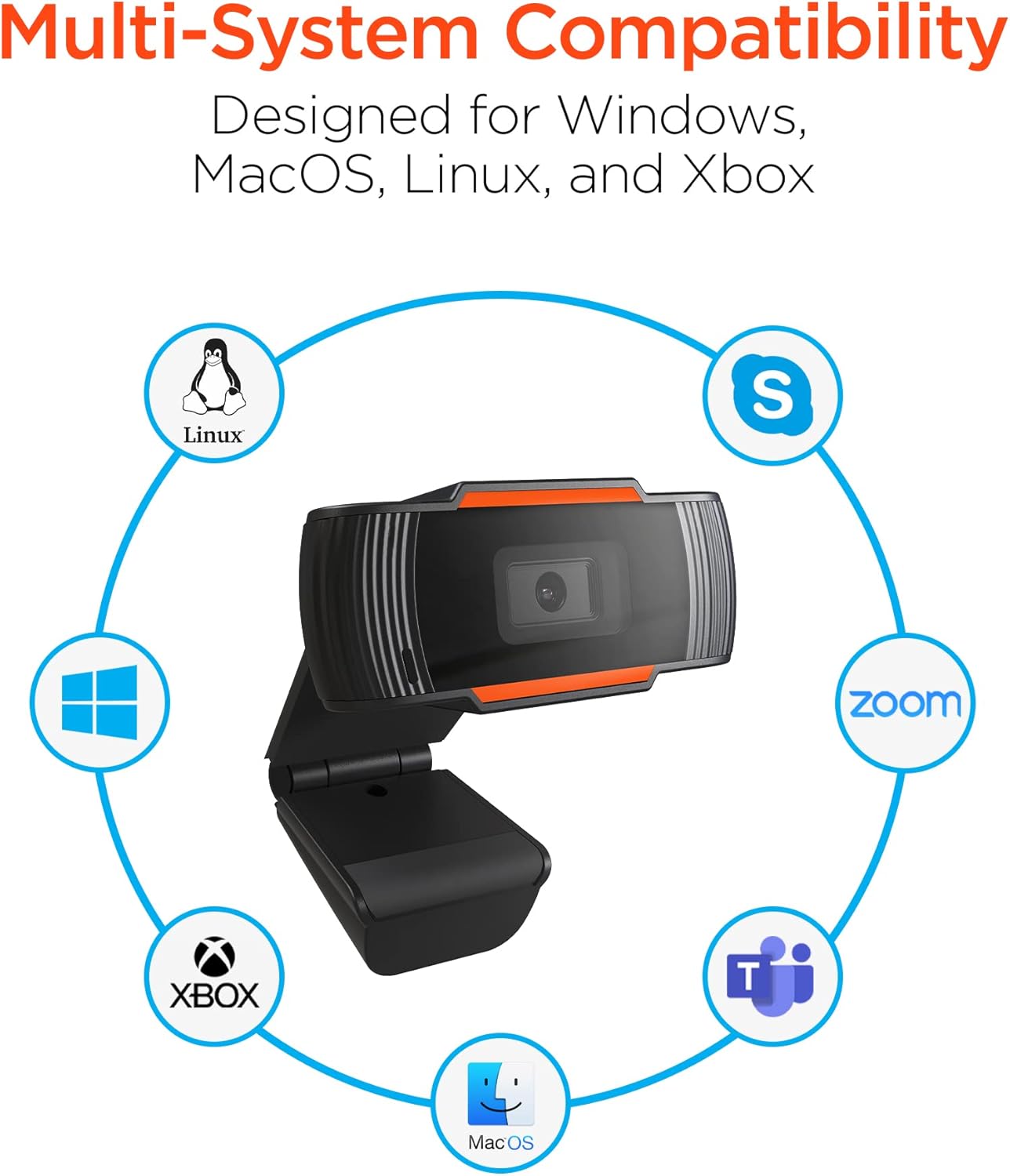
Image: The HyperGear HyperStream 1080P Webcam offers multi-system compatibility, designed for use with Windows, MacOS, Linux, and Xbox, as well as popular communication platforms like Skype, Zoom, and Microsoft Teams.
- ウィンドウズ
- macOS
- リナックス
- Xbox
- Compatible with popular video conferencing software (e.g., Skype, Zoom, Microsoft Teams).
使用方法 Webカム
- 選択してください Webカム: In your video conferencing or streaming application, navigate to the video and audio settings. Select "HyperGear HyperStream 1080P Webcam" as your video input device and its integrated microphone as your audio input device.
- Adjust Position and Angle: 確実に webcam is positioned to capture your desired view. The 110° wide-angle lens is ideal for capturing multiple participants or a broader background.

Image: The 110° ultra wide-angle lens ensures that your entire team and presentations fit within the frame, making it suitable for group meetings and collaborative environments.
- Benefit from Auto-White Balance and Fixed Focus: の webcam automatically adjusts for optimal lighting and maintains a sharp focus on subjects within its field of view, eliminating the need for manual adjustments.

画像: webcam features fixed focus and auto-white balance (AWB) to automatically adjust to various lighting conditions (like daylight or fluorescent), ensuring clear and sharp visuals without manual intervention.
- Utilize Noise Reduction Microphone: The built-in microphone actively reduces ambient noise, ensuring your voice is clear and easily understood during calls.

Image: The integrated noise reduction microphone minimizes unwanted background noise and distortions, ensuring clear audio during your video calls and streams.
メンテナンス
お客様の製品の寿命と最適なパフォーマンスを保証するために webcam の場合は、次のメンテナンス ガイドラインに従ってください。
- クリーニング: 柔らかく糸くずの出ない布でレンズを優しく拭いてください。レンズを傷つけたり、レンズの損傷につながる可能性のある、刺激の強い化学薬品や研磨剤の使用は避けてください。asing.
- ストレージ: 使用しないときは、 web極端な温度や直射日光を避け、清潔で乾燥した場所に保管してください。
- 取り扱い: 落としないでください webcam or subjecting it to strong impacts, which could damage internal components.
トラブルシューティング
If you encounter issues with your HyperGear HyperStream 1080P Webcam の場合は、次のトラブルシューティング手順を試してください。
- Webカメラが検出されません:
- USBケーブルが両方のポートにしっかりと差し込まれていることを確認してください。 webcam and your computer's USB port.
- プラグを差し込んでみてください web別のUSBポートにカメラを接続します。
- コンピュータを再起動します。
- Check your operating system's device manager (Windows) or System Information (macOS) to see if the webcam がリストされています。
- ビデオ出力なし:
- 確認する webアプリケーションの設定で、ビデオ入力デバイスとして cam が選択されています。
- 他のアプリケーションが現在使用していないことを確認してください webcam, as some systems only allow one application to access it at a time.
- レンズを覆う物理的な障害物がないか確認してください。
- オーディオ入力(マイク)なし:
- 確認する webcam's microphone is selected as the audio input device in your application's settings and your system's sound settings.
- Check that the microphone is not muted in your application or system settings.
- Ensure your system's privacy settings allow applications to access the microphone.
- ビデオ品質が悪い:
- Ensure you have adequate lighting in your environment. While the webcam has auto-white balance, sufficient ambient light is crucial for best results.
- 掃除する webcam lens if it appears smudged or dirty.
- Check your internet connection speed if streaming or video conferencing, as a slow connection can affect video quality.
仕様
| 特徴 | 詳細 |
|---|---|
| ブランド | ハイパーギア |
| モデル名 | HyperStream Portable 1080P |
| ビデオキャプチャ解像度 | 1080p |
| 接続技術 | USB |
| 色 | 黒 |
| 特集 | 調整可能 |
| ビデオカメラの種類 | Webカム |
| オペレーティング·システム | Windows、macOS |
| レンズタイプ | 広角 |
| フォーカスタイプ | 固定フォーカス |
| 画像のアスペクト比 | 16:9 |
| 露出制御タイプ | 自動 |
| 有効なビデオ解像度 | 1920 ピクセル |
| 対応デバイス | パソコン |
| 内蔵メディア | マイク、USBケーブル |
| アイテム重量 | 4.72オンス |
| 欧州連合 | 633755155390 |
| ASIN | B09S51KSC4 |
保証とサポート
For warranty information and customer support, please refer to the documentation included with your purchase or visit the official HyperGear webサイト。
また、 HyperGear Store on Amazon 詳細な製品情報とサポート リソースについては、こちらをご覧ください。