
1. はじめに
The Yealink UVC34 is an all-in-one USB video conferencing device designed for small meeting rooms and home office scenarios. It integrates a 4K camera, microphones, and speakers into a single compact unit, simplifying deployment and enhancing the conferencing experience. This manual provides detailed instructions for setting up, operating, maintaining, and troubleshooting your UVC34 device.

Image: The Yealink UVC34 4K USB Video Conference Camera, a sleek black bar with an integrated camera lens, accompanied by its remote control.
2. パッケージ内容
パッケージにすべてのアイテムが含まれていることを確認します。
- Yealink UVC34 Video Conference Camera
- VCR20リモコン
- 7メートルのUSBケーブル
- 電源アダプタ(48V / 0.7A)
- 単4電池2本(リモコン用)

Image: A visual representation of the Yealink UVC34 camera and its included accessories: a 7m USB cable, the VCR20 remote control, and a power adapter.
3.製品オーバーview
3.1 主な特徴
- オールインワンデザイン: Integrates 4K webcam, 8-microphone array, and 5W speaker.
- 4KウルトラHDビデオ: 8MP camera with 1/2.8" CMOS sensor, delivering 4K 30FPS video.
- 広角レンズ: 120°の視野 View (FoV) to capture all participants.
- 5x e-PTZ Camera: Electronic Pan, Tilt, and Zoom capabilities.
- AI機能: Auto Framing and AI Face Enhancement for optimized participant visibility.
- Intelligent Audio: Full-duplex audio, Yealink Noise Proof Technology, Acoustic Echo Cancellation, and an upgraded beamforming algorithm for clear voice pickup up to 4.5 meters (15 feet).
- Electric Privacy Shutter: Automatically covers the lens when not in use for privacy.
- プラグアンドプレイ接続: Simple USB-A connection to PC.
- 幅広い互換性: Certified for Microsoft Teams & Zoom, compatible with major UC platforms including BlueJeans, Google Meet, Cisco Webex, and more.

Image: An infographic highlighting the key features of the Yealink UVC34: 4K resolution, 5x e-PTZ, 120° wide-angle, 8 microphones, 5W speaker, and USB-A plug-and-play.
3.2 コンポーネント
The UVC34 unit consists of the following main components:
- カメラレンズ: The central optical component for video capture.
- Integrated Speaker and Microphone Array: Located within the bar for audio input and output.
- 取付けブラケット: Adjustable bracket for placement on top of a monitor/TV or wall mounting.
- USB-A ポート: パソコンとの接続用。
- 電源入力: 電源アダプタを接続します。

画像: 詳細な view of the UVC34's camera lens, emphasizing its 8MP, 1/2.8-inch CMOS sensor, and 5x e-PTZ for 4K 30FPS Ultra HD video.
4. セットアップ
Follow these steps to set up your Yealink UVC34:
- デバイスを配置します: Place the UVC34 on top of your monitor/TV using its integrated clip, or mount it on a wall using the provided hardware.
- 接続電源: Connect the power adapter to the UVC34's power input and plug it into an electrical outlet.
- PCに接続: Connect the 7-meter USB cable from the UVC34's USB-B port to a USB-A port on your PC.
- 電池を取り付ける(リモート): Insert the two AAA batteries into the VCR20 remote control.
- ソフトウェア認識: Your PC should automatically recognize the UVC34 as a camera, microphone, and speaker device.
- デフォルトのデバイスとして選択: In your video conferencing software (e.g., Microsoft Teams, Zoom), navigate to the audio and video settings and select "Yealink UVC34" as your preferred camera, microphone, and speaker.
- 会議を開始: You are now ready to begin your video conference.

Image: A step-by-step diagram illustrating the simple plug-and-play setup: connect USB-B to the camera, USB-A to the PC, connect the power adapter, set UVC34 as the default device in conferencing software, and start a meeting.
5. 操作手順
5.1 基本操作
Once connected and selected as the default device in your conferencing application, the UVC34 operates automatically. The electric privacy shutter will open when the camera is active and close when not in use, ensuring privacy.
5.2 AI機能
- 自動フレーミング: カメラは自動的に調整し、 view to frame all participants in the room, ensuring everyone is visible without manual intervention.
- AI Face Enhancement: Optimizes image brightness and clarity, making participants' faces clearly visible even in challenging lighting conditions (dim or backlit environments).

Image: A split-screen graphic demonstrating the AI features of the UVC34, showing improved face enhancement in low light and automatic framing of meeting participants.
5.3 Remote Control (VCR20)
The VCR20 remote control allows for convenient adjustment of certain functions:
- 音量コントロール: スピーカーの音量を上げたり下げたり調整します。
- ミュート: マイクをミュートまたはミュート解除します。
- カメラコントロール: While the UVC34 features automatic AI framing, the remote may offer manual e-PTZ (electronic Pan, Tilt, Zoom) controls for specific scenarios, such as zooming in on a whiteboard. Refer to your conferencing software's integration for full remote control functionality.
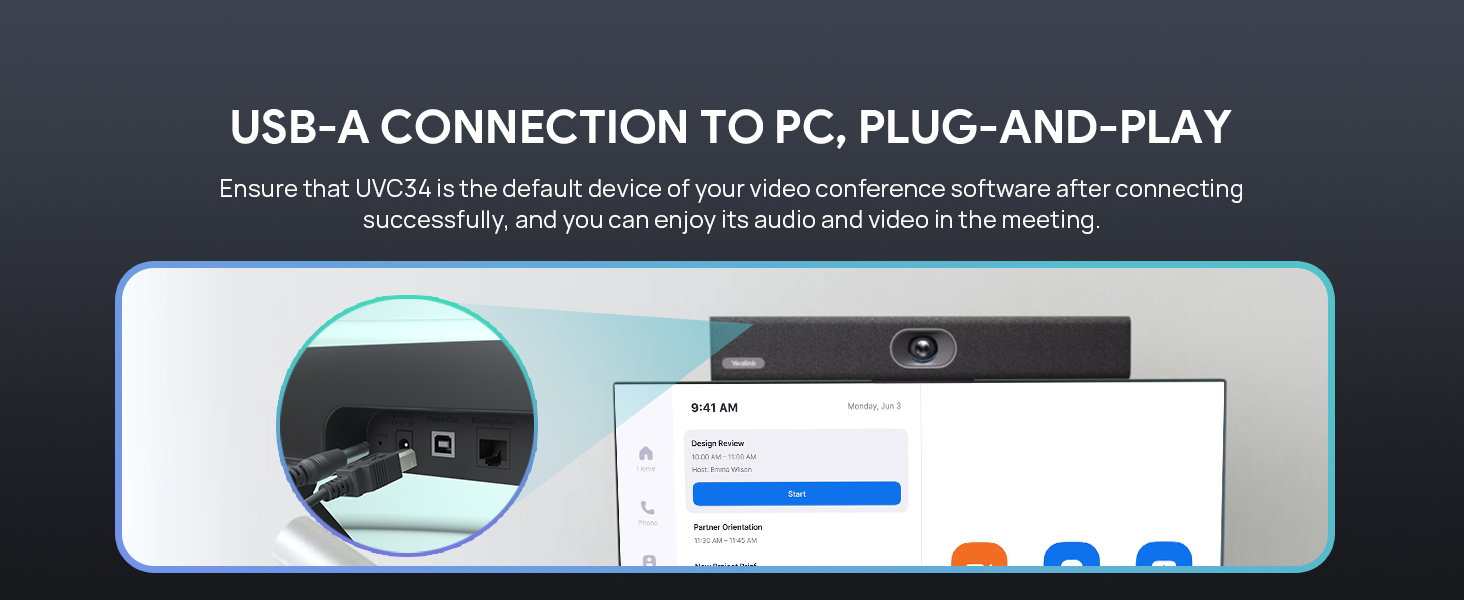
Image: A visual comparison of the UVC34 with its electric privacy shutter in the open (camera active) and closed (privacy enabled) positions.
6. Yealink RoomConnect Software
For advanced device management and firmware upgrades, Yealink provides the "Yealink RoomConnect" software. This application allows you to:
- View デバイスのステータスと情報。
- Configure specific device settings.
- 最適なパフォーマンスを確保し、新しい機能にアクセスするには、ファームウェアのアップデートを実行します。
It is recommended to periodically check for and install firmware updates using this software.

Image: A screenshot of the Yealink RoomConnect software, displayed on a monitor, showing options for device status, settings, and firmware upgrades for UVC Series devices.
7. メンテナンス
To ensure the longevity and optimal performance of your Yealink UVC34, follow these maintenance guidelines:
- クリーニング: Use a soft, dry cloth to clean the exterior of the device. Do not use liquid cleaners or aerosols directly on the unit. For the camera lens, use a lens cleaning cloth specifically designed for optics.
- ストレージ: 長期間使用しない場合は、直射日光や極端な温度を避け、涼しく乾燥した場所にデバイスを保管してください。
- ケーブル管理 損傷を防ぐために、ケーブルがよじれたり引っ張られたりしていないことを確認してください。
- ファームウェアの更新: Regularly check for and install firmware updates via the Yealink RoomConnect software to benefit from performance improvements and bug fixes.
8。 トラブルシューティング
If you encounter issues with your UVC34, refer to the following common problems and solutions:
8.1 ビデオまたはオーディオ出力がない
- 接続を確認してください: Ensure the USB cable is securely connected to both the UVC34 and your PC, and the power adapter is properly plugged in.
- 電源ステータス: Verify that the UVC34 is powered on.
- ソフトウェアの選択: Confirm that "Yealink UVC34" is selected as the camera, microphone, and speaker in your video conferencing application's settings.
- PC USB Port: PC の別の USB ポートに接続してみてください。
- 再起動: Restart your PC and the UVC34.
8.2 リモートコントロールの問題
- 電池: Ensure the AAA batteries are correctly inserted and not depleted.
- 視線: Make sure there is a clear line of sight between the remote control and the UVC34.
- 機能性: Note that some advanced PTZ functions via the remote may require specific software integration or may not be fully supported by all conferencing platforms. Basic functions like volume and mute should generally work.
- Missing Remote: If the remote control was missing from the package, contact your vendor or Yealink support for a replacement.
8.3 ビデオ品質が悪い
- 点灯: Ensure adequate lighting in the room. The UVC34 has low-light optimization, but extreme conditions can still affect quality.
- レンズの清潔さ: Clean the camera lens with a soft, dry lens cloth.
- インターネット接続: A stable and high-bandwidth internet connection is crucial for 4K video streaming. Check your network speed.
- ソフトウェア設定: Verify that your conferencing software is configured to use 4K resolution if supported.
8.4 音質が悪い
- マイクの配置: Ensure the UVC34 is positioned optimally to capture voices from all participants.
- 室内音響: Minimize background noise and reverberation in the meeting space.
- ソフトウェア設定: Confirm that "Yealink UVC34" is selected as the microphone and speaker in your conferencing application.
9. 仕様
| 特徴 | 詳細 |
|---|---|
| ブランド | Yealinkの |
| モデル番号 | UVC34 |
| アイテム重量 | 3.57ポンド |
| 製品寸法 | 2 x 2 x 14.96インチ |
| 色 | 黒 |
| フォトセンサー技術 | シーモス |
| ビデオキャプチャ解像度 | 4K |
| 最大焦点距離 | 8 |
| 最大絞り | 2 倍 |
| 接続技術 | USB |
| バッテリー | 単2電池XNUMX本(付属) |
| 特集 | AI Technologies (Auto Framing, AI Face Enhancement), Audio (Built-in 8+1 microphone array, 4.5-meter voice pickup, 5W high fidelity speaker, Noise Proof Technology, Full-duplex, Echo cancellation), Camera (8MP, 4K 30FPS, 120° FoV, 5x e-PTZ), USB-A for PC, Electric lens cap. Compatible with Microsoft Teams, Zoom, BlueJeans, Google Meet, Cisco Webex, etc. |
10. 保証とサポート
For information regarding the product warranty, please refer to the official Yealink webご購入時に付属の保証書またはウェブサイトをご覧ください。保証条件は地域や販売店によって異なる場合があります。
For technical support, product inquiries, or to report missing components, please contact Yealink customer support through their official webサイト: