
ペリックス PERIBOARD-332
Perixx PERIBOARD-332 有線バックライト付き USB キーボード ユーザーマニュアル
導入
This manual provides detailed instructions for the setup, operation, maintenance, and troubleshooting of your Perixx PERIBOARD-332 Wired Backlit USB Keyboard. Please read this manual thoroughly before using the product to ensure optimal performance and longevity.

Image: The Perixx PERIBOARD-332 Wired Backlit USB Keyboard, showcasinコンパクトなデザイン。
パッケージ内容
パッケージにすべてのアイテムが揃っていることを確認します。
- Perixx PERIBOARD-332 Wired Backlit USB Keyboard
- 一体型USBケーブル
- ユーザーマニュアル(このドキュメント)

Image: The Perixx PERIBOARD-332 keyboard, its integrated USB cable, the user manual, and the product packaging.
セットアップ手順
キーボードを接続します: Locate an available USB port on your computer (PC, laptop, tablet, or smartphone with appropriate adapter). Insert the USB cable from the PERIBOARD-332 into the USB port.
ドライバーのインストール: The keyboard is plug-and-play and typically does not require additional drivers for basic functionality on Windows, macOS, Linux, or Chrome OS. Your operating system should automatically detect and configure the device.
配置: Place the keyboard on a stable, flat surface. The compact design is ideal for small workspaces.

Image: A user typing on the Perixx PERIBOARD-332 keyboard, demonstrating its compact size and wired connection on a desk.
操作手順
一般的な使用
The Perixx PERIBOARD-332 features a standard US English QWERTY layout with 84 keys. Its low-profile scissor keys provide a quiet and comfortable typing experience, similar to laptop keyboards. The compact design helps optimize desk space.

Image: A user typing on the Perixx PERIBOARD-332 keyboard, highlighting its compact size and ergonomic placement in a workspace.

画像: クローズアップ view of the sculpted, low-profile scissor keys of the Perixx PERIBOARD-332, highlighting their design.
Function Keys (Fn Hotkeys)
The keyboard includes integrated Fn hotkeys for quick access to multimedia and system functions. These functions are primarily designed for Windows operating systems. For other operating systems (macOS, Linux, Chrome OS), their functionality may vary or require specific system settings/configurations.
- Fn + F1: Fnロック
- Fn + F2: Backlight Brightness Adjustment (Cycle through levels)
- Fn + F3: ミュート
- Fn + F4: 音量を下げる
- Fn + F5: 音量を上げる
- Fn + F6: 前のトラック
- Fn + F7: 再生/一時停止
- Fn + F8: 次のトラック
- Fn + F9: 一時停止
- Fn + F10: スクロールロック
- Fn + F11: 入れる
- Fn + F12: プリントスクリーン
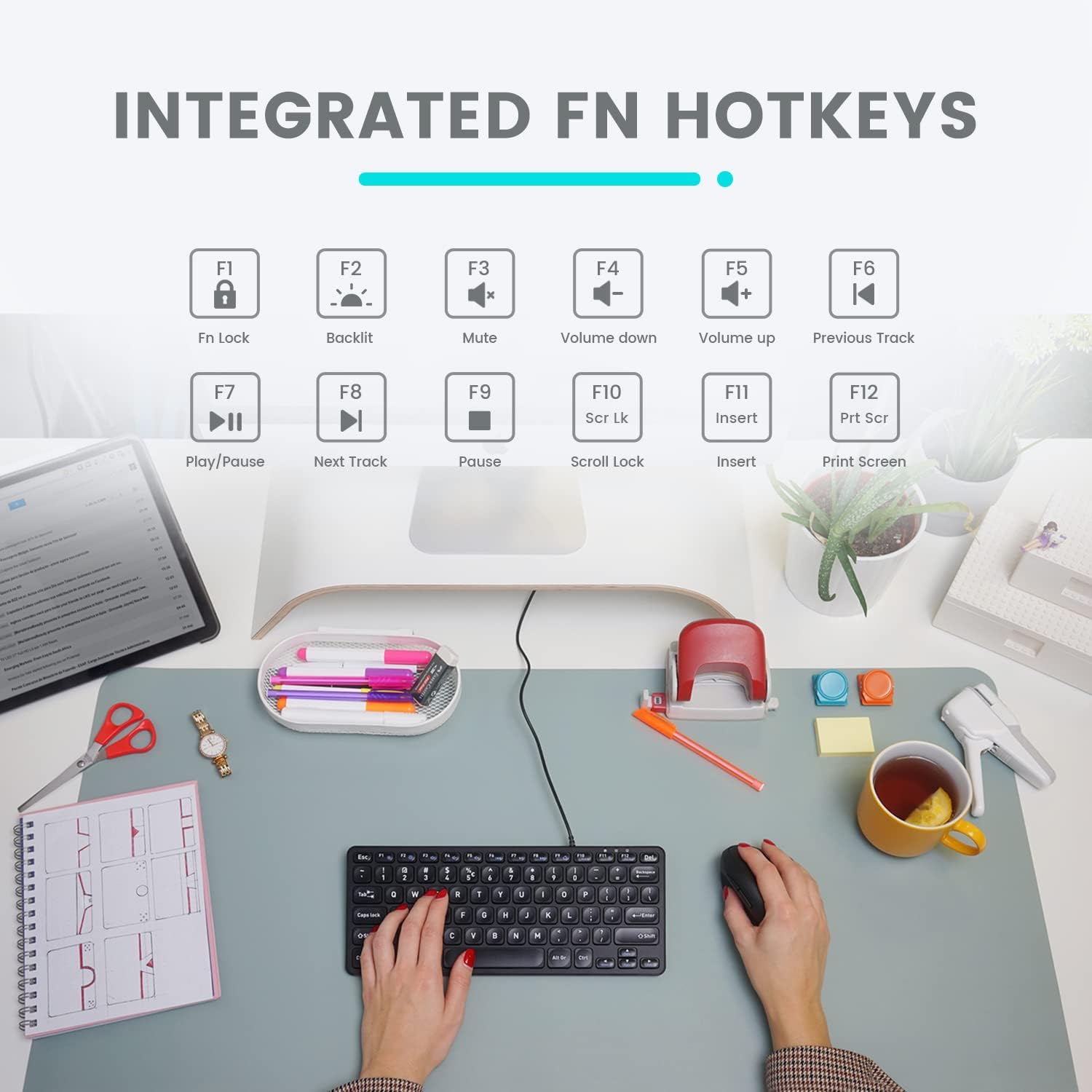
Image: Diagram illustrating the integrated Fn hotkeys on the Perixx PERIBOARD-332, showing the function of each F-key when pressed with the Fn key.
バックライト制御
The PERIBOARD-332 features white LED backlighting with adjustable brightness. To adjust the backlight brightness, press the Fn+F2 キー keys simultaneously. Repeatedly pressing this combination will cycle through different brightness levels (including off).
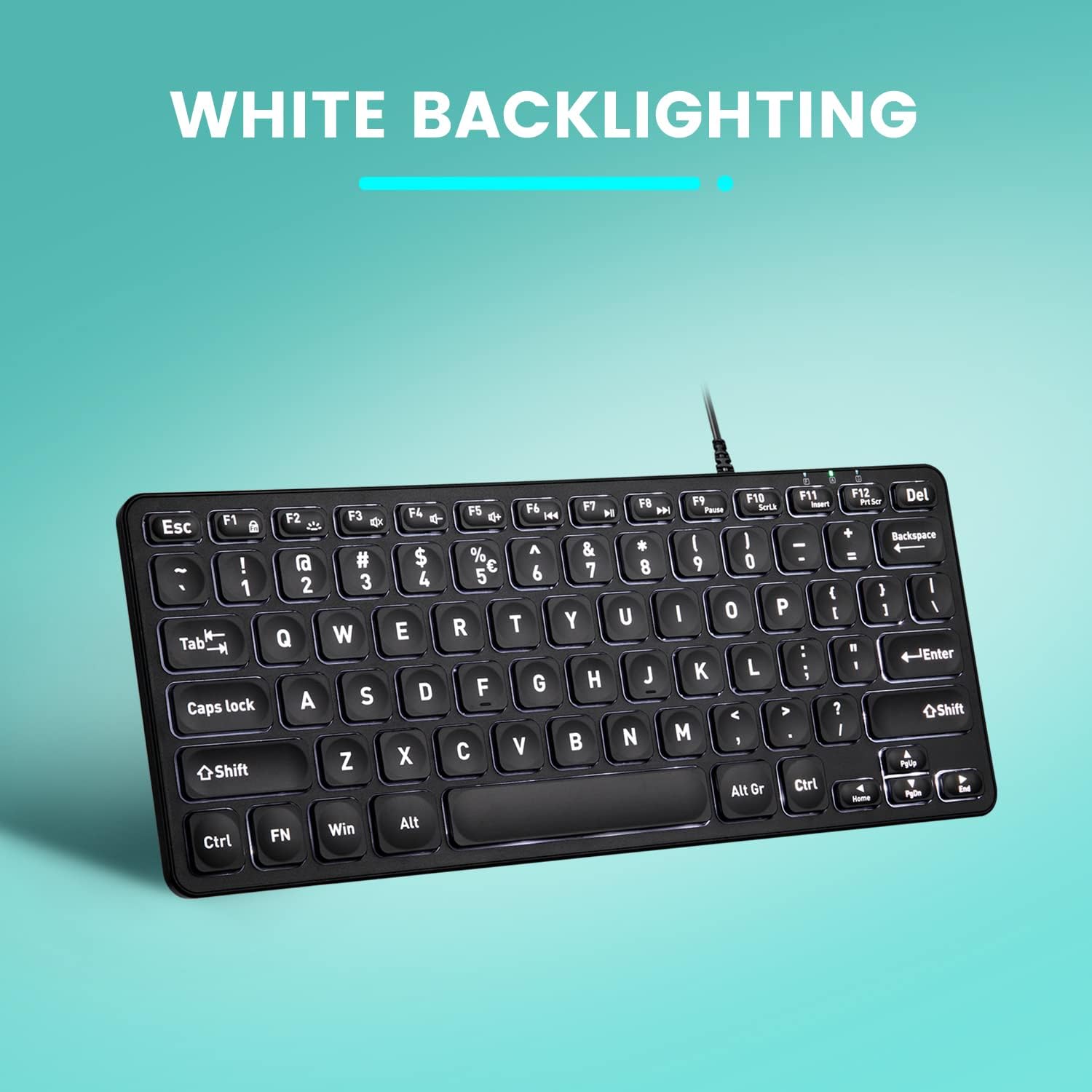
画像: トップダウン view of the Perixx PERIBOARD-332 keyboard with its white LED backlighting illuminated, showcasing the clear, large font on the keys.
メンテナンス
キーボードの寿命を延ばし、適切な機能を保つには、次のメンテナンス ガイドラインに従ってください。
- クリーニング: 柔らかく糸くずの出ない布で軽く拭き取ってください。ampキーボードの表面を水または中性洗剤で拭いてください。過度の湿気を避けてください。洗剤をキーボードに直接吹きかけないでください。
- ほこりの除去: 圧縮空気を使用して、キー間のほこりやゴミを取り除きます。
- こぼれを避ける: Keep liquids away from the keyboard to prevent damage. The keyboard is not water-resistant.
- ストレージ: 使用していないときは、キーボードを極端な温度を避け、清潔で乾燥した環境に保管してください。
トラブルシューティング
If you encounter issues with your Perixx PERIBOARD-332, refer to the following common solutions:
キーボードが応答しない
- USB接続を確認してください: Ensure the USB cable is securely plugged into both the keyboard and the computer's USB port. Try a different USB port.
- コンピューターを再起動: 場合によっては、コンピューターを再起動するだけで接続の問題が解決することがあります。
- 別のデバイスでテスト: Connect the keyboard to another computer or device to determine if the issue is with the keyboard or the original computer.
バックライトが機能しない、または調整できない
- Check Brightness Setting: プレス Fn+F2 キー repeatedly to cycle through all brightness levels, including off. Ensure it's not set to the lowest or off setting.
- 電源: Ensure the keyboard is properly connected to a powered USB port.
キーが正しく機能しない
- クリーンキー: 影響を受けたキーの下にゴミや障害物がないか確認してください。圧縮空気を使って取り除いてください。
- ソフトウェアの競合: If specific keys are not working, check for any software or driver conflicts on your computer.
Multimedia Keys Not Working on macOS/Linux/Chrome OS
- オペレーティング システムの互換性: The multimedia shortcut keys are primarily designed for Windows. On other operating systems, their functionality may vary or require specific system settings/configurations.
仕様
| 特徴 | 詳細 |
|---|---|
| ブランド | ペリックス |
| モデル番号 | ペリックス-332 |
| 接続技術 | USB (有線) |
| キーボードの説明 | US English QWERTY |
| 特集 | バックライト(白色LED) |
| スイッチタイプ | Scissor Switches |
| キーの数 | 84 |
| 製品寸法(長さ x 幅 x 高さ) | 11.22インチ x 4.57インチ x 0.83インチ (28.5 cm x 11.6 cm x 2.1 cm) |
| アイテム重量 | 0.79 lbs (12.3 Ounces / 350 grams approx.) |
| 対応デバイス | PC, Laptop, Tablet, Smartphone (with compatible USB port/adapter) |
| オペレーティングシステムの互換性 | Windows 7, 8, 10, 11; macOS; Linux; Chrome OS |
| 材料 | プラスチック |
保証とサポート
保証情報
Your Perixx PERIBOARD-332 keyboard comes with a 12ヶ月限定保証 from the date of purchase. This warranty covers manufacturing defects and workmanship under normal use. It does not cover damage caused by misuse, accidents, unauthorized modifications, or external factors.
保証請求のために購入証明書を保管してください。
カスタマーサポート
For technical assistance, warranty claims, or any questions regarding your Perixx product, please visit the official Perixx website or contact their customer support team. Contact information can typically be found on the Perixx webサイトまたは製品のパッケージ内。
また、 AmazonのPerixxストア 詳細とサポートリソースについては、こちらをご覧ください。