
AOLION WGXB004005
AOLION ステレオヘッドセットアダプター ユーザーマニュアル
Model: WGXB004005
導入
The AOLION Stereo Headset Adapter is designed to enhance your gaming experience on Xbox One controllers. This adapter allows you to connect most wired stereo gaming headsets with a 3.5mm audio jack (CTIA plug standard) directly to your Xbox controller, providing convenient control over game sound and voice chat.
パッケージ内容
- 1 × AOLION Stereo Headset Adapter
- ユーザーマニュアル1部
製品終了view
The adapter features intuitive controls for managing your audio experience during gameplay.

図1: 前面 view of the headset adapter showing control buttons.
- Game Balance Button: Adjusts the balance towards game audio.
- Chat Balance Button: Adjusts the balance towards voice chat audio.
- マイクミュートボタン: マイクのオン/オフを切り替えます。
- 音量アップボタン: Increases overall volume.
- 音量ダウンボタン: Decreases overall volume.
- 3.5mmオーディオジャック: For connecting your stereo gaming headset.
- USBコネクタ: For connecting to the Xbox controller.
互換性
This headset adapter is compatible with a wide range of Xbox One controllers and stereo gaming headsets:
- Xbox Controllers: Xbox One, Xbox One S, Xbox One X, Xbox Elite Wireless Controller Series 1, Xbox Elite Wireless Controller Series 2, Xbox Series S, and Xbox Series X Controllers.
- ヘッドセット: Most wired stereo gaming headsets featuring a 3.5mm audio jack (using the CTIA plug standard).

Figure 2: The adapter is compatible with multiple Xbox controller models.

Figure 3: The adapter supports standard 3.5mm CTIA headsets.
設定
Setting up your AOLION Stereo Headset Adapter is a simple plug-and-play process.
- Connect the Adapter to the Controller: Align the USB connector of the headset adapter with the expansion port at the bottom of your Xbox controller. Gently push until it clicks securely into place.
- ヘッドセットを接続します: Plug your wired stereo gaming headset's 3.5mm audio jack into the corresponding port on the bottom of the headset adapter.
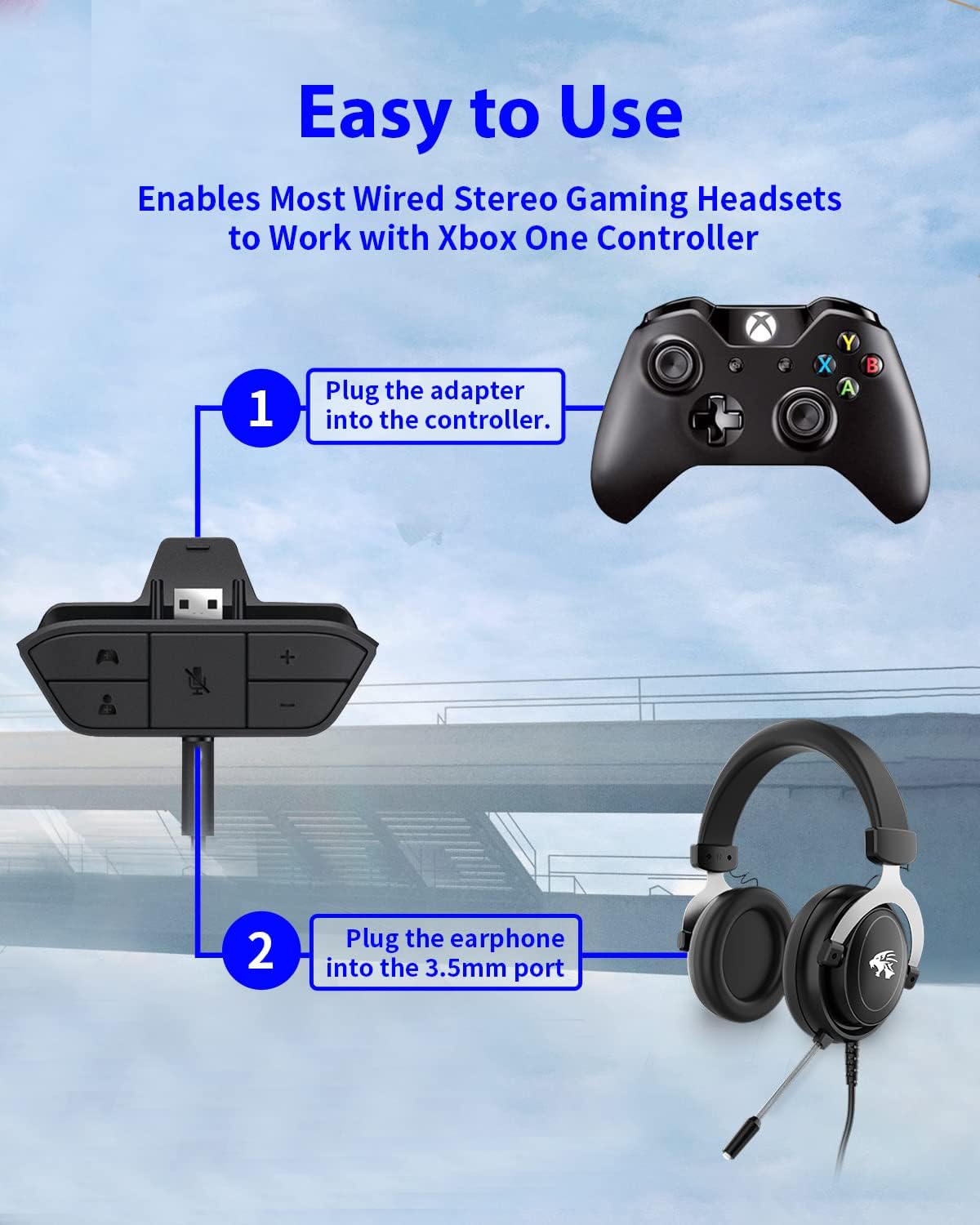
Figure 4: Step-by-step connection guide for the headset adapter.
Video 1: Demonstration of connecting the headset adapter to an Xbox controller.
重要な注意: For optimal performance and to resolve potential audio issues, it is recommended to update your Xbox controller's firmware after connecting the adapter. This can typically be done through your Xbox console's settings (Settings > Devices & connections > Accessories > Select your controller > ... > Controller settings > Update firmware).
操作手順
Once connected, use the buttons on the adapter to control your audio:
- 音量アップ/ダウン(+/-): Press the '+' button to increase the overall volume of both game and chat audio. Press the '-' button to decrease it.
- Microphone Mute (Microphone Icon): Press this button to mute or unmute your microphone. An indicator light (if present) or on-screen notification may confirm the mute status.
- Game/Chat Balance (Controller Icon / Person Icon):
- を押す コントローラーのアイコン button to increase game audio volume and decrease chat audio volume.
- を押す 人物アイコン button to increase chat audio volume and decrease game audio volume.
図5:詳細 view of the adapter's control buttons.
メンテナンス
To ensure the longevity and optimal performance of your headset adapter, follow these simple maintenance guidelines:
- アダプタは清潔に保ち、ほこりやゴミが付かないようにしてください。清掃には柔らかく乾いた布をご使用ください。
- アダプタを極端な温度、湿度、または直射日光にさらさないでください。
- アダプターを自分で分解したり修理したりしないでください。保証が無効になります。
- 物理的な損傷を防ぐため、使用していないときはアダプタを安全な場所に保管してください。
トラブルシューティング
If you encounter issues with your AOLION Stereo Headset Adapter, please refer to the following common solutions:
| 問題 | 考えられる原因 / 解決策 |
|---|---|
| No audio or poor audio quality (buzzing, peaking) |
|
| マイクが機能しない |
|
| Game/Chat balance not working |
|
これらの手順を試しても問題が解決しない場合は、カスタマー サポートにお問い合わせください。
仕様
| 特徴 | 詳細 |
|---|---|
| モデル番号 | WGXB004005 |
| ブランド | アオリオン |
| 製品寸法(長さ x 幅 x 高さ) | 3.15 x 1.57 x 0.79 インチ (8 x 4 x 2 cm) |
| 色 | 黒 |
| コネクタタイプ | Auxiliary (3.5mm CTIA standard) |
| 対応デバイス | Xbox One, One S, One X, Elite 1, Elite 2, Series S, Series X Controllers; 3.5mm CTIA Stereo Headsets |
保証とサポート
AOLION stands behind the quality of its products. This Stereo Headset Adapter comes with:
- 60日間返金保証: If you are not entirely satisfied with your purchase within 60 days, you may be eligible for a full refund.
- 24月保証: We provide a 24-month warranty against manufacturing defects from the date of purchase.
For any questions, concerns, or warranty claims, please contact us through Amazon. We are committed to responding to your inquiries within 12 hours to ensure your complete satisfaction.
Ask a question about this manual
Ask about setup, troubleshooting, compatibility, parts, safety, or missing instructions. Manuals+ will review the question and use this page’s manual context to help answer it.