1. はじめに
Welcome to the Staniot H501-WiFi Home Alarm System. This comprehensive security kit is designed to provide reliable and intelligent protection for your home or office. Featuring an intuitive touch screen panel, seamless app control, and compatibility with smart home assistants, this system offers enhanced security and peace of mind. This manual will guide you through the setup, operation, and maintenance of your new security system.

Figure 1: Staniot H501-WiFi Home Alarm System components including the main panel, door/window sensors, SOS button, motion detector, and remote controls.
2. 重要な安全情報
Please read all safety instructions carefully before installing and operating the system. Failure to follow these instructions may result in damage to the device or personal injury.
- Ensure the system is installed in a dry environment, away from water and excessive humidity.
- ご自身でデバイスの分解や修理を試みないでください。すべてのメンテナンスは資格のある専門家にご依頼ください。
- Use only the provided power adapter for the main panel.
- Keep small components and batteries out of reach of children.
- Verify that all sensors are securely mounted to prevent accidental detachment.
- Only connect to a 2.4 GHz WiFi network. 5 GHz networks are not supported.
3. パッケージ内容
開梱したら、以下にリストされているすべてのアイテムがパッケージに含まれていることを確認してください。
- 1 x Security Panel (Main Control Unit)
- 4 x Entry Sensors (Door/Window Sensors)
- SOSボタン1個
- リモコン x 2
- 有線サイレン x 1
- 1 x PIR Motion Detector
- 1 x Power Adapter for Main Panel
- 取り付け用ハードウェア(ネジ、粘着パッド)
- ユーザーマニュアル(このドキュメント)

Figure 2: Visual representation of the 10-piece alarm kit contents.
4.セットアップガイド
4.1. Main Panel Installation
- 電源オン: Connect the provided power adapter to the main security panel and plug it into a wall outlet. The panel will power on and display the Staniot Home UI 2.0 interface.
- ネットワーク接続:
- On the panel, navigate to the Wi-Fi settings.
- 2.4 GHz Wi-Fi ネットワークを選択し、パスワードを入力します。
- Ensure the panel is connected to the internet for app control and updates.
- アプリのダウンロード: Download the "Smart Life" app from your smartphone's app store (iOS App Store or Google Play Store). Register an account if you don't have one.
- アプリとのペアリング:
- Smart Life アプリを開き、画面の指示に従って新しいデバイスを追加します。
- Select "Security & Video Surveillance" -> "Alarm (Wi-Fi)".
- Follow the app's guide to connect the panel. This usually involves putting the panel into pairing mode.

Figure 3: The sleek design of the Staniot security panel, highlighting its ultra-thin profile および接続ポート。
4.2. Sensor and Accessory Installation
The system supports up to 200 accessories. Each accessory comes with adhesive pads or screws for easy installation.
- Entry Sensors (Door/Window):
- Mount the two parts of the entry sensor on a door or window frame, ensuring they are aligned and within 1 cm of each other when the door/window is closed.
- Use the provided adhesive or screws for secure mounting.
- Test by opening and closing the door/window; the sensor's indicator light should flash.

Figure 4: Proper placement and activation of an entry sensor.
- PIRモーション検出器:
- Install the motion detector in a corner or on a wall where it can cover the desired area without obstructions. Avoid direct sunlight or heat sources.
- Mount at a height of approximately 2.2-2.4 meters (7-8 feet) for optimal detection range.
- Test by walking through the detection area; the indicator light should activate.

Figure 5: The motion detector's 110-degree detection range.
- SOSボタン: Place the SOS button in an easily accessible location, such as a bedside table or near an exit.
- リモートコントロール: No installation needed. Keep them handy for quick arming/disarming.
- ワイヤードサイレン: Connect the wired siren to the designated siren port on the main panel. Mount it in a visible location for maximum deterrent effect.
4.3. Adding Accessories to the System
After physical installation, you need to add each accessory to the main panel and the Smart Life app.
- On the main panel, navigate to "Menu" -> "Accessories" -> "Add Accessory".
- Trigger the accessory (e.g., open an entry sensor, wave in front of the motion detector, press the SOS button). The panel will detect and add the accessory.
- You can customize the name of each accessory in the Smart Life app for easier identification (e.g., "Front Door Sensor", "Living Room Motion").
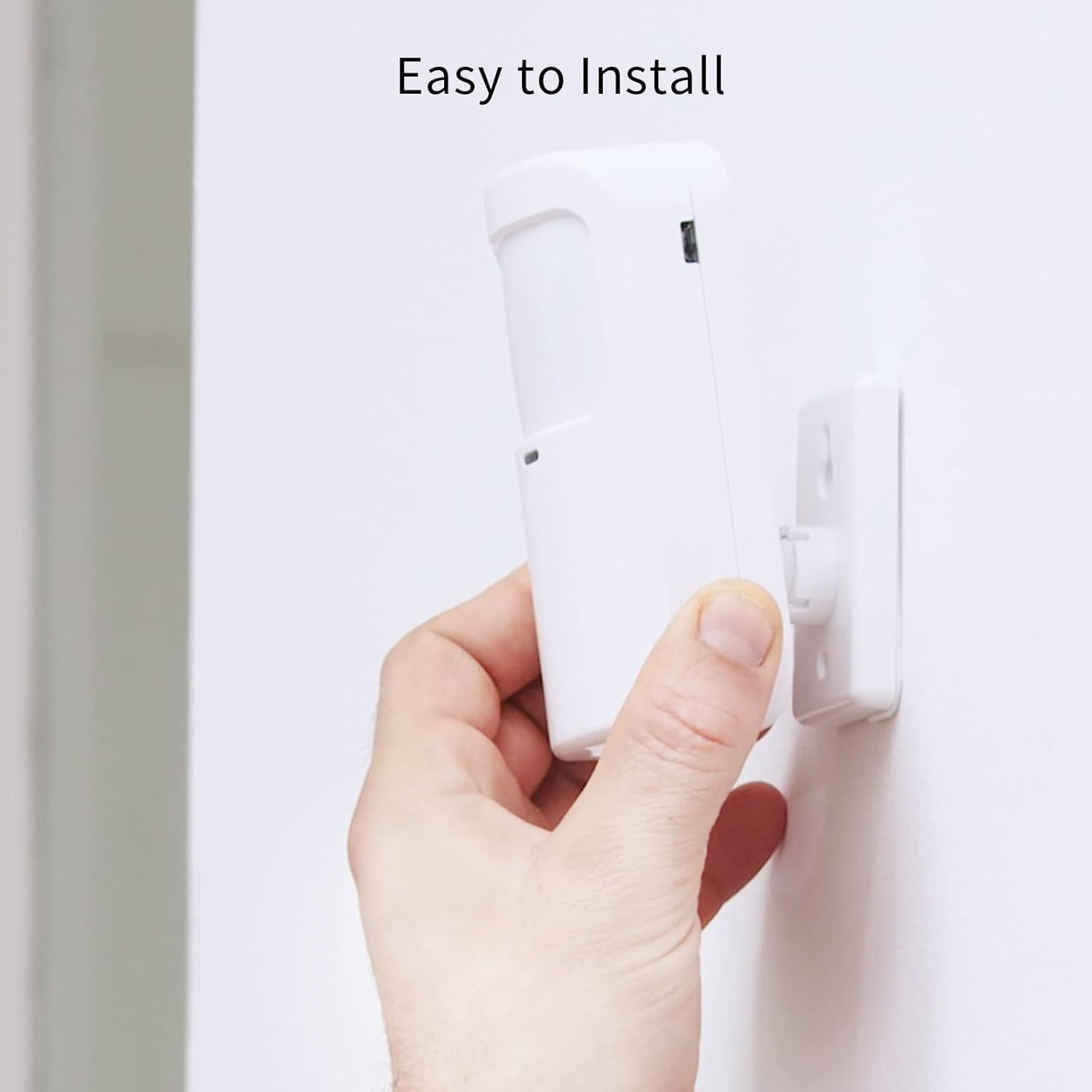
Figure 6: Simple installation process for the motion sensor.
5. システムの操作
5.1. 武装と武装解除
The Staniot system offers multiple ways to arm and disarm your security system:
- メインパネル: Use the touch screen to select "Away Arm" (full protection), "Stay Arm" (perimeter protection, internal sensors off), or "Disarm".
- リモートコントロール: Press the respective buttons on the remote control for quick arming/disarming.
- スマートライフアプリ: Control the system remotely from your smartphone. You can set alarm modes and monitor accessory status.
- 音声コントロール(Alexa/Google アシスタント): Integrate with Amazon Alexa or Google Assistant for voice commands.
- Enable the "Smart Life" skill in your Alexa or Google Home app.
- Smart Life アカウントをリンクします。
- Use commands like "Alexa, arm the security system" or "Hey Google, disarm the alarm."

図 7: Alexa および Google Assistant との音声制御統合。
5.2. Instant App Notifications
When an alarm is triggered, you will receive instant notifications on your smartphone via the Smart Life app. This allows you to monitor your home's security status in real-time, even when you are away.

Figure 8: Real-time alarm notifications on your mobile device.
5.3. SOS機能
In case of an emergency, pressing the SOS button will immediately trigger the alarm and send alerts to pre-set emergency contacts via the app.

Figure 9: The SOS button provides immediate assistance in emergencies.
6. メンテナンス
- バッテリー交換: Replace batteries in sensors and remote controls as needed. The Smart Life app may notify you of low battery levels.
- クリーニング: Wipe the main panel and sensors with a soft, dry cloth. Avoid using abrasive cleaners or solvents.
- ファームウェアアップデート(OTA): The system supports Over-The-Air (OTA) online upgrades. Regularly check for and install updates via the Smart Life app to ensure optimal performance and access to new features.

Figure 10: Seamless online firmware updates for continuous system improvement.
- システムチェック: Periodically test all sensors and the siren to ensure they are functioning correctly.
7。 トラブルシューティング
| 問題 | 考えられる原因 | 解決 |
|---|---|---|
| Panel not connecting to Wi-Fi. | Incorrect Wi-Fi password; 5 GHz network selected; weak signal. | Double-check password. Ensure you are connecting to a 2.4 GHz network. Move panel closer to router. |
| センサーがアラームをトリガーしません。 | Sensor battery low; sensor not paired; improper installation. | Replace sensor battery. Re-pair sensor with panel. Ensure proper alignment and proximity for entry sensors. |
| アプリ通知はありません。 | App permissions not granted; phone's notification settings disabled; panel not connected to internet. | Check app permissions in phone settings. Enable notifications for Smart Life app. Verify panel's internet connection. |
| 音声制御が機能しません。 | Smart Life skill not enabled/linked; incorrect voice commands. | Ensure Smart Life skill is enabled and linked in Alexa/Google Home app. Use precise commands. |
| Siren not sounding. | Siren not connected; siren volume set too low. | Check siren connection to the main panel. Adjust siren volume settings on the panel. |
ここに記載されていない問題が発生した場合は、サポート セクションを参照するか、カスタマー サービスにお問い合わせください。
8. 仕様
| 特徴 | 詳細 |
|---|---|
| モデル番号 | H501-WiFi |
| ブランド | スタニオット |
| 寸法(パネル) | 21.59 x 16.51 x 7.37 cm(8.5 x 6.5 x 2.9インチ) |
| 重さ | 912 グラム (2.01 ポンド) |
| 電源 | 電池駆動(リチウムイオン電池1個付属) |
| 巻tage | 5ボルト |
| 接続技術 | ワイヤレス(2.4 GHz Wi-Fiのみ) |
| 制御方法 | Application, Touch Screen, Remote Control, Voice Control |
| 対応デバイス | Smartphone (Smart Life App), Amazon Alexa, Google Assistant |
| Max Accessories Supported | 最大200 |
| 材料 | アブソリュート |
| 認定資格 | CE、UKCA、FCC |
9. 保証とサポート
9.1. 保証情報
Staniot products come with a standard manufacturer's warranty. Please refer to the warranty card included in your package or visit the official Staniot web保証条件の詳細については、ウェブサイトをご覧ください。保証請求の際は、購入証明としてレシートを保管してください。
9.2. カスタマーサポート
For technical assistance, troubleshooting, or any questions regarding your Staniot Home Alarm System, please contact our customer support team. We are committed to providing prompt and helpful service.
- オンラインサポート: Visit the Staniot official webFAQ、サポート記事、お問い合わせフォームのサイト。
- メールサポート: 製品のパッケージまたは公式 webカスタマー サポートのメール アドレスについては、サイトをご覧ください。
- 電話サポート: 公式をチェック web利用可能な電話サポート番号と営業時間については、サイトをご覧ください。
Your satisfaction is our primary goal. If you encounter any problems, please contact us first, and we will resolve the issue for you as soon as possible.