
ロジクール 910-006346
Logitech Signature M650 L for Business Wireless Mouse User Manual
モデル:910-006346
1. はじめに
The Logitech Signature M650 L for Business Wireless Mouse is designed to enhance productivity and comfort for users with large-sized hands. It offers versatile connectivity options, including Logi Bolt USB receiver for secure connections and Bluetooth Low Energy for cross-platform flexibility. Featuring SmartWheel technology for adaptable scrolling and SilentTouch technology for quiet clicks, this mouse aims to reduce fatigue and improve user experience.
This manual provides comprehensive instructions for setting up, operating, maintaining, and troubleshooting your Signature M650 L mouse.

Image: The Logitech Signature M650 L mouse in graphite color, displayed alongside its retail packaging, highlighting its design and key features.
2. 箱の中身
Upon unboxing your Logitech Signature M650 L mouse, verify that all the following components are included:
- Signature M650L Mouse
- USB Receiver (Logi Bolt)
- 単三電池 1 本 (プリインストールまたは別途付属)
- 説明書(このマニュアル)

Image: A visual representation of the items included in the product package: the Signature M650 L mouse and the Logi Bolt USB receiver, alongside the product box.
3. 主な特徴
- スマートホイールスクロール: Automatically switches between line-by-line precision and super-fast free-spin mode for efficient navigation.
- サイレントクリック: Equipped with SilentTouch technology, reducing click noise by 90% for a quieter work environment.
- デュアル接続: Connects via Logi Bolt USB receiver for robust, secure connections or via Bluetooth Low Energy for broad compatibility.
- 人間工学に基づいたデザイン: Contoured shape and soft thumb area provide comfort, reducing forearm muscle activity by 25% compared to a laptop touchpad.
- カスタマイズ可能なサイドボタン: Two programmable side buttons allow for personalized shortcuts and increased productivity.
- 長いバッテリー寿命: Enjoy up to 24 months of battery life on a single AA battery.
- マルチプラットフォーム互換性: Works seamlessly with Windows, macOS, Linux, Chrome OS, iPadOS, and Android.
- 持続可能なデザイン: Made with certified post-consumer recycled plastic to minimize environmental impact.

Image: An annotated diagram highlighting the key features of the Logitech Signature M650 L mouse, including silent clicking, SmartWheel, Bluetooth connectivity, customizable side buttons, comfort shape & texture, and 24-month battery life.

Image: A comparison showing the relative sizes of the standard M650 mouse and the larger M650 L mouse, indicating that the product is available in two sizes to fit different hand dimensions.
4.セットアップガイド
4.1. バッテリーの取り付け
- マウスの下側にあるバッテリー収納部を見つけます。
- 電池ボックスのカバーを開きます。
- 付属の単三電池を正しい極性 (+/-) を確認して挿入します。
- 電池カバーをしっかりと閉じてください。
4.2. マウスの接続
The Signature M650 L offers two primary connection methods:
4.2.1. Logi Bolt USB Receiver (Recommended for Business Environments)
- Logi Bolt USB レシーバーをマウスの電池ボックスから取り外します (そこに保管されている場合)。
- Logi Bolt USB レシーバーをコンピューターの使用可能な USB-A ポートに接続します。
- マウスの底面にある電源スイッチを使用してマウスの電源をオンにします。
- The mouse should automatically connect to the receiver. If not, press and hold the connect button on the mouse (usually near the power switch) until the LED indicator blinks, then release.

画像: クローズアップ view of the Logi Bolt USB receiver plugged into the side of a laptop, illustrating its compact size and secure connection.
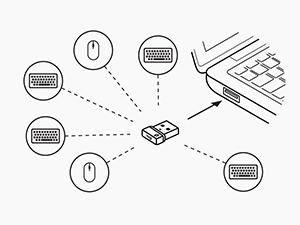
Image: A diagram illustrating how a single Logi Bolt USB receiver can connect to multiple compatible Logitech devices, including mice and keyboards, providing a unified wireless solution.
4.2.2. Bluetooth 低エネルギー
- マウスの底面にある電源スイッチを使用してマウスの電源をオンにします。
- Press and hold the connect button on the mouse (usually near the power switch) for 3 seconds until the LED indicator blinks rapidly, indicating it's in pairing mode.
- コンピューターまたはデバイスで、Bluetooth 設定を開きます。
- Select "Logitech M650 L" from the list of available devices and follow any on-screen prompts to complete pairing.
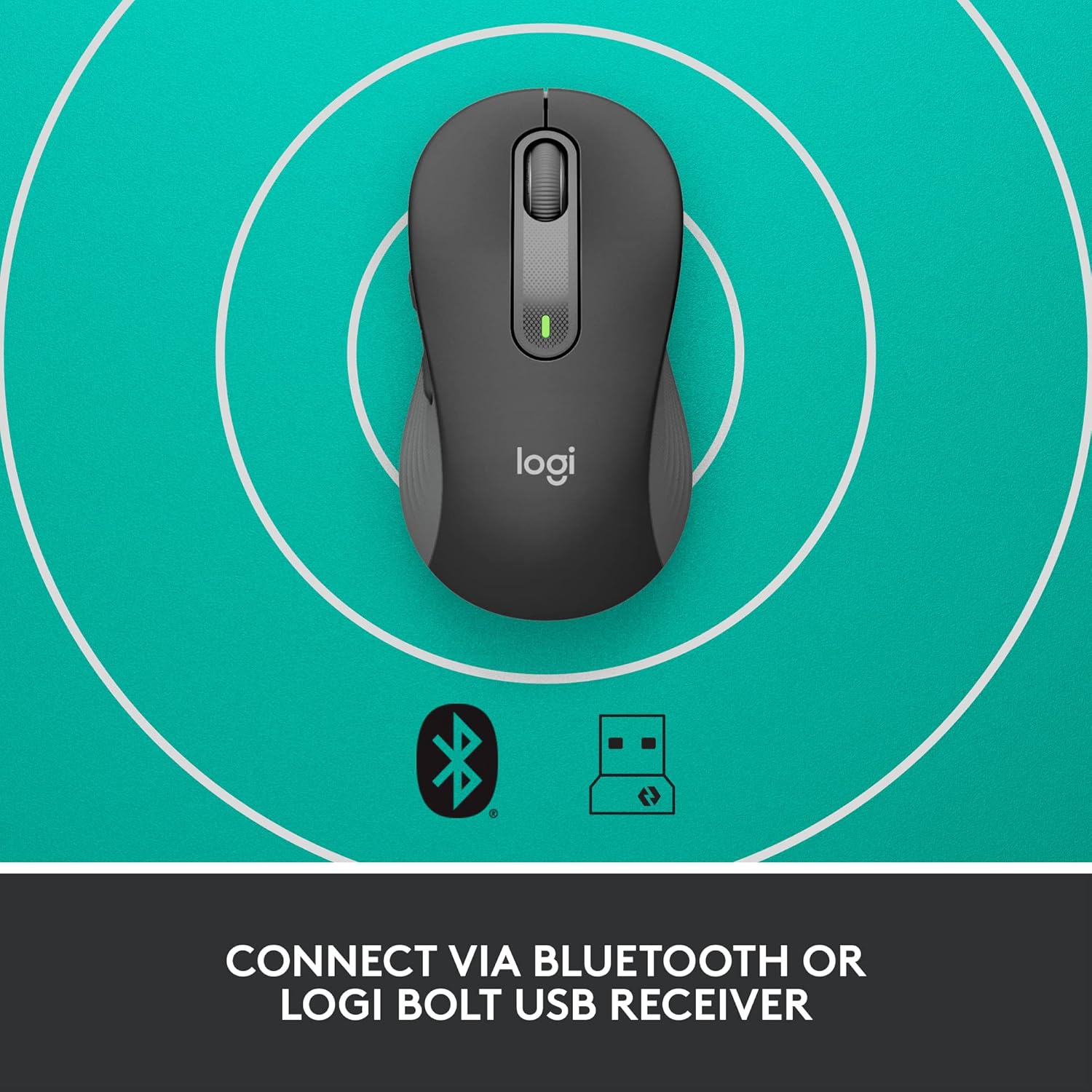
Image: The Logitech Signature M650 L mouse positioned on a surface with concentric circles, accompanied by Bluetooth and Logi Bolt icons, signifying its dual connectivity options.
5. マウスの操作
5.1.基本機能
- 左クリック: 主なアクション、選択。
- 右クリック: コンテキスト メニュー。
- スマートホイール: Scroll up/down. The wheel automatically switches between precise line-by-line scrolling and hyper-fast free-spin scrolling based on your scrolling speed.
- サイドボタン: By default, these buttons may perform forward/back actions in web ブラウザ。
5.2. Customizing Buttons (Logitech Options Software)
To unlock the full potential of your Signature M650 L mouse, download and install the Logitech Options software from the official Logitech web地点 (www.logitech.com/software/logi-options-plus.html)。このソフトウェアを使用すると、次のことが可能になります。
- Reassign the side buttons to perform various functions (e.g., copy, paste, open applications, media controls).
- Adjust pointer speed (DPI).
- Customize SmartWheel behavior.
- View バッテリー状態。
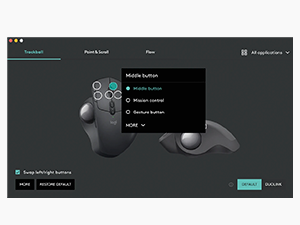
Image: A screenshot of the Logitech Options software interface, demonstrating how users can customize mouse buttons and settings for enhanced productivity.
6. メンテナンス
6.1. マウスの掃除
最適なパフォーマンスと衛生状態を維持するために、マウスを定期的に清掃してください。
- 柔らかく糸くずの出ない布で軽く拭き取ってください。amp水または電子機器に安全な洗浄液で洗い流してください。
- Wipe down the surface of the mouse.
- 光学センサーの場合は、乾いた綿棒を使用して、ほこりやごみを丁寧に取り除きます。
- 強力な化学薬品や研磨剤入りの洗剤を使用したり、マウスを液体に浸したりしないでください。
6.2. バッテリーの交換
When the battery indicator light on your mouse turns red or the mouse becomes unresponsive, it's time to replace the AA battery. Follow the battery installation steps in Section 4.1.
7。 トラブルシューティング
| 問題 | 考えられる原因 | 解決 |
|---|---|---|
| マウスが反応しない | Low battery; Receiver disconnected; Bluetooth not paired; Mouse powered off. | Replace battery; Re-insert Logi Bolt receiver; Re-pair Bluetooth; Turn mouse on. |
| カーソルの遅延または不規則な動き | 干渉、光学センサーの汚れ、表面の問題、バッテリー残量の低下。 | Move mouse closer to receiver/device; Clean optical sensor; Use a mouse pad; Replace battery. |
| サイドボタンが機能しない | Logitech Options not installed or configured; Software conflict. | Install/reinstall Logitech Options; Check button assignments in software; Restart computer. |
| Bluetooth経由で接続できません | Mouse not in pairing mode; Device's Bluetooth off; Interference. | Ensure mouse is in pairing mode (blinking LED); Enable Bluetooth on device; Move away from other wireless devices. |
8. 仕様
| 特徴 | 詳細 |
|---|---|
| ブランド | ロジテック |
| モデル名 | シグネチャー M650 L |
| 商品型番 | 910-006346 |
| 接続技術 | Bluetooth Low Energy、Logi Bolt USBレシーバー |
| 動き検出技術 | 光学 |
| 色 | 黒鉛 |
| アイテム重量 | 3.93オンス(約111.4グラム) |
| 製品寸法(長さx幅x高さ) | 4.65 x 2.58 x 1.64インチ(約11.8 x 6.55 x 4.17 cm) |
| 電池のタイプ | 1 x単三電池(付属) |
| 平均バッテリー寿命 | 最長24か月 |
| ハードウェアプラットフォーム | PC、Linux、Mac |
| オペレーティングシステムの互換性 | Windows 11, Windows 10, macOS 10.15+, Linux, Chrome OS, iPadOS 13.4+, Android 5.0+ |
| 原産国 | 中国 |
9. 保証とサポート
9.1. 保証情報
Logitech製品には通常、限定ハードウェア保証が付いています。製品に付属の保証書を参照するか、Logitechの公式ウェブサイトをご覧ください。 website for the most current and detailed warranty information applicable to your region and product model.
9.2. カスタマーサポート
For technical assistance, product inquiries, or to report issues, please visit the Logitech support webサイト:
You may also find helpful FAQs, troubleshooting guides, and driver downloads on their support portal.
Ask a question about this manual
Ask about setup, troubleshooting, compatibility, parts, safety, or missing instructions. Manuals+ will review the question and use this page’s manual context to help answer it.