
1. はじめに
Thank you for choosing the Baseus Orange Dot Wireless Presenter. This device is designed to enhance your presentations with its RF2.4GHz wireless technology, integrated laser pointer, and versatile USB/Type-C receiver. This manual provides detailed instructions for setup, operation, maintenance, and troubleshooting to ensure optimal performance.
2. パッケージ内容
続行する前に、パッケージにすべてのアイテムが含まれていることを確認してください。
- Baseus Orange Dot Wireless Presenter
- USB/Type-C Dual Receiver
- AAA Battery (for battery version)
- ユーザーマニュアル(このドキュメント)

画像: Contents of the package include the wireless presenter, a USB/Type-C receiver, and an AAA battery.
3. セットアップ手順
3.1 バッテリーの取り付け
If your presenter is the battery-powered version, follow these steps:
- Open the battery compartment cover located at the rear of the presenter.
- 単 4 電池 1 本を挿入し、プラス (+) 端子とマイナス (-) 端子がコンパートメント内のマークと正しく揃っていることを確認します。
- 電池カバーをしっかりと閉じてください。
画像: Insert one AAA battery into the designated compartment. Ensure correct polarity.
3.2 受信機の接続
The presenter features a dual USB/Type-C receiver for broad compatibility.
- Locate the receiver stored magnetically within the presenter's body. Gently pull it out.
- Plug the receiver into an available USB-A or Type-C port on your computer or laptop. The system will automatically detect and install the necessary drivers. No additional software installation is required.

画像: The dual USB/Type-C receiver connects to your computer for wireless operation.

画像: The receiver can be stored magnetically within the presenter body when not in use.
4. 操作手順
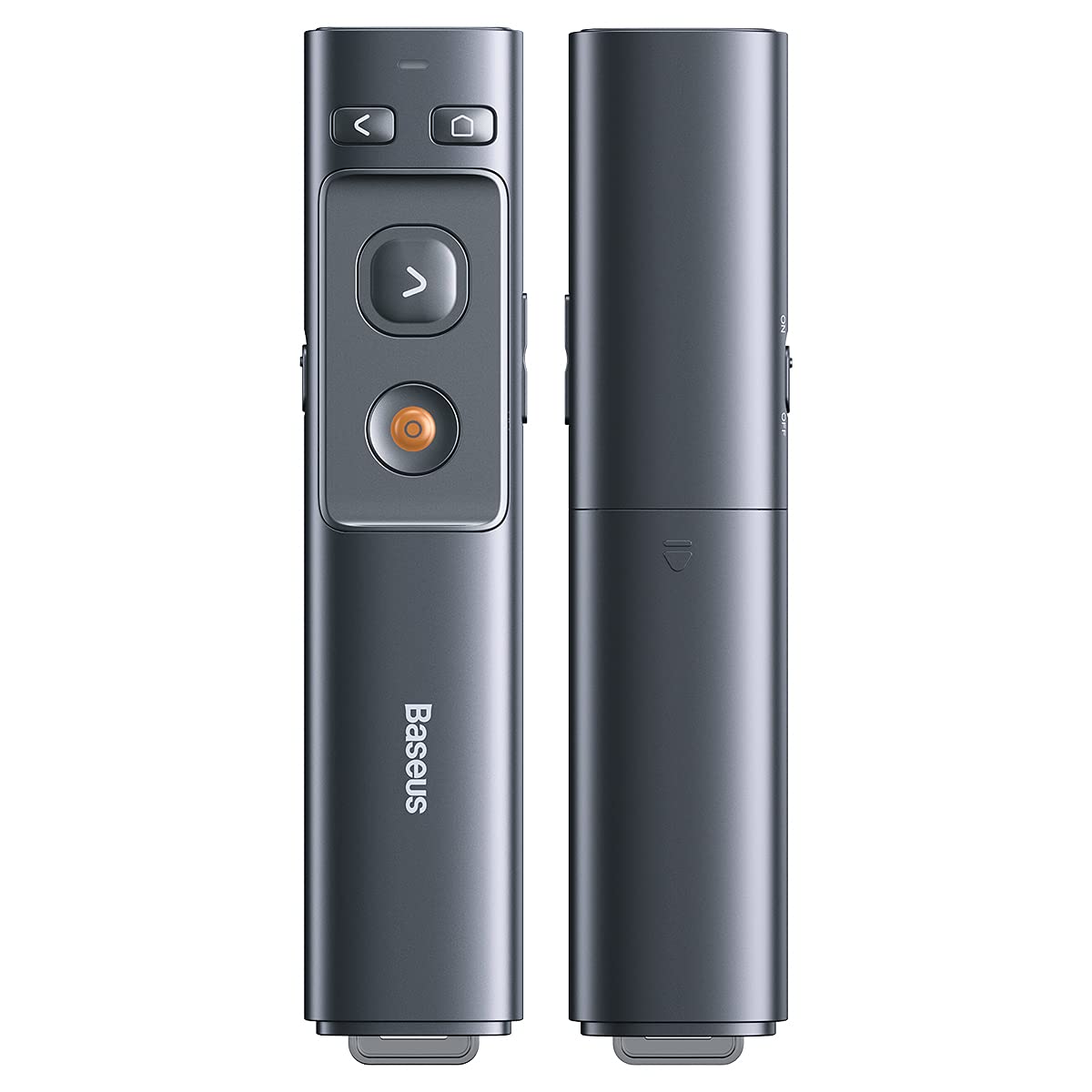
Familiarize yourself with the presenter's buttons for effective control during your presentation.

画像: Control buttons for page navigation, laser activation, and volume adjustment.
4.1 電源オン/オフ
The presenter typically powers on automatically when the receiver is connected and a button is pressed. To conserve battery, ensure the receiver is disconnected when not in use.
4.2 Presentation Control
- Page Up Button (<): Press to move to the previous slide or page.
- Page Down Button (>): Press to move to the next slide or page.
- 全画面/黒画面ボタン: Press to toggle between full-screen mode and black screen mode in presentation software.
4.3 Laser Pointer Function
Press and hold the dedicated laser button (usually a red dot icon) to activate the red laser pointer. Release the button to turn off the laser.

画像: The laser pointer function highlights content on a display.
4.4 ボリュームコントロール
Use the designated volume buttons (if present) to adjust the audio output of your computer during a presentation.
5. メンテナンス
Proper care ensures the longevity of your Baseus Orange Dot Wireless Presenter.
- クリーニング: プレゼンターの表面を拭く際は、柔らかく乾いた布をご使用ください。刺激の強い化学薬品や研磨剤の使用は避けてください。
- ストレージ: When not in use, store the presenter and its receiver in a dry, cool place. Always store the receiver inside the presenter's magnetic compartment to prevent loss.
- バッテリーのケア: For battery-powered versions, remove the AAA battery if the presenter will not be used for an extended period to prevent leakage.
6。 トラブルシューティング
If you encounter issues with your presenter, refer to the following common problems and solutions:
- Presenter is unresponsive:
- Ensure the receiver is securely plugged into a USB-A or Type-C port on your computer.
- For battery versions, check if the AAA battery is inserted correctly and has sufficient charge. Replace if necessary.
- レシーバーをコンピューターの別の USB ポートに接続してみてください。
- コンピュータを再起動します。
- Laser pointer is not working:
- Ensure the presenter has power (battery charged/inserted).
- Confirm you are pressing and holding the correct laser activation button.
- Slides are not advancing/going back:
- Verify that your presentation software (e.g., PowerPoint, Keynote) is active and in presentation mode.
- Ensure the receiver is properly connected and recognized by your computer.
7. 仕様
| 特徴 | 詳細 |
|---|---|
| ブランド | ベースス |
| モデル名 | オレンジ ドット ワイヤレス プレゼンター |
| モデル番号 | LFZ_OrangeDotPresenter |
| 接続性 | RF 2.4GHzワイヤレス |
| レシーバータイプ | USB-A / Type-C Dual Interface |
| レーザータイプ | 赤色レーザー |
| レーザー距離 | 最大100メートル |
| リモコン距離 | 最大100メートル |
| 電源 | 1 x AAA Battery (for battery version) |
| アイテム重量 | 60グラム |
| パッケージ寸法 | 19.5 x 7 x 1.9 cm |
| 原産国 | 中国 |
8. 保証とサポート
Baseus製品は信頼性と性能を重視して設計されています。保証情報については、ご購入時に付属の保証書を参照するか、Baseusの公式ウェブサイトをご覧ください。 website. For technical support or further assistance, please contact Baseus customer service through their official channels.