
1. はじめに
Thank you for choosing the iPega PG-P4008 Wireless Game Controller. This manual provides detailed instructions on how to set up, operate, and maintain your controller. The PG-P4008 offers broad compatibility with PS4, PS3, Android (10.0+), iOS (13.0+), and Windows PC, connecting wirelessly via Bluetooth for an enhanced gaming experience.
2.製品オーバーview
The iPega PG-P4008 is designed for versatile gaming across multiple platforms. It features a comfortable ergonomic design, responsive controls, and several advanced functionalities to immerse you in your games.
主な特徴:
- Wireless Bluetooth connectivity (BT2.1+EDR) with up to 8 meters range.
- No driver installation required for connection.
- Integrated colored LED light indicator for operational status.
- Dual motors for realistic vibration feedback during gameplay.
- Built-in three-dimensional acceleration sensor and gyroscope sensor with six-axis induction.
- Integrated speaker and 3.5mm earphone jack for game audio.
- Dual-point capacitive touchpad for enhanced control.
- Compatible with PS4, PS3, Android (10.0+), iOS (13.0+), and Windows PC.
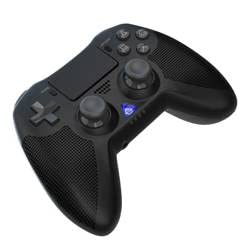
画像1: フロント view of the iPega PG-P4008 Wireless Game Controller. This image displays the controller's ergonomic design, dual analog sticks, D-pad, action buttons, touchpad, and the central LED indicator.
3. セットアップと接続
The PG-P4008 controller connects wirelessly via Bluetooth. Follow these steps to pair your controller with your device:
- 電源オン: Ensure the controller is charged. Press and hold the PSボタン (or equivalent power button) to turn on the controller.
- ペアリングモード:
- For PS4/PS3: Connect the controller to the console using a USB cable. Once recognized, you can disconnect the cable for wireless play. The connection method is similar to the official P4 controller.
- For Android/iOS: Activate Bluetooth on your mobile device. On the controller, press and hold the SHARE button + PS button simultaneously until the LED indicator flashes rapidly, indicating pairing mode. Select "PG-P4008" (or similar) from your device's Bluetooth list to connect.
- For Windows PC: Ensure your PC has Bluetooth capability. On the controller, press and hold the PS button + OPTIONS button simultaneously until the LED indicator flashes rapidly. On your PC, go to Bluetooth settings, add a new device, and select "PG-P4008" (or similar) to pair.
- 正常な接続: Once connected, the LED indicator on the controller will change to a solid color, indicating a successful pairing.
注記: No additional driver software is required for operation. The controller supports a stable connection up to 8 meters.
4. 操作手順
LEDインジケーター:
The built-in colored LED light indicates the controller's operational status and player assignment, similar to the official PS4 controller. Different colors will signify different stages or player numbers.
振動フィードバック:
The controller features dual motors embedded in the handles, providing tactile vibration feedback to enhance your gaming immersion. This feedback will vary based on in-game events.
タッチパッド:
The dual-point capacitive touchpad allows for intuitive control in games that support touch input, offering an additional layer of interaction.
オーディオ機能:
Connect your 3.5mm earphones to the integrated jack on the controller to experience game audio directly, providing a private and immersive sound experience.
5. メンテナンス
- Keep the controller dry and away from moisture to prevent damage to internal components.
- コントローラーは定期的に柔らかく乾いた布で拭いてください。刺激の強い化学薬品や研磨剤の使用は避けてください。
- コントローラーを使用しないときは、涼しく乾燥した場所に保管してください。
- コントローラーを極端な温度や直射日光にさらさないでください。
- Do not attempt to disassemble or modify the controller, as this will void any potential warranty and may cause damage.
6。 トラブルシューティング
- コントローラーが接続されていません:
- コントローラーが完全に充電されていることを確認してください。
- デバイスで Bluetooth が有効になっていることを確認します。
- Make sure the controller is in the correct pairing mode for your device (refer to Section 3).
- コントローラーとデバイスの両方を再起動してみてください。
- デバイスの Bluetooth リストから以前のペアリングを削除し、再度ペアリングを試みてください。
- 入力遅延または切断:
- 8 メートルの動作範囲内にいることを確認してください。
- 他のワイヤレス デバイスからの干渉を最小限に抑えます。
- Check for any physical obstructions between the controller and the device.
- 振動が機能しない:
- プレイしているゲームが振動フィードバックをサポートしていることを確認してください。
- ゲーム内の設定をチェックして、振動が有効になっていることを確認してください。
- Audio not working via 3.5mm jack:
- Ensure your earphones are properly plugged in.
- Check the volume settings on your device and in-game.
- Test with another pair of earphones to rule out earphone issues.
7. 仕様
| モデル番号 | PG-P4008 |
| ブランド | iPega |
| 接続性 | Bluetooth (BT2.1+EDR) |
| ワイヤレス範囲 | 最大8メートル |
| 対応デバイス | PS4, PS3, Android (10.0+), iOS (13.0+), Windows PC |
| 特集 | Wireless, Touchpad, Vibration, 6-axis Gyroscope, Built-in Speaker, 3.5mm Audio Jack |
| ボタンの数量 | 17 |
| 電源 | 電池駆動 |
8. 保証とサポート
製品保証およびカスタマーサポートに関する情報は、このマニュアルには記載されていません。製品パッケージまたは販売店の web保証範囲の詳細とカスタマー サポートへの連絡方法については、サイトをご覧ください。