
ロジクール 910-006265
Logitech Signature M650 L ワイヤレスマウス ユーザーマニュアル
Model: M650 L (910-006265)
導入
The Logitech Signature M650 L is a wireless computer mouse designed for enhanced comfort and productivity, particularly suited for users with larger hands. It features an adaptive SmartWheel for precise and fast scrolling, customizable side buttons, and SilentTouch technology for quiet clicks. This manual provides detailed instructions for setting up, operating, maintaining, and troubleshooting your M650 L mouse.
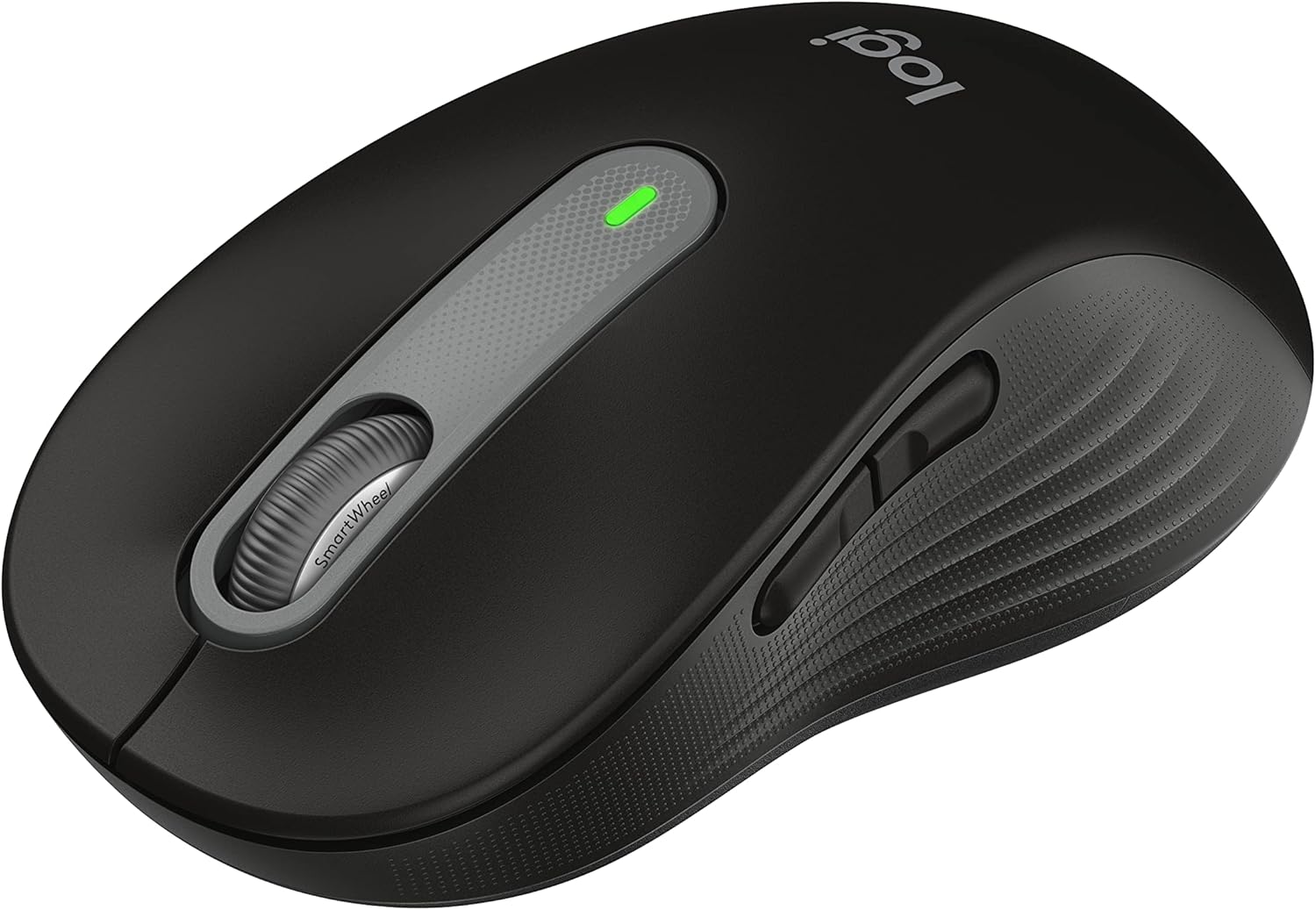
Figure 1: Logitech Signature M650 L Wireless Mouse
設定
1. バッテリーの取り付け
The Signature M650 L mouse operates on a single AA battery, providing up to 24 months of battery life. The battery compartment is located on the underside of the mouse.
- Gently slide open the battery compartment cover on the bottom of the mouse.
- 極性 (+/-) が正しいことを確認して、単三電池 1 本を挿入します。
- 電池ケースのカバーをカチッと音がしてしっかり固定されるまで閉じます。
2. マウスの接続
The M650 L offers two connectivity options: Bluetooth Low Energy or the Logi Bolt USB receiver.

Figure 2: Connectivity Options (Bluetooth and Logi Bolt USB Receiver)
Option A: Logi Bolt USB Receiver
- Locate the Logi Bolt USB receiver inside the battery compartment of your mouse.
- レシーバーを取り外し、コンピューターの使用可能な USB ポートに差し込みます。
- 底面の電源スイッチを使ってマウスの電源を入れます。マウスは自動的に接続されます。
Option B: Bluetooth Low Energy
- 底面の電源スイッチを使用してマウスの電源をオンにします。
- Press and hold the connection button on the bottom of the mouse until the LED light starts blinking rapidly. This indicates pairing mode.
- コンピューターで、Bluetooth 設定を開きます。
- ウィンドウズ: Go to Settings > Devices > Bluetooth & other devices > Add Bluetooth or other device.
- MacOSの: Go to System Preferences > Bluetooth.
- Chrome OS/Linux: Access Bluetooth settings through your system tray or settings menu.
- Select "Signature M650 L" from the list of available devices to complete the pairing process.
マウスの操作
スマートホイールスクロール
The Signature M650 L features an adaptive SmartWheel that provides two modes of scrolling:
- Line-by-Line Precision: For detailed navigation in documents and spreadsheets.
- Super-Fast Free Spin: For quickly scrolling through long web pages or documents. The wheel automatically switches to this mode with a flick of your finger.

Figure 3: SmartWheel for Precision and Speed Scrolling
カスタマイズ可能なサイドボタン
The two side buttons on the M650 L mouse can be customized to perform your favorite shortcuts, such as back/forward navigation, copy/paste, or other functions. Customization is done through the Logitech Options+ software.

Figure 4: Customizing Buttons with Logitech Options+ Software
Silent Clicks (SilentTouch Technology)
The M650 L incorporates Logitech's SilentTouch technology, which reduces click noise by 90% compared to traditional mice. This feature allows for a quieter working environment, minimizing distractions for you and those around you.

Figure 5: Silent Clicks for a Quieter Workspace
快適性と人間工学
The mouse is designed with a comfortable shape, a soft thumb area, and rubber side grips to ensure a secure and pleasant feel during long hours of use. The M650 L is specifically sized for larger hands, providing optimal ergonomic support.

Figure 6: Comfort Shape and Rubber Side Grips

Figure 7: M650 and M650 L Size Comparison
互換性
The Logitech Signature M650 L mouse is compatible with a wide range of operating systems, ensuring versatile use across different devices.
- PC (Windows 10, 11 or later)
- Mac (macOS 10.15 or later)
- リナックス
- クロームブック

Figure 8: Windows 11 Compatibility
メンテナンス
バッテリー交換
When the mouse's performance degrades or the indicator light signals low battery, it's time to replace the AA battery. Follow the battery installation steps outlined in the Setup section.
クリーニング
最適なパフォーマンスと衛生状態を維持するために、マウスを定期的に清掃してください。
- 柔らかく糸くずの出ない布で軽く拭き取ってください。amp水または電子機器に安全な洗浄液で洗い流してください。
- Wipe the surface of the mouse, paying attention to the scroll wheel and side grips.
- Avoid using harsh chemicals or abrasive materials that could damage the mouse's finish.
トラブルシューティング
接続の問題
- マウスが反応しない: Ensure the mouse is powered on and the battery is not depleted. Replace the battery if necessary.
- Bluetooth接続が不安定です: Move the mouse closer to your computer. Ensure no other devices are causing interference. Try re-pairing the mouse with your computer.
- Logi Bolt receiver not detected: Try plugging the receiver into a different USB port. Ensure the receiver is fully inserted.
- Switching between connections: If you switch between Bluetooth and the Logi Bolt receiver, you may need to re-pair or re-establish the connection each time.
パフォーマンスの問題
- カーソルの動きが不規則: Clean the optical sensor on the bottom of the mouse. Ensure you are using the mouse on a suitable surface (non-reflective, non-glass).
- Scroll wheel not working correctly: Ensure the scroll wheel is free of debris. If using Logitech Options+ software, check scroll settings.
- ボタンが反応しない: Check if the buttons are physically obstructed. If using Logitech Options+ software, ensure button assignments are correct.
仕様
| 特徴 | 詳細 |
|---|---|
| モデル | シグネチャー M650 L |
| モデル番号 | 910-006265 |
| 接続性 | Bluetooth Low Energy、Logi Bolt USBレシーバー |
| センサー技術 | 光学 |
| 電池のタイプ | 単三電池1本 |
| バッテリー寿命 | 最大24か月(使用状況によって異なる場合があります) |
| 特集 | SmartWheel, SilentTouch Technology, Customizable Side Buttons |
| 寸法(長さx幅x高さ) | 4.65 x 2.58 x 0.1 インチ (11.8 x 6.55 x 0.25 cm) |
| 重さ | 3.92オンス(111グラム) |
| 互換性のあるプラットフォーム | PC, Linux, Mac (Windows 10/11+, macOS 10.15+, Chrome OS) |
サポートと追加リソース
For further assistance or detailed documentation, please refer to the following resources:
- 公式ユーザーマニュアル(PDF): ユーザーマニュアルをダウンロード
- 使用説明書(IFU)(PDF): IFUをダウンロード
- Logitechサポート Webサイト: Visit the official Logitech support page for FAQs, drivers, and software downloads.
- Logitech Options+ Software: Download the software to customize your mouse buttons and settings.
Ask a question about this manual
Ask about setup, troubleshooting, compatibility, parts, safety, or missing instructions. Manuals+ will review the question and use this page’s manual context to help answer it.