
1. はじめに
This manual provides detailed instructions for the installation, operation, and maintenance of your j5create USB-C Dual HDMI Docking Station (Model JCD542). This docking station is designed to expand the connectivity of your USB-C enabled laptop, offering dual display output, multiple USB ports, network connectivity, and power delivery.
適切な機能を確保し、損傷を防ぐために、製品を使用する前にこのマニュアルをよくお読みください。
2.製品オーバーview
2.1 パッケージ内容
- j5create USB-C Dual HDMI Docking Station (JCD542)
- 取扱説明書
2.2 デバイスのレイアウトとポート
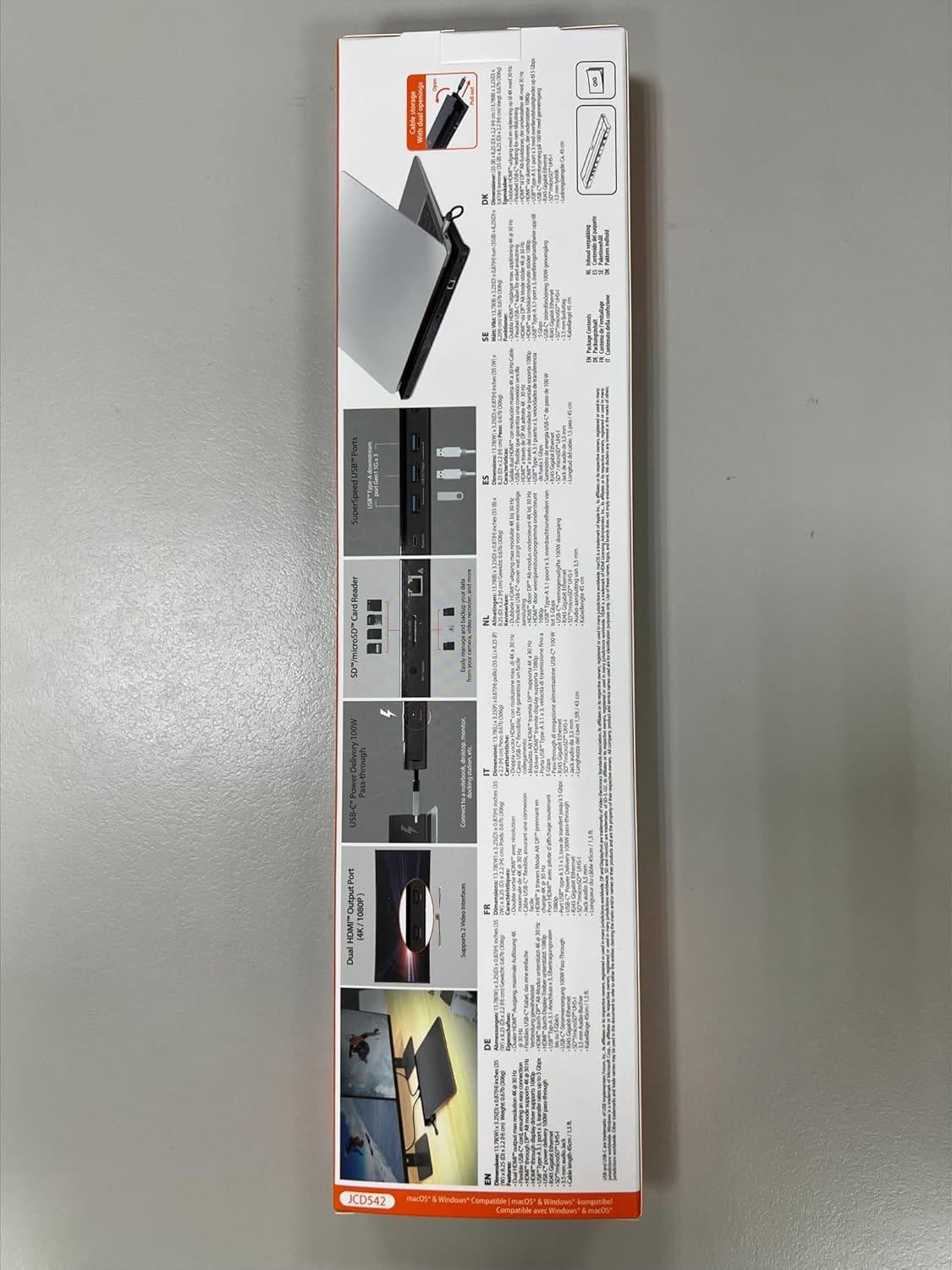
The JCD542 docking station features a comprehensive array of ports to enhance your workstation. Refer to the images below for a visual guide to the port layout.

画像1: トップダウン view of the j5create JCD542 USB-C Dual HDMI Docking Station, showcasin洗練されたデザインとさまざまなポートを備えています。

Image 2: Diagram illustrating the 10 available ports on the j5create JCD542 docking station, including USB-C Power In, USB 3.0, Mic/Speaker, SD/microSD, Gigabit Ethernet, 4K HDMI, HDMI, and Security Slot.
- USB-C ホストコネクタ: ノートパソコンの USB-C ポートに接続します。
- USB-C Power In (PD 3.0): Supports up to 100W Power Delivery for charging your laptop.
- HDMI 1(4K): Connects to a display for up to 4K (3840 x 2160) resolution.
- HDMI 2: Connects to a display for up to 2K (2048 x 1152) or 1080p resolution.
- USB 3.0 (5Gbps) x3: Connects to USB peripherals such as keyboards, mice, or external drives.
- RJ45 ギガビット イーサネット: 安定した有線ネットワーク接続を提供します。
- SDカードリーダー: 標準 SD メモリ カードの読み取り用。
- microSDカードリーダー: microSD メモリ カードの読み取り用。
- Combo Audio Jack (Mic/Speaker): Connects to headphones or speakers with a microphone.
- セキュリティロックスロット: 盗難防止用のセキュリティケーブルを取り付けます。
3. セットアップ
3.1 システム要件
- Available USB-C port with DisplayPort Alternate Mode (Alt Mode) support.
- Windows 10 / 8.1 / 7 or macOS X 10.8 or later (macOS 11 & 12 supported).
- For Mac users, driver installation is required for display functionality. Please visit the j5create web最新のドライバーのサイト。
- For Power Delivery, your laptop must support USB-C Power Delivery.
3.2 ドッキングステーションの接続
- Connect the integrated USB-C host cable from the docking station to an available USB-C port on your laptop.
- If you wish to charge your laptop via the docking station, connect your laptop's USB-C power adapter to the USB-C Power In port on the docking station.
- HDMI ケーブルを使用して、外部モニターをドッキング ステーションの HDMI ポートに接続します。
- Connect any USB peripherals (keyboard, mouse, external hard drive) to the USB 3.0 ports.
- For a wired network connection, connect an Ethernet cable from your router/modem to the RJ45 Gigabit Ethernet port.
- Insert SD or microSD cards into the respective card reader slots if needed.
- Connect headphones or speakers to the Combo Audio Jack.

Image 3: A laptop connected to the j5create JCD542 docking station via its integrated USB-C cable, demonstrating a typical setup.

Image 4: Illustration showing compatibility with both Windows and Mac operating systems, highlighting the need for driver installation for Mac users.
4. 操作手順
4.1 デュアルディスプレイ構成
The docking station supports extending your laptop's display to two external monitors. One HDMI port supports up to 4K (3840 x 2160) resolution, and the other supports up to 2K (2048 x 1152) or 1080p. You can also use your laptop screen for a total of three displays.

Image 5: A workstation demonstrating a dual-monitor setup connected via the j5create JCD542 docking station, enhancing productivity.
After connecting your monitors, you may need to configure display settings in your operating system (Windows Display Settings or macOS System Preferences > Displays) to extend or mirror your desktop.
4.2 電力供給
The USB-C Power In port allows you to charge your laptop while using the docking station, supporting up to 100W Power Delivery. Ensure your laptop's original power adapter is connected to this port for charging.

Image 6: A USB-C power cable connected to the 'Power In' port of the j5create JCD542 docking station, indicating support for up to 100W Power Delivery to the connected laptop.
4.3 Data Transfer and Peripherals
The three USB 3.0 ports provide SuperSpeed 5Gbps data transfer rates for connecting various USB peripherals. The RJ45 Gigabit Ethernet port ensures a reliable and fast wired internet connection, while the SD and microSD card readers allow for convenient access to memory card data.

画像7: クローズアップ view of the three SuperSpeed USB 3.0 ports on the j5create JCD542 docking station, with a USB device connected.

画像8: クローズアップ view of the RJ45 Gigabit Ethernet port on the j5create JCD542 docking station, showing an Ethernet cable connected for a stable network connection.

画像9: クローズアップ view of the SD and microSD card reader slots on the j5create JCD542 docking station, with a memory card being inserted.

画像10: クローズアップ view of the combo audio jack (Mic/Speaker) on the j5create JCD542 docking station, with a 3.5mm audio plug inserted.
画像11: クローズアップ view of the security lock slot on the j5create JCD542 docking station, showing a security cable being attached.
5. メンテナンス
ドッキング ステーションの寿命を延ばし、最適なパフォーマンスを確保するには、次のメンテナンス ガイドラインに従ってください。
- 柔らかく乾いた布で拭いてデバイスを清潔に保ちましょう。液体クリーナーや溶剤の使用は避けてください。
- デバイスを極端な温度、湿度、または直射日光にさらさないでください。
- 落としたり、強い衝撃を与えないでください。
- 過熱を防ぐために、ドッキング ステーションの周囲に適切な換気を確保してください。
6。 トラブルシューティング
If you encounter issues with your j5create JCD542 docking station, refer to the following common problems and solutions:
- ディスプレイ出力なし:
- ノートパソコンの USB-C ポートが DisplayPort Alt モードをサポートしていることを確認します。
- Verify that all HDMI cables are securely connected to both the docking station and the monitors.
- For Mac users, ensure the necessary display drivers are installed. Visit the j5create support webドライバーダウンロードのサイト。
- Check your operating system's display settings to ensure monitors are detected and configured correctly (extended or mirrored).
- ドッキング ステーションをラップトップから取り外して再度接続してみてください。
- ノートパソコンが充電されない:
- Confirm that your laptop supports USB-C Power Delivery.
- Ensure your laptop's original USB-C power adapter is connected to the USB-C Power In port on the docking station.
- Verify the power adapter is functioning correctly and connected to a power outlet.
- USB周辺機器が動作しない:
- ドッキング ステーションがラップトップに正しく接続されていることを確認します。
- 周辺機器をラップトップに直接接続して、機能することを確認してください。
- Test the peripheral in a different USB 3.0 port on the docking station.
- イーサネット経由のインターネット接続なし:
- イーサネット ケーブルがドッキング ステーションとルーター/モデムの両方にしっかりと接続されていることを確認します。
- Check your network settings in your operating system.
- ルーター/モデムが正しく機能していることを確認してください。
- ドッキングステーションが暖かくなる:
- It is normal for the docking station to generate some heat during operation, especially when multiple ports are in use or when charging a laptop. Ensure it has adequate ventilation and is not covered.
7. 仕様
| モデル番号 | JCD542 |
| 製品寸法 | 13.78 x 3.25 x 0.86 インチ (350 x 82.5 x 21.8 mm) |
| アイテム重量 | 14.3オンス(405グラム) |
| ホストインターフェース | USB-C |
| ビデオ出力 | 2 x HDMI (1x 4K, 1x 2K/1080p) |
| USBポート | USB 3.0(5Gbps)×3 |
| イーサネット | RJ45ギガビットイーサネット |
| カードリーダー | SD/マイクロSD |
| オーディオ | Combo Audio Jack (Mic/Speaker) |
| 電力供給 | Up to 100W via USB-C Power In port |
| 互換性 | Windows 10/8.1/7, macOS X 10.8 or later (macOS 11 & 12) |
8. 保証とサポート
j5create products are designed and manufactured with quality in mind. For warranty information and technical support, please refer to the official j5create webサイトにアクセスするか、カスタマーサービスにお問い合わせください。
メーカー: j5create
連絡先:
Kaijet Technology International BV
Address: Zomerdroom 20, 3068 MZ Rotterdam, Netherlands
Phone Number: +31 (0)6-2880 2882
メールアドレス: service@j5create.com
保証請求のために購入証明書を保管してください。