
MJJC GL-C-008P
GLEDOPTO Zigbee Pro RGBCCT LED Strip Controller User Manual
型式: GL-C-008P
Brand: MJJC
導入
This user manual provides comprehensive instructions for the GLEDOPTO Zigbee Pro RGBCCT LED Strip Controller (Model: GL-C-008P). This advanced controller is designed for use with Single Color, WW CW, RGB, RGBW, and RGBCCT LED strip lights, offering enhanced control and compatibility with various smart home ecosystems. Please read this manual thoroughly before installation and operation to ensure proper use and optimal performance.
製品の特徴
- Upgraded Zigbee Pro Version: Offers faster and more stable performance, allowing for smoother adjustments of color, color temperature, and brightness.
- 5-in-1 Controller: Compatible with Single Color, WW CW, RGB, RGBW, and RGBCCT LED Strip Lights, providing versatile lighting solutions.
- 幅広い互換性: Seamlessly integrates with popular smart home platforms such as Samsung SmartThings, Osram Lightify, Amazon Echo Plus, and Ikea Tradfri.
- Single ID Recognition: Functions as a 1ID controller, appearing as a single device in your application, similar to Philips Hue Light Strip Plus.
- Philips Hue App Integration: Fully integrates into the Philips Hue app for managing scenes, dimming controls, colors, and timers.
パッケージ内容
以下にリストされているすべてのアイテムがパッケージに含まれていることを確認してください。
- 1 x梱包箱
- 1 x GLEDOPTO Zigbee 3.0 RGB+CCT LED Controller (Model: GL-C-008P)
- 1×ユーザー取扱説明書
- 3cmステッカー1枚

Figure 1: Contents of the product package, including the controller, manual, and sticker.
仕様
| 属性 | 価値 |
|---|---|
| 製品名 | ZIGBEE RGB+CCT Strip Controller |
| モデル番号 | GL-C-008P |
| 巻tage | DC12V-24V |
| 出力電流/チャネル | 最大6A |
| 総出力電流 | 最大15A |
| 総パワー | マックス。 270W |
| 製品サイズ | 89 x 48 x 23.5 mm (3.5 x 1.89 x 0.93 インチ) |
| 動作温度 | -20 ~ +60°C |
| 接続プロトコル | ジグビー |
| 屋内/屋外での使用 | 屋内 |
| 耐水性レベル | 耐水性はありません |
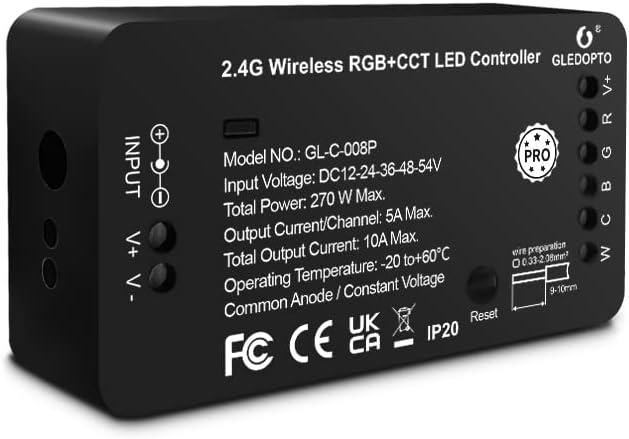
図2: 前面 view of the GLEDOPTO Zigbee Pro RGBCCT LED Controller, showing model number and input/output details.
セットアップ手順
Follow these steps to set up your GLEDOPTO Zigbee Pro RGBCCT LED Strip Controller:
- 光源に電力を供給する: Connect your LED strip product to the controller. Ensure the correct mode is selected if applicable. Use the press-type design for wiring; no screwing is required. Then, connect the controller to a suitable power adapter (DC12V-24V) and plug it into a power socket.
- Set Up Your WiFi Gateway: Plug in your Zigbee Light Link Gateway (e.g., Philips Hue Bridge). It will automatically power up. Connect it to your WiFi router using an Ethernet cable.
- Connect with Gateway (Device Searching):
- Start the device searching function on your Zigbee Light Link Gateway's application. This process may take some time.
- If the Gateway does not find the device, try power cycling the controller (unplug and plug back in) or perform a reset (refer to the Troubleshooting section for reset instructions).
- If issues persist, try restarting your router and gateway.
- Assign and Control: Once the Gateway finds your device, you can assign it to different rooms, zones, or groups within your smart home application. You can now use the application to control the LED strip, including color temperature and brightness.

Figure 3: Wiring diagram for the GLEDOPTO controller, illustrating input and output connections.

Figure 4: Visual guide detailing the four main steps for controller setup, from power connection to app control.
操作手順
The GLEDOPTO Zigbee Pro RGBCCT LED Strip Controller offers flexible control options through compatible smart home applications and voice assistants.
アプリコントロール:
Utilize your smart home app (e.g., Philips Hue, SmartThings) to manage your LED strip lights. The app allows for:
- 色の変更: Access a palette of 16 million colors to set the perfect ambiance for any occasion.
- 色温度調整: Fine-tune the white light from warm white to cool white to suit your preference.
- 明るさコントロール: Dim or brighten your lights to the desired intensity.
- シーン管理: Create and activate custom lighting scenes for different moods or activities.
- タイマーとスケジュール: Set automated on/off times and schedules for your lights.
- Multiple DIY Scenes: Explore and create various personalized lighting scenarios.
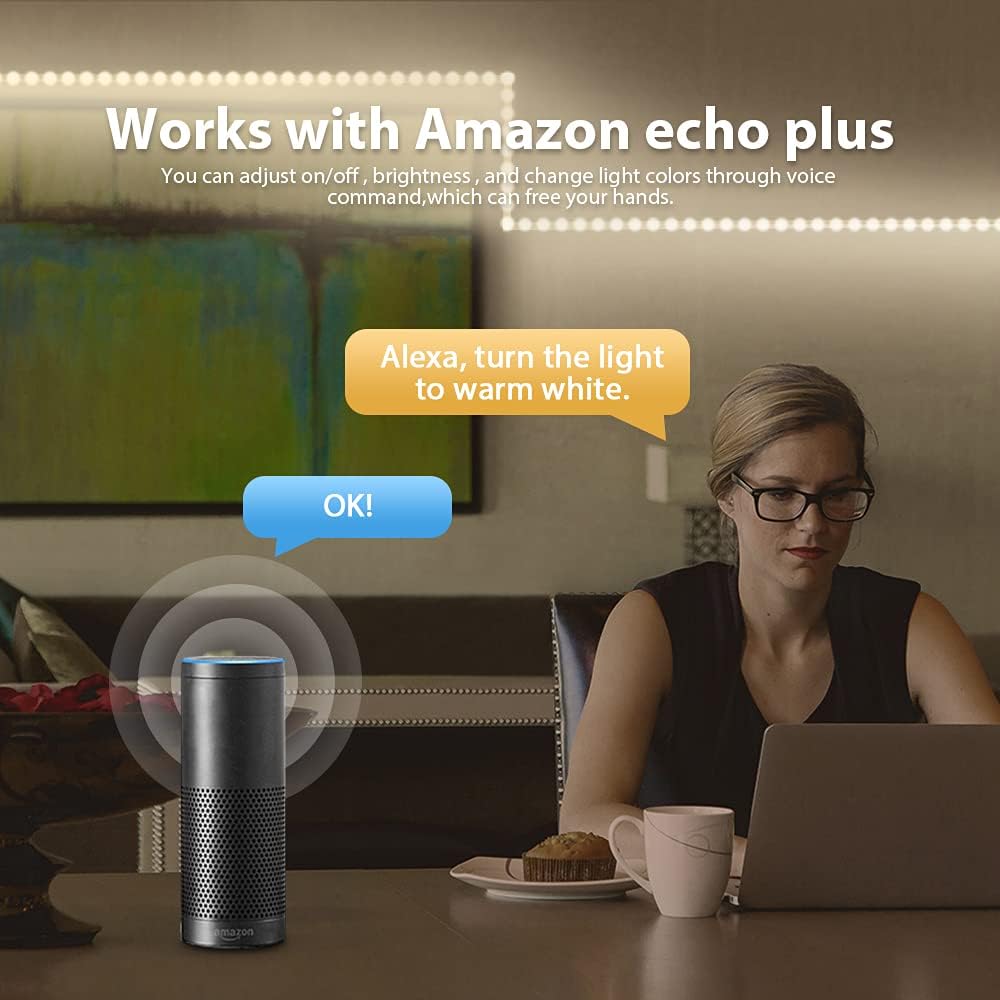
Figure 5: App interface demonstrating the wide range of 16 million colors available for selection.

Figure 6: App interface for adjusting the color temperature of the LED strip lights.
音声コントロール:
When connected to compatible voice assistants like Amazon Echo Plus, you can control your lights using simple voice commands. For example, say "Alexa, turn the light to warm white" to adjust the lighting hands-free.

Figure 7: Illustration of voice control functionality with Amazon Echo Plus.
製品デモンストレーションビデオ:
Video 1: A demonstration of the Gledopto Zigbee Pro Controller for RGBW RGBCCT LED Strip, showcasing its features and operation within a smart home environment.
メンテナンス
To ensure the longevity and optimal performance of your GLEDOPTO Zigbee Pro RGBCCT LED Strip Controller, follow these simple maintenance guidelines:
- Keep the controller in a dry environment, away from moisture and humidity.
- デバイスを極端な温度にさらさないでください。
- Clean the exterior of the controller with a soft, dry cloth. Do not use liquid cleaners or aerosols.
- 過熱を防ぐために、コントローラーの周囲に適切な換気を確保してください。
トラブルシューティング
If you encounter issues with your GLEDOPTO Zigbee Pro RGBCCT LED Strip Controller, refer to the following common solutions:
| 問題 | 考えられる原因 | 解決 |
|---|---|---|
| Gateway does not find the device. | Device not in pairing mode, network interference, or temporary glitch. |
|
| LED strip not responding after reset. | Improper reset procedure or continued network issue. |
|
リセット機能:
The controller features a reset button for easy troubleshooting and re-pairing:
- 短押し: Press the reset button once to turn the LED strip on or off.
- 長押し(>2秒): Press and hold the reset button for more than 2 seconds. The LED strip will blink 3 times, indicating that the reset is successful. This will reset the controller to factory defaults and put it into pairing mode.

Figure 8: Location and function of the reset button on the GLEDOPTO controller.
保証とサポート
Specific warranty information and detailed support contact details are not provided within this manual. For warranty claims, technical support, or further assistance, please refer to the product packaging, the seller's website, or contact the manufacturer directly through their official channels.
Ask a question about this manual
Ask about setup, troubleshooting, compatibility, parts, safety, or missing instructions. Manuals+ will review the question and use this page’s manual context to help answer it.