
導入
This manual provides comprehensive instructions for the setup, operation, and maintenance of your Logitech MX Master 3S Wireless Mouse. Please read this manual thoroughly to ensure proper use and to maximize the performance of your device.
The Logitech MX Master 3S is a high-performance wireless mouse designed for precision, comfort, and efficiency across multiple devices and operating systems. It features advanced tracking, quiet clicks, and ultra-fast scrolling capabilities.
製品終了view
The Logitech MX Master 3S mouse is engineered for advanced users, offering a blend of ergonomic design and cutting-edge technology.
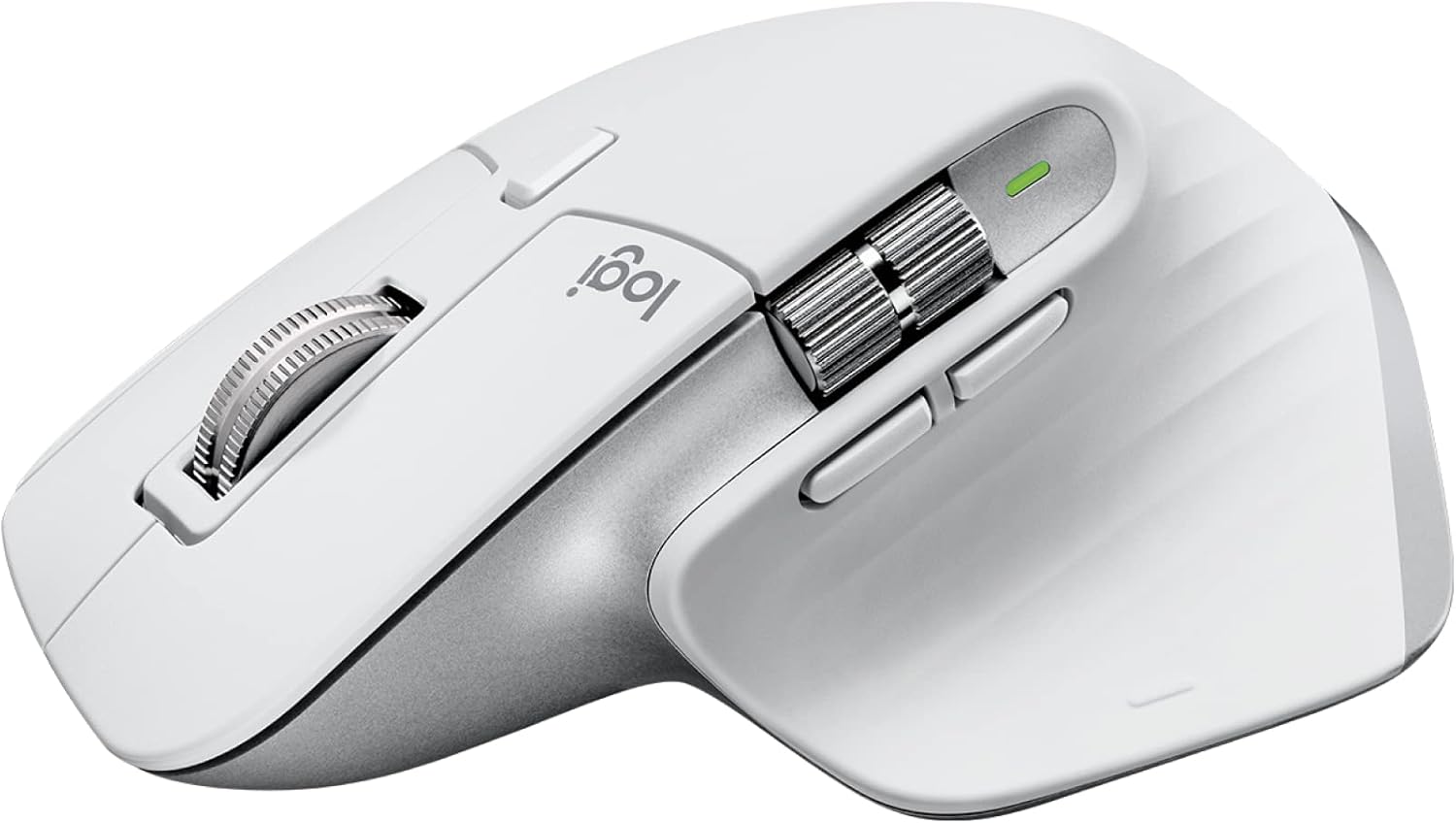
Image: Logitech MX Master 3S Wireless Mouse in Pale Grey, showcasin人間工学に基づいたデザインと複数のボタンを備えています。
主な特徴:
- 8K DPI あらゆる表面トラッキング: Precision tracking on virtually any surface, including glass.
- 静かなクリック音: Reduced click noise for a quieter work environment.
- MagSpeedスクロール: Ultra-fast and precise electromagnetic scrolling.
- 人間工学に基づいたデザイン: Sculpted shape for comfortable hand posture.
- カスタマイズ可能なボタン: Seven programmable buttons for enhanced workflow.
- FLOW Cross-Computer Control: Seamlessly switch between multiple computers and operating systems.
- マルチデバイス接続: Connects via Logi Bolt USB receiver or Bluetooth.
- 充電式バッテリー: Long-lasting Li-Po battery (500 mAh) with USB-C charging.
パッケージ内容:

Image: Contents of the MX Master 3S package, including the mouse, Logi Bolt USB receiver, and USB-C charging cable.
- ロジクール MX Master 3S ワイヤレスマウス
- Logi BoltUSBレシーバー
- USB-C充電ケーブル(USB-A - USB-C)
コンポーネントの識別:

Image: Labeled diagram showing the key components of the MX Master 3S mouse, including the Quiet Click buttons, MagSpeed wheel, Thumb wheel, 8K track-anywhere sensor, customizable buttons, and Easy Switch buttons. Also indicates compatibility with Windows, macOS, Chrome OS, Linux, iPadOS, Android, and connectivity options (USB receiver, Bluetooth).
- Quiet Click (Left/Right-click)
- MagSpeed Wheel (Main scroll wheel)
- Thumb Wheel (Horizontal scroll)
- 8K Track-Anywhere Sensor
- Customizable Buttons (Forward/Back, App-Switch, Middle click)
- Easy Switch Buttons (Bottom of mouse for device switching)
設定
1. 初期充電
Before first use, it is recommended to fully charge your MX Master 3S mouse. Connect the included USB-C charging cable to the mouse's USB-C port and the other end to a USB-A port on your computer or a USB power adapter.
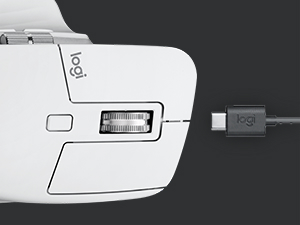
Image: Close-up of the MX Master 3S mouse with a USB-C cable connected for charging.
2. マウスの接続
The MX Master 3S offers two primary connection methods: Logi Bolt USB Receiver or Bluetooth.
Connecting via Logi Bolt USB Receiver:
- Insert the Logi Bolt USB receiver into an available USB-A port on your computer.
- 底面にある電源スイッチを使用してマウスの電源をオンにします。
- マウスは自動的にレシーバーに接続されます。マウスのLEDインジケーターが緑色に点灯します。
Bluetooth経由で接続する:
- 底面にある電源スイッチを使用してマウスの電源をオンにします。
- Press and hold one of the Easy-Switch buttons (1, 2, or 3) on the bottom of the mouse for three seconds until the LED indicator for that channel starts blinking rapidly. This indicates the mouse is in pairing mode.
- コンピューターまたはデバイスで、Bluetooth 設定を開きます。
- Select "MX Master 3S" from the list of available devices and follow the on-screen prompts to complete pairing.
- Once connected, the LED indicator will glow solid for 5 seconds.
3. Installing Logi Options+ Software (Recommended)
To unlock the full potential of your MX Master 3S, including button customization, application-specific settings, and FLOW cross-computer control, download and install the free Logi Options+ software from the official Logitech web地点 (www.logitech.com/optionsplus).

Image: A computer screen displaying the Logi Options+ application interface, showing options for customizing mouse buttons and creating app-specific profiles.
操作手順
MagSpeed Electromagnetic Scrolling
The MX Master 3S features a MagSpeed electromagnetic scroll wheel that offers two modes:
- ラチェットモード: 正確な行単位のスクロールが可能で、細かい作業に最適です。
- 超高速モード: Automatically switches to free-spinning mode for rapid scrolling through long documents or web pages. This mode can scroll 1,000 lines per second.

画像: クローズアップ view of the MagSpeed scroll wheel on the MX Master 3S mouse, highlighting its metallic finish and precision engineering.
You can manually switch between modes by pressing the mode-shift button located behind the scroll wheel, or configure it to switch automatically based on scrolling speed via Logi Options+.
静かなクリック音
The MX Master 3S is designed with Quiet Clicks, reducing audible click noise by 90% compared to previous models, providing a quieter user experience without compromising tactile feedback.

Image: A person working at a desk, using the MX Master 3S mouse, illustrating the quiet click feature in a typical office or home setting.
8K DPI Any-Surface Tracking
The advanced Darkfield High Precision sensor allows the MX Master 3S to track on virtually any surface, including glass (minimum 4mm thickness), with an 8000 DPI sensor for precise control.

Image: A hand operating the MX Master 3S mouse on a clear glass surface, demonstrating its ability to track on challenging materials.
Customizable Buttons and App-Specific Profiles
Utilize the Logi Options+ software to customize the seven programmable buttons (Left/Right-click, Back/Forward, App-Switch, Wheel mode-shift, Middle click) to perform specific actions or shortcuts. You can also create application-specific profiles, allowing the mouse buttons to behave differently depending on the active application.
FLOW Cross-Computer Control
Logitech FLOW enables seamless control of multiple computers with a single MX Master 3S mouse. You can move your cursor, text, and files between up to three computers, even across different operating systems (Windows and macOS), by simply moving your cursor to the edge of the screen. This feature requires Logi Options+ to be installed on all connected computers.

Image: A setup showing a laptop and a desktop monitor, with an arrow indicating the seamless transfer of cursor, text, and files between them using Logitech FLOW.
マルチデバイス切り替え
The Easy-Switch buttons on the bottom of the mouse allow you to quickly switch between up to three paired devices (via Logi Bolt or Bluetooth) with a single press.
メンテナンス
マウスのクリーニング
To maintain optimal performance and hygiene, regularly clean your MX Master 3S mouse:
- 柔らかく糸くずの出ない布で軽く拭き取ってください。amp水またはアルコールベースのクリーナー(イソプロピルアルコールなど)で拭いてください。
- 刺激の強い化学薬品、研磨材、過度の湿気を避けてください。
- 手が頻繁に接触する部分に注意しながら、マウスの表面を優しく拭いてください。
- For the optical sensor, use a dry cotton swab or compressed air to remove any dust or debris.
バッテリーケア
The MX Master 3S uses a rechargeable Li-Po battery. Follow these guidelines for optimal battery life:
- 付属の USB-C ケーブルを使用してマウスを充電します。
- バッテリーの性能に影響を与える可能性があるため、極端な温度を避けてください。
- マウスを長期間保管する場合は、保管前に約 50% まで充電してください。
トラブルシューティング
| 問題 | 考えられる解決策 |
|---|---|
| マウスが応答しないか接続されません。 |
|
| カーソルの動きが不規則または不正確です。 |
|
| MagSpeed scrolling not working as expected. |
|
| Custom buttons not functioning. |
|
仕様
| 特徴 | 詳細 |
|---|---|
| モデル番号 | 910-006558 |
| 寸法(長さx幅x高さ) | 4.9 x 3.3 x 2.0 インチ (124.9 x 84.3 x 51 mm) |
| 重さ | 4.97オンス(141グラム) |
| センサー技術 | 暗視野高精度 |
| DPI範囲 | 200~8000 DPI(50 DPI単位で調整可能) |
| ボタン | 7 ボタン (左/右クリック、戻る/進む、アプリ スイッチ、ホイール モード シフト、中クリック) |
| スクロールホイール | MagSpeed electromagnetic scroll wheel, Thumbwheel |
| ワイヤレス動作距離 | 最大33フィート(10メートル) |
| 電池のタイプ | 充電式リチウムポリマー(500mAh) |
| バッテリー寿命 | Up to 70 days on a single full charge (may vary based on usage) |
| 接続性 | Logi Bolt USB レシーバー、Bluetooth Low Energy テクノロジー |
| 互換性 | Windows、macOS、Linux、Chrome OS、iPadOS、Android |
| リサイクルプラスチック含有量 | 27% certified post-consumer recycled plastic (Graphite and Black models) |
保証とサポート
For detailed warranty information and technical support, please refer to the official Logitech support website or contact Logitech customer service directly.
Logitechサポート Webサイト: support.logi.com
保証請求のために購入証明書を保管してください。