
1. はじめに
The Kensington W2000 1080P Auto Focus Webcam is designed to provide high-quality video and clear audio for video conferencing and online communication. This manual provides instructions for setting up, operating, and maintaining your webcam, along with detailed specifications and troubleshooting tips.

Figure 1: Kensington W2000 1080P Auto Focus Webカム
2. パッケージ内容
パッケージにすべてのアイテムが含まれていることを確認します。
- Kensington W2000 Webカム
- USB-C - USB-A アダプタ
3. セットアップ
3.1 物理的な配置
の webcam features an adjustable clip that allows for secure mounting on various displays or placement on a flat surface. It also includes a universal tripod mount for alternative positioning.
- モニター上: クリップを開いて webcam on top of your monitor, ensuring the front of the webcam faces you. Adjust the clip to securely grip the back of the monitor.
- 平面上: クリップを折り曲げて安定したスタンドを作り、 web机や棚の上にカメラを設置します。
- 三脚取り付け: 添付 webcam to a standard tripod using the integrated tripod mount on the bottom of the clip.

図2: Webモニターに取り付けられたカメラ
3.2 接続
The Kensington W2000 Webcam connects to your computer via a USB cable. It supports both USB-A and USB-C ports.
- USBケーブルを webcam directly to an available USB port on your computer.
- If your computer only has USB-C ports, use the provided USB-C to USB-A adapter.
- の webcam はプラグアンドプレイであり、オペレーティング システムによって自動的に認識されるはずです。
4. 操作手順
4.1 基本操作
接続すると、 webcam is ready for use with most video conferencing applications (e.g., Zoom, Microsoft Teams, Google Meet). Select the Kensington W2000 as your video and audio input device within your application's settings.
4.2プライバシーシャッター
の webcam includes an integrated lens cover for privacy. Slide the cover to the left to expose the lens for use, and slide it to the right to cover the lens when not in use.

Figure 3: Integrated Privacy Shutter
4.3 手動調整
の webcam can be manually adjusted to achieve optimal camera angles:
- 垂直方向の調整: 傾ける webcam up or down by up to 37 degrees.
- 水平調整: 回転する webcam horizontally by up to 360 degrees.

Figure 4: Manual Pan and Tilt
5. Software Control: Kensington Konnect
For advanced customization of your video settings, download and install the Kensington Konnect software. This software allows you to:
- Adjust focus settings.
- Utilize electronic pan, tilt, and 2x zoom (ePTZ) to optimize your video frame.
- Personalize video with various effects, mood, and lighting controls.
The Kensington Konnect software is compatible with popular platforms such as Microsoft Teams, Google Meet, and Zoom.
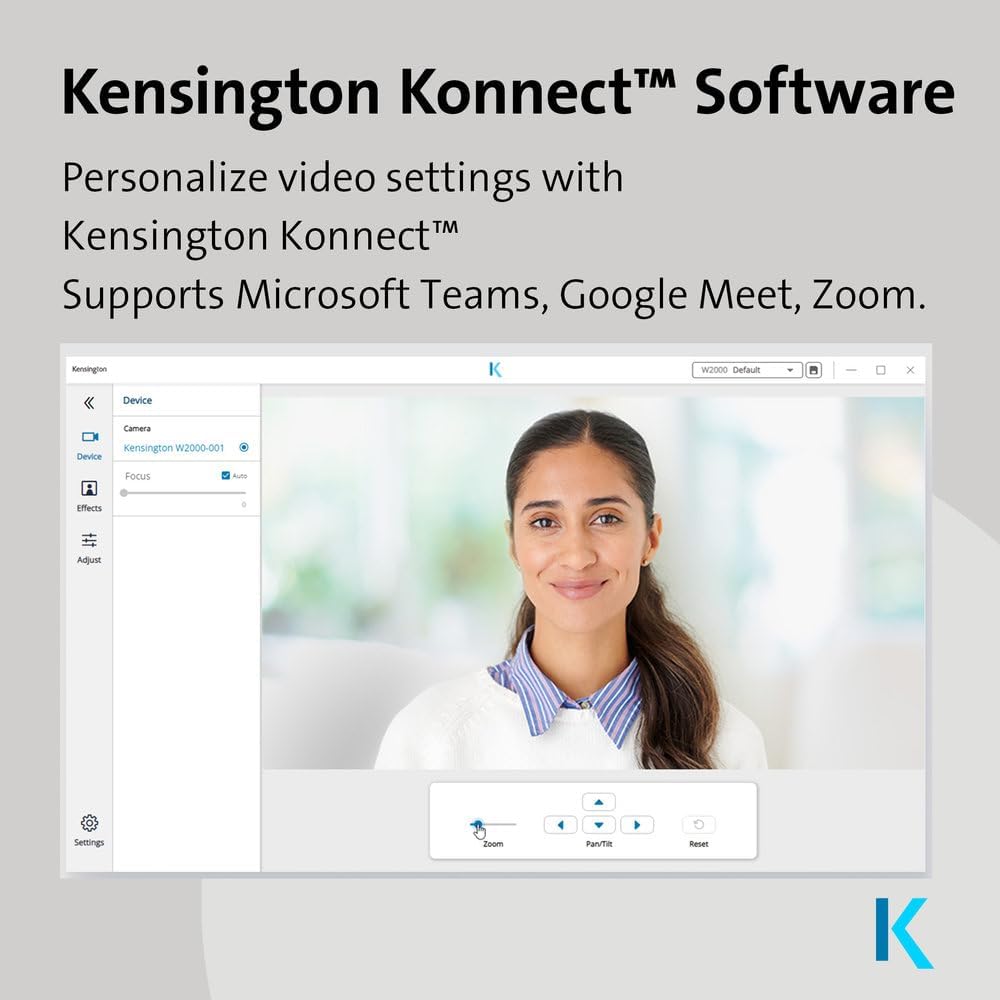
Figure 5: Kensington Konnect Software Interface
6. 主な特徴
- 高品質のビデオ: Delivers crisp 1080p video at 30 frames per second (1920x1080/30fps).
- Automatic Focus and Light Correction: Ensures clear and vibrant video quality, adapting to various lighting conditions.
- Privacy-Focused Field of View: A narrow 75-degree diagonal field of view is ideal for individual calls, minimizing background distractions.
- 一体型レンズカバー: Provides physical privacy control.
- Built-in Omni-directional Microphone: Features noise-reduction technology for clear audio capture.
- ユニバーサル互換性: Works with both USB-A and USB-C devices.

Figure 6: 1080p Video and Auto Focus

Figure 7: Privacy-Focused 75° Field of View
7. 仕様
| 特徴 | 仕様 |
|---|---|
| モデル番号 | K81175WW |
| 製品寸法 | 3.5 x 2.13 x 1.93インチ |
| アイテム重量 | 10.6オンス |
| ビデオキャプチャ解像度 | 1080p (1920x1080) 30fps |
| フォトセンサー技術 | シーモス |
| 最大焦点距離 | 4 |
| 最大絞り | 2.4 倍 |
| 分野 View | 75°対角 |
| マイクロフォン | Built-in Omni-directional with Noise Reduction |
| 接続技術 | USB-A、USB-C(アダプター経由) |
| ビデオキャプチャフォーマット | MP4 |
| サポートされているオーディオ形式 | MP3 |
8. メンテナンス
最適なパフォーマンスと長寿命を確保するには、 webカム:
- レンズの掃除: 柔らかく糸くずの出ない布でレンズを優しく拭いてください。刺激の強い化学薬品や研磨剤の使用は避けてください。
- 本体のクリーニング: 柔らかく乾いた布で拭いてください。 webカムの外観。
- ストレージ: 使用しないときは、 webcam in a clean, dry environment. Utilize the integrated privacy shutter to protect the lens.
9。 トラブルシューティング
If you encounter issues with your Kensington W2000 Webcam, consider the following:
- ビデオ/オーディオなし:
- USBケーブルが両方のコンピュータにしっかりと接続されていることを確認してください。 webカメラとコンピューター。
- 確認する webcam is selected as the primary video and audio device in your operating system's settings and within your video conferencing application.
- Check if the privacy shutter is open.
- 接続してみてください webcam to a different USB port or another computer to rule out port or system issues.
- ビデオ品質が悪い:
- 環境内に十分な照明があることを確認してください。
- 掃除する webカメラのレンズを柔らかい布で拭いてください。
- If using the Kensington Konnect software, check and adjust video settings such as brightness, contrast, and focus.
- マイクの問題:
- 確認する webcam's microphone is selected as the input device in your system and application settings.
- Ensure the microphone is not muted in your system or application.
10. 保証とサポート
Kensington stands behind the W2000 Webcam with a 2年間保証. For technical support, driver downloads, or further assistance, please visit the official Kensington support webサイト。