
1.製品オーバーview
The GreenLaw Surface Pro Keyboard is a versatile accessory designed for Microsoft Surface Pro 7+, 7, 6, 5, 4, and 3 models. It features a 7-color adjustable backlight, a responsive touchpad, and a reliable Bluetooth 5.1 wireless connection. This ultra-slim type cover enhances your tablet's functionality, providing a comfortable typing experience and precise navigation.
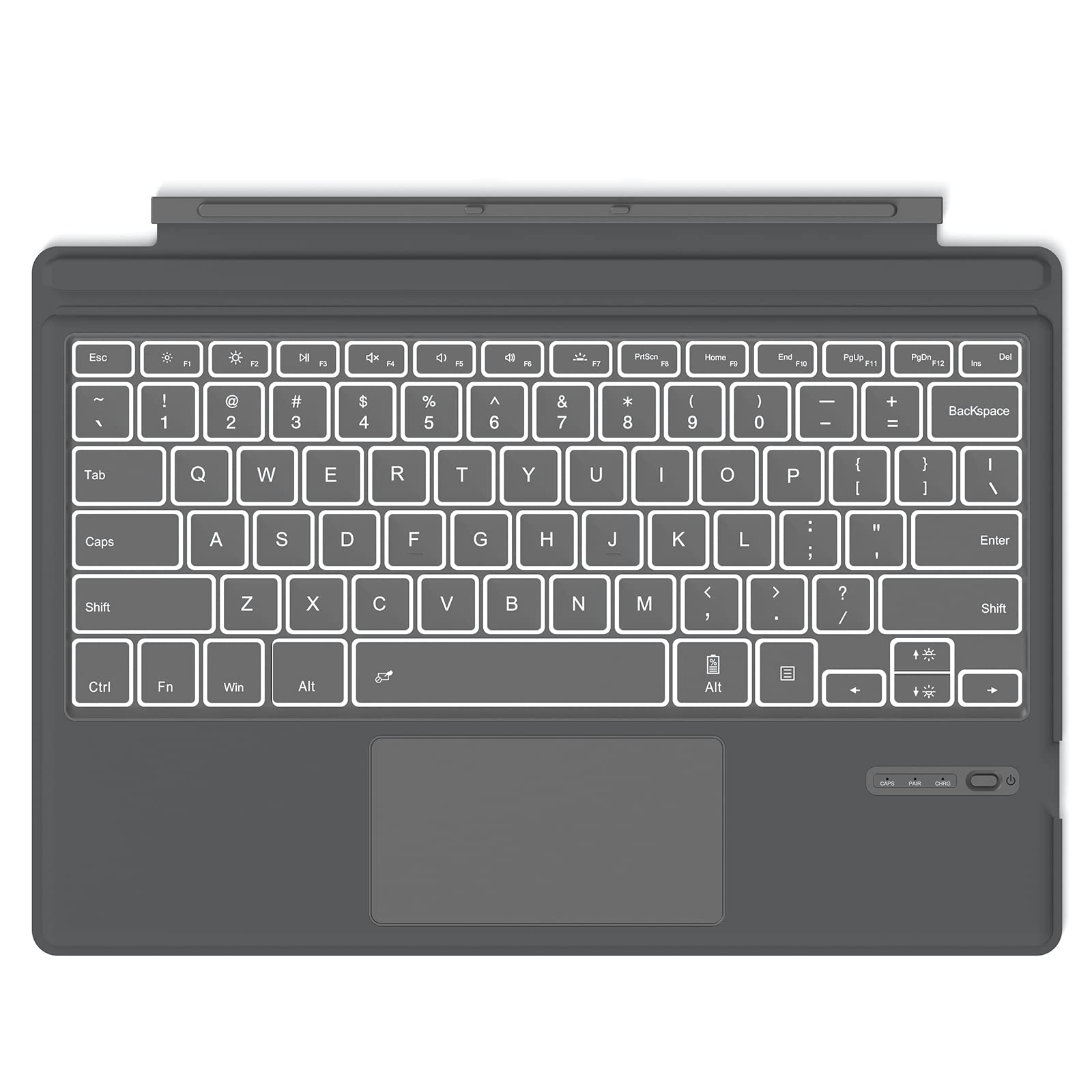
Image: The GreenLaw Surface Pro Keyboard in use, attached to a Surface Pro tablet, highlighting its integrated design and backlit keys.
2. セットアップ手順
2.1 キーボードの充電
Before initial use, fully charge the keyboard. Connect the provided Type-C charging cable to the keyboard's charging port and a USB power source. The charging indicator light will show the charging status.

画像: クローズアップ view of the keyboard's Type-C charging port, illustrating how to connect the charging cable.
2.2Bluetoothペアリング
- キーボードが充電され、電源がオンになっていることを確認します。
- Surface Proで、 設定 > デバイス > Bluetoothとその他のデバイス.
- Bluetoothをオンにします。
- キーボードで、 Fn+C keys simultaneously to enter pairing mode. The Bluetooth indicator light will flash.
- Surface Proで、 Bluetoothまたはその他のデバイスを追加する > ブルートゥース.
- 利用可能なデバイスのリストから「GreenLaw Keyboard」(または同様の名前)を選択します。
- 画面の指示に従ってペアリングを完了してください。ペアリングが成功すると、キーボードのインジケーターライトの点滅が停止します。
Once paired, the keyboard will automatically connect to your Surface Pro when powered on and within range.

Image: The keyboard magnetically attached to a Surface Pro, demonstrating its wireless connection capability.
3. 操作手順
3.1 バックライトコントロール
キーボードには、3 つの明るさレベルを調整できる 7 色のバックライトが搭載されています。
- To turn the backlight on/off: Press the Fn + 電球 鍵。
- バックライトの色を変更するには: Fn + RGB key (usually located near the right Ctrl key).
- 明るさを調整するには: Fn + 上矢印 or Fn +下矢印 キー。

Image: The keyboard's adjustable backlight feature demonstrated in a low-light setting, showing enhanced visibility.
3.2 タッチパッドの使用
The integrated touchpad supports multi-touch gestures for precise control and navigation.
- 一本指タップ: 左クリックします。
- 2本指タップ: 右クリック。
- 2本指スクロール: 上または下にスクロールします。
- ピンチしてズーム: 拡大または縮小します。

Image: A user's hands operating the large, responsive touchpad on the keyboard, illustrating ease of navigation.
3.3個のファンクションキー
The top row of keys provides quick access to various functions. Press the Fn key in combination with the F1-F12 keys to activate their secondary functions (e.g., media control, volume adjustment, screen brightness).

画像: 詳細な view of the keyboard's function keys, indicating their various shortcuts and controls.
3.4 省電力機能
キーボードは、バッテリー寿命を延ばすための省電力機能を備えて設計されています。
- The backlight automatically turns off after a few seconds of inactivity.
- キーボードは10分間操作しないとスリープモードになります。任意のキーを押してスリープを解除してください。
Video: An official GreenLaw video demonstrating the features and usage of the Surface Pro Keyboard Cover.
4. メンテナンス
4.1 クリーニング
- 柔らかく糸くずの出ない布で軽く拭き取ってください。ampened with water or a mild cleaning solution to wipe the keyboard surface.
- 強力な化学薬品、研磨剤、溶剤の使用は避けてください。
- キーボードにクリーナーを直接スプレーしないでください。
4.2 ストレージ
When not in use, store the keyboard in a cool, dry place away from direct sunlight and extreme temperatures. Ensure it is not exposed to excessive dust or moisture.
5。 トラブルシューティング
5.1 キーボードが Bluetooth 経由で接続されない
- キーボードが充電され、電源がオンになっていることを確認します。
- Surface Pro で Bluetooth が有効になっていることを確認します。
- キーボードをペアリングモードにします (Fn + C)。
- If previously paired, try unpairing and re-pairing the keyboard from your Surface Pro's Bluetooth settings.
- Surface Pro とキーボードの両方を再起動します。
5.2 バックライトが機能しない
- キーボードのバッテリー残量が十分であることを確認してください。
- Press Fn + Light Bulb key to toggle the backlight.
- Fn + 上/下矢印キーを使用して明るさを調整します。
5.3 タッチパッドの問題
- Ensure the touchpad is not disabled (check for a dedicated touchpad toggle key or function key combination).
- タッチパッドの表面を清掃して、汚れやゴミを取り除きます。
- キーボードと Surface Pro を再起動します。
5.4 キーが反応しない
- バッテリーレベルを確認し、必要に応じて充電してください。
- キーボードが Bluetooth 経由で正しく接続されていることを確認します。
- キーボードと Surface Pro を再起動します。
6. 仕様
| 特徴 | 詳細 |
|---|---|
| ブランド | グリーンロー |
| 対応デバイス | Surface Pro 7/7+/6/5/4/3 |
| 接続技術 | ブルートゥース |
| キーボードの説明 | 無線 |
| 特集 | 磁気 |
| 色 | グレー |
| キーボードバックライト | 7-Color, 3 Brightness Levels |
| 電源 | バッテリー駆動(Type-C充電式) |
| バッテリー寿命(約) | 50時間(バックライトなし)、5時間(バックライトあり) |
| ワイヤレス範囲 | 最大10メートル |
7. 保証情報
This GreenLaw product is covered by a limited warranty against defects in materials and workmanship. Please refer to the product packaging or the manufacturer's official web具体的な保証条件については、ウェブサイトをご覧ください。購入証明書として領収書を保管してください。
8. カスタマーサポート
For further assistance, technical support, or warranty claims, please contact GreenLaw customer service through the retailer where you purchased the product or visit the official GreenLaw web連絡先情報のサイト。