
1. はじめに
This manual provides essential information for setting up, operating, maintaining, and troubleshooting your Alienware X17 R1 Gaming Laptop. Please read this manual thoroughly to ensure optimal performance and longevity of your device.

Figure 1: Alienware X17 R1 Gaming Laptop
2. パッケージ内容
Ensure all items are present in your Alienware X17 R1 package:
- Alienware X17 R1 Notebook
- 電源アダプター
- 電源コード
- ユーザーマニュアル(このドキュメント)
3.製品オーバーview
3.1 設計と寸法
The Alienware X17 R1 features a sleek, thin design in Lunar Light (white) with Dark Side of the Moon (black) accents for the keyboard and deck. Its dimensions are approximately 11.79 x 15.72 x 0.82 inches (LxWxH) and it weighs around 7.05 pounds.

Figure 2: Alienware X17 R1 Side Profile
3.2 ポートとコネクタ
The Alienware X17 R1 is equipped with a comprehensive set of ports, primarily located at the rear for efficient cable management and thermal performance.
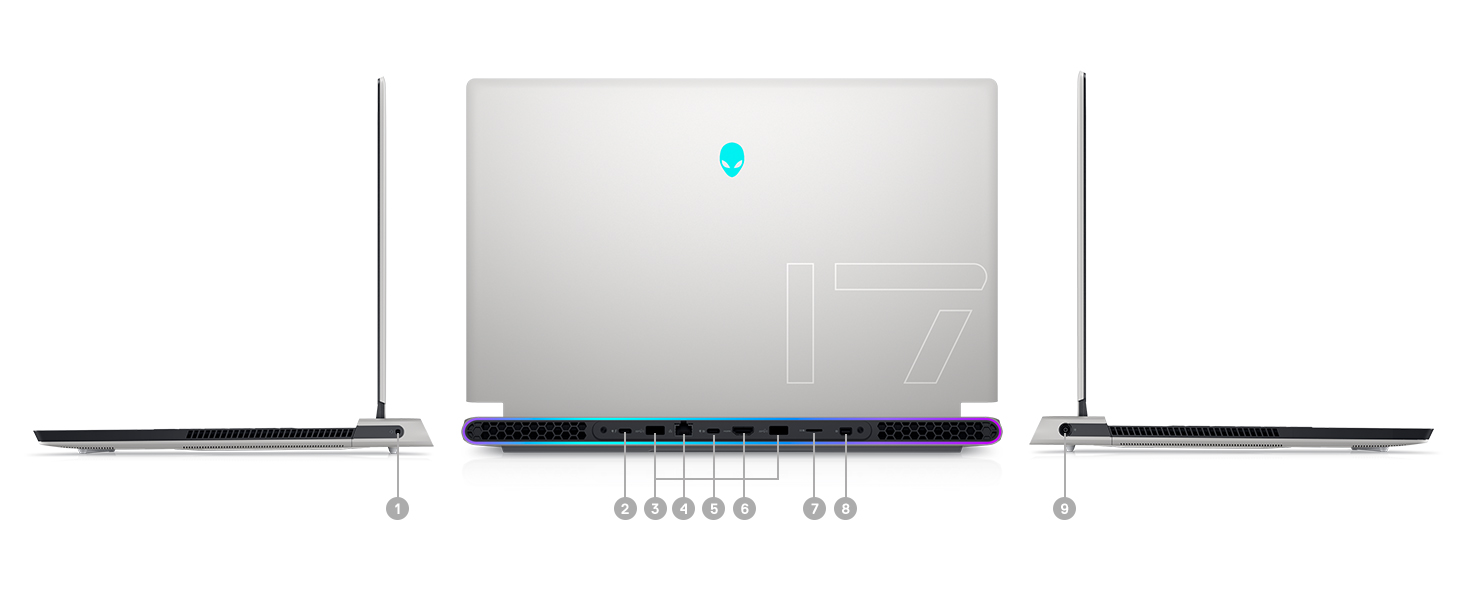
Figure 3: Rear Ports and Connectors
- Power/DC-in Port
- Mini Display Port 1.4
- HDMI 2.1 (for up to 4K/120Hz output)
- Type-C USB 3.2 Gen 2 Port with Power Delivery (5V/3A)
- Killer E3100 RJ-45 2.5G Ethernet
- マイクロSDカードリーダー
- USB 3.2 Gen 1 Type-A with Powershare
- Type-C Thunderbolt™ 4/USB 3.2 Gen 2 Port with Power Delivery (5V/3A)
- グローバルヘッドセットジャック
3.3 キーボードとタッチパッド
The laptop features an AlienFX keyboard with per-key RGB lighting and an AlienFX Lighting design supporting 16.8 million colors. The touchpad is glass, offering solid tracking and responsive gestures.

Figure 4: AlienFX Keyboard and Touchpad
3.4 ディスプレイ
The 17.3-inch Full HD (1920 x 1080) display boasts a 360Hz refresh rate and 1ms response time, enhanced with ComfortView Plus, NVIDIA G-SYNC, and Advanced Optimus for a smooth visual experience.

図5: 360Hzディスプレイ
3.5冷却システム
The Alienware X17 R1 incorporates advanced thermal management with its Cryo-Tech™ Technologies. This includes an exclusive Quad Fan design and Element 31, an encapsulated gallium-silicone thermal interface material, to ensure efficient heat dissipation during intensive use.

Figure 6: Cryo-Tech Cooling System
Video 1: Official Alienware X17 R1 Product Overview, highlighting key features including the cooling system.
4. セットアップ
4.1 初回電源投入
- Unpack your Alienware X17 R1 laptop and all accessories.
- 電源アダプターをノートパソコンの電源ポートに接続し、電源コンセントに接続します。
- Open the laptop lid and press the power button (Alienware head logo) to turn on the device.
- 画面上の指示に従って、Windows 11 のセットアップ プロセスを完了します。
4.2 周辺機器の接続
Utilize the various ports on the rear and sides of the laptop to connect external monitors, keyboards, mice, and other accessories. For optimal display performance, use the HDMI 2.1 or Mini Display Port 1.4 for external monitors.

Figure 7: Connecting External Peripherals
5. ノートパソコンの操作
5.1 電源管理
The Alienware X17 R1 offers tailored power states to optimize performance or battery life. These can be managed through the Alienware Command Center software:
- 静音モード: Reduces fan noise and power consumption.
- バランスモード: Offers a balance between performance and acoustics.
- フルスピードモード: Maximizes fan speed for peak performance.
- バッテリーセーバーモード: Optimizes settings for extended battery life.
- パフォーマンスモード: Prioritizes performance for demanding tasks.
5.2 Windows Hello
The laptop supports Windows Hello for secure and convenient login using facial recognition via the integrated webカム。
5.3 エイリアンウェア コマンドセンター
This software allows you to customize various aspects of your laptop, including RGB lighting, power profiles, and overclocking settings. It is recommended to keep the software updated for the best experience.

Figure 8: Alienware Command Center
6. メンテナンス
6.1 クリーニング
- 画面と外部の表面を清掃するには、柔らかく糸くずの出ない布を使用してください。
- 頑固な汚れには、軽くamp布に水または画面に安全なクリーナーを含ませます。
- 冷却性能に影響を及ぼす可能性のあるほこりの蓄積を防ぐために、定期的に通気口を掃除してください。
6.2ソフトウェアアップデート
Keep your operating system, drivers, and Alienware Command Center software updated to ensure optimal performance, security, and compatibility. Use the Alienware Update utility or visit the Dell support web最新のアップデートのサイト。
6.3 アップグレード可能なコンポーネント
The Alienware X17 R1 offers upgradable slots for memory and storage:
- 2 x RAM Slots (DDR4)
- 1 x M.2 PCIe Gen 4 SSD Slot
- 1 x M.2 PCIe Gen 3 SSD Slot
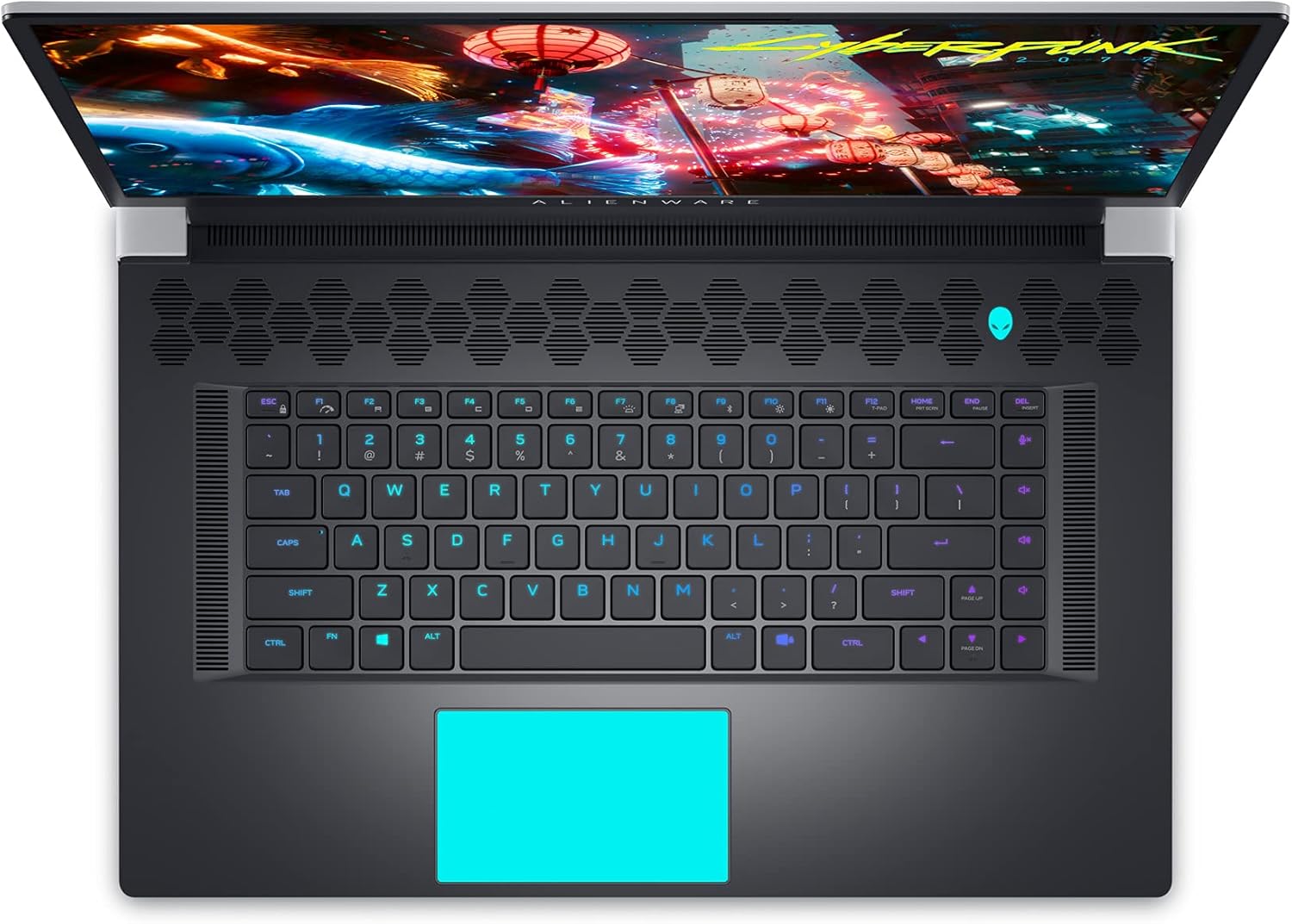
Figure 9: Internal Components and Upgradable Slots
7。 トラブルシューティング
If you encounter issues with your Alienware X17 R1, try the following basic troubleshooting steps:
- 電源なし: 電源アダプタがノートパソコンとコンセントの両方にしっかりと接続されていることを確認してください。別のコンセントを試してください。
- 表示の問題: If the screen is blank, try connecting an external monitor to verify if the issue is with the laptop's display or the graphics card. Update graphics drivers.
- パフォーマンスの遅れ: Check your power management settings in Alienware Command Center. Ensure all drivers are up to date. Monitor temperatures to prevent thermal throttling.
- 接続の問題: For Wi-Fi or Ethernet issues, restart your router and the laptop. Check network adapter drivers.
- ソフトウェアの不具合: Restart the application or the laptop. Ensure your operating system and applications are updated.
より高度なトラブルシューティングや継続的な問題については、Dellサポートを参照してください。 webサイトをご覧いただくか、カスタマーサービスにお問い合わせください。
8. 仕様
| 特徴 | 仕様 |
|---|---|
| モデル名 | エイリアンウェア x17 R1 |
| プロセッサ | 11th Generation Intel Core i7-11800H (8 Cores, up to 4.6 GHz) |
| ラム | 32 GB DDR4 3200MHz |
| ストレージ | 1 TB M.2 PCIe NVMe Solid State Drive |
| グラフィックカード | NVIDIA GeForce RTX 3080 16GB GDDR6 |
| 画面 | 17.3-inch FHD (1920 x 1080) 360Hz 1ms with ComfortView Plus, NVIDIA G-SYNC and Advanced Optimus |
| オペレーティング·システム | Windows 11 ホーム |
| ワイヤレス接続 | Killer AX 1675 + Bluetooth 5.2 |
| ポート | 3x USB 3.0, 2x Type-C (Thunderbolt 4/USB 3.2 Gen 2), HDMI 2.1, Mini DisplayPort 1.4, Ethernet, Micro SD, Headset Jack |
| アイテム重量 | 7.05ポンド |
| 製品寸法 | 11.79 x 15.72 x 0.82インチ |
| 色 | ルナライト(ホワイト) |
9. 保証とサポート
Your Alienware X17 R1 laptop is covered by Dell's standard warranty. For detailed warranty information, technical support, or service requests, please visit the official Dell support web公式サイトをご覧いただくか、カスタマーサービスまでお問い合わせください。より迅速なサポートをご希望の場合は、購入時のレシートと製品のシリアル番号をご用意ください。
デルサポート Webサイト: www.dell.com/support